Feature Summary
The Number field is suitable for specific data scenarios. The Number field automatically generates a unique number for each Record, supporting custom numbering rules and formats. It is suitable for scenarios requiring automatic numbering, such as task numbers and work order numbers.
Feature Description
| Feature Dimension | Description |
|---|---|
| Membership Restriction | No membership restriction |
| Version Restriction | No version restriction |
Operation Steps
Create a Number Field
Feature Entry
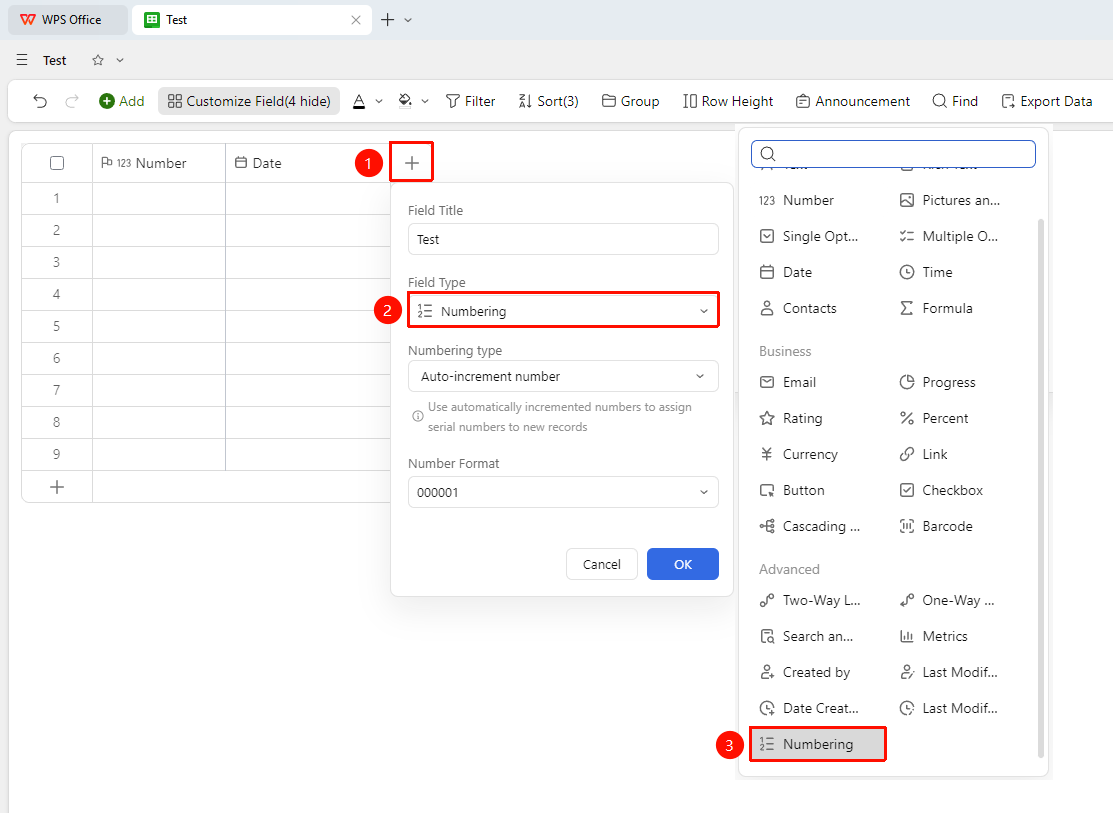
「+」 button on the right side of the header → Select the 「Number」 field type
- In the data table, click the 「Add Field」 button (+ sign) on the right side of the header.
- In the field type list, find and select the 「Number」 type.
- Enter the field name according to the prompt and click 「Confirm」 to create.
- After the field is created, fill in data in the cells according to the input method of this type.
Configure Number Type
Feature Entry
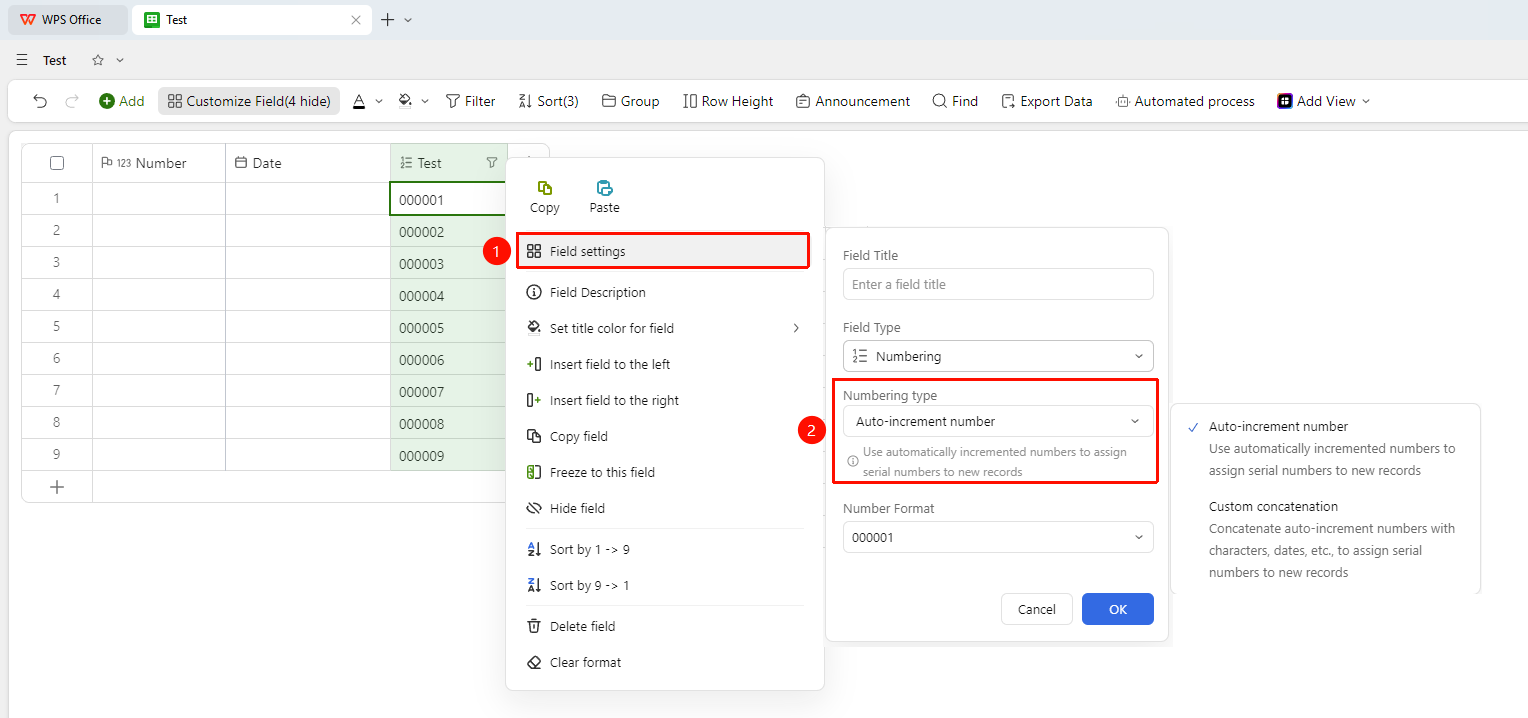
Right-click the field → 「Field Settings」 button → 「Number Type」 dropdown menu
- Right-click the field and select the 「Field Settings」 button.
- In the pop-up settings panel, click the 「Number Type」 dropdown menu.
- In the dropdown menu, you can select:
- Auto-increment Number type: Uses automatically incrementing numbers to assign a sequence number to new Records.
- Custom Concatenation type: Concatenates auto-increment numbers with characters, dates, etc., to assign a sequence number to new Records.
4.After selecting the number type and confirming, save the configuration.
FAQ
Q1: Can the Number field be changed to another type after creation?
- Solution: Yes. Select 「Field Type」 in the field settings, choose the new type, and confirm. Note: Data anomalies may occur when data formats are incompatible. It is recommended to back up the field data before modification.
Q2: Can the data in the Number field be used for filtering and grouping?
- Solution: Yes. Data from all field types supports filtering and grouping, and the Number field is also applicable, helping to quickly locate and classify Records from the data table.
Q3: How to ensure the Number field type is correct when importing from Excel?
- Solution: When importing an Excel file, the system will automatically identify and match field types. If the identification is inaccurate, you can manually modify the field type after import, or adjust the data format in Excel first and then re-import.
Notes
- After creating a field, it is recommended to carefully check whether the input method and format validation rules meet expectations.
- Modifying the field type may cause existing data formats to mismatch; please proceed with caution.
- The data in this field supports exporting to multiple file formats, facilitating external collaboration.