Feature Summary
The shortcut feature allows you to add frequently used AirSheets as shortcuts to your cloud documents, making it easy to quickly locate and open them next time, avoiding repeated searches across multiple documents.
Feature Description
| Feature Dimension | Description |
|---|---|
| Membership Restriction | No membership restriction |
| Version Restriction | No version restriction |
Operation Steps
Add AirSheet Shortcut
Feature Entry
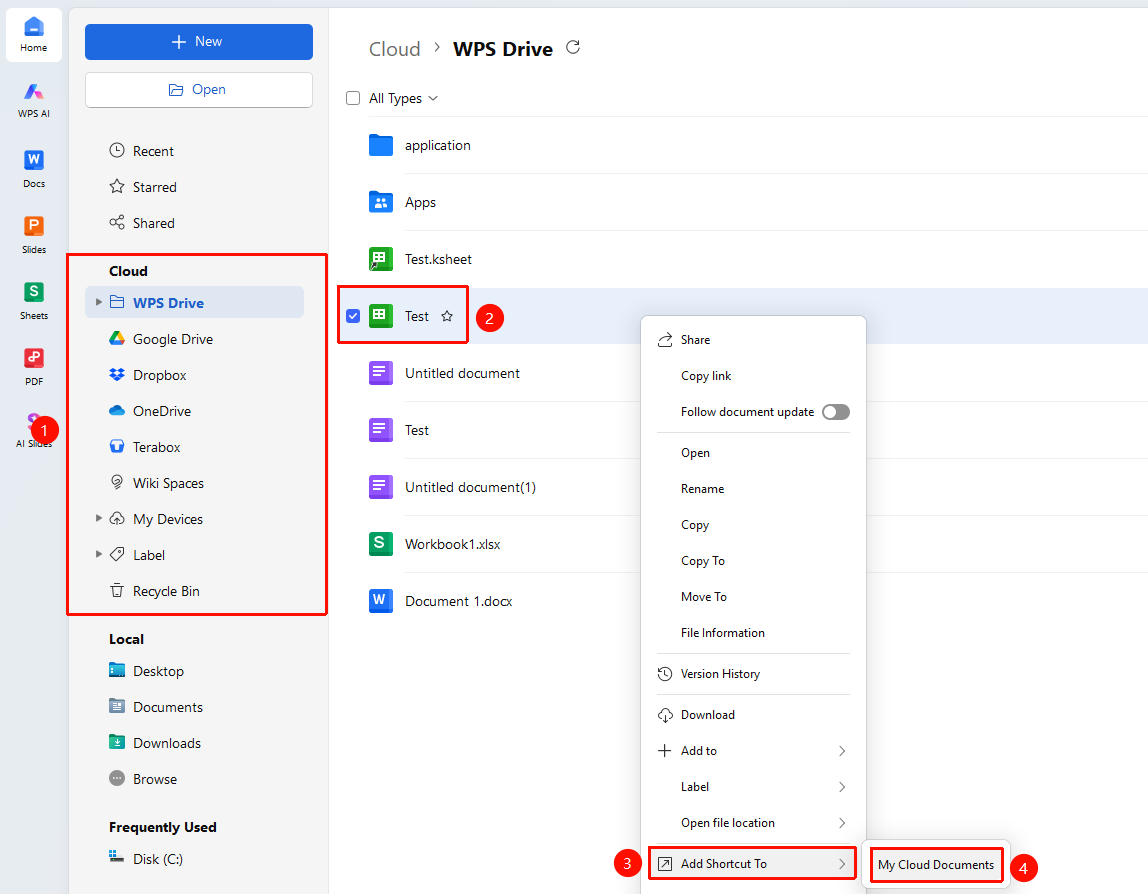
Cloud document list → Right-click file → "Add Shortcut"
- In the recent documents or cloud document list in the homepage, find the AirSheet you want to add a shortcut for
- Right-click the document, and select "Add Shortcut to" from the pop-up menu
- Select the folder where you want to add the shortcut: "Personal Space" / "Team Space", etc.
- The shortcut will be added to the target folder
- Click the shortcut to directly open the document
Add Shortcut from Within Document
Feature Entry
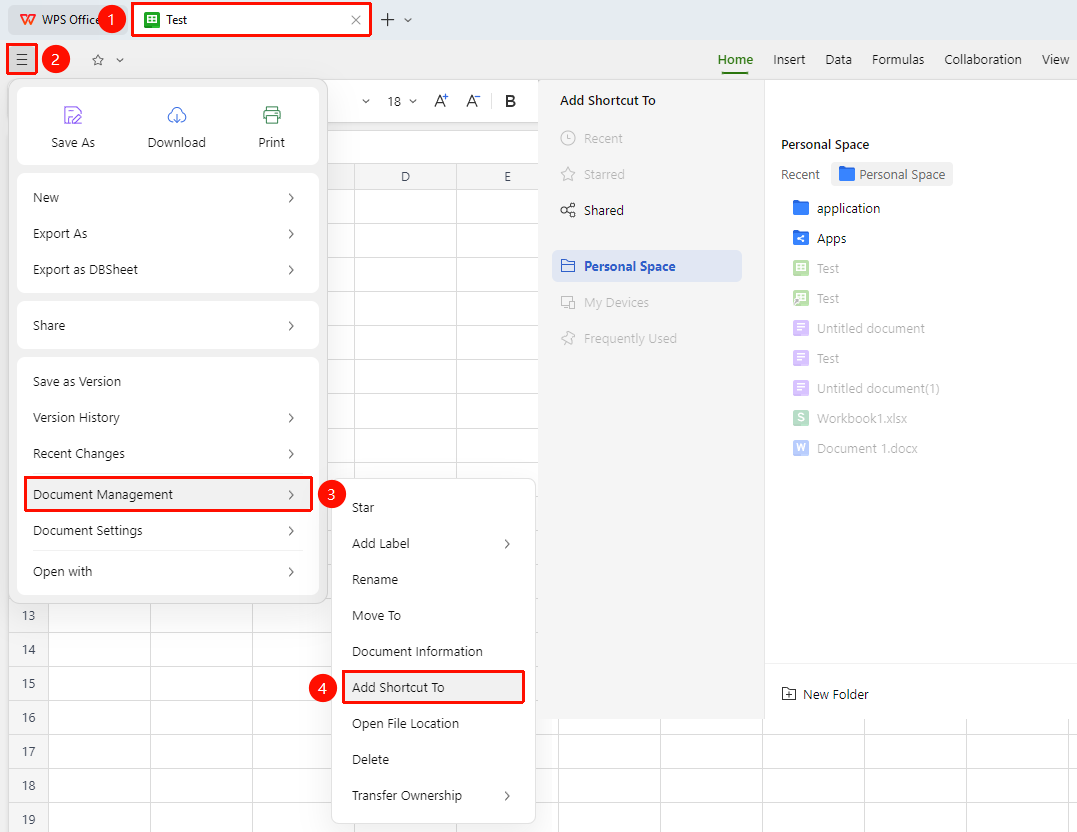
「File operations」 dropdown menu → "Document Management" → "Add Shortcut"
- Open the AirSheet document
- Next to the document name in the top title bar, click the 「File operations」 dropdown menu button
- Click "Document Management" → "Add Shortcut"
- Select the folder where you want to add the shortcut to complete the addition
Delete Shortcut
Feature Entry
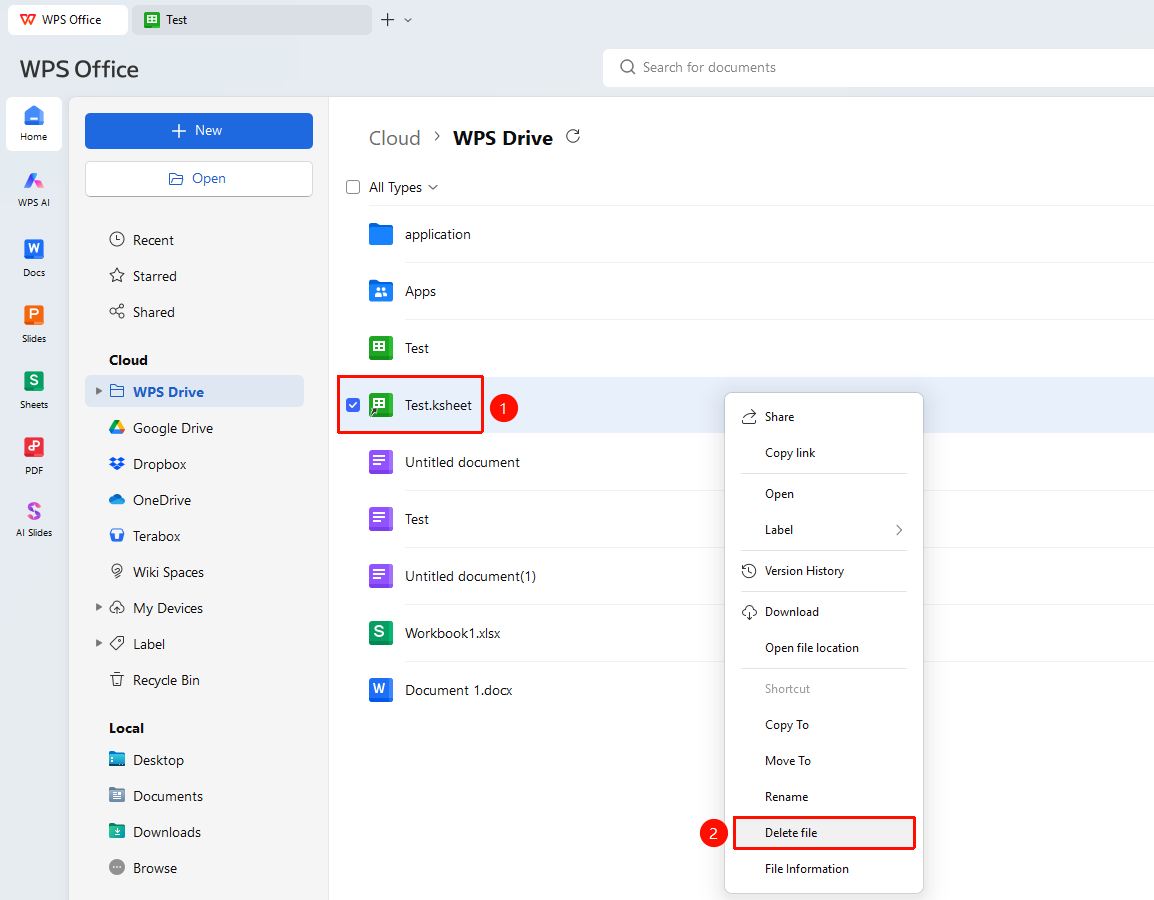
Right-click shortcut → "Delete file"
- Locate the added AirSheet shortcut within your cloud documents
- Right-click the shortcut you want to remove
- Select "Delete file"
- The shortcut will be removed, but the original file will not be deleted
FAQ
Q1: What is the difference between shortcuts and recent documents?
- Solution: Recent documents are automatically sorted by opening time and may be pushed out of the list by new documents. Shortcuts are manually added and will remain in the WPS Drive, ensuring important documents are always quickly accessible.
Q2: Does adding a shortcut affect the document content?
- Solution: No, it does not. A shortcut is merely an access entry point to the document. Adding or deleting a shortcut will not modify the content or structure of the document itself.
Q3: Is there a limit on the number of shortcuts?
- Solution: There is no strict limit on the number of shortcuts, but it is recommended to manage them reasonably to avoid reduced search efficiency due to excessive numbers. It is recommended to regularly clean up shortcuts that are no longer needed.
Notes
- After a document is deleted, its shortcut will become invalid
- It is recommended to add team shared documents to the Team Space simultaneously for convenient multi-person access
- Shortcut data is synchronized across different ports and available across devices