Feature Summary
Copy, paste, and cut are the most basic data operation features in AirSheet, supporting quick movement and copying of cell content and formatting. Combined with shortcuts, they can greatly improve data processing efficiency.
Feature Description
| Feature Dimension | Description |
|---|---|
| Membership Restriction | No membership restriction |
| Version Restriction | No version restriction |
Operation Steps
Right-Click Menu Copy
Feature Entry
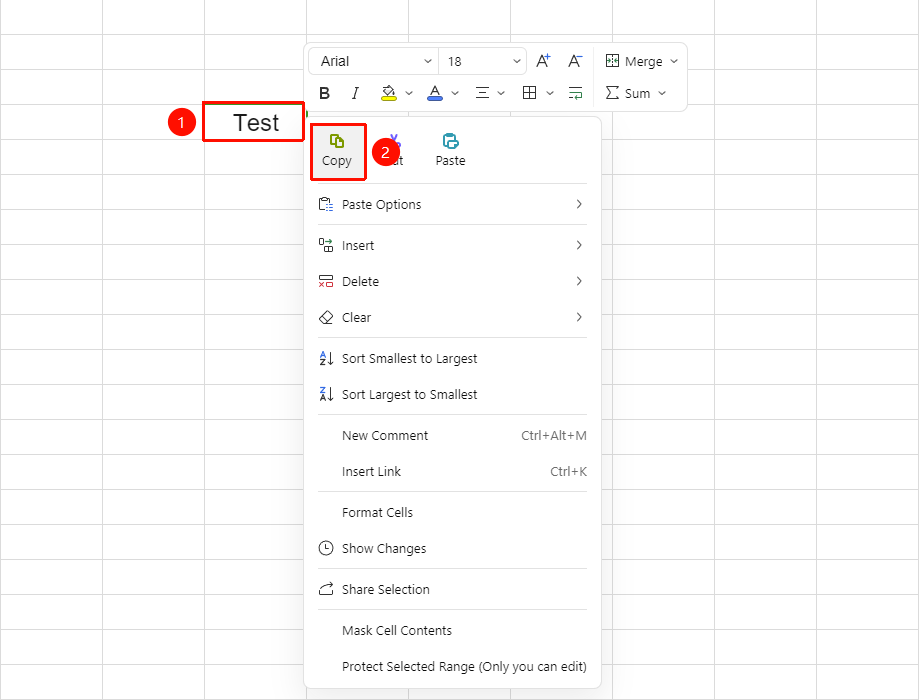
Right-click menu bar → "Copy" button
- Select the cell or text within the cell you want to copy
- Right-click to bring up the menu bar
- Click the "Copy" button in the menu bar
- A dashed selection box appears around the selected area, indicating the content has been copied to the clipboard
Copy as Image
Feature Entry
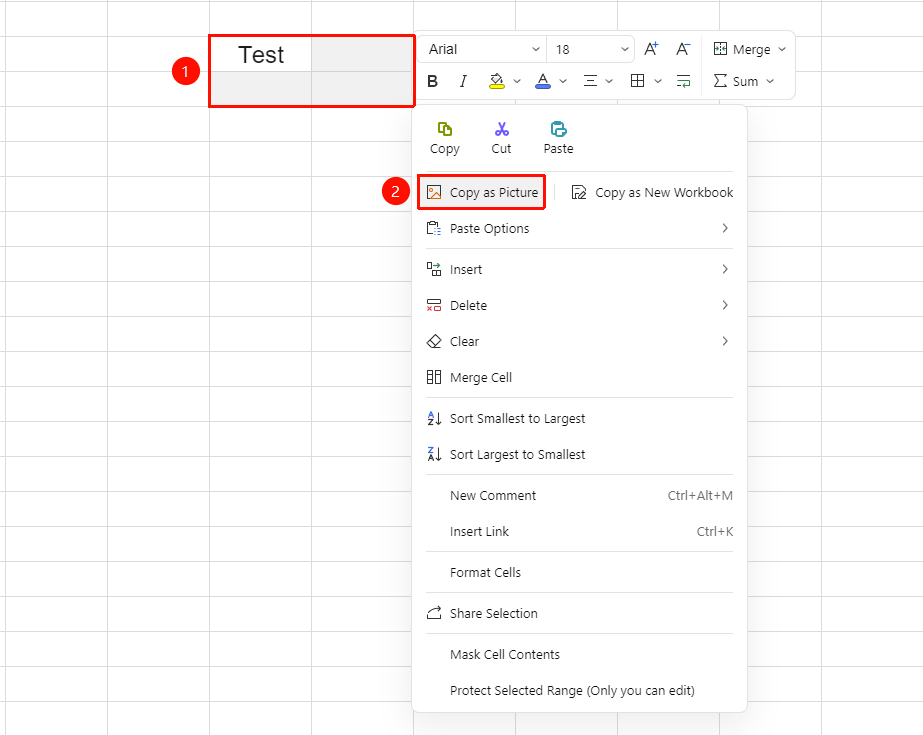
Right-click menu bar → "Copy as Image" button
- Select the cell or cell range you want to copy
- Right-click to bring up the menu bar
- Click the "Copy as Image" button in the menu bar
- The system will automatically copy the selected cell/range as an image format
Copy as New Sheet
Feature Entry
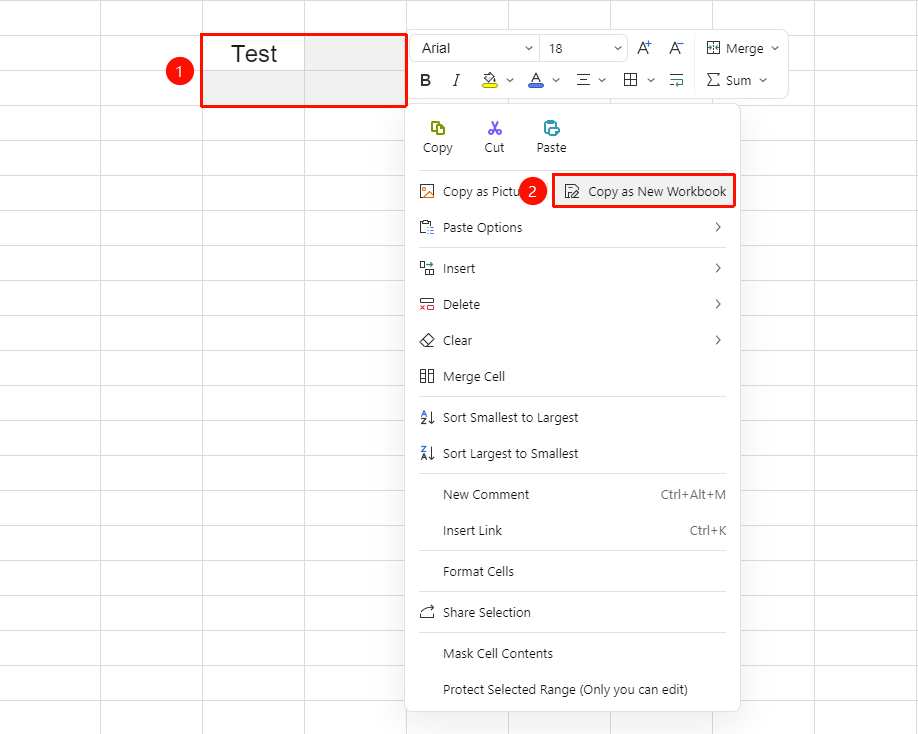
Right-click menu bar → "Copy as New Sheet" button
- Select the cell or cell range you want to copy
- Right-click to bring up the menu bar
- Click the "Copy as New Sheet" button in the menu bar
- The system will automatically create a new online sheet and paste the selected cell/range into this sheet
Right-Click Menu Cut
Feature Entry
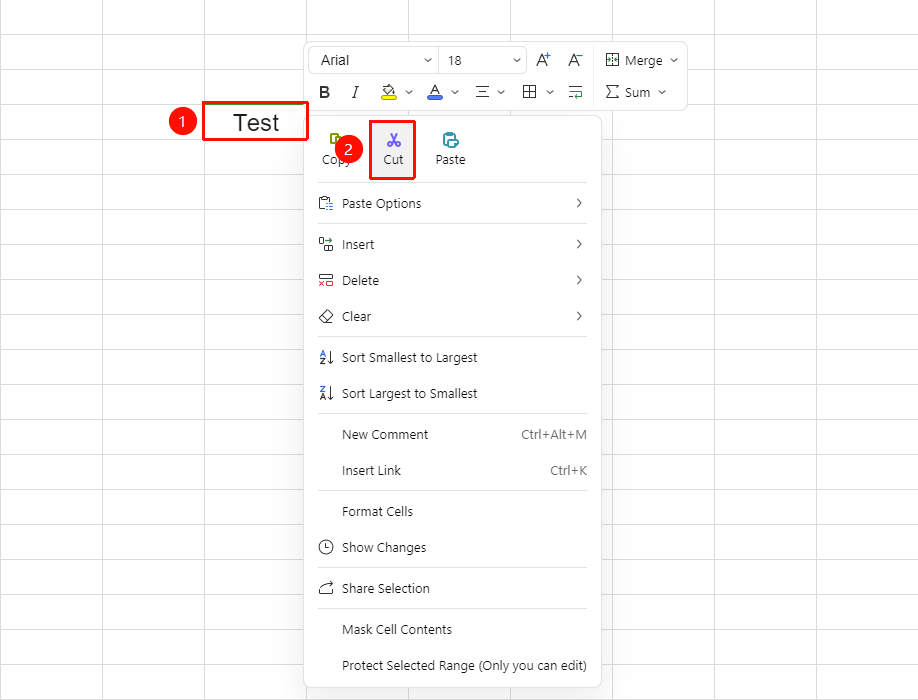
Right-click menu bar → "Cut" button
- Select the cell or text within the cell you want to move
- Right-click to bring up the menu bar
- Click the "Cut" button in the menu bar
- A dashed selection box appears around the selected area, indicating the content has been temporarily stored in the clipboard. After pasting, the content in the original cell will be deleted.
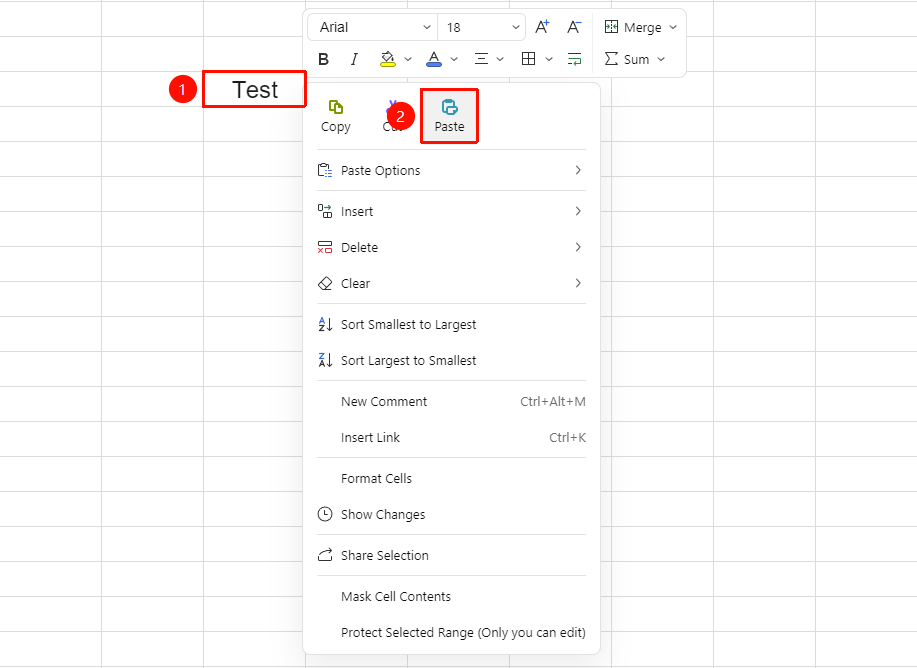
Right-Click Menu Paste
Feature Entry
Right-click menu bar → "Paste" button
- After copying or cutting content, click the target cell
- Right-click to bring up the menu bar
- Click the "Paste" button in the menu bar
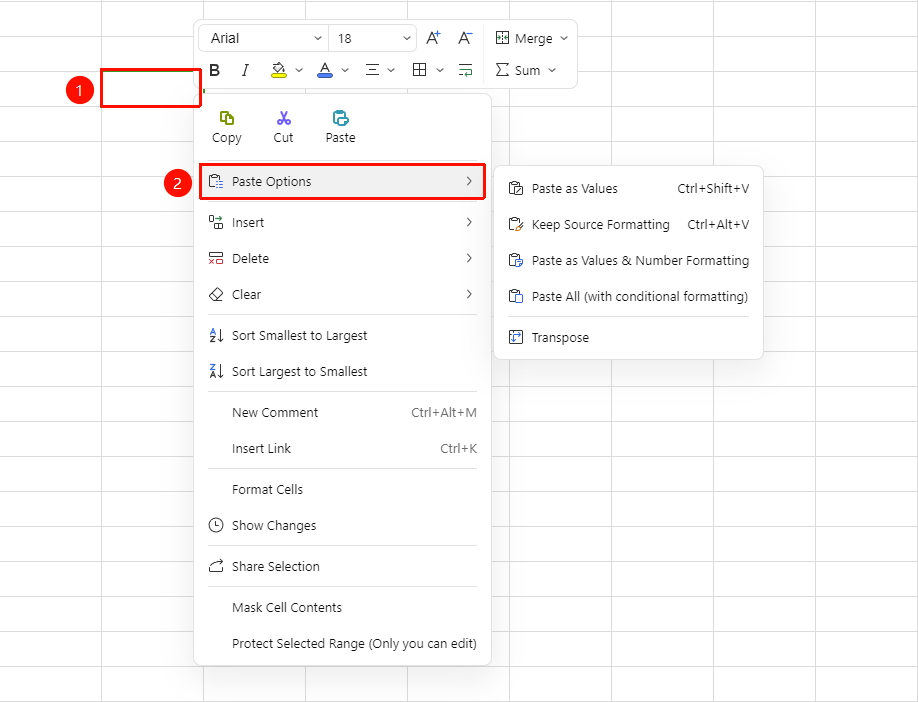
Paste Special
Feature Entry
Right-click menu bar → "Paste Special" button
- After copying or cutting content, click the target cell
- Right-click to bring up the menu bar
- Select "Paste Special" to choose options such as pasting values only, pasting formatting only, or pasting links
Copy Shortcut:
Ctrl + C
Cut Shortcut:
Ctrl + X
Paste Shortcut:
Ctrl + V
FAQ
Q1: How to resolve lag when copying and pasting?
- Solution: Right-click to open the desktop menu, click "Display settings", search for and enter "Clipboard settings", turn off "Clipboard history", and then reopen WPS to use.
Q2: How to cancel the copy/cut selection box state?
- Solution: Press the Esc key to cancel the current copy or cut state.
Notes
- When range permissions are enabled, copy and paste operations may be restricted
- Using Paste Special can avoid format conflict issues