Feature Summary
The Clear Formatting feature allows you to remove custom formatting settings such as font, color, borders, background, and alignment from cells with a single click, while fully preserving the cell content including text, numbers, and formulas, quickly restoring cells to their default style.
Feature Description
| Feature Dimension | Description |
|---|---|
| Membership Restriction | No membership restriction |
| Version Restriction | No version restriction |
Steps
Clear Formatting via the Ribbon
Feature Entry
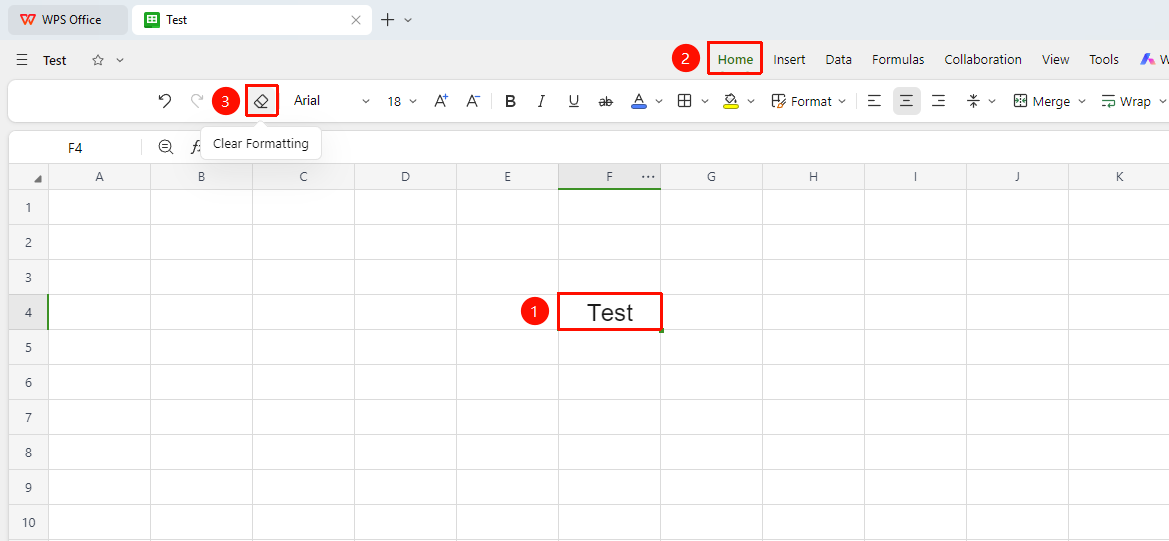
「Home」tab →「Clear Formatting」
- Select the cell or range you want to clear formatting from (supports single, continuous, and non-continuous range selection)
- Click the 「Clear Formatting」 button in the 「Home」 tab
- The cell formatting is immediately restored to the default style, while the content remains unchanged
Clear Formatting via the Right-Click Menu
Feature Entry
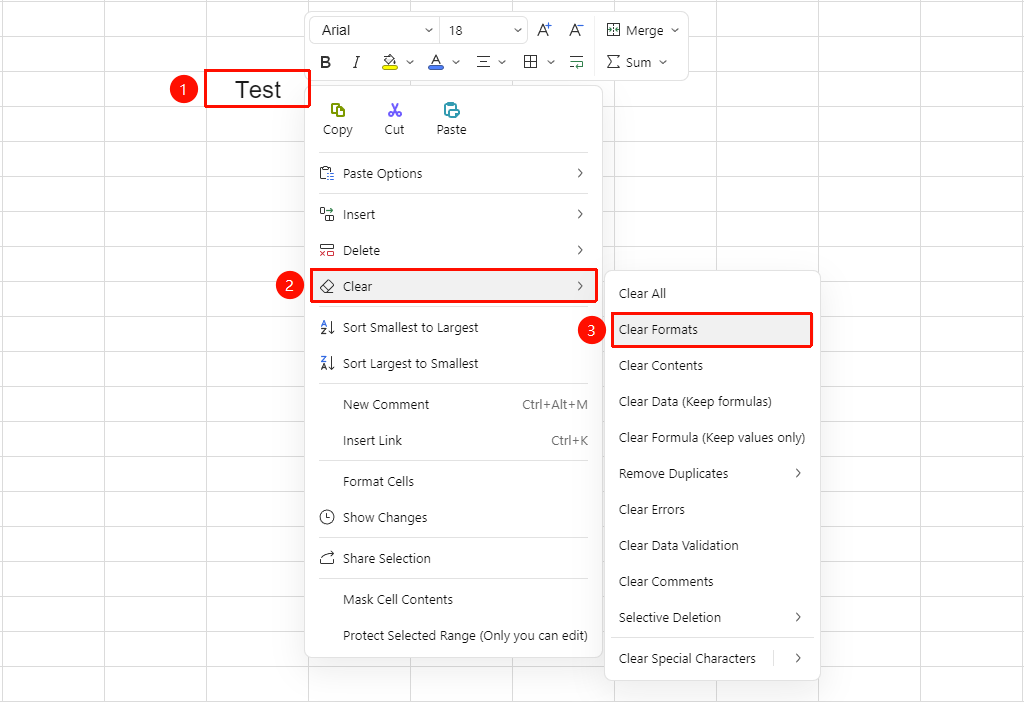
Right-click menu →「Clear」→「Clear Formats」
- Select the cell or range you want to clear formatting from
- Right-click the selected area
- Select 「Clear Formats」 from the pop-up「Clear」menu
- Formatting is cleared immediately, while content is preserved
FAQ
Q1: Will clearing formatting delete cell content?
- Solution: No. Clearing formatting only removes formatting settings such as font, color, borders, and background, while fully preserving text, numbers, formulas, and other content.
Q2: How do I clear both content and formatting at the same time?
- Solution: Select「Clear」→「Clear All」 from Right-click menu, or directly press the
Deletekey to clear content. If you need to clear both formatting and content simultaneously, use the「Clear All」option.
Q3: Can clearing formatting remove conditional formatting?
- Solution: Yes, it can.
Notes
- To clear formatting for the entire sheet, you can select all content and then perform the clear formatting operation
- In collaboration mode, the clear formatting operation will be synced in real-time to all collaborators