Feature Summary
The bold feature is used to set cell text to bold style, highlighting important data and header information to enhance sheet readability.
Feature Description
| Feature Dimension | Description |
|---|---|
| Membership Restriction | No membership restriction |
| Version Restriction | No version restriction |
| Shortcut | Ctrl + B |
Operation Steps
Bold via the Ribbon
Feature Entry
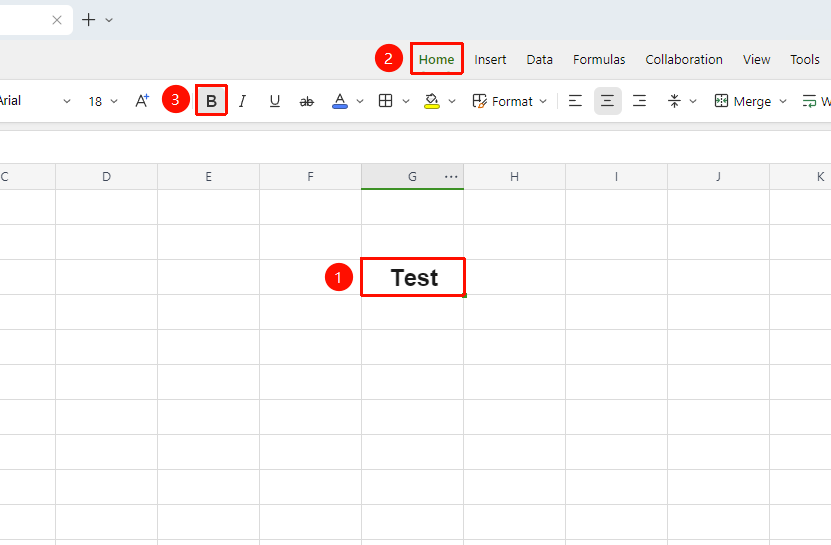
"Home" tab → "Bold"
- Select the cell that you want to bold
- Click the "B" shaped icon in the font toolbar of the "Home" tab
- The text immediately becomes bold; click again to remove bold
Bold Using Shortcut
Feature Entry
Shortcut Ctrl + B
- Select the cell that you want to bold
- Press the shortcut
Ctrl + Bto apply the bold effect - Press
Ctrl + Bagain to remove bold
Quick Setting via Floating Toolbar
Feature Entry
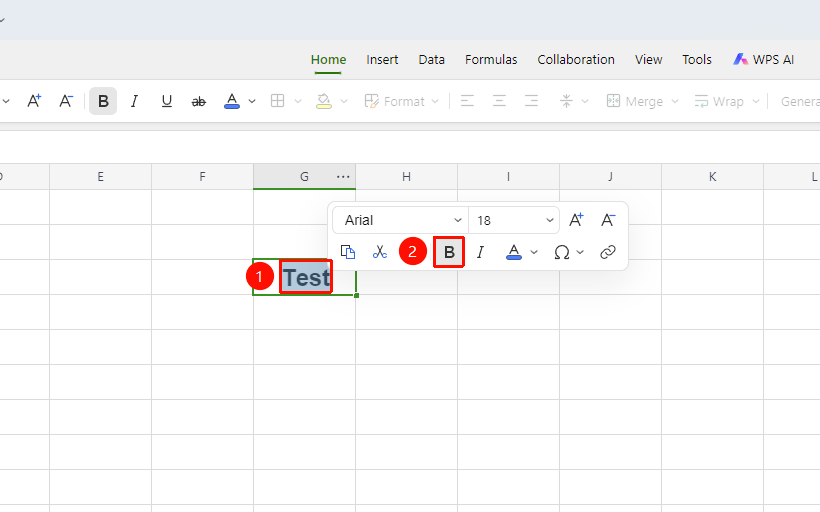
Right-click floating toolbar after selecting cell
- Select the the cell and right-click
- The floating mini toolbar automatically pops up
- Directly click the bold option in the toolbar to complete the setting
Bold via Format Cells
Feature Entry
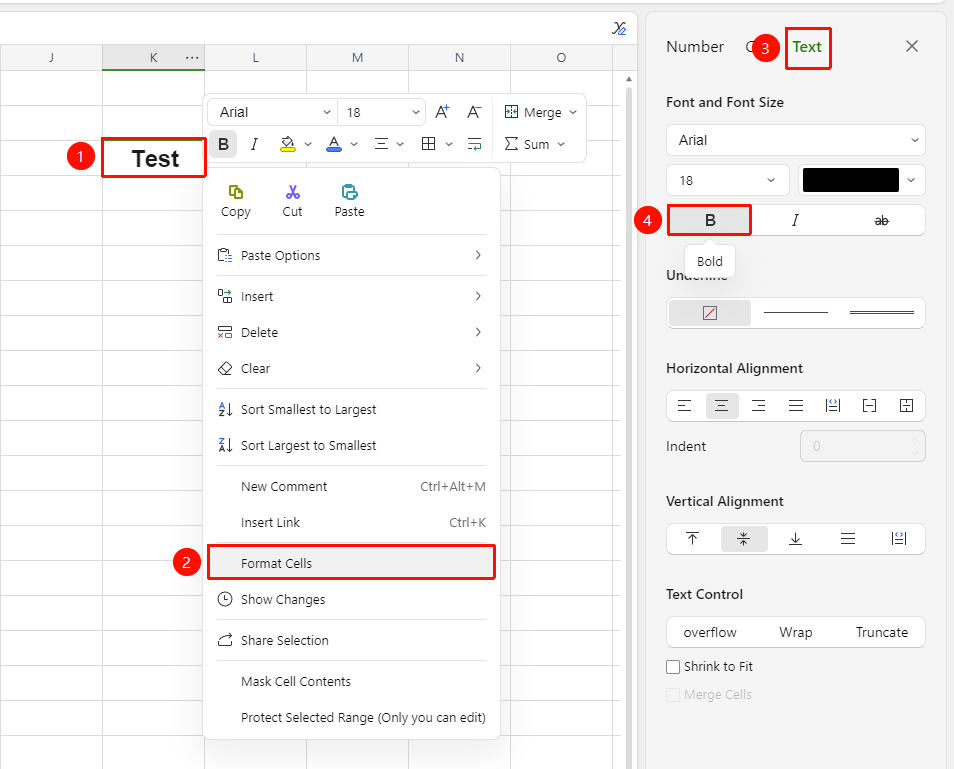
Right-click → "Format Cells" → "Font"
- Select the target cell range
- Right-click and select "Format Cells" (or press
Ctrl + 1) - In the "Text" tab, select "Bold"
FAQ
Q1: The bold effect is not obvious
- Solution: Some fonts are inherently thin, so the bold effect may not be obvious. Try switching to a font with thicker strokes, or increase the font size at the same time.
Q2: How to bold only part of the text in a cell
- Solution: Double-click the cell to enter Read Mode, select the part of the text you want to bold, then press
Ctrl + Bor click the bold button.
Notes
- In online collaboration mode, bold settings are synced in real-time to all collaborators
- Bold can be used simultaneously with other formatting (italic, underline, etc.)
- Click the bold button again or press the shortcut to remove the bold effect
- Some special fonts may not support the bold effect