Feature Summary
The strikethrough feature adds a horizontal line through the middle of cell text, indicating that the content is obsolete or crossed out. It is suitable for marking completed or expired items.
Feature Description
| Feature Dimension | Description |
|---|---|
| Membership Restriction | No membership restriction |
| Version Restriction | No version restriction |
Operation Steps
Apply Strikethrough
Feature Entry
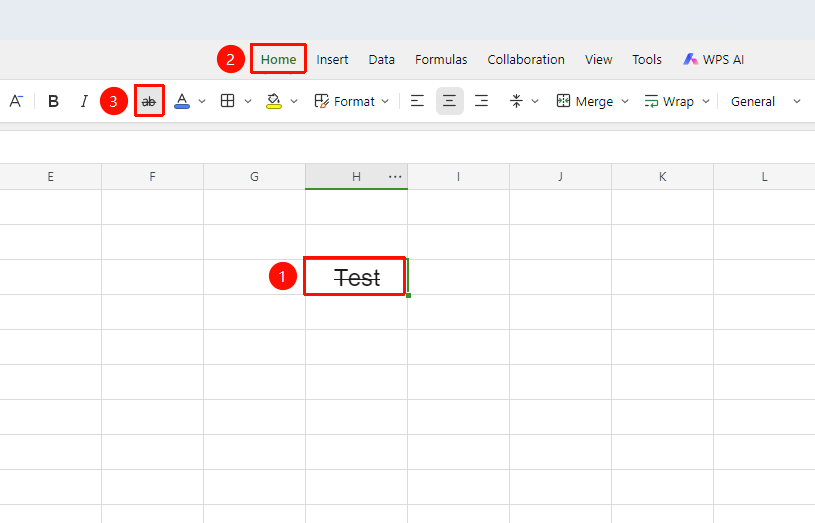
「Home」 tab → 「Strikethrough」 button
- Select the cell or text to which you want to apply strikethrough
- Click the 「Strikethrough」 button under the 「Home」 tab
- Add a strikethrough effect to the text
Shortcut: Ctrl+5
Remove Strikethrough
Feature Entry
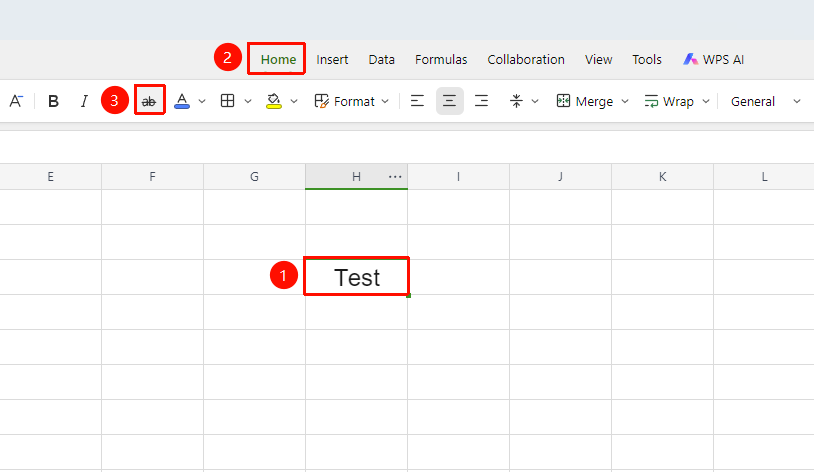
「Home」 tab → 「Strikethrough」 button
- Select the cell or text from which you want to remove strikethrough
- Click the Home tab
- Click the 「Strikethrough」 button again
- The strikethrough will be removed
Setting Strikethrough via Format Cells
Feature Entry
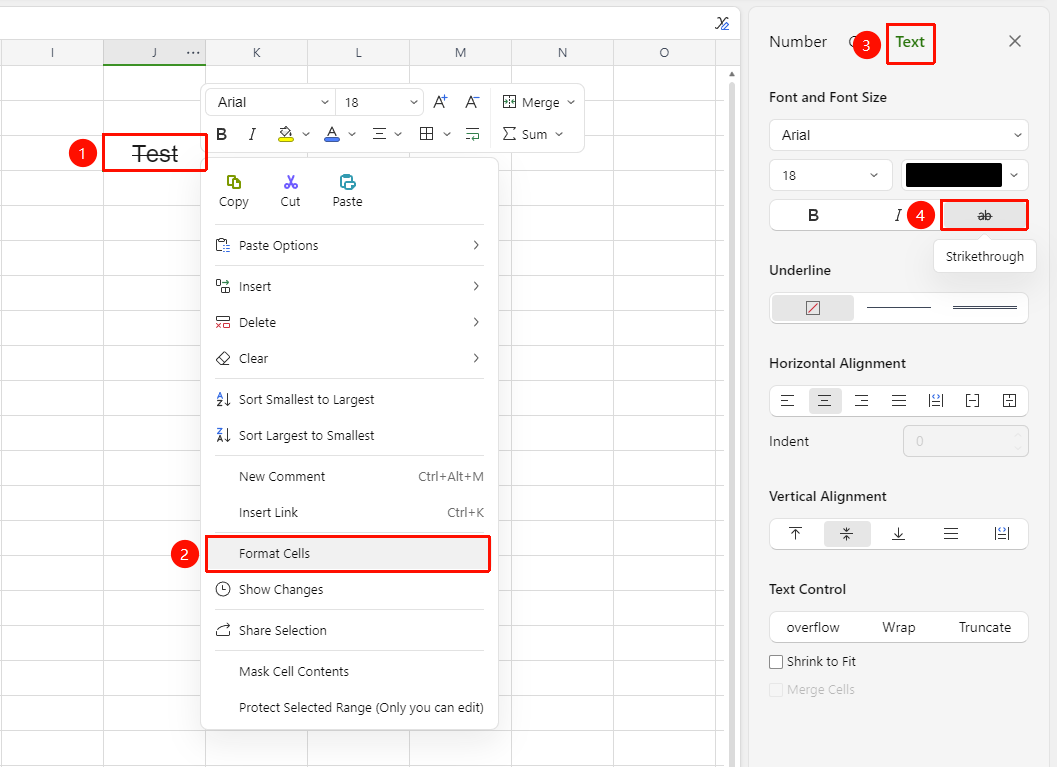
Right-click → 「Format Cells」 → 「Strikethrough」
- Select the target cell range
- Right-click and select 「Format Cells」 (or press
Ctrl + 1) - In the「Text」 tab, select 「Strikethrough」
FAQ
Q1: Will strikethrough delete the actual data?
- Solution: No, strikethrough is only a visual formatting effect. The data and formulas in the cell remain fully intact and are not affected in any calculations.
Q2: Will strikethrough be displayed when printing?
- Solution: Yes, the strikethrough effect will be printed normally without any additional settings.
Q3: Can strikethrough be combined with other text styles?
- Solution: Yes, strikethrough can be used simultaneously with styles such as bold, italic, and underline without interfering with each other.
Notes
- Strikethrough is a toggle operation; clicking again will cancel it
- Strikethrough is only a display effect; to actually delete data, use the Delete key
- Suitable for marking expired, completed, or text content that no longer needs processing