Feature Summary
The Style feature provides preset cell style templates, allowing users to quickly apply professional and visually appealing sheet styles, including categories such as titles, emphasis, and data.
Feature Description
| Feature Dimension | Description |
|---|---|
| Membership Restriction | No membership restriction |
| Version Restriction | No version restriction |
Operation Steps
Apply Preset Sheet Styles
Feature Entry
「Home」 tab → 「Sheet Styles」
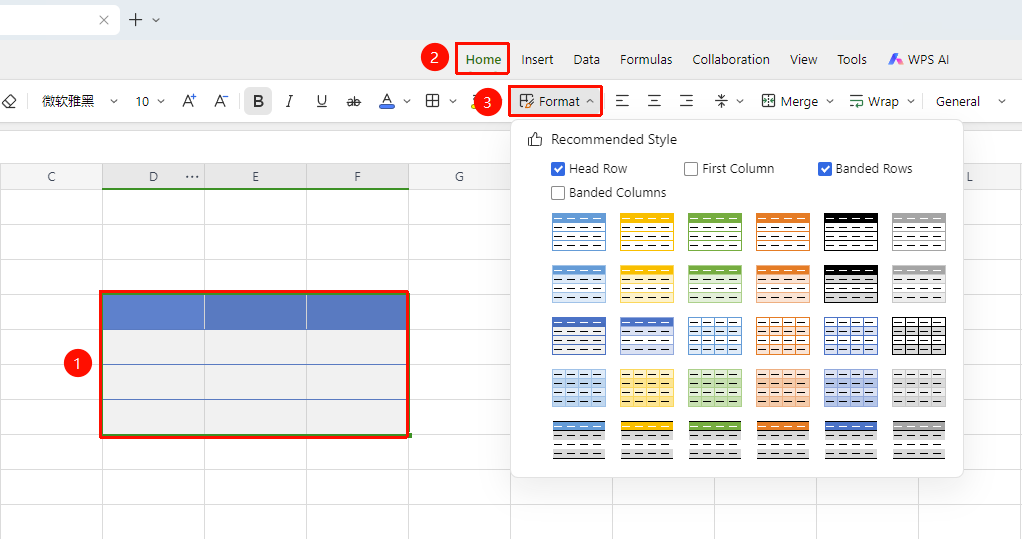
- Select the entire sheet area where you want to apply the style
- Click the 「Sheet Styles」 button in the 「Home」 tab
- Choose a preset style from the expanded style gallery and click to apply it directly
- You can select 「First Column Fill」, 「First Row Fill」, 「Alternating Row Fill」, or 「Alternating Column Fill」 styles and preview the style in real time
Frequently Asked Questions
Q1: Can styles and manual formatting be overlaid?
- Solution: After applying a style, you can still manually modify the cell format, but applying a new style again will overwrite the previous manual settings.
Q2: How do I cancel an applied style and restore the original format?
- Solution: After selecting the cells, click the 「Clear Format」 button to restore the style to the default format.
Q3: What impact do styles have on printing?
- Solution: All cell styles (fill color, borders, font format) will be printed completely. It is recommended to preview the effect before printing to confirm.
Notes
- Different style templates come with a complete visual color scheme
- Styles also take effect on newly inserted data after filtering