Feature Summary
The number format feature allows users to format numbers in cells, including display options such as numeric precision, currency symbols, percentages, and dates, making data presentation more intuitive and standardized.
Feature Description
| Feature Dimension | Description |
|---|---|
| Membership Restriction | No membership restriction |
| Version Restriction | No version restriction |
Operation Steps
Quick Settings via Toolbar
Feature Entry
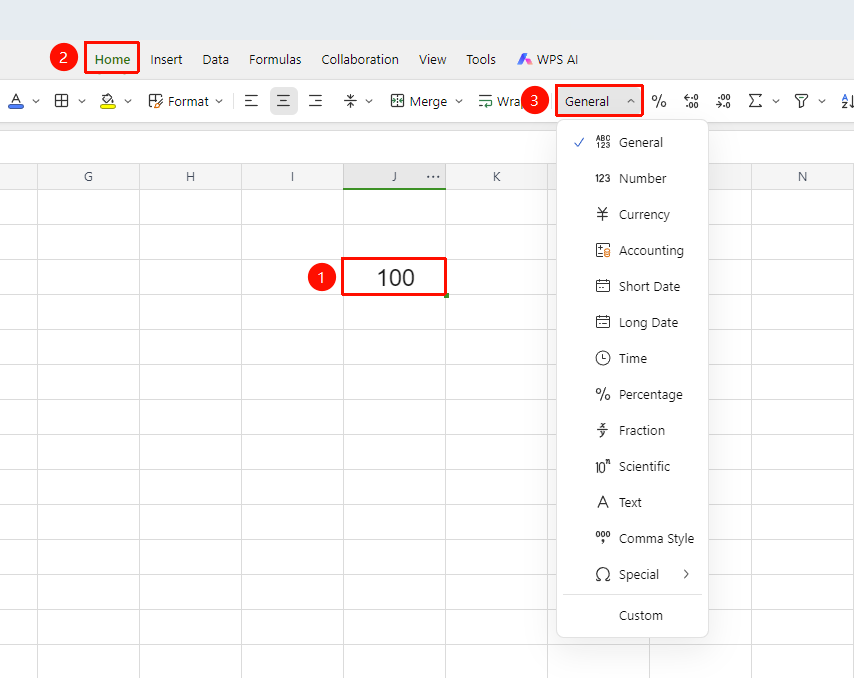
「Home」 tab → 「Number Format」 dropdown menu
- Select the cell or cell range where you want to set the number format
- Click the top 「Home」 tab
- Click the 「Number Format」 dropdown menu (default display is 「General」)
- Select the desired number format from the dropdown list (Number, Currency, Percentage, Short Date, etc.) to apply it with one click
Settings via Right-Click Menu
Feature Entry
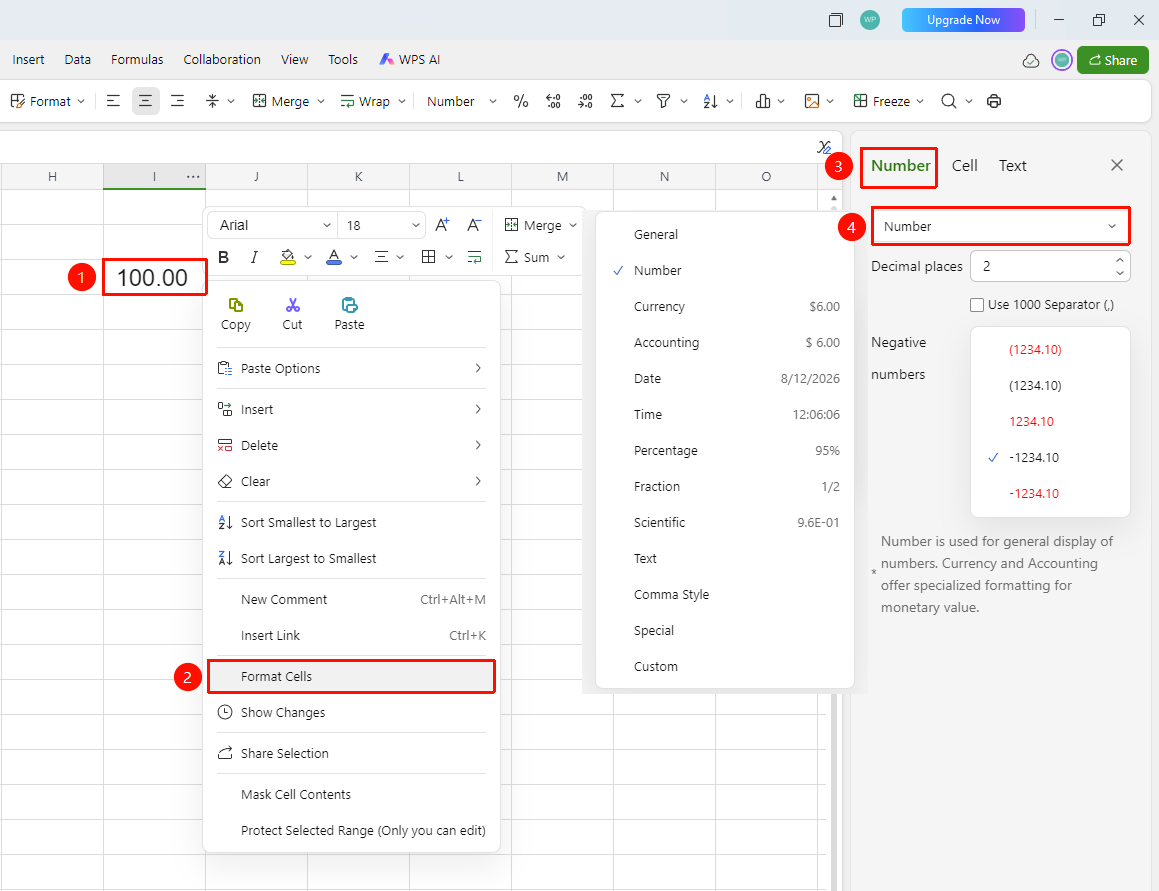
Select cell → Right-click → 「Format Cells」
- Select the cell or cell range you want to set
- Right-click and select 「Format Cells」 from the pop-up menu
- In the pop-up dialog, switch to the 「Number」 tab
- Select the desired format type from the 「Category」 list (Number, Currency, Date, Text, Custom, etc.)
- Adjust the specific parameters as needed (such as decimal places, currency symbol, format code, etc.)
- Click the sheet editing area to apply the settings
Settings via Shortcut
Feature Entry
Select cell → Shortcut Ctrl+1
- Select the cell or cell range you want to set
- Press the shortcut
Ctrl+1to quickly bring up the 「Format Cells」 dialog - Subsequent operations are the same as steps 4-6 of the right-click menu settings
Custom Number Format
Feature Entry
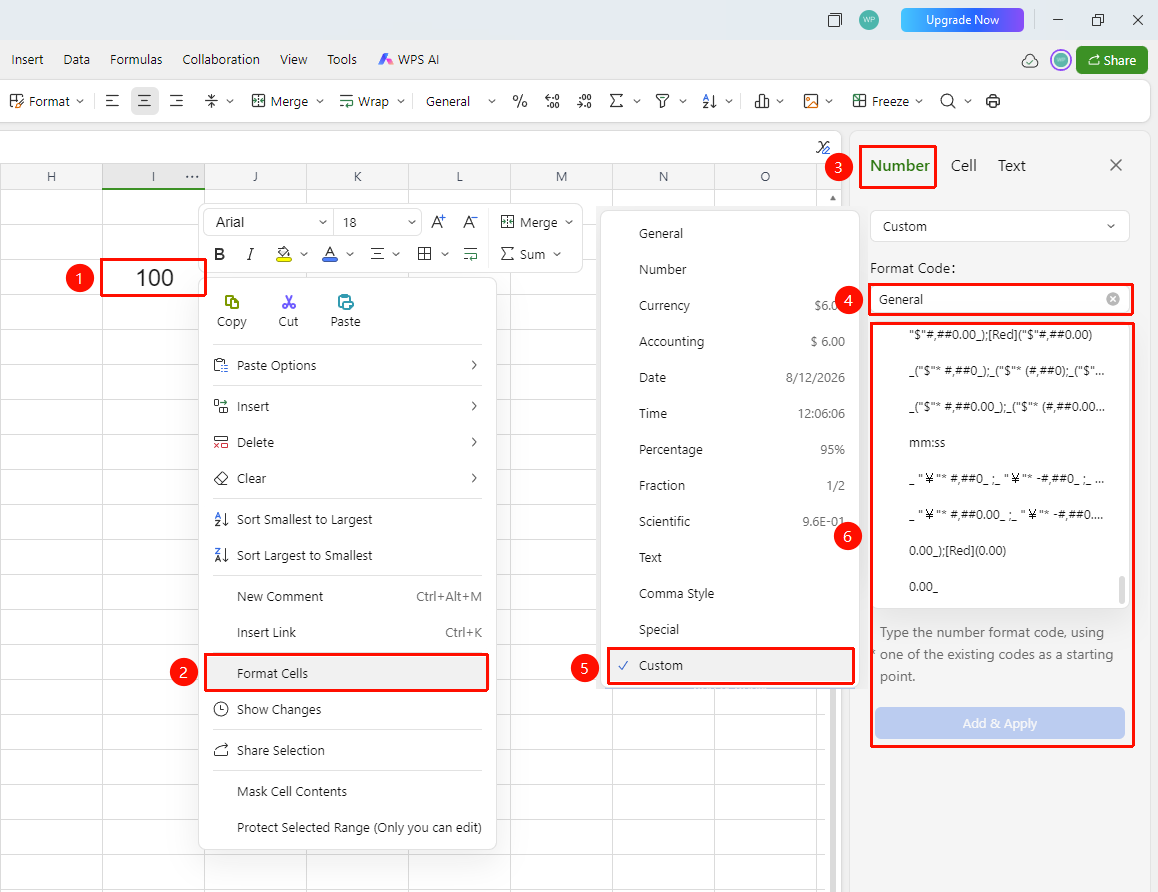
「Format Cells」 → 「Number」 tab → 「Custom」 category
- Select the cell you want to set
- Open the 「Format Cells」 dialog (via right-click menu or
Command+1) - In the 「Number」 tab, select the 「Custom」 category on the left
- Enter the custom format code in the 「Type」 input box, for example:
- Plain number: enter
0 - Two decimal places with unit: enter
0.00"yuan", displayed as123.45yuan - Date with day of the week: enter
yyyy-mm-dd aaaa - Preserve leading zeros: enter
00000, entering12displays as00012
- Click 「Add & Apply」 to complete the settings
FAQ
Q1: What should I do if the cell displays a string of hash marks (#) after setting the number format?
- Solution: This usually occurs because the column width is insufficient to display the complete formatted content. Manually drag to increase the column width to display it normally.
Notes
- Number format only changes the display method and does not affect the actual value stored in the cell
- Different formats can be switched between each other, and the data will be re-displayed according to the new format after switching
- In custom format codes, text within half-width double quotation marks is fixed additional content
- In the 「Home」 tab, you can quickly change the cell number format to percentage and increase/decrease decimal places