Feature Summary
The freeze feature locks the header row or header column of a sheet so that it remains visible while scrolling through large amounts of data, making it easier for team members to view data efficiently in collaboration mode.
Feature Description
| Feature Dimension | Description |
|---|---|
| Membership Restriction | No membership restriction |
| Version Restriction | No version restriction |
Steps
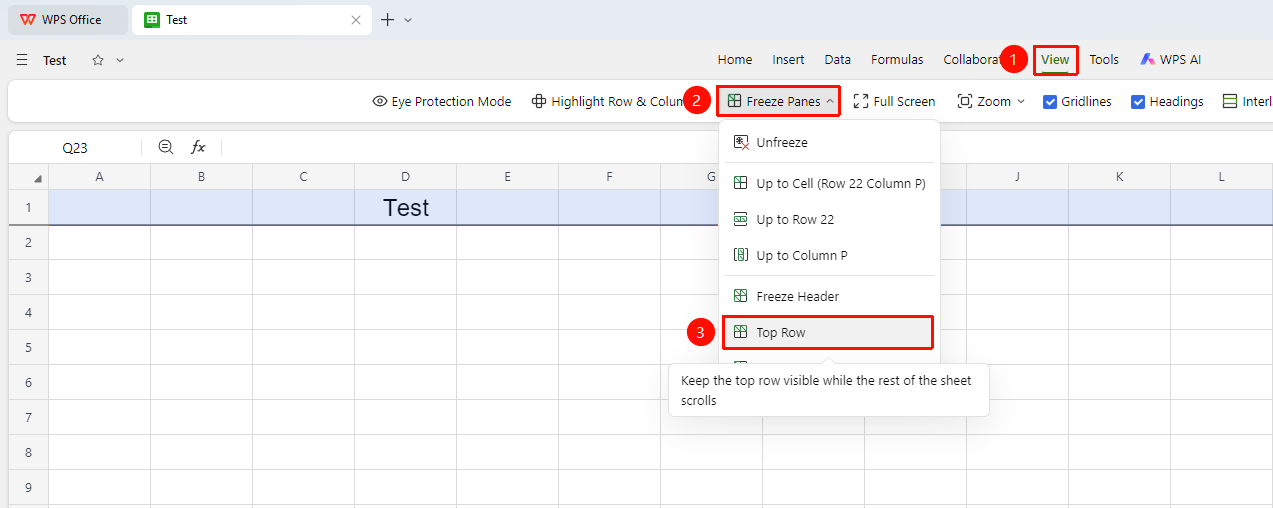
Freeze First Row
Feature Entry
「View」 tab → 「Freeze Panes」 → 「Freeze First Row」
- Click the View tab
- Click the 「Freeze Panes」 button
- Select 「Freeze First Row」
- When scrolling the sheet, the first row will always remain fixed
Freeze First Column
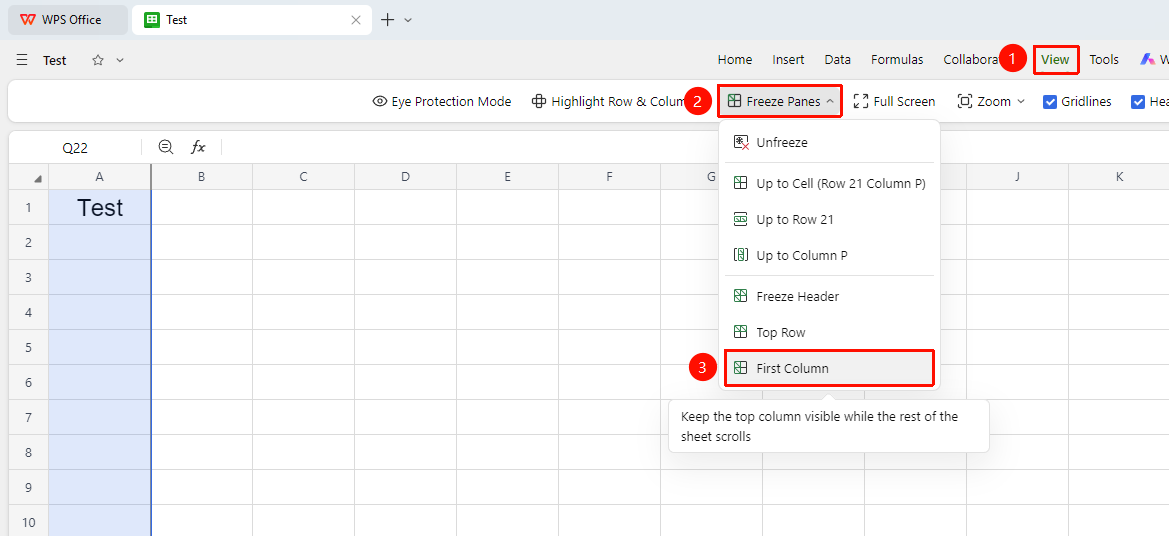
Feature Entry
「View」 tab → 「Freeze Panes」 → 「Freeze First Column」
- Click the View tab
- Click the 「Freeze Panes」 button
- Select 「Freeze First Column」
- When scrolling the sheet horizontally, the first column will always remain fixed
Freeze Up to Active Cell
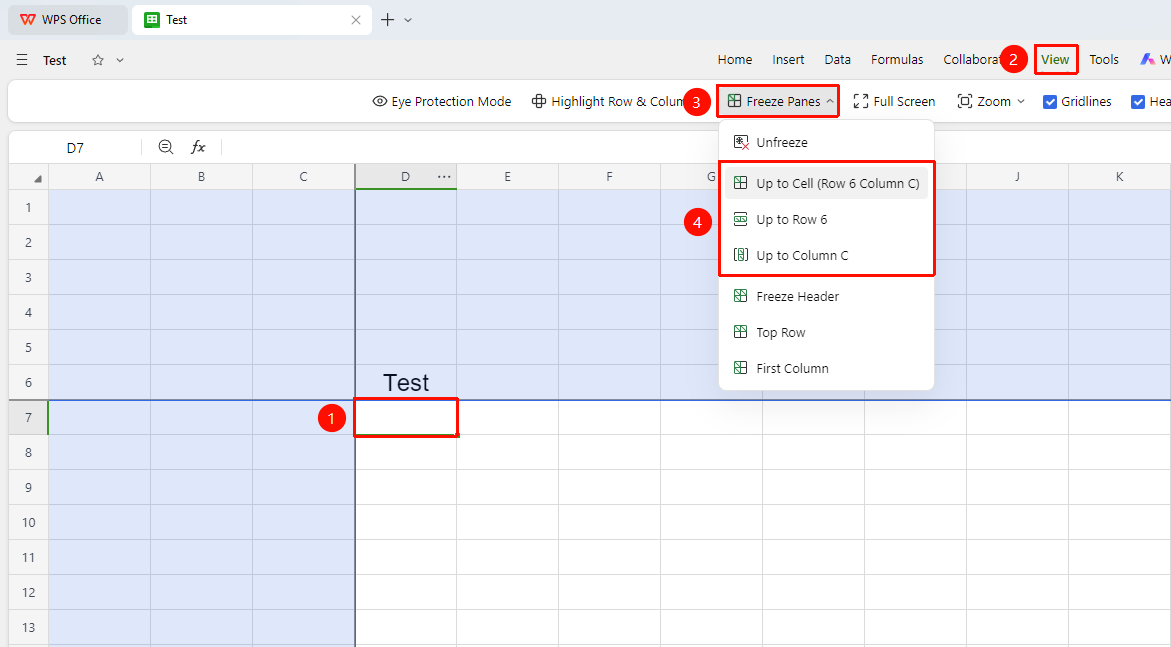
Feature Entry
「View」 tab → 「Freeze Panes」 → 「Freeze Up to Active Cell」
- Select the first cell below the target rows (e.g., to freeze the first 3 rows, select A4)
- Click 「Freeze Panes」 in the View tab
- Select 「Freeze Up to Active Cell」 / 「Freeze Up to Row X」 / 「Freeze Up to Column X」 :
- 「Freeze Up to Active Cell」 : Freezes the area above and to the left of the active cell
- 「Freeze Up to Row X」 : Freezes the area above the active cell
- 「Freeze Up to Column X」 : Freezes the area to the left of the active cell
Freeze Headers
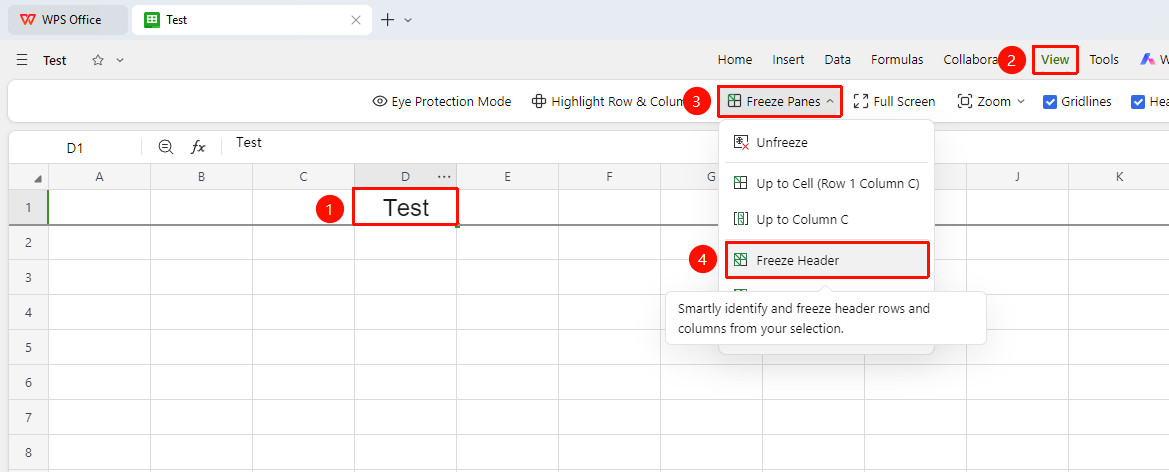
Function Entry
「View」 tab → 「Freeze Panes」 → 「Freeze Headers」
- Select the header area
- Click the 「Freeze Panes」 in the View tab
- Select 「Freeze Headers」
- The table header rows and columns will be intelligently identified and frozen based on the selected area
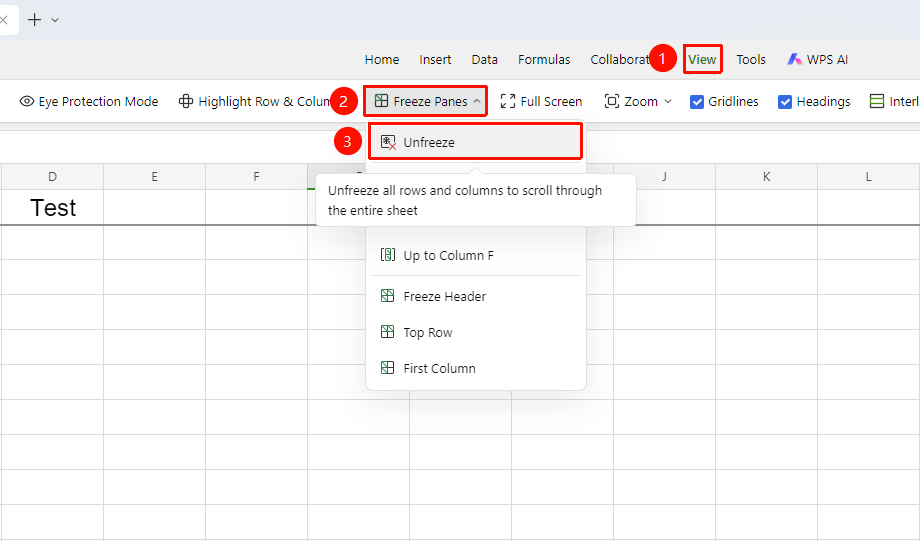
Unfreeze Panes
Feature Entry
「View」 tab → 「Freeze Panes」 → 「Unfreeze Panes」
- Click the 「Freeze Panes」 button
- Select 「Unfreeze Panes」
- All freeze effects will be removed, and the sheet will return to free scrolling
FAQ
Q1: Will the freeze I set affect others in collaboration mode?
- Solution: Yes, freezing will affect the view of other collaborating users
Q2: Why can't some rows/columns be frozen after freezing panes?
- Solution: The freeze operation is based on the selected position and can only freeze rows above and columns to the left of the selected position. If you need to freeze a specific position, please click the cell at the target position first, then perform the freeze.
Notes
- Freezing panes only affects the display and will not modify or lock any data
- When printing, the frozen area will not automatically repeat the header; you need to set the print title rows separately
- The 「Home」 tab can also be used to freeze panes
- It is recommended to use the freeze feature when dealing with large amounts of data; freezing is unnecessary for small amounts of data