Feature Summary
The filter feature is used to display specific data rows by criteria. In collaboration mode, it helps team members quickly locate and view the required data, improving data collaboration efficiency.
Feature Description
| Feature Dimension | Description |
|---|---|
| Membership Restriction | No membership restriction |
| Version Restriction | No version restriction |
Steps
Enable Filter
Feature Entry
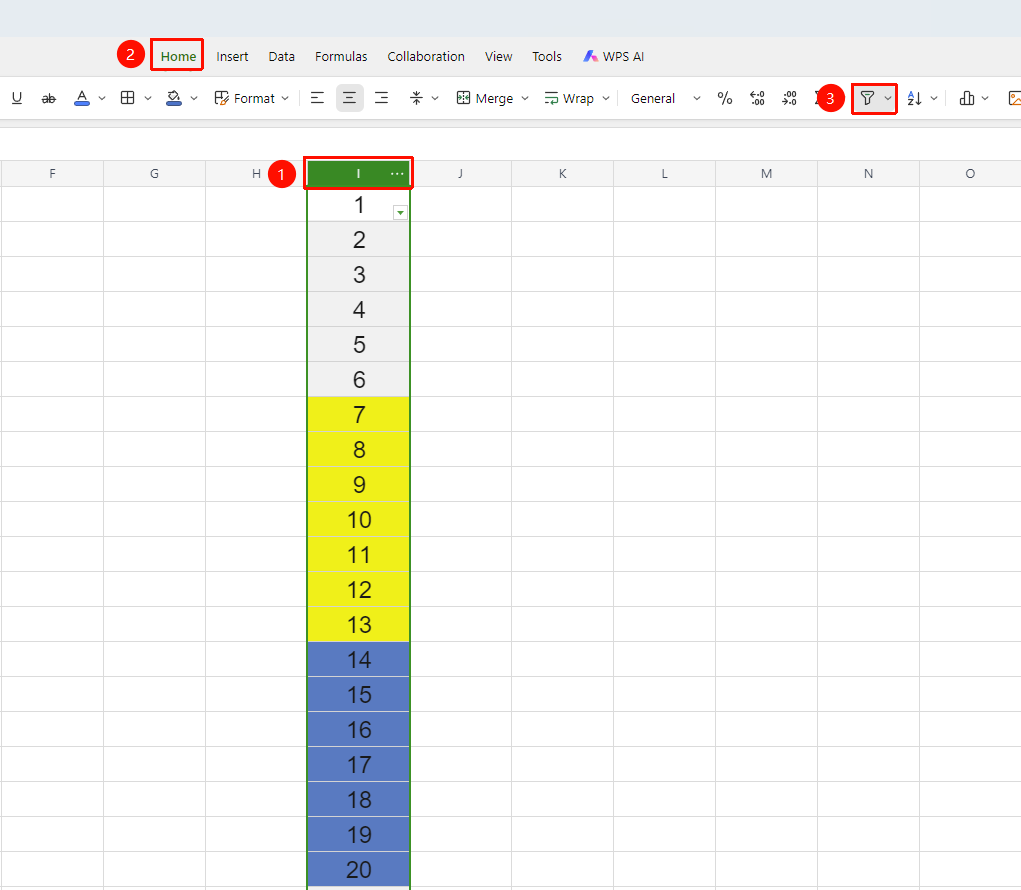
"Start" tab → "Filter" button
- Select any cell in the data range (or select the complete data table you want to filter)
- Click the Filter button in the Start tab
- A filter drop-down arrow icon will appear in each column header
- Or use the shortcut Ctrl + Shift + L to quickly enable the filter
Click the 「Filter」 button again to disable the filter
Filter Data by Criteria
Feature Entry
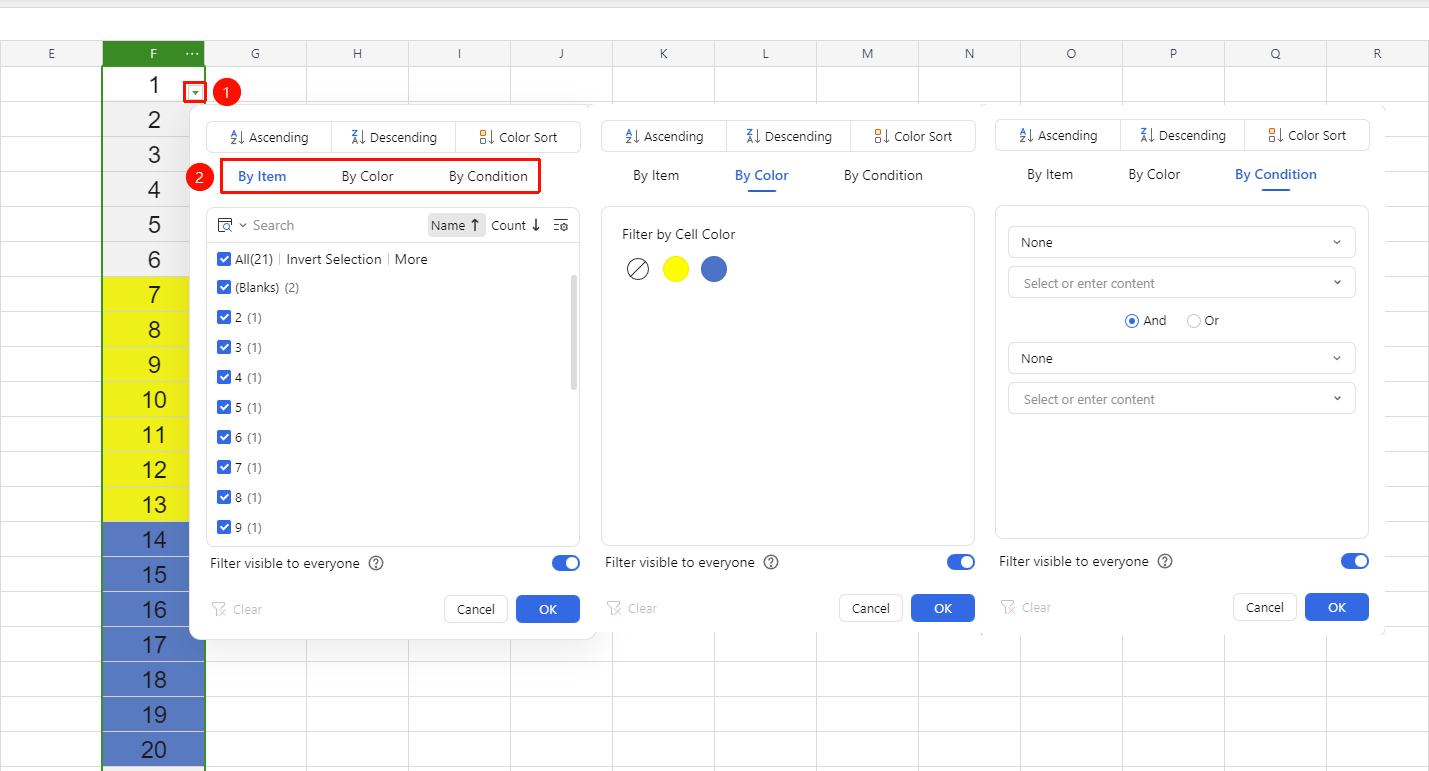
Click the drop-down arrow in the column header
- Click the drop-down arrow of the target column
- Select filter criteria in the pop-up panel:
- Filter by Options: Check the options you want to display
- Filter by Color: Filter by cell background color
- Filter by Condition: Equals, greater than, less than, between, etc.
3.After checking the target criteria, the sheet will only display data rows that meet the criteria
Quick Filter Using the Search Box
Feature Entry
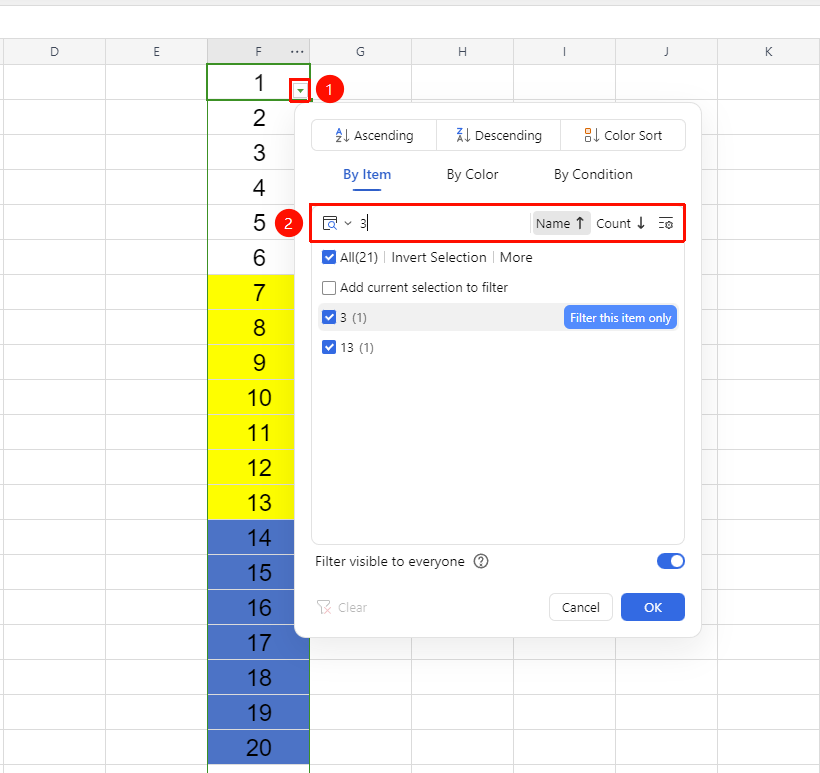
Click the column header drop-down arrow → Search box
- Click the drop-down arrow of the target column
- Enter keywords in the search box
- The system will automatically filter out data items containing the keywords
- Move the cursor over the search result to "Filter this item only".
Clear Filter
Feature Entry
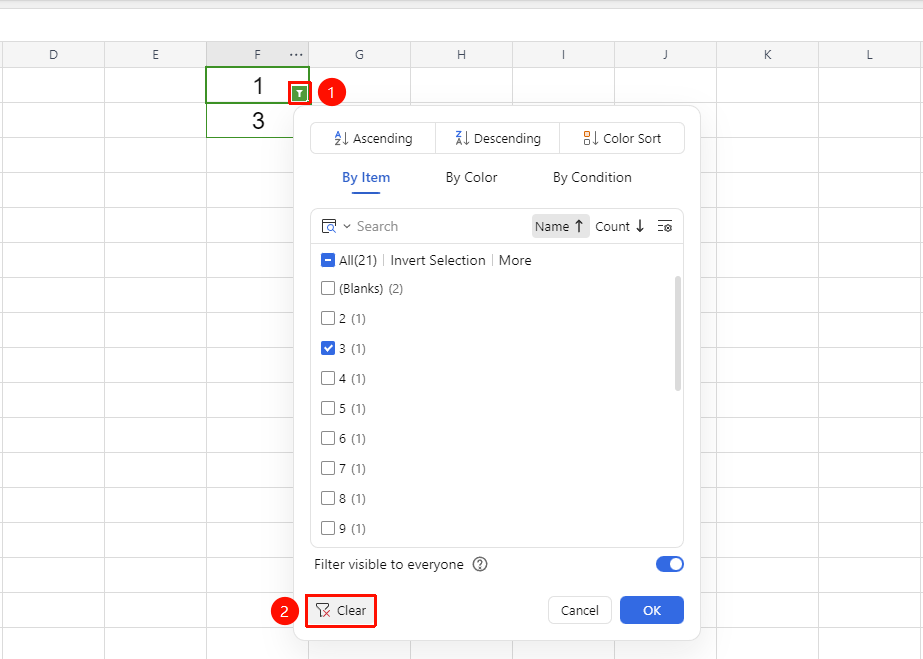
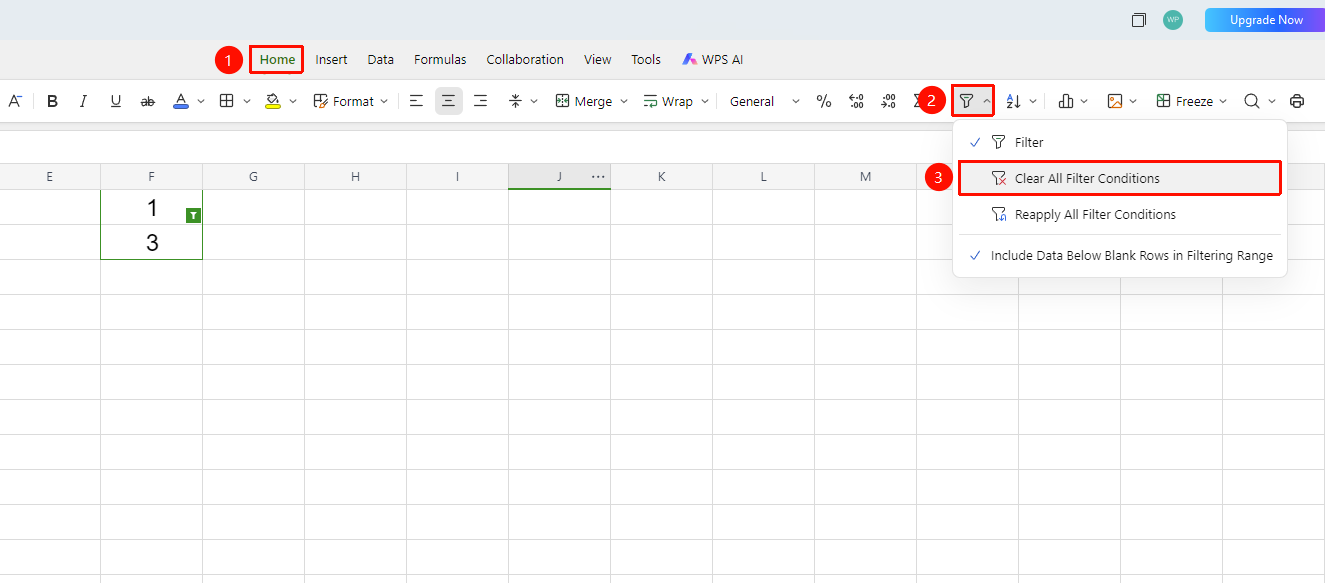
"Home" tab → "Filter" drop-down menu → "Clear All Filters" / Column Filter icon → Clear Filter
- To clear the filter for a specific column, click the Filter icon for that column and select "Clear Filter".
- To clear all filters in , under the "Home" tab, click the "Filter" drop-down menu → "Clear All Filters"
FAQ
Q1: Will the filter I set in collaboration mode affect other collaborators?
- Solution: Turn off the option "Filter is visible to everyone" in the filter box. This filter will not affect other collaborators.
Q2: How to reapply all filter criteria?
- Solution: "Start" tab → "Filter" button drop-down arrow → Reapply all filter criteria.
Q3: Why are filter drop-down arrows not displayed on some columns?
- Solution: Check if the data range contains empty rows or columns. Empty rows/columns will truncate the filter range. Ensure the data range is continuous, or check "Start" tab → "Filter" button drop-down arrow → Include data after empty rows in the filter.
Notes
- Filtering does not delete data; it only hides rows that do not meet the criteria
- Before using advanced filter, you need to set up a criteria range first. Multi-column combined criteria filtering is supported.
- You can also enable/disable the filter in the Data tab