Feature Summary
The sorting feature rearranges data in ascending or descending order based on a specified column. It supports single-column sorting and multi-column compound sorting, helping you quickly organize and analyze data.
Feature Description
| Feature Dimension | Description |
|---|---|
| Membership Restriction | No membership restriction |
| Version Restriction | No version restriction |
Steps
Quick Sort (Ascending/Descending)
Feature Entry
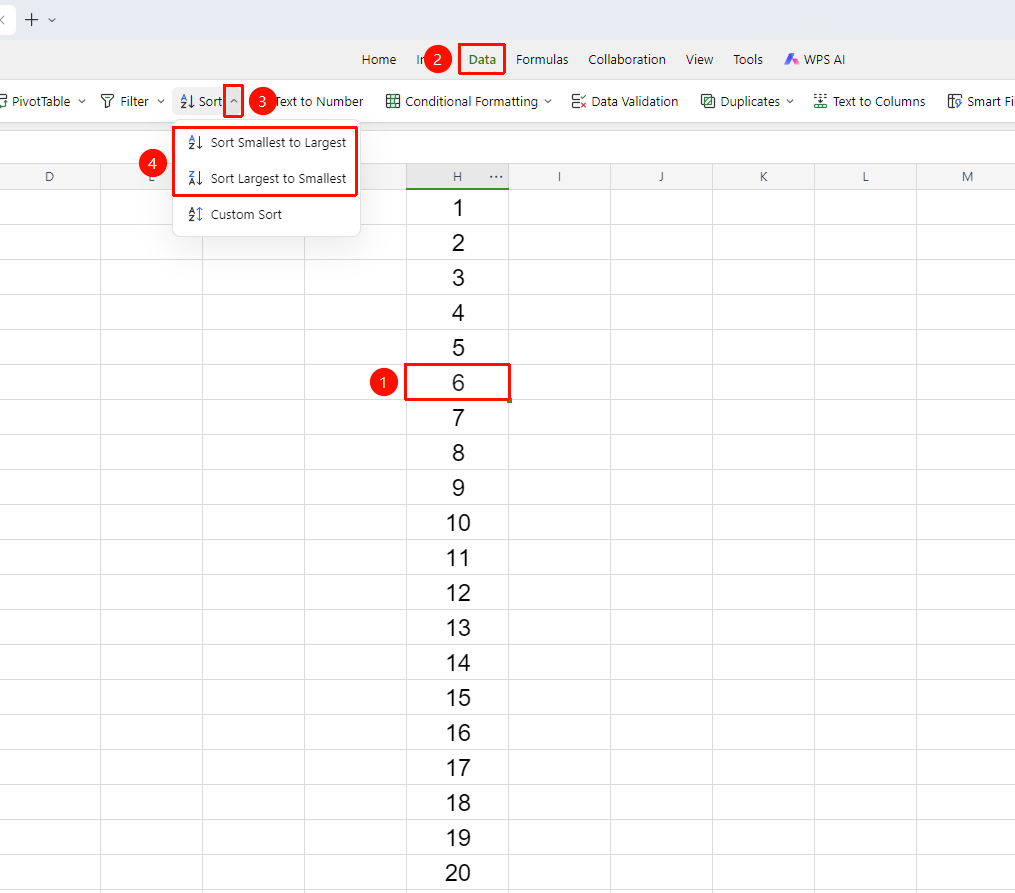
「Data」 tab → 「Sort」drop down menu → 「Ascending」/「Descending」
- Select any cell in the data column you want to sort
- Click the 「Sort」 drop down menu in the Data tab
- Select 「Ascending」 (smallest to largest) or 「Descending」 (largest to smallest) from the dropdown menu
- The system sorts the entire data sheet based on the values in the selected column, and the associated data rows are adjusted accordingly
Custom Sort (Multi-Condition Sorting)
Feature Entry
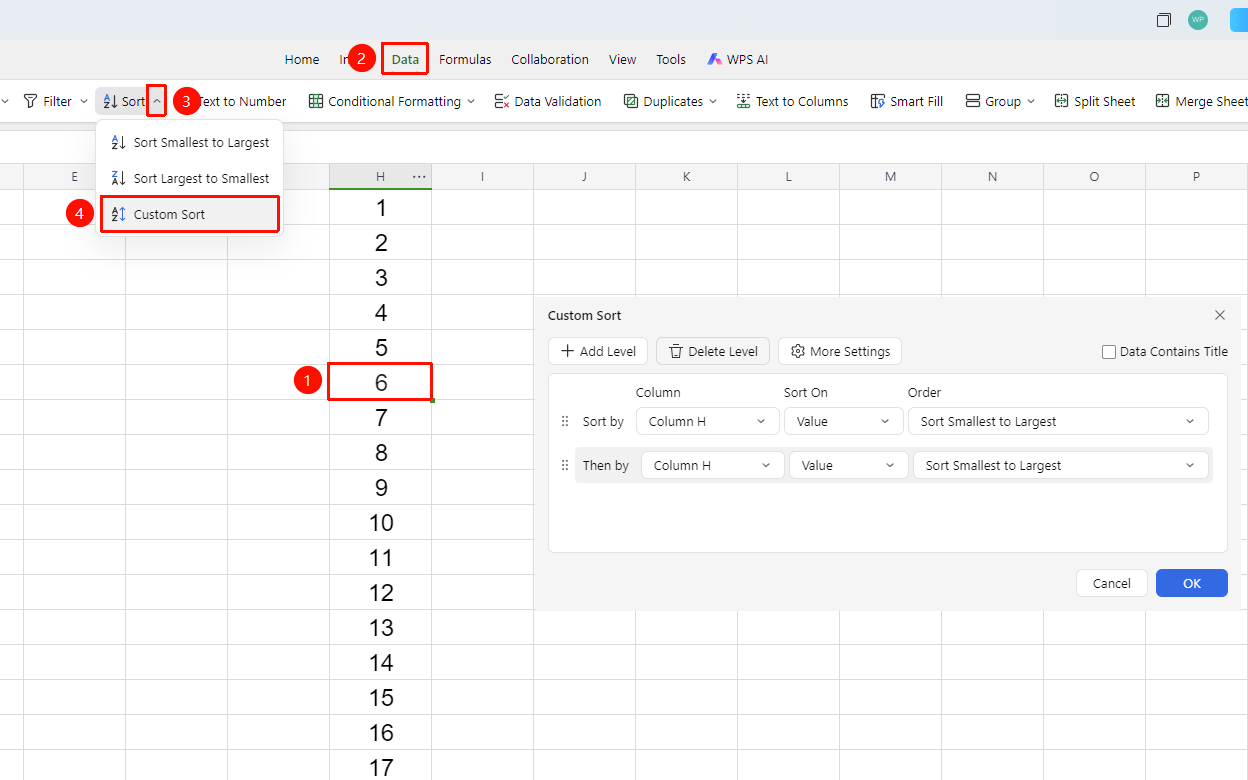
「Data」 tab → 「Sort」 drop down menu → 「Custom Sort」
- Select any cell within the data range
- Click 「Sort」 drop down menu →「Custom Sort」 in the Data tab
- The 「Custom Sort」 dialog box appears. Configure the sorting conditions:
- Primary Key: Select the preferred column for sorting
- Sort By: Choose to sort by 「Values」「Cell Color」「Font Color」, etc.
- Order: Select 「Ascending」 or 「Descending」
- Data has header: Check this to prevent the first row header from being sorted (located in the upper right corner of the dialog box)
4.To add more sorting levels:
- Click the 「+ Add Condition」 button to add a secondary sort column
- With multiple conditions, sorting is performed by the primary key first; if the primary keys are identical, the secondary key is used
- To remove a condition, select the condition row and click the 「Delete Condition」 button
5.Click 「OK」 to execute the sort
More Settings
Feature Entry
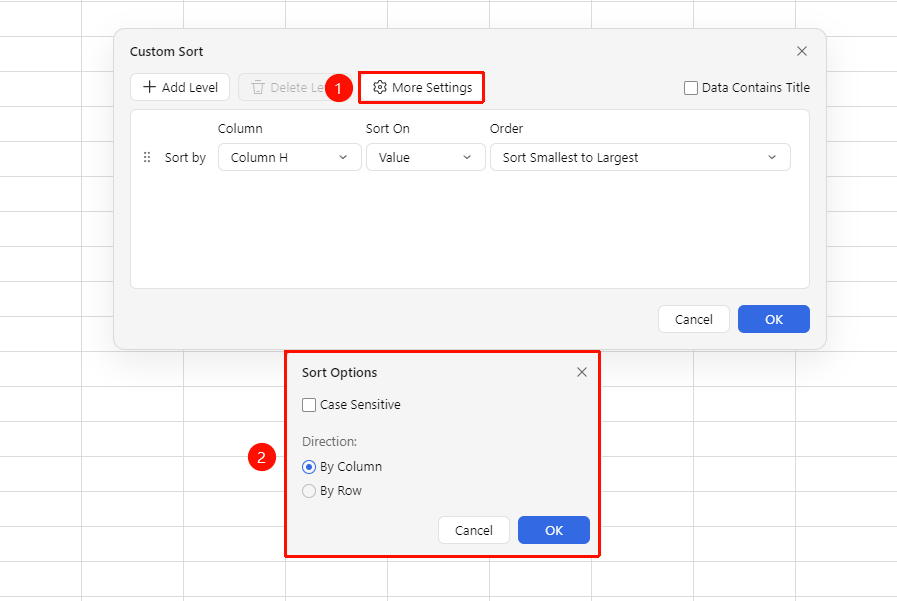
Custom Sort dialog box → 「More Settings」 button
- In the 「Custom Sort」 dialog box, click the 「More Settings」 button
- You can further configure sorting details, such as:
- Sort direction (sort by row or by column)
- Case sensitive
3.After completing the settings, click OK to return to the main dialog box
FAQ
Q1: The correspondence of data rows is messed up after sorting?
- Solution: Before sorting, make sure to check 「Data has header」 to prevent the header row from being treated as data and sorted. Also, ensure that you have selected a range containing complete data, not just some cells in a single column.
Q2: Does sorting affect other collaborators in collaboration mode?
- Solution: Yes, the sorting operation modifies the actual order of the data and syncs it to the Cloud in real time. It is recommended to communicate with team members before sorting to avoid affecting others' editing progress. You can restore a previous version through the history after sorting.
Q3: How to quickly restore the data order before sorting?
- Solution: Immediately click the Undo button after sorting to restore the original order. If multiple operations have been performed, you can restore to the version before sorting via the Document's 「Collaboration Records」→「History Versions」.
Notes
- Multi-condition sorting is executed in top-down priority order
- Sorting ranges containing merged cells may produce anomalies; it is recommended to unmerge cells before sorting
- You can quickly apply ascending/descending order in the 「Home」 tab