Feature Summary
The Column Type feature allows users to set a specific data type for a column, ensuring a uniform and standardized data format for that column. After setting the column type, cells will display and validate data according to the corresponding format.
Feature Description
| Feature Dimension | Description |
|---|---|
| Membership Restriction | No membership restriction |
| Version Restriction | No version restriction |
Operation Steps
Set Column Type
Feature Entry
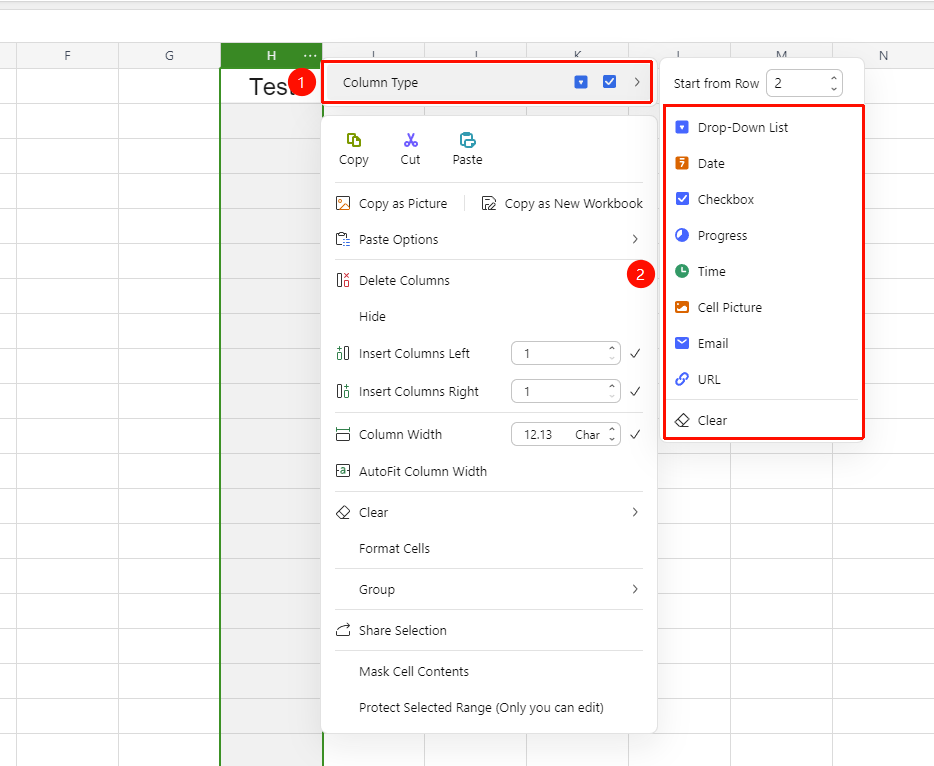
Right-click column header → 「Column Type」 → Select type
- Right-click the column header (column letters such as A, B, C, etc.) in the sheet, or click the 「...」 button on the right side of the column header to bring up the context menu.
- At the very top of the menu is the 「Column Type」 option. Hover over it to expand the submenu.
- Select the desired column type from the submenu, and it will take effect immediately:
- Dropdown List: Set preset options for this column; users can only select from the list to input.
- Date: Format this column as a date format; input is validated against the date format.
- Checkbox: Turn this column into a checkbox column, supporting check/uncheck.
- Progress: Turn this column into a progress bar column, where a percentage can be set to indicate completion.
- Time: Format this column as a time format; input is validated against the time format.
- Cell Image: Support inserting images into cells.
- Email: Mark this column as email format; input is validated against email format.
- URL: Mark this column as link format; the entered URL can be clicked to jump directly.
- Clear: Cancel the column type currently set for this column and restore it to a plain text column.
Set Start Row
Feature Entry
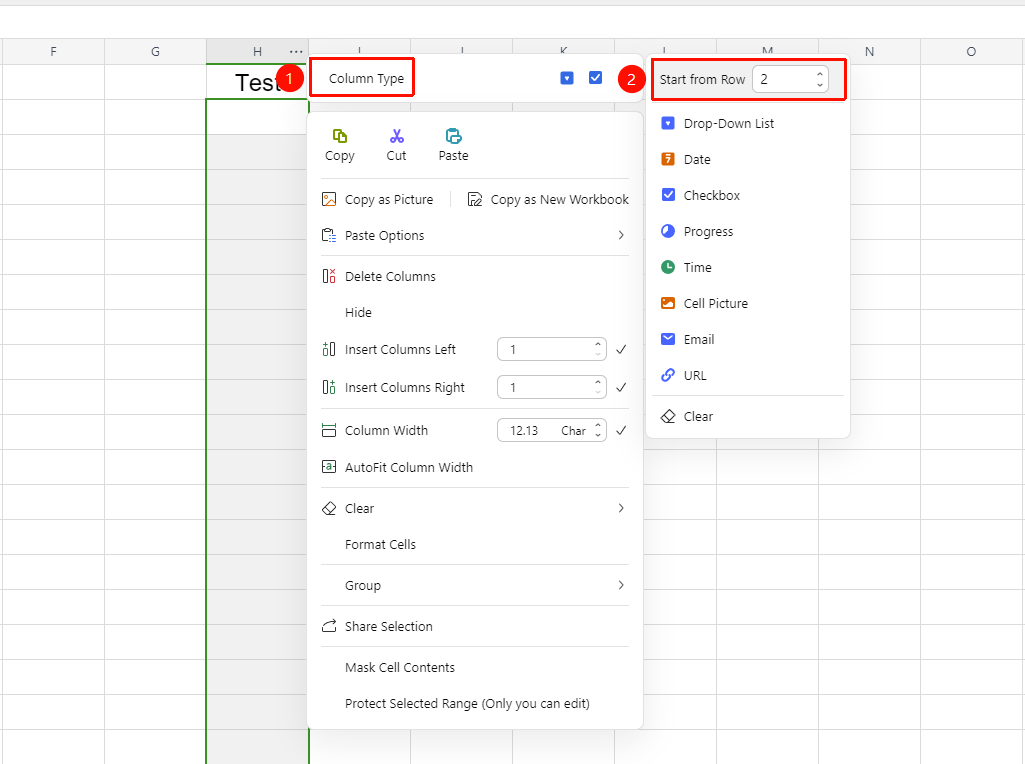
Right-click column header → 「Column Type」 → 「Set Start Row」
- Right-click the column header, and in the 「Column Type」 expanded menu, a 「Set Start Row」 input box will appear in the upper right corner. The default value is 2 (meaning it takes effect from the 2nd row, and the 1st row is the header row).
- You can modify this value to adjust the starting row from which the column type takes effect.
- The change takes effect immediately after modification.
Clear Column Type
Feature Entry
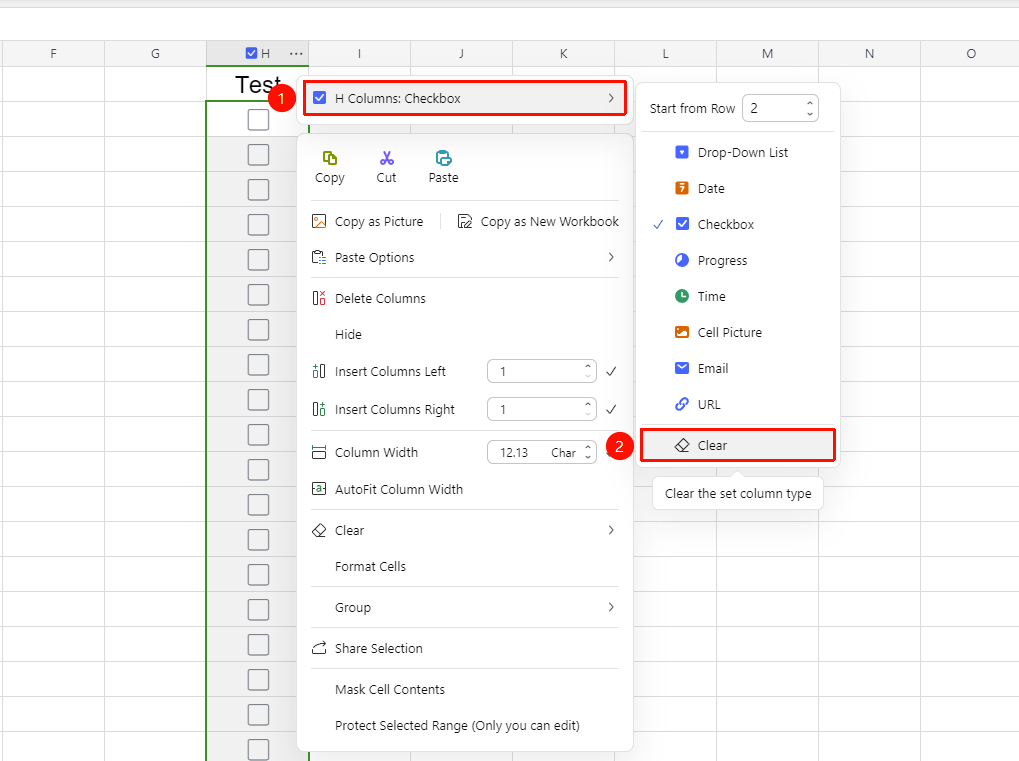
Right-click column header → 「Column Type」 → 「Clear」
- Right-click the column header for which you want to clear the type, or click the 「...」 button on the right side of the column header.
- Expand the 「Column Type」 submenu.
- Click the 「Clear」 option at the very bottom, and the column will be restored to a plain text column, with the original data retained.
FAQ
Q1: What happens to existing data after setting a column type?
- Solution: Existing data will be validated and displayed according to the new type format. For example, after changing a text column to the 「Date」 type, values that can be recognized as dates will be automatically converted to the format, while unrecognizable values will remain as they are and prompt: The cell content does not match the preset restriction.
Q2: Where can I set the options for the Dropdown List type?
- Solution: Right-click the column header → 「Column Type」 → Select 「Dropdown List」, and then add option values in the settings panel that pops up.
Q3: What is the use of 「Set Start Row」?
- Solution: 「Set Start Row」 is used to control from which row the column type starts to take effect. The default is row 2 (skipping the header row). If the first few rows of the sheet are a merged title area or data that does not need formatting, you can increase this value so that the column type takes effect from a later row.
Notes
- Clearing the column type will not delete the data already entered in the cells; it only cancels the format validation.
- Only one column type can be set per column. Switching to a new type will automatically replace the old type.
- The starting row for each column type's data to take effect can be independently controlled via 「Set Start Row」.