Feature Summary
The Insert Chart feature supports displaying data from Sheets in a visual graphical format, making it easy to intuitively analyze data trends and comparative relationships. It supports 10 chart types: Column Chart, Line Chart, Pie Chart, Bar Chart, Area Chart, Scatter Chart, Stock Chart, Radar Chart, Combo Chart, and so on.
Feature Description
| Feature Dimension | Description |
|---|---|
| Membership Restriction | No membership restriction |
| Version Restriction | No version restriction |
Steps
Method 1: Insert via the "Start" Tab
Feature Entry
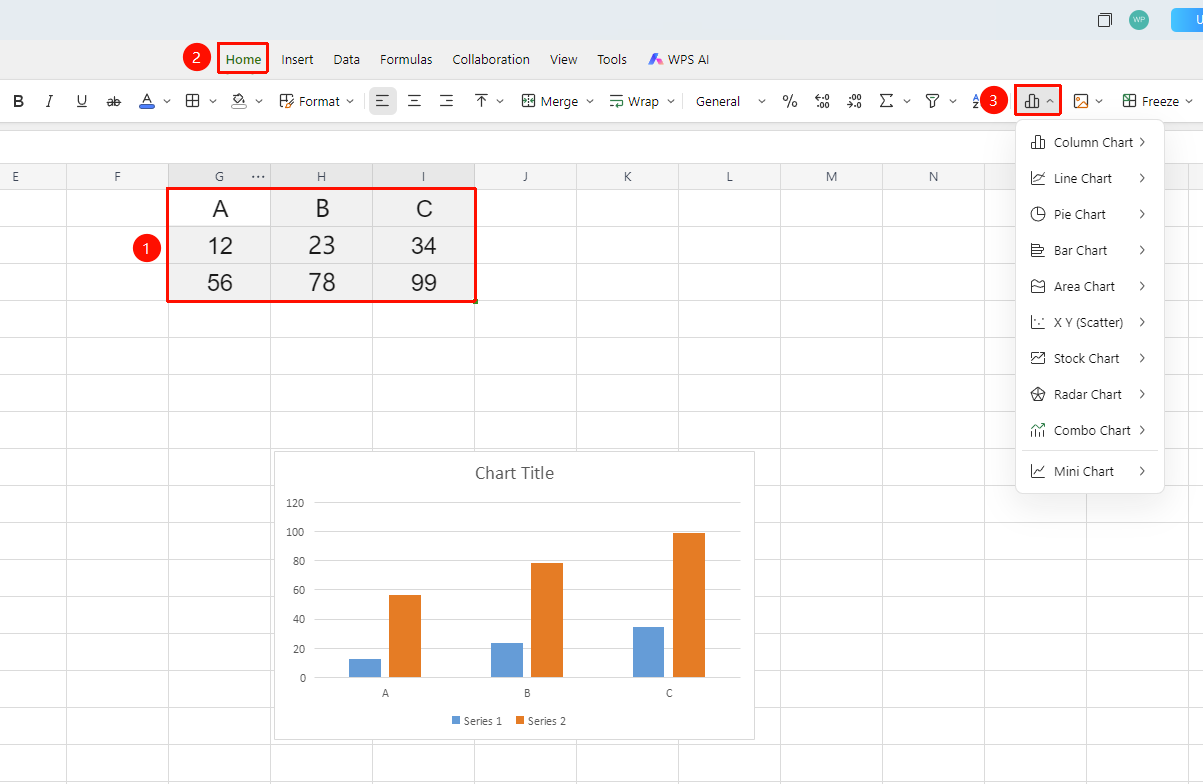
"Start" tab → Chart dropdown button in the upper right corner
- Select the data range you want to create a chart from (including the header row and data columns)
- Click the "Start" tab
- Find the Chart dropdown button (Column Chart icon) on the right side of the ribbon and click to expand
- Select the chart type from the dropdown menu:
- Column Chart → Suitable for comparing the size of data across different categories
- Line Chart → Suitable for showing data trends over time
- Pie Chart → Suitable for showing the proportion of each part to the whole
- Bar Chart → Suitable for horizontal data comparison
- Area Chart → Suitable for showing cumulative trends of data over time
- X Y (Scatter Chart) → Suitable for showing the relationship between two variables
- Stock Chart → Suitable for displaying stock price fluctuation data
- Radar Chart → Suitable for multi-dimensional data comparison
- Combo Chart → Suitable for displaying multiple chart types simultaneously
- Sparkline → Suitable for embedding miniature charts within cells
- After selecting a specific sub-type, the chart will be automatically inserted into the current sheet
Method 2: Insert via the "Insert" Tab
Feature Entry
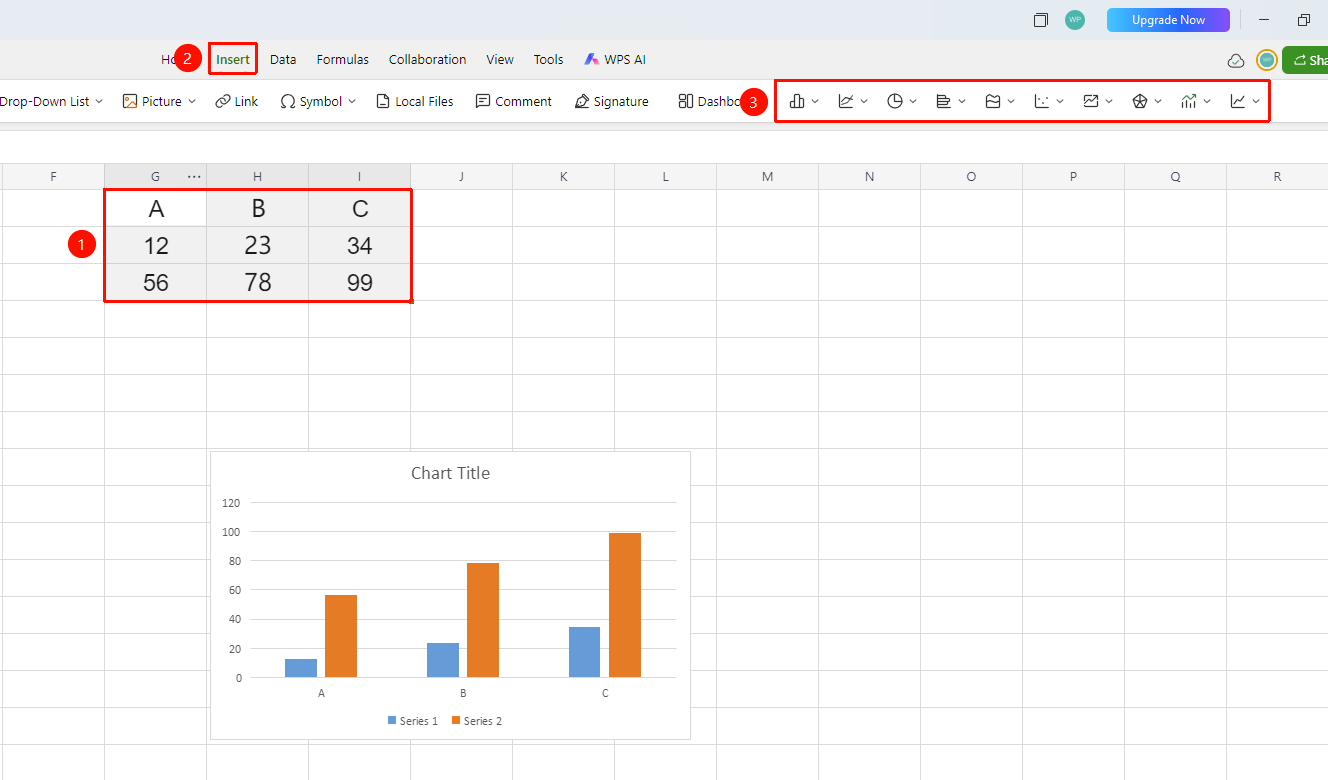
"Insert" tab → Chart buttons on the right side of the toolbar
- Select the data range you want to create a chart from (including the header row and data columns)
- Click the "Insert" tab
- Find chart types such as Column Chart and Line Chart in the ribbon
- Select the desired chart type, and the chart will be automatically inserted into the current sheet
Adjusting the Chart
Feature Entry
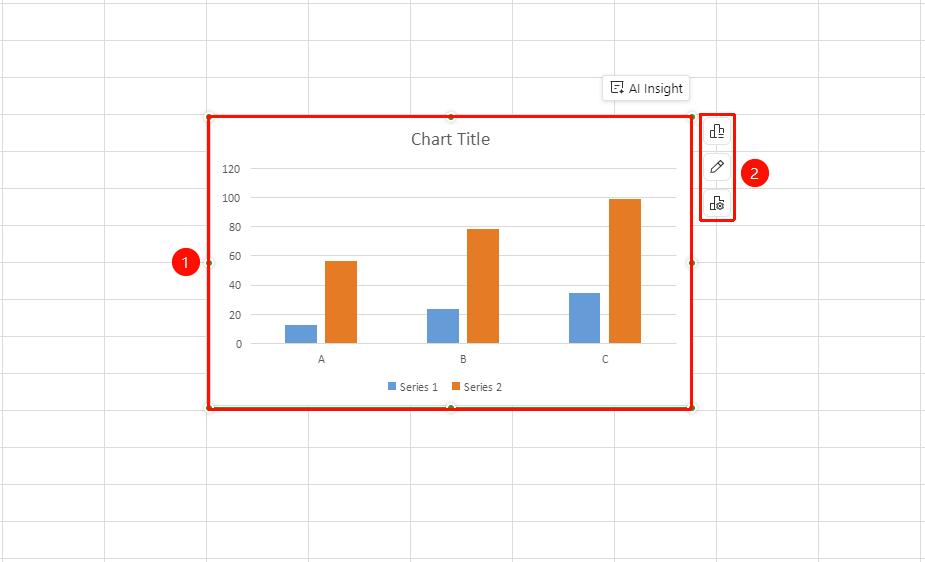
Select the chart
- After inserting the chart, you can drag the chart border to adjust its position
- Drag the control points at the corners of the chart to adjust its size
- After clicking to select the chart, chart editing options will appear above the toolbar, allowing you to modify the title, colors, style, etc.
FAQ
Q1: What should I do if the chart displays abnormally due to incorrect data range selection?
Solution: After selecting the chart, right-click and choose "Select Data". In the pop-up dialog box, reset the data range and data series.
Q2: How do I change the chart type of an inserted chart?
Solution: Select the chart, then choose "Change Type" on the right side, or re-select another type from the chart menu in the ribbon.
Q3: What is the difference between Sparklines and other charts?
Solution: Sparklines are miniature charts embedded within cells and do not occupy a separate chart area, making them suitable for quickly displaying trends next to data. Other chart types are inserted as independent objects into the sheet and support richer styles and interactive operations.
Notes
- It is recommended to include the header row when selecting the data range; the chart will automatically use the headers as legend or axis labels
- Blank cells in the data range may cause broken lines or missing data in the chart. It is recommended to clean the data beforehand
- After inserting the chart, you can double-click the chart to enter Read Mode, which supports modifying properties such as the title, axes, legend, and data labels
- Some chart types (such as Stock Charts) require a specific data structure format. Please ensure the data arrangement meets the requirements