Feature Summary
AirSheet supports inserting line charts to display the trend and overall distribution of numerical data in the form of lines, helping users intuitively identify peaks, troughs, and outliers in the data.
Feature Description
| Feature Dimension | Description |
|---|---|
| Membership Restriction | No membership restriction |
| Version Restriction | No version restriction |
Steps
Insert a Line Chart
Feature Entry
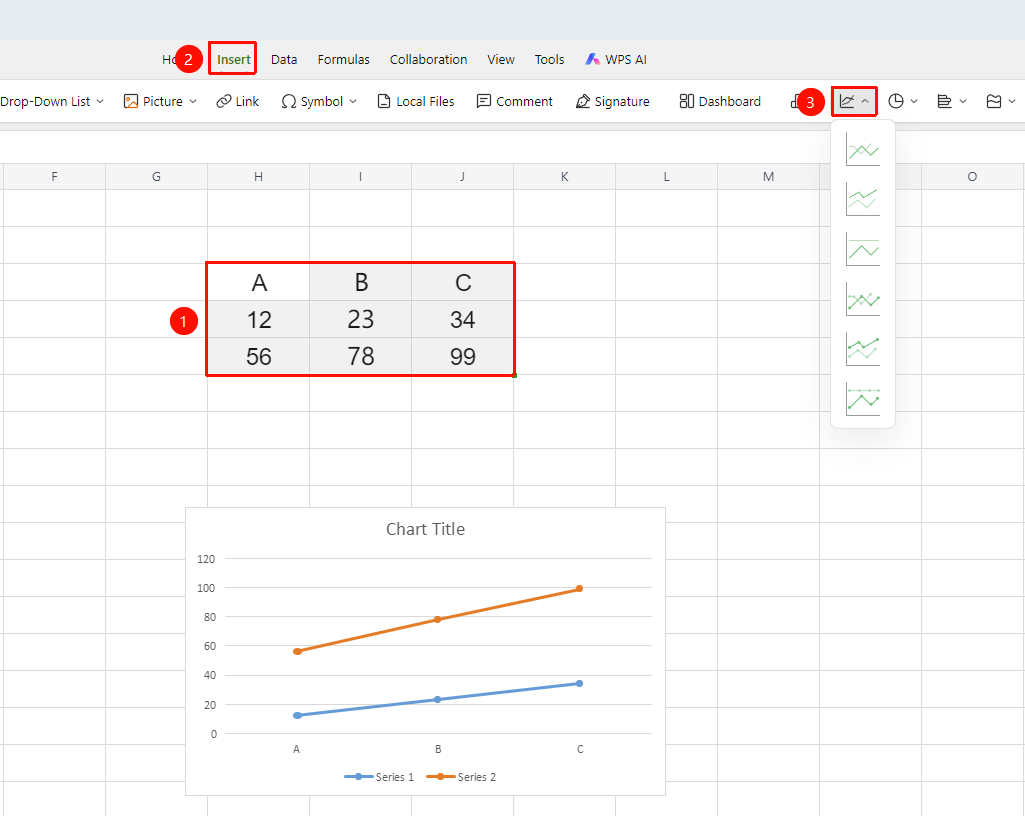
「Insert」 tab → 「Chart」 → 「Line Chart」
- Select the cell range containing data (ensure that category headers and values are included)
- Click the 「Insert」 tab and select 「Line Chart」
- Then choose a specific subtype (Line Chart, Stacked Line Chart, 100% Stacked Line Chart, etc.)
- A line chart will be automatically generated; you can drag to adjust its position and size
FAQ
Q1: What data analysis scenarios are line charts suitable for?
- Solution: Line charts are suitable for displaying the trend of numerical data changing over time or categories, helping to identify peaks and troughs in the data. They are commonly used in scenarios such as sales trend analysis and performance fluctuation observation.
Q2: How do I delete a specific data series in a line chart?
- Solution: Select the chart, click 「Edit Chart」, find the unwanted series in the series list, right-click and choose delete or uncheck it.
Notes
- Line charts are suitable for displaying data trends and are not suitable for comparing the absolute values of different categories
- Before inserting, you must select at least two columns of data: a category column and a value column
- Multi-series line charts are supported for comparing trends across different data series
- You can also quickly insert a line chart by 「Chart」 button under the 「Home」 tab