Feature Summary
Display data in circular sectors to show the proportional relationship of each part to the whole, suitable for proportion analysis.
Feature Description
| Feature Dimension | Description |
|---|---|
| Membership Restriction | No membership restriction |
| Version Restriction | No version restriction |
Operation Steps
Insert a Pie Chart
Feature Entry
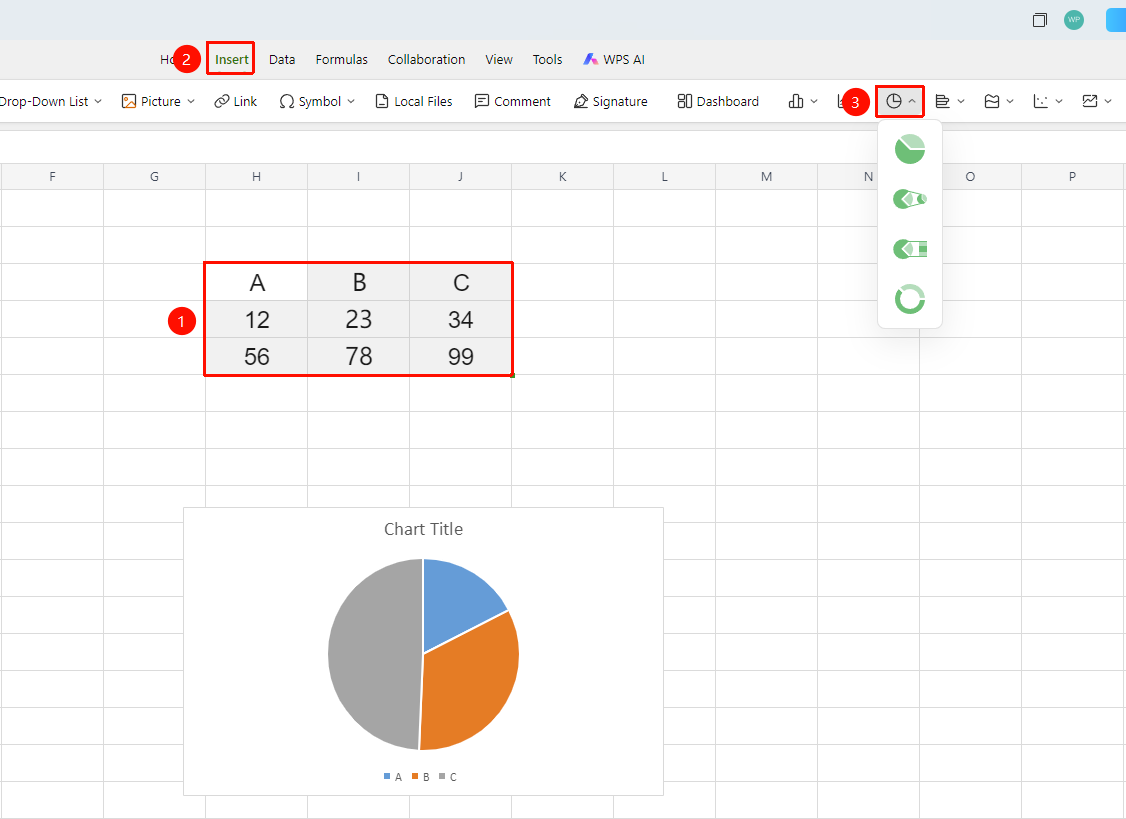
「Insert」tab → 「Chart」 → 「Pie Chart」
- Select the cell range containing data (ensure category headers and values are included)
- Click the 「Insert」 tab, select 「Pie Chart」
- Then choose a specific subtype (Pie Chart, Pie of Pie, Bar of Pie, etc.)
- The pie chart will be automatically generated; you can drag to adjust its position and size
Frequently Asked Questions
Q1: What data analysis scenarios are pie charts suitable for?
- Solution: Pie charts are suitable for displaying the proportional relationship of each part to the whole, such as sales proportion, market share, expense composition, etc. The sector area intuitively reflects the relative size of each data item.
Q2: What is the maximum number of data items a pie chart can display?
- Solution: It is recommended to limit the number of data items in a pie chart. When there are too many data items, the sectors become too small to distinguish. In such cases, consider merging secondary data into an "Other" category.
Notes
- Pie charts are used to display proportional relationships and are not suitable for comparing absolute value differences among multiple variables
- The sum of all sector data should equal the whole (100%), otherwise the chart proportions will be distorted
- In collaborate mode, pie chart modifications are visible to all collaborators in real time
- Pay attention to distinguishing the application scenarios of pie charts and doughnut charts
- You can also quickly insert a Pie chart by 「Chart」 button under the 「Home」 tab