Feature Summary
Insert a bar chart to display numerical comparisons between different categories in a horizontal bar format, suitable for visualization scenarios with long category names or numerous data categories.
Feature Description
| Feature Dimension | Description |
|---|---|
| Membership Restriction | No membership restriction |
| Version Restriction | No version restriction |
Steps
Insert a Bar Chart
Feature Entry
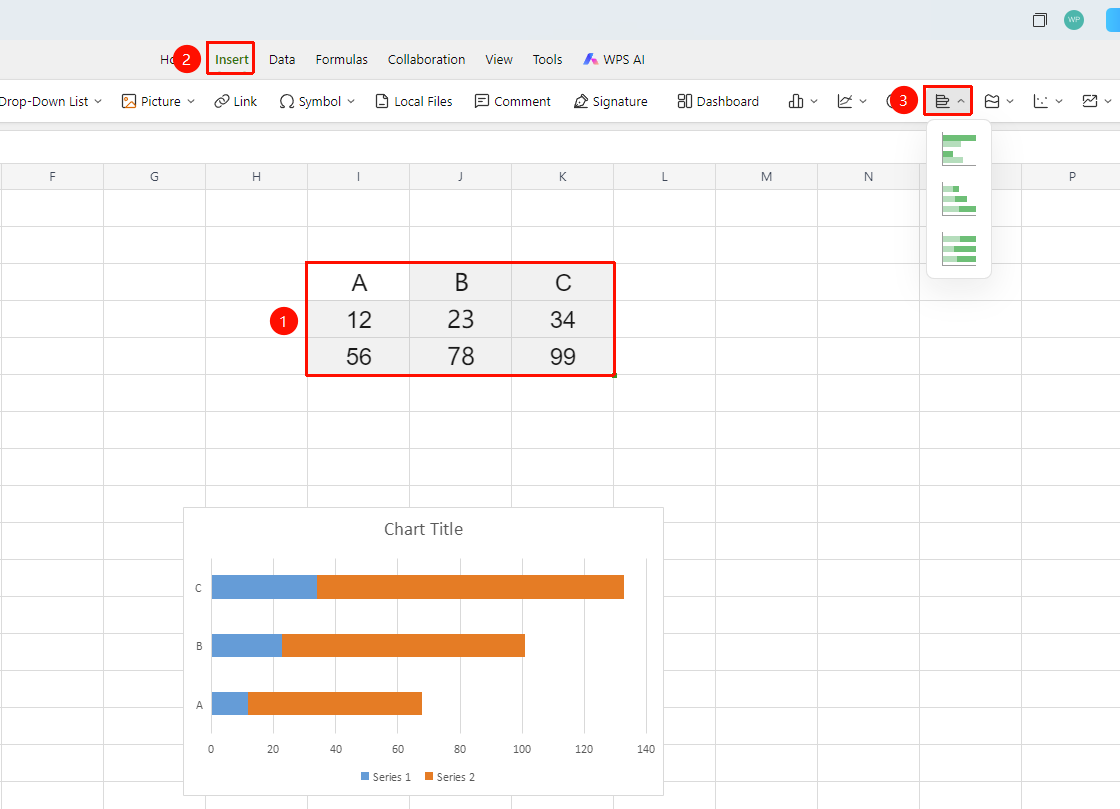
「Insert」 tab → 「Bar Chart」
- Select the cell range containing data (ensure category headers and values are included)
- Click the 「Insert」 tab, select 「Bar Chart」
- Then choose a specific subtype (Clustered Bar, Stacked Bar, 100% Stacked Bar, etc.)
- The chart will be generated automatically; you can drag to adjust its position and size
FAQ
Q1: What is the difference between a bar chart and a column chart?
- Solution: In a column chart, categories are on the horizontal axis (arranged horizontally), while in a bar chart, categories are on the vertical axis (arranged vertically). Bar charts are more suitable for scenarios with long category names that require horizontal display, making labels easier to read.
Notes
- For long category names, it is recommended to use a bar chart instead of a column chart
- Drag the chart border to adjust the overall size
- You can also quickly insert a bar chart by click「Chart」button from the「Home」tab