Feature Summary
Display data as points on a coordinate plane to intuitively show the distribution relationship and correlation between two variables, suitable for scenarios involving large volumes of data.
Feature Description
| Feature Dimension | Description |
|---|---|
| Membership Restriction | No membership restriction |
| Version Restriction | No version restriction |
Steps
Insert a Scatter Chart
Feature Entry
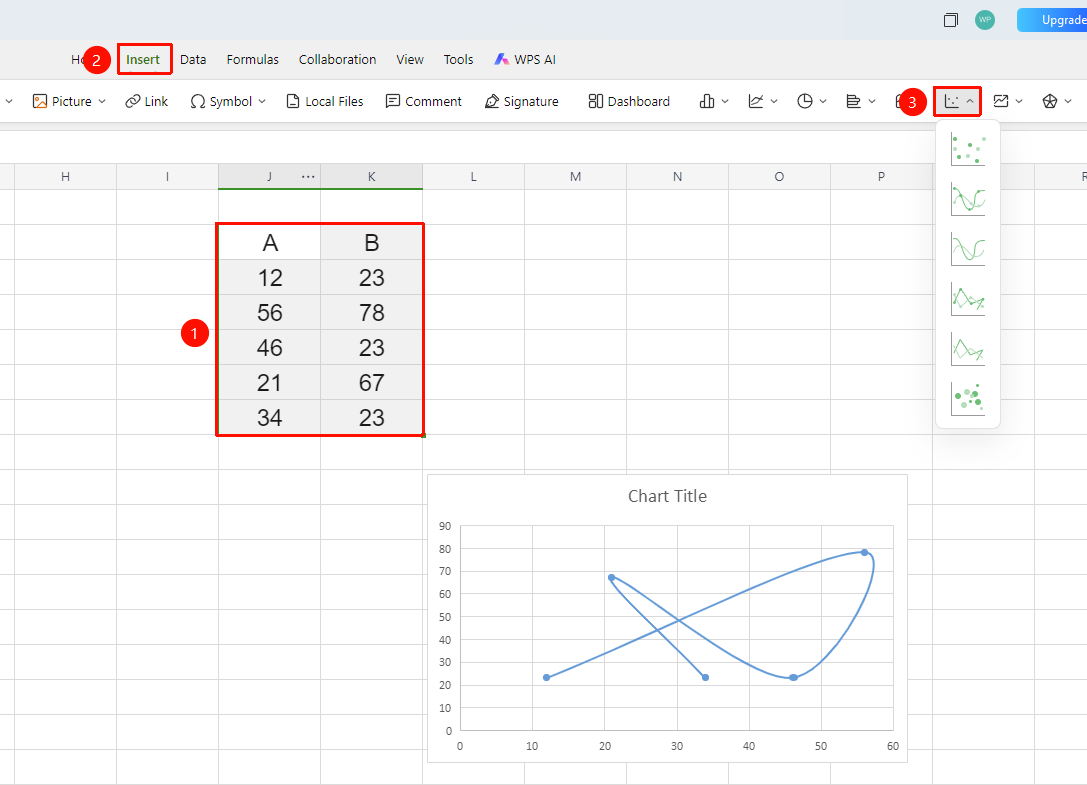
「Insert」 tab → 「Chart」 → 「Scatter Chart」
- Select the cell range containing data (ensure category headers and values are included)
- Click the 「Insert」 tab, select 「Scatter Chart」
- Then choose a specific subtype (Scatter Chart, Scatter Chart with Smooth Lines, Scatter Chart with Straight Lines, etc.)
- A scatter chart will be automatically generated; you can drag to adjust its position and size
FAQ
Q1: What scenarios are scatter charts suitable for?
- Solution: Scatter charts are suitable for analyzing the correlation and distribution between two variables, commonly used in scenarios such as the relationship between advertising spend and sales, height-weight distribution, and experimental data analysis.
Q2: What format does the data for a scatter chart need to meet?
- Solution: A scatter chart requires two columns of numerical data corresponding to the X-axis and Y-axis respectively, and cannot contain non-numerical data; the more data there is, the more meaningful the distribution analysis becomes.
Notes
- Scatter charts are suitable for correlation analysis of large data volumes
- The sparseness or density of point distribution can intuitively reflect the clustering and dispersion characteristics of the data
- Scatter charts are suitable for analyzing correlations between variables, but not for time series
- You can also quickly insert a Scatter Chart by click「Chart」button from the「Home」tab