Feature Summary
Displays the fluctuation of opening, closing, highest, and lowest prices over a specific period using a specialized chart, suitable for visual analysis of financial data and price trends.
Feature Description
| Feature Dimension | Description |
|---|---|
| Membership Restriction | No membership restriction |
| Version Restriction | No version restriction |
Steps
Insert a Stock Chart
Feature Entry
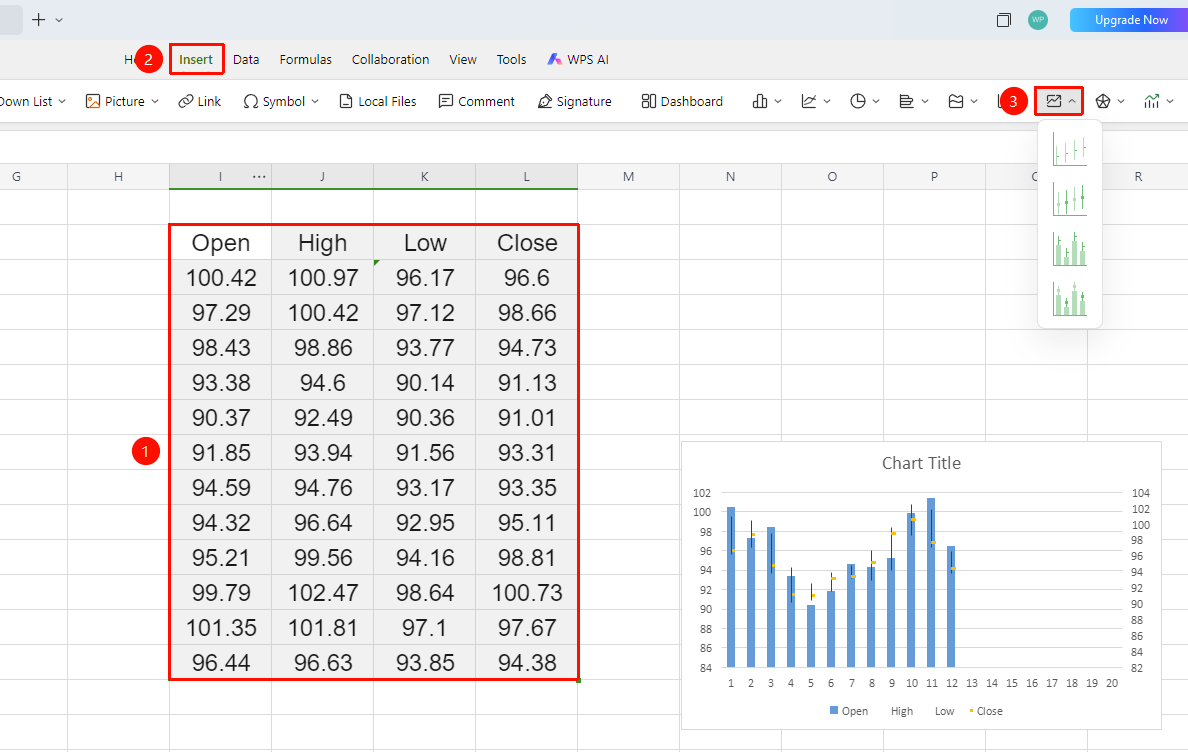
「Insert」 tab → 「Stock Chart」
- Select the cell range containing the data (ensure it includes category headers and values)
- Click the 「Insert」 tab, select 「Stock Chart」
- Then choose a specific subtype (High, Close, Volume, etc.)
- The stock chart will be automatically generated; you can drag to adjust its position and size
FAQ
Q1: What data format does the stock chart require?
- Solution: The stock chart typically requires four columns of data (in order): Date/Time, Open, High, Low, Close. The High must be ≥ Open and Close, and the Low must be ≤ Open and Close.
Q2: Can the stock chart only display stock data?
- Solution: No. The stock chart is suitable for any data scenario containing four price values — Open, High, Low, Close — such as commodity price fluctuations, exchange rate changes, temperature ranges, and other interval-type data displays.
Notes
- The stock chart has strict requirements for the order of data columns; incorrect column order will cause abnormal chart display
- The stock chart is suitable for displaying price fluctuations in continuous time series and is not suitable for comparing discrete categories of data
- You can also quickly insert a Stock chart by click「Chart」button from the「Home」tab