Feature Summary
Display data across multiple dimensions in a web chart format, helping you quickly analyze how each metric compares within the whole, facilitating comprehensive multi-dimensional evaluation.
Feature Description
| Feature Dimension | Description |
|---|---|
| Membership Restriction | No membership restriction |
| Version Restriction | No version restriction |
Steps
Inserting a Radar Chart
Feature Entry
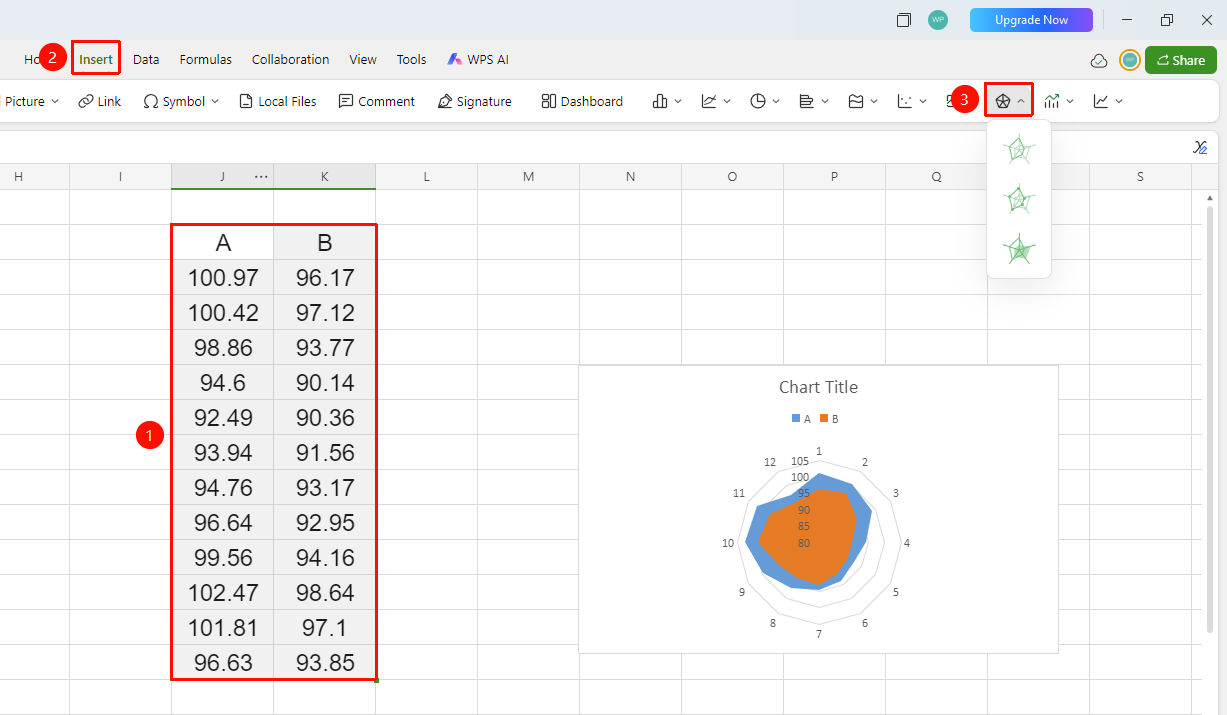
「Insert」 tab → 「Chart」 → 「Radar Chart」
- Select the cell range containing data (ensure it includes category headers and values)
- Click the 「Insert」 tab, and select 「Radar Chart」
- Then choose a specific subtype (Radar Chart, Radar Chart with Data Markers, etc.)
- The chart will be automatically generated; you can drag to adjust its position and size
FAQ
Q1: What analysis scenarios are radar charts suitable for?
- Solution: Radar charts are commonly used for multi-dimensional comprehensive comparison analysis, such as employee capability assessment (communication, leadership, technical skills, etc.), multi-attribute product comparison, comprehensive financial indicator analysis, and other scenarios requiring simultaneous consideration of multiple metrics.
Q2: What does a larger polygon in a radar chart represent?
- Solution: A larger polygon area indicates better overall performance of that data series across all dimensions; a polygon skewed in a certain direction indicates a higher data value in that dimension.
Q3: Is there a limit to the number of dimensions in a radar chart?
- Solution: It is recommended to keep the number of dimensions within 6-8. Too many dimensions can make the chart overly complex and difficult to read; the value ranges across dimensions should be as uniform as possible, otherwise the comparison effect may be affected.
Notes
- Radar charts are suitable for comparing the comprehensive performance of multiple objects across multiple dimensions
- The units and value ranges of each dimension should be as uniform as possible, otherwise the chart may be distorted
- For multi-series radar charts, it is recommended to use semi-transparent colors for fills to avoid mutual occlusion
- You can also quickly insert a radar chart by click「Chart」button from the「Home」tab