Feature Summary
Combine two or more different chart types (such as a bar chart and a line chart) into a single chart to comprehensively present the relationships between different data series.
Feature Description
| Feature Dimension | Description |
|---|---|
| Membership Restriction | No membership restriction |
| Version Restriction | No version restriction |
Steps
Insert a Combo Chart
Feature Entry
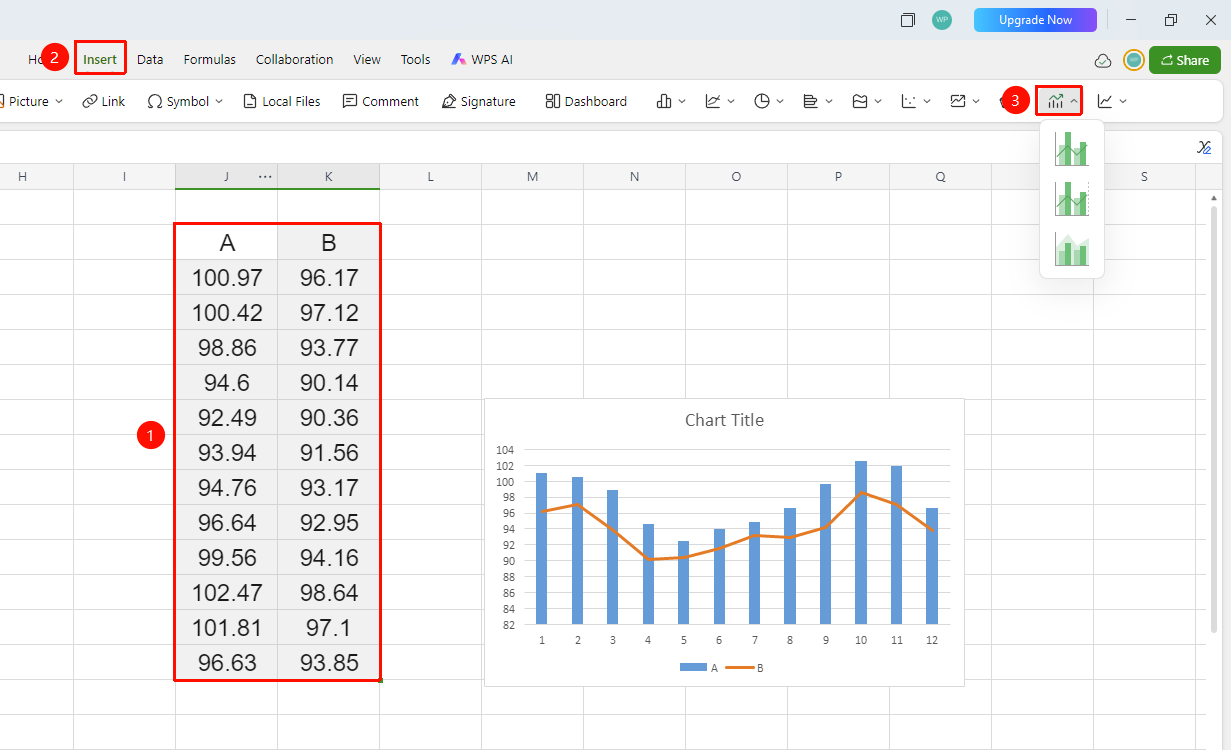
「Insert」 tab → 「Combo Chart」
- Select the cell range containing the data (ensure it includes category headers and values)
- Click the 「Insert」 tab and select 「Combo Chart」
- Then select a specific subtype (Clustered Column + Line, Clustered Column + Line on Secondary Axis, etc.)
- The data will be intelligently recognized and a combo chart will be generated
FAQ
Q1: What scenarios are combo charts suitable for?
- Solution: Combo charts are suitable for simultaneously displaying quantities that need comparison and quantities that reflect trends, such as sales revenue (bar chart) + year-over-year growth rate (line chart), output (bar chart) + gross margin (line chart), and other multi-dimensional comprehensive analyses.
Notes
- Combo charts are suitable for displaying data comparisons of different dimensions or units in the same chart
- When enabling dual axes, clearly distinguish the series corresponding to the primary and secondary axes
- Legend labels should be clear and unambiguous to prevent readers from confusing the chart types of each series
- You can also quickly insert a Combo chart by click「Chart」button from the「Home」tab