Feature Summary
The Edit Chart feature is used to create, modify, and beautify charts in AirSheet, helping users present data in a visual format and improving collaborative data analysis efficiency.
Feature Description
| Feature Dimension | Description |
|---|---|
| Membership Restriction | No membership restriction |
| Version Restriction | No version restriction |
Operation Steps
Edit Chart Elements
Feature Entry
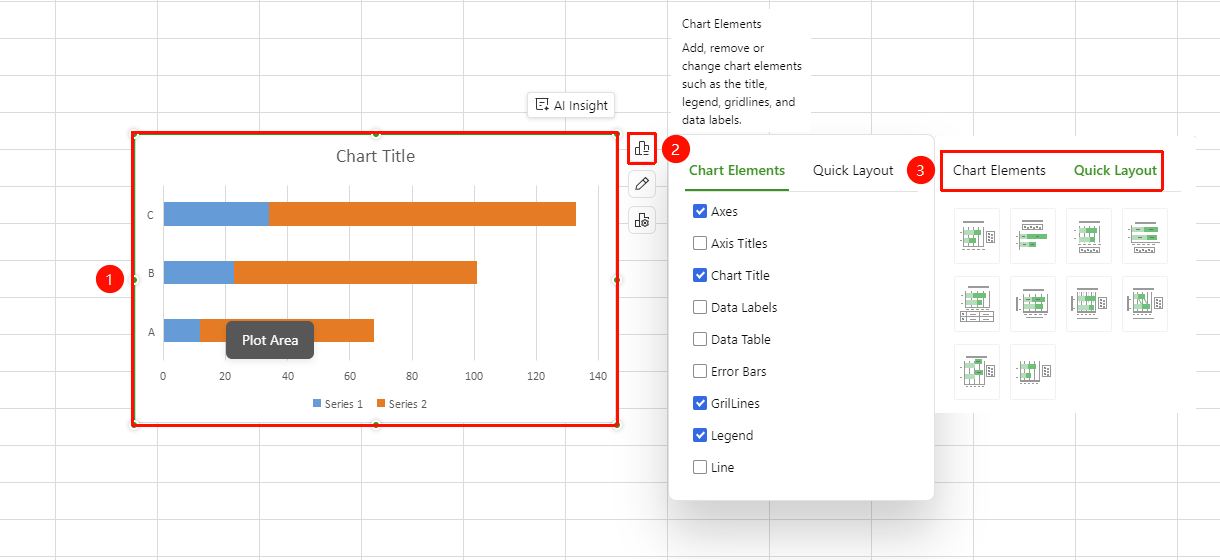
Click chart → 「Chart Elements」
- Click to select the inserted chart
- Select 「Chart Elements」
- In the pop-up 「Chart Elements」 dialog, you can check whether to display chart elements such as chart title, axes, and data labels
- In the 「Quick Layout」 dialog, you can quickly switch the chart layout
Change Chart Style
Feature Entry
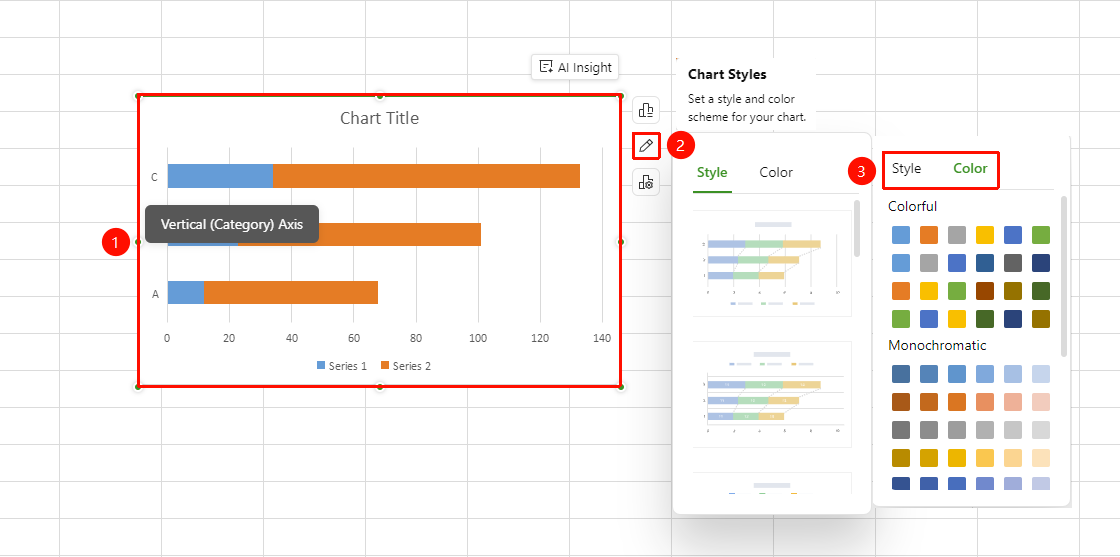
Click chart → 「Chart Styles」
- Click to select the inserted chart
- Select 「Chart Styles」
- In the pop-up 「Style」 dialog, you can click a preset style to apply it to the chart with one click
- In the 「Color」 dialog, you can quickly switch the chart color
Change Chart Type
Feature Entry
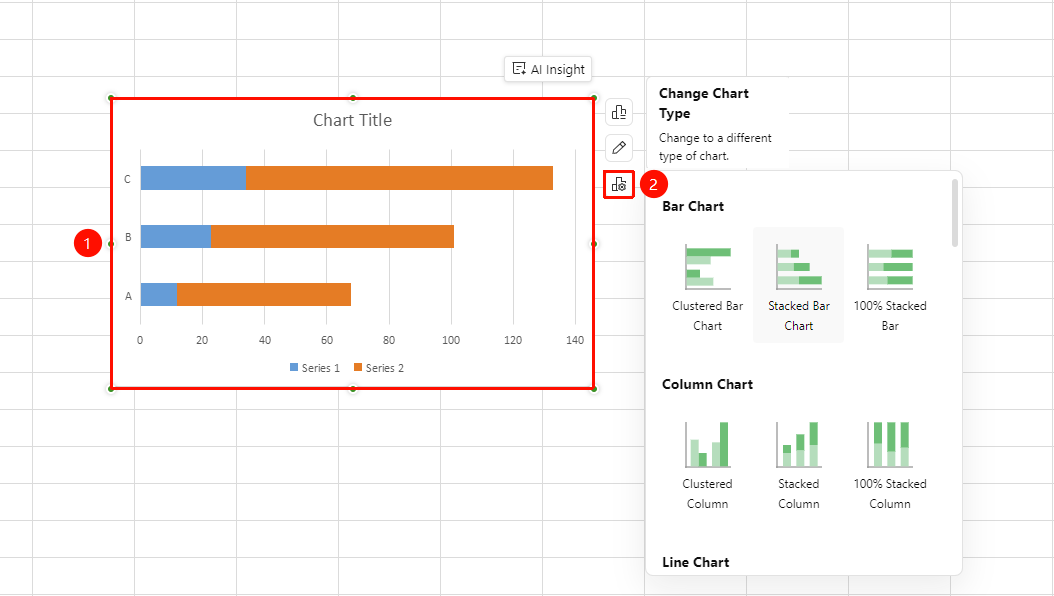
Click chart → 「Change Chart Type」
- Select the chart to be modified
- Right-click the chart area and select 「Change Type」
- Select a new chart type in the pop-up panel
- Click OK, and the chart will automatically switch to the new type while retaining the original data
Save as Picture
Feature Entry
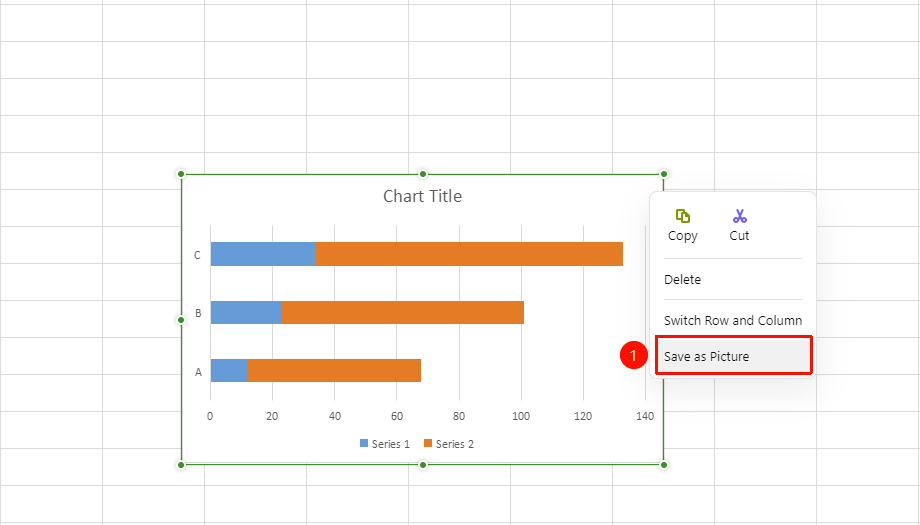
Right-click chart → 「Save as Picture」
- Right-click the chart you want to save as a picture
- Select 「Save as Picture」 from the right-click menu to save the picture to your local device
FAQ
Q1: After the data source in the chart is updated, will the chart does change automatically?
- Solution: Directly modify the value of the data source cell, and the chart will update automatically. If the chart does not refresh, try resetting the data source.
Q2: After saving the chart as a picture, can it still change automatically as the data source updates?
- Solution: The local picture will not change, but the chart within the sheet will still change as the data source changes.
Notes
- Before inserting a chart, ensure the data range includes headers and the data format in the value columns is correct
- It is recommended that the team agree on a unified naming convention in advance for text such as chart titles and axis labels