The PivotTable feature is used to summarize, categorize, and statistically analyze large amounts of data in AirSheet, helping users quickly understand and analyze data from multiple dimensions.
Feature Description
| Feature Dimension | Description |
|---|---|
| Membership Restriction | No membership restriction |
| Version Restriction | No version restriction |
Operation Steps
Creating a PivotTable
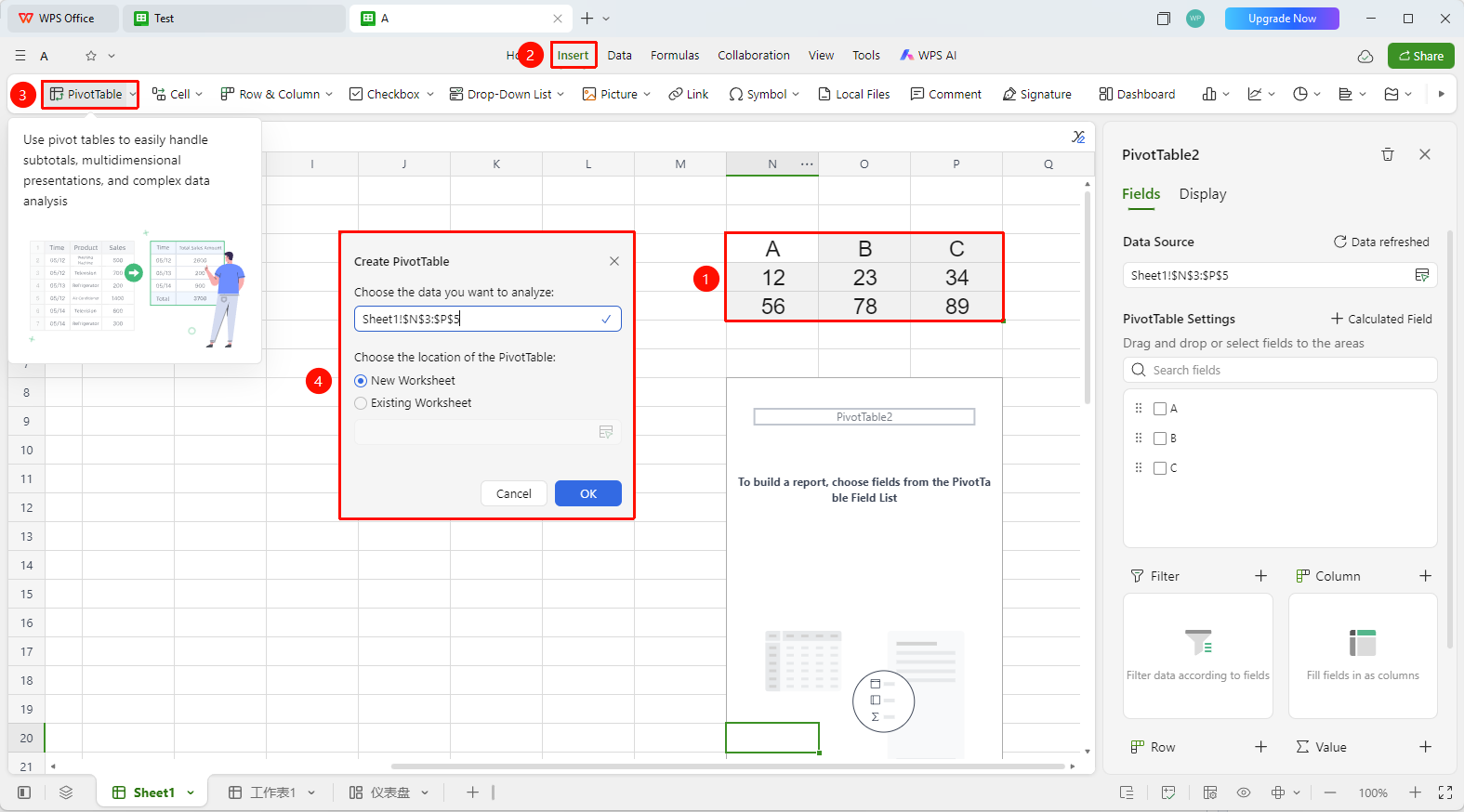
Feature Entry①
「Insert」 tab → 「PivotTable」 button
- Select any cell in the data source area (ensure the data has complete headers)
- Click the 「PivotTable」 button in the 「Insert」 tab
- In the pop-up dialog, select the placement location: new sheet or existing sheet
- After clicking OK, creat a PivotTablethe and PivotTable configuration panel will appear on the right side
Feature Entry②
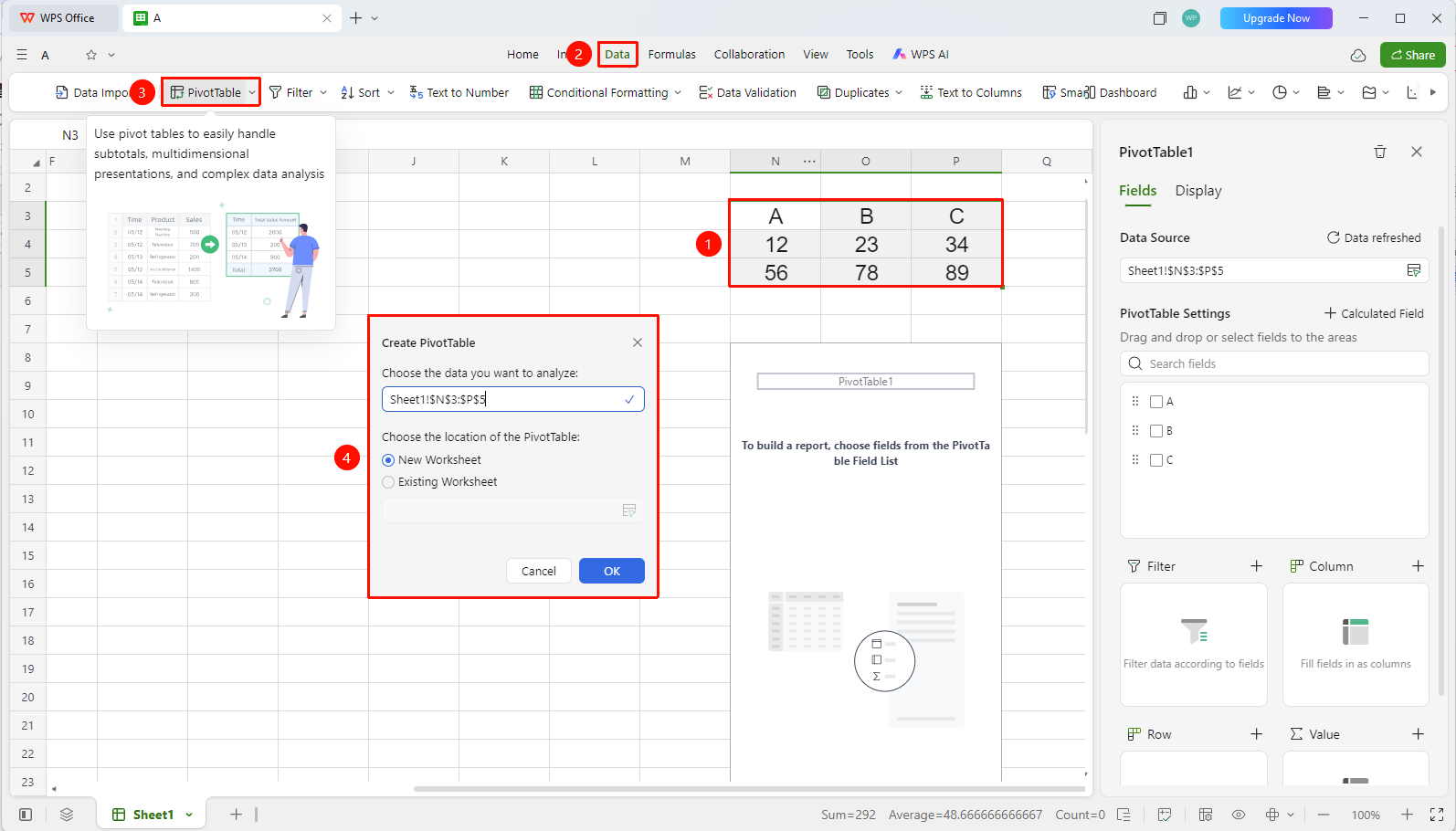
「Data」 tab → 「PivotTable」 button
- Select any cell in the data source area (ensure the data has complete headers)
- Click the 「PivotTable」 button in the 「Insert」 tab
- In the pop-up dialog, select the placement location: new sheet or existing sheet
- After clicking OK, creat a PivotTablethe
Opening the PivotTable Configuration Panel
Feature Entry
Any cell in the PivotTable
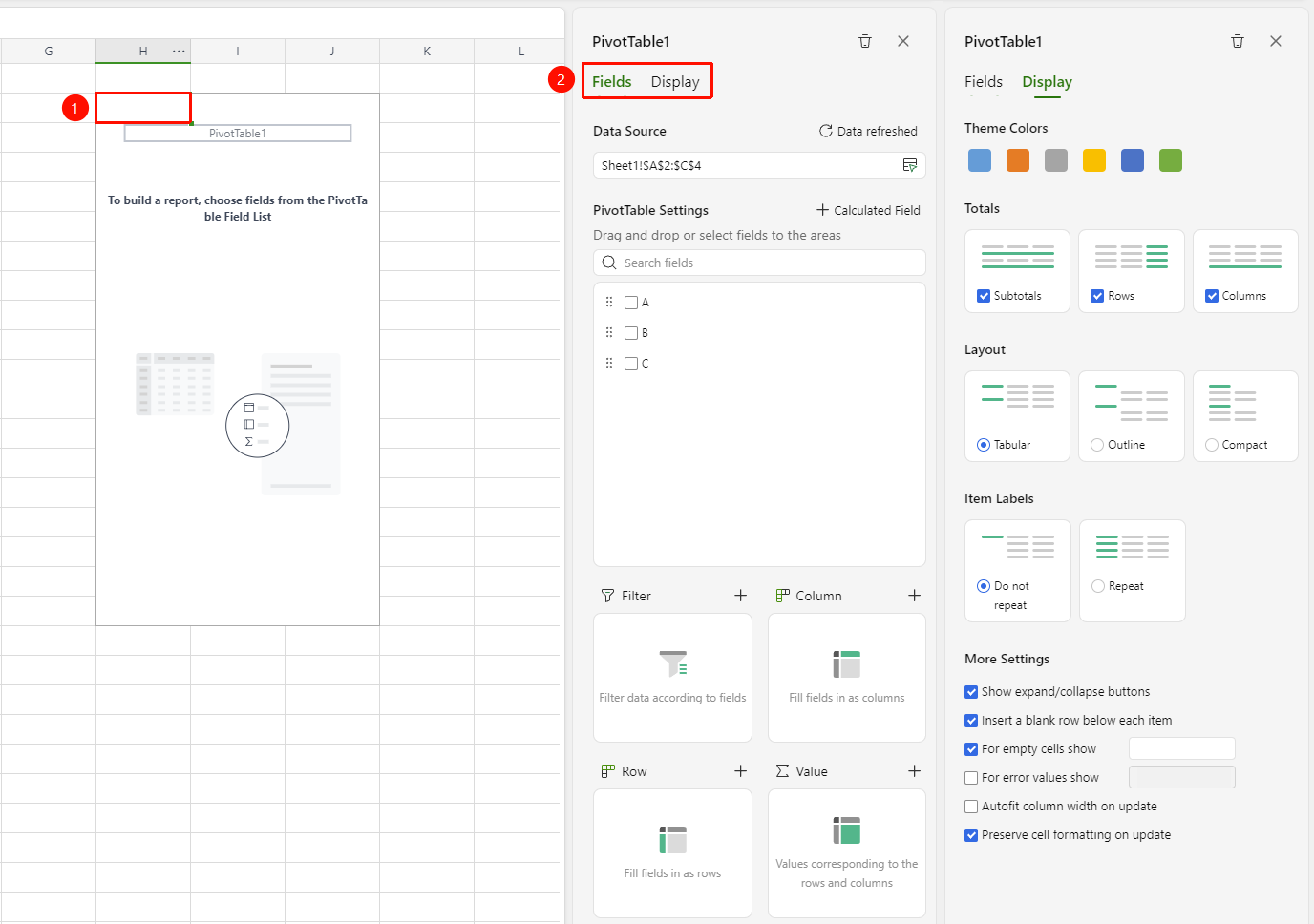
- Click any cell in the PivotTable
- The PivotTable configuration panel will automatically appear on the right side, containing two tabs: 「Field Configuration」 and 「Display Configuration」
Field Configuration
Feature Entry
Configuration panel → 「Field Configuration」 tab
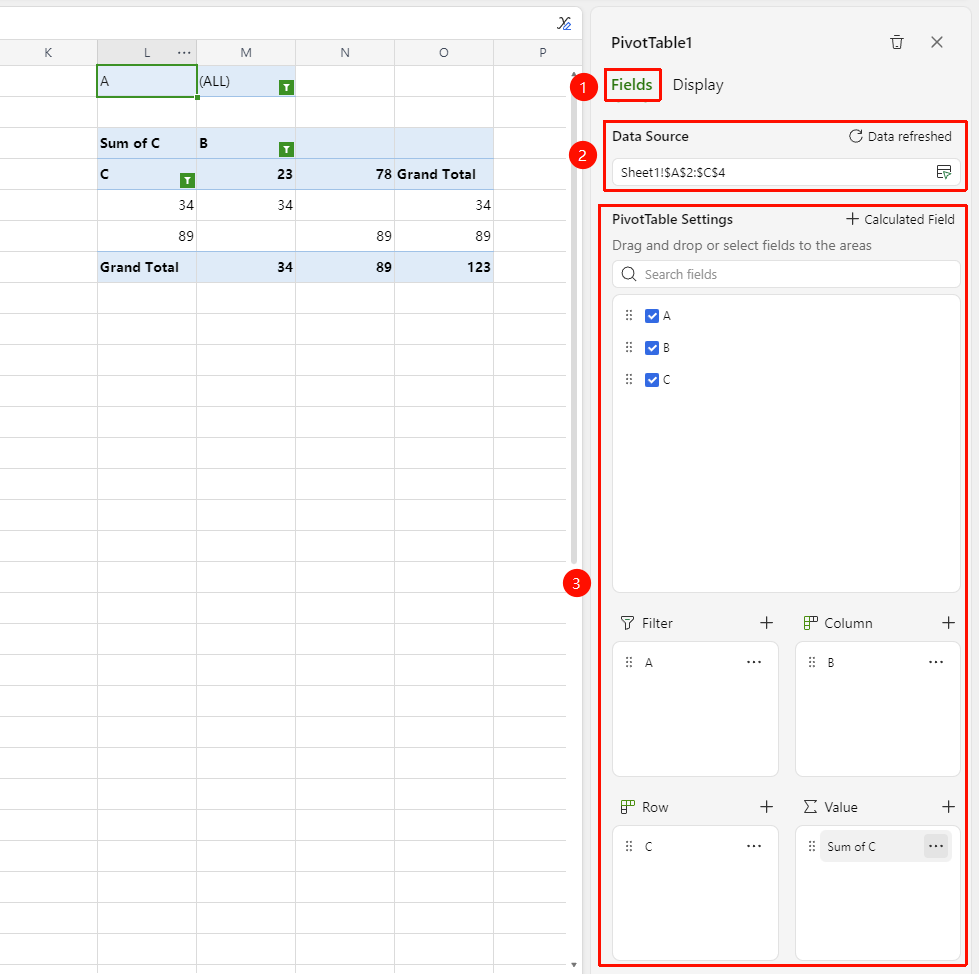
- Click the 「Field Configuration」 tab at the top of the configuration panel
- View the current data range in the 「Data Source」 area, click 「Data Refreshed」 to update data
- Drag the fields to be analyzed into the four areas below:
- Filters: Add global filter fields
- Columns: Expand fields as column headers
- Rows: Expand fields as row headers
- Values: Perform summary calculations on fields (Sum, Count, Average, etc.)
- The system automatically generates pivot statistical results in the sheet
- Click a field in the 「Values」 area to select the summary method: Sum, Count, Average, Max, Min, etc.
Display Configuration
Feature Entry
Configuration panel → 「Display Configuration」 tab
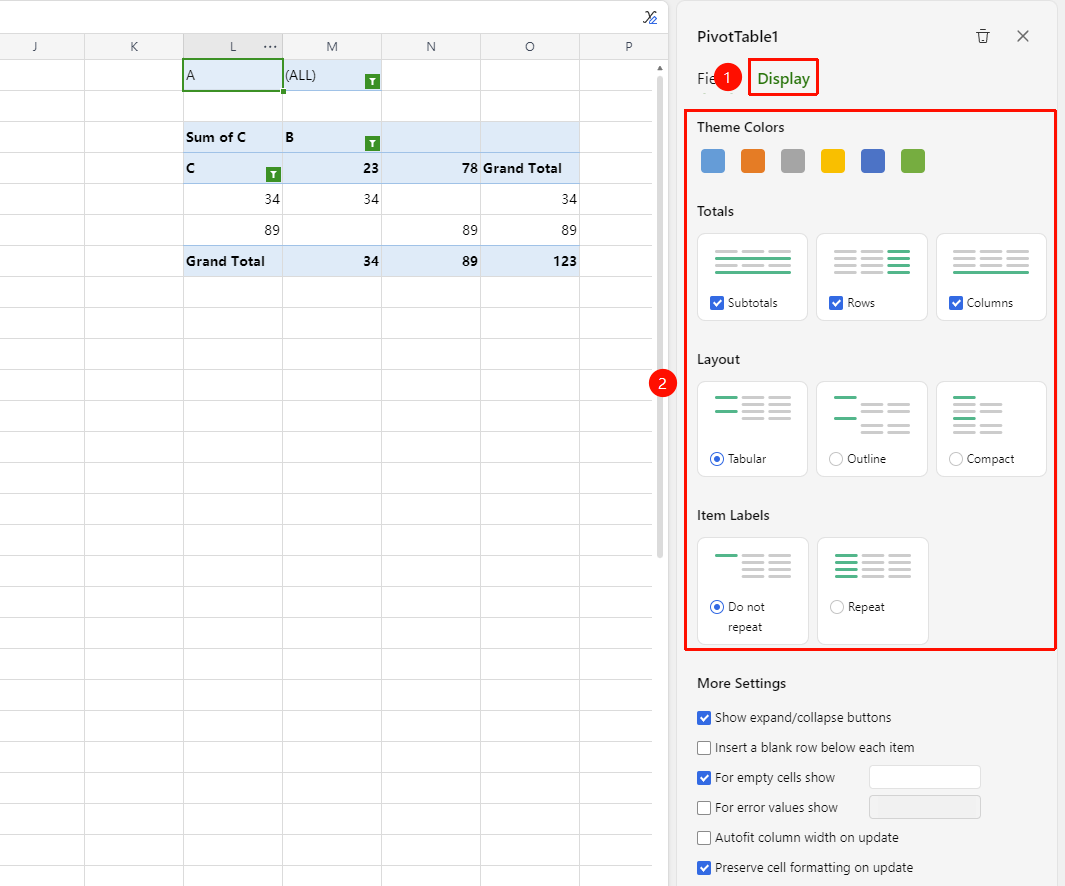
- Click the 「Display Configuration」 tab at the top of the configuration panel
- The following display options can be set:
- Theme Color: Select the color scheme for the PivotTable (Blue, Orange, Gray, Yellow, Green, etc.)
- Total Display Mode:
- Subtotals: Show subtotals for each category
- Row Totals: Show totals in the row direction
- Column Totals: Show totals in the column direction
- Layout Display Mode:
- Tabular Form: Display in traditional table layout
- Outline Form: Display in outline hierarchy structure
- Compact Form: Display in compact layout
- Label Display Mode:
- Do Not Repeat: Show the same label only once
- Repeat Display: Show labels for every item
More Settings
Feature Entry
Display Configuration → 「More Settings」 area
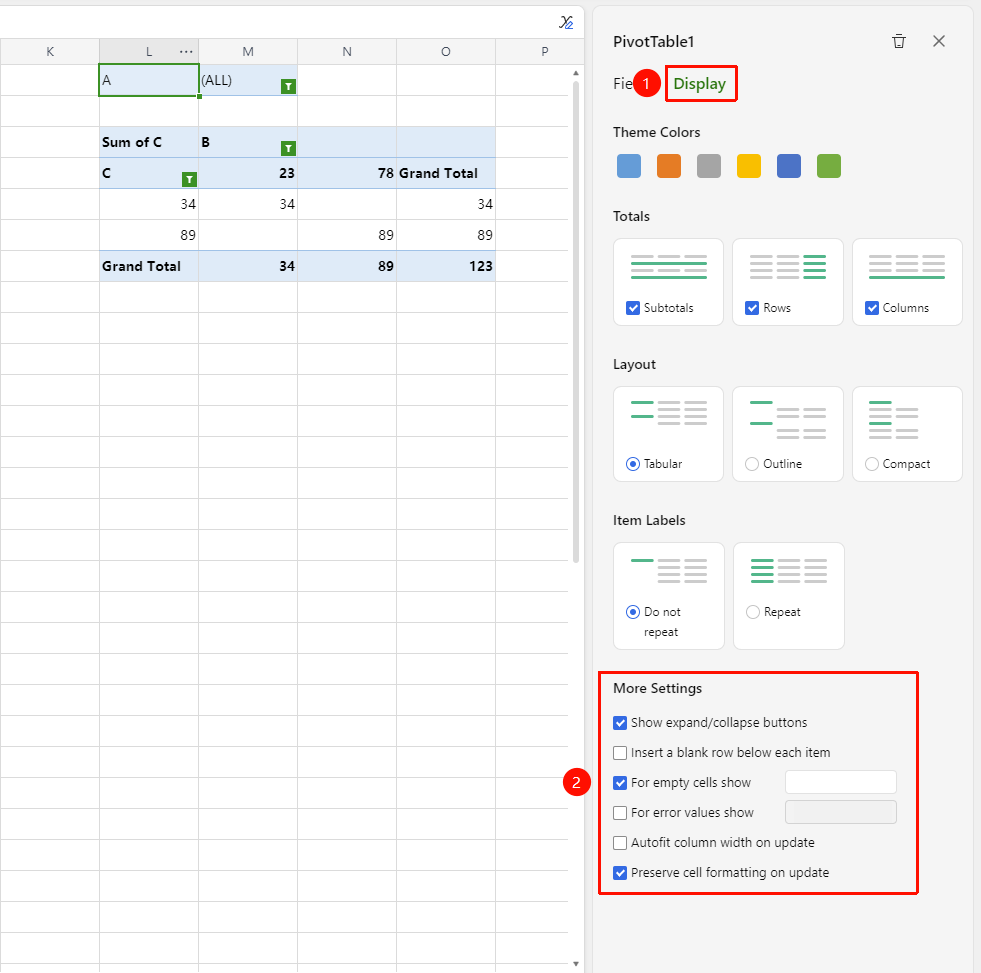
- Find the 「More Settings」 area at the bottom of Display Configuration
- Check the following options as needed:
- Show Collapse Buttons: Allow collapsing/expanding grouped data
- Insert Blank Line After Each Item: Add blank lines to separate groups
- For Empty Cells, Show: custom display content for empty cells
- For Error Values, Show: custom display content for error cells
- Auto-fit Column Widths on Data Update: Automatically adjust column widths after refreshing data
- Preserve Cell Formatting on Data Update: Keep manually set formatting after refreshing
PivotTable Right-Click Menu
Feature Entry
Right-click on the PivotTable area
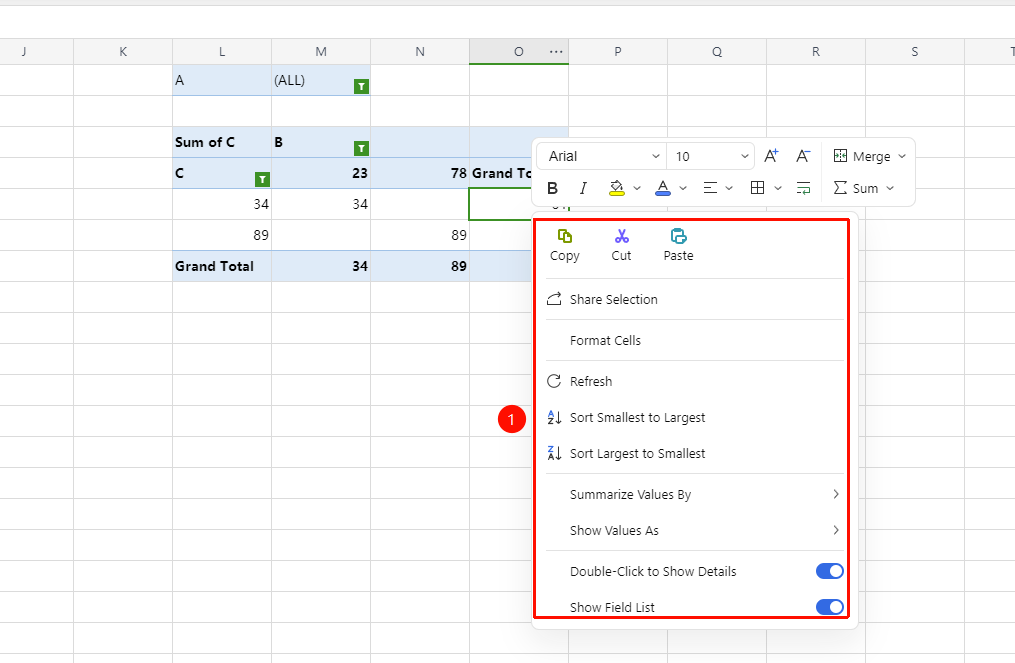
- Right-click on the PivotTable area
- The following operations can be performed in the right-click menu:
- Copy/Cut/Paste: Basic editing operations
- Share Selection: Share the selected data area
- Format Cells: Set cell format styles
- Refresh: Update PivotTable data
- Ascending/Descending: Sort fields
- Double-click to Show Detail Data: Double-click to view detailed data (toggle control)
- Show Field List: Show/Hide the field configuration panel (toggle control)
Slicer
Feature Entry ①
「Insert」 tab → 「PivotTable」 dropdown menu → 「Slicer」
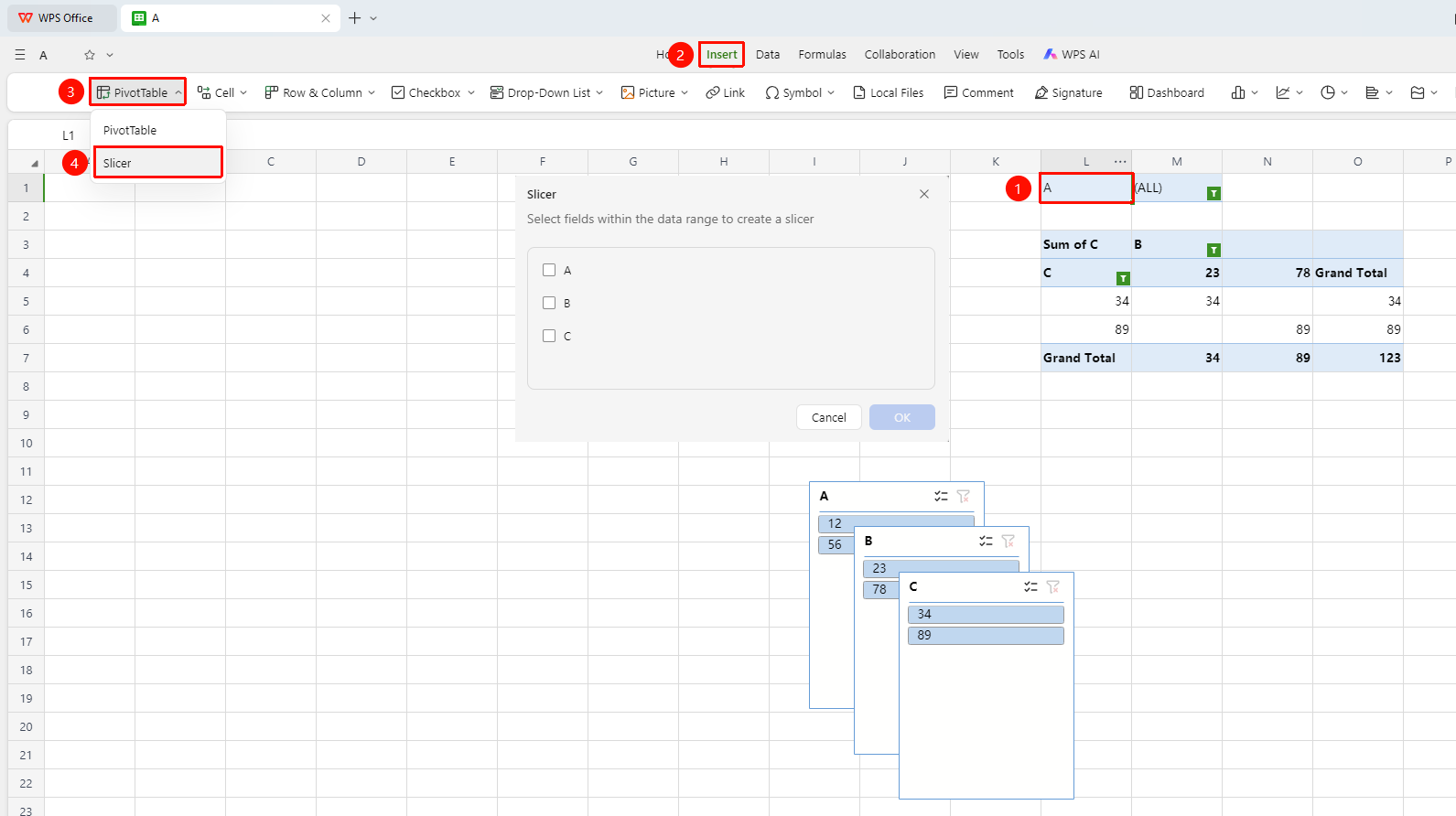
- Select any cell in the PivotTable
- Click the 「PivotTable」 dropdown menu button in the 「Insert」 tab
- Click 「Slicer」 in the dropdown menu
- In the pop-up dialog, select the fields to be analyzed
- After clicking OK, the slicer is generated
Feature Entry ②
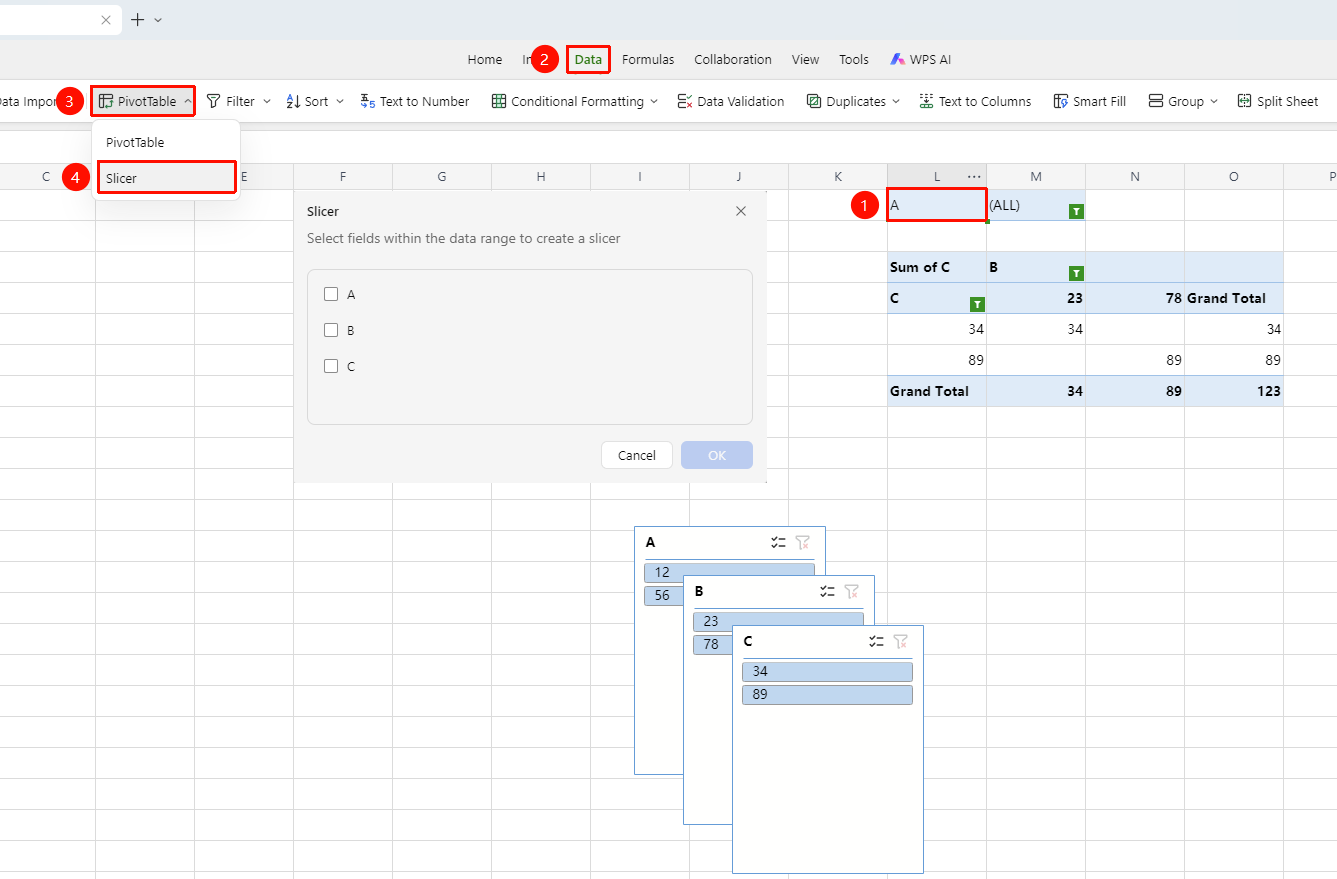
「Data」 tab → 「PivotTable」 dropdown menu → 「Slicer」
- Select any cell in the PivotTable.
- Click the PivotTable drop-down menu button on the Data tab.
- Click Slicer in the drop-down menu.
- In the pop-up dialog box, select the fields you want to analyze.
- Click OK to generate the slicer.
Slicer Settings
Feature Entry
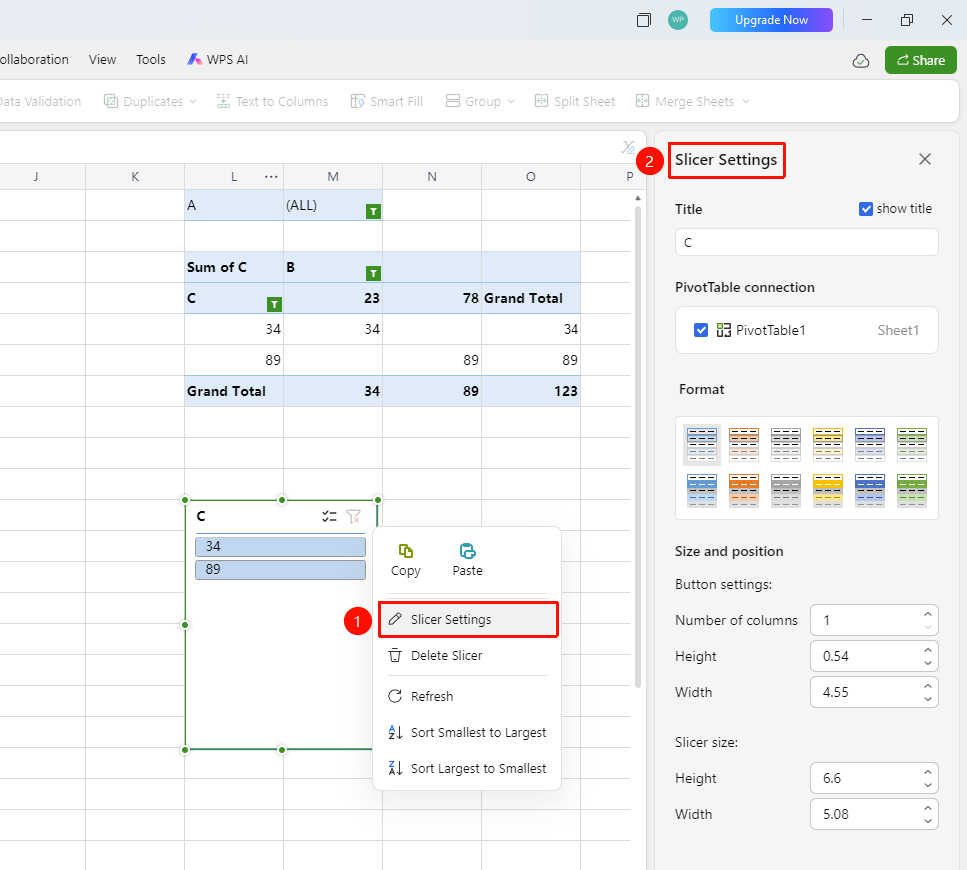
Slicer right-click menu → Slicer Settings
- Right-click the slicer.
- Select Slicer Settings from the right-click menu.
- In the settings panel on the right, you can configure the following:
- Header: Set the slicer header name. Check Display Header to show or hide the header.
- PivotTable Connections: Select the PivotTable associated with the slicer.
- Style: Choose a color scheme style for the slicer.
- Size and Position:
- Button Settings: Set the number of columns, height, and width.
- Slicer Size: Set the overall height and width of the slicer.
4.You can also choose from the right-click menu: Copy, Paste, Delete Slicer, Refresh, Sort Ascending, Sort Descending.
Notes
- The data source must contain a complete header row, and it is recommended not to have empty rows or columns within the data area.