Feature Summary
The Find, Replace, and Go To features are used to quickly locate or batch-modify specific text and numeric content in AirSheet, improving users' search and editing efficiency when processing large amounts of data.
Feature Description
| Feature Dimension | Description |
|---|---|
| Membership Restriction | No membership restriction |
| Version Restriction | No version restriction |
Operation Steps
Using the Find Feature
Feature Entry
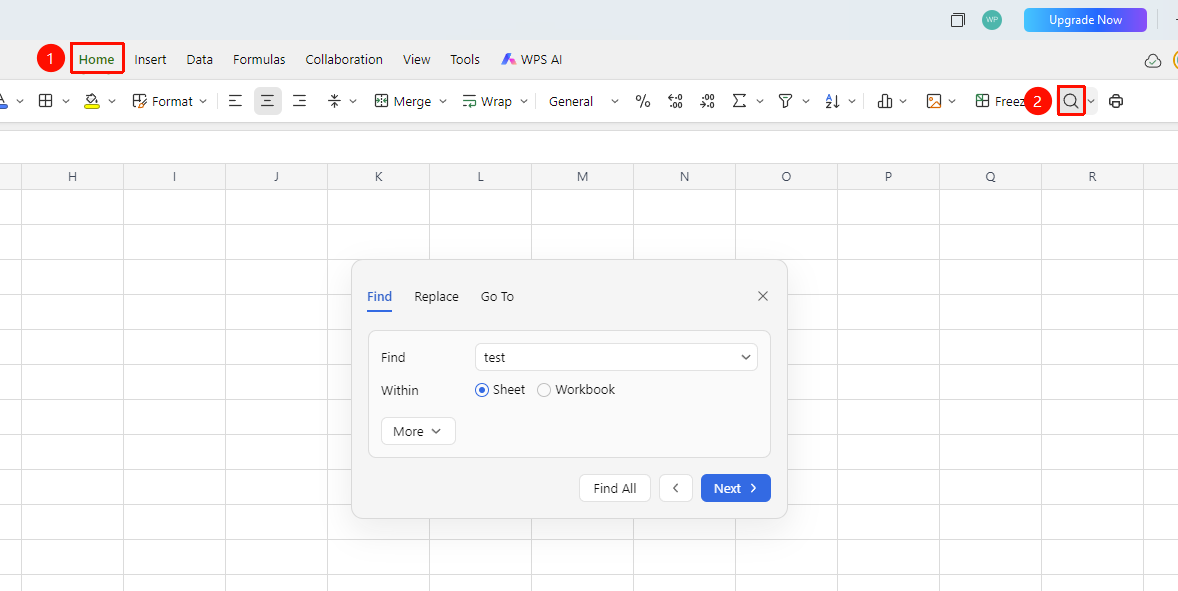
"Home" tab → "Find" button / Shortcut Ctrl+F
- Press the Ctrl + F shortcut, or click the "Find" button in the Home tab
- Enter the content you want to find in the find box
- Click "Next" to jump to the matching cell
- Click "Find All" to view a list of all matching results
Using the Replace Feature
Feature Entry
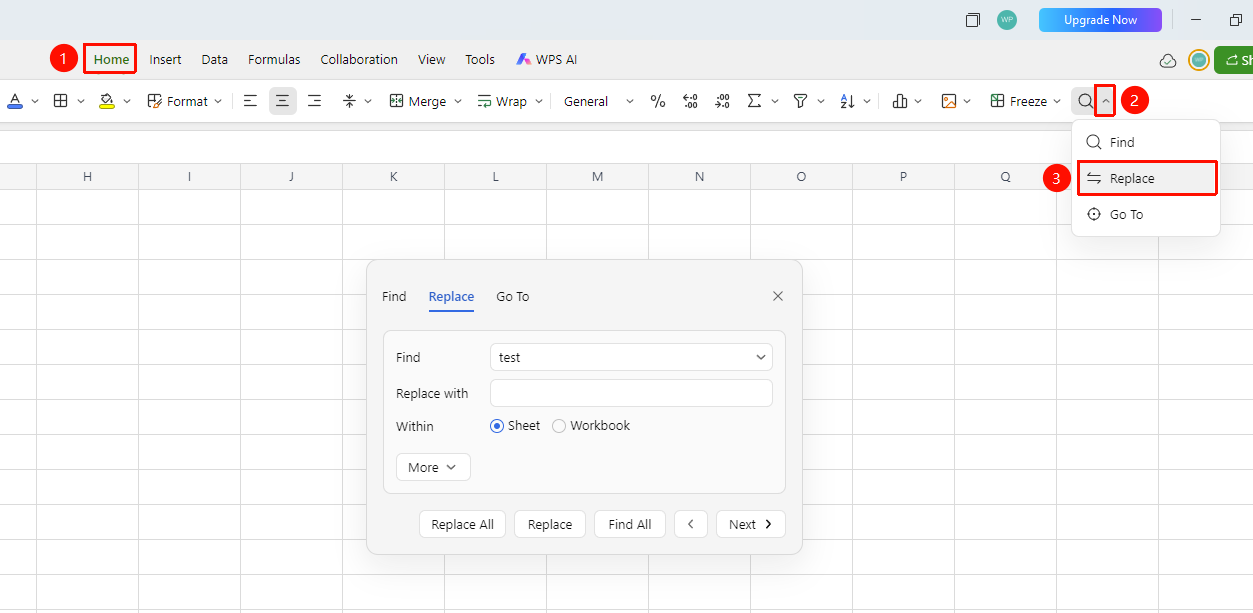
"Home" tab → "Find" button dropdown menu → "Replace" / Shortcut Ctrl+H
- Press the Ctrl + H shortcut, or click the "Find" button dropdown menu in the Home tab → "Replace"
- Enter the original content in the "Find" input box
- Enter the new content in the "Replace with" input box
- Click "Replace" to replace one by one, or click "Replace All" to batch replace
Using the Go To Feature
Feature Entry
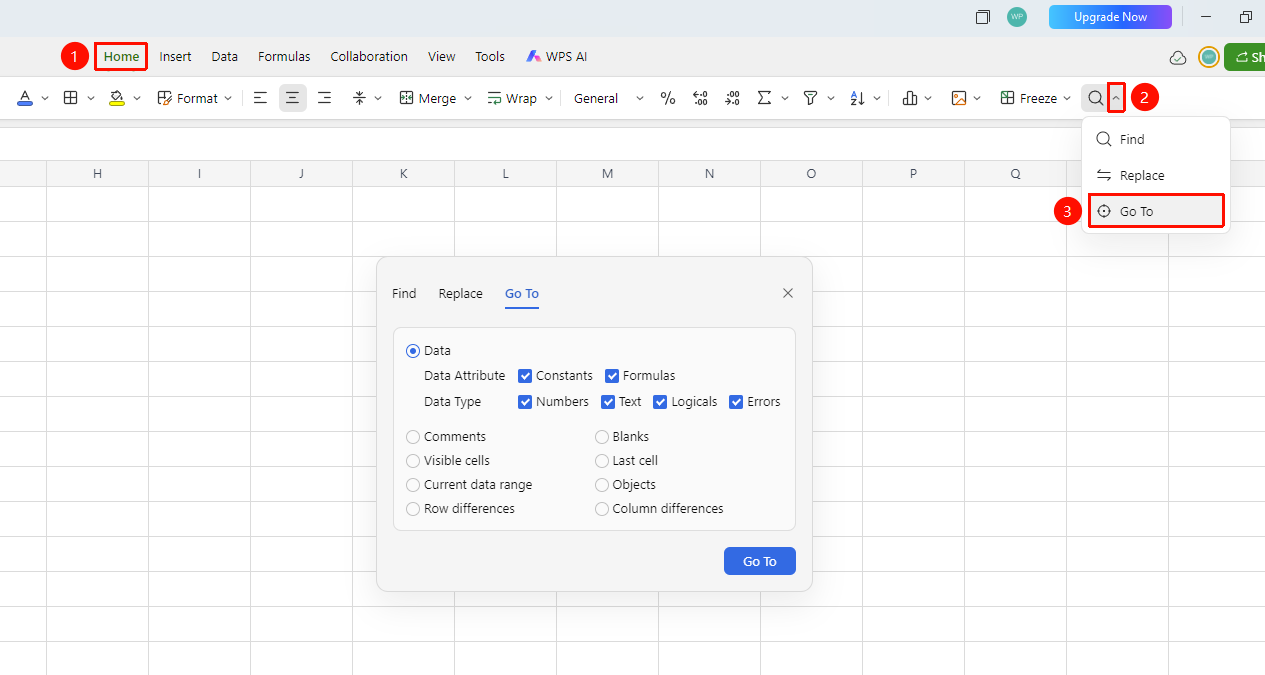
"Home" tab → "Find" button dropdown menu → "Go To" / Shortcut Ctrl+G
- Press the Ctrl + G shortcut, or click the "Find" button dropdown menu in the Home tab → "Go To"
- Check the required content for different types of Go To
Advanced Find Options
Feature Entry
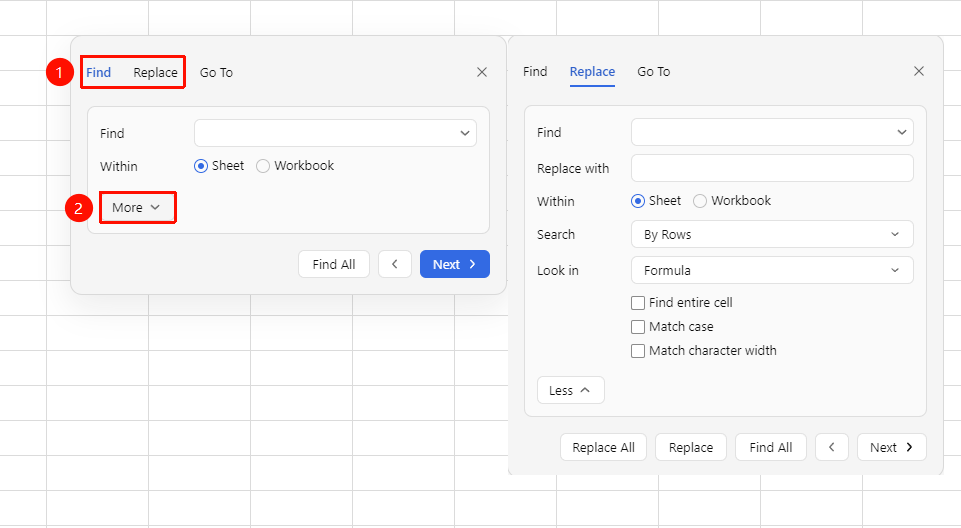
Find/Replace dialog → "Options" button
- Click the "Options" button in the Find/Replace dialog to expand advanced settings
- Configurable options include:
- Search Scope: sheet or workbook
- Match Case: match case precisely
- Match Entire Cell Content: match the entire cell content (rather than partial match)
- Search by Rows/Columns: control the search direction
FAQ
Q1: How to find content in multiple sheets simultaneously?
- Solution: In the Find dialog, click "Options" and change the search scope from "Sheet" to "Workbook" to find content across all sheets in the entire workbook.
Notes
- Using format-based find allows you to precisely locate content with specific formatting in complex sheets