Feature Summary
The print feature is used to output AirSheet via a printer, helping users quickly convert electronic sheets into paper materials.
Feature Description
| Feature Dimension | Description |
|---|---|
| Membership Restriction | No membership restriction |
| Version Restriction | No version restriction |
Operation Steps
Open Print Settings
Feature Entry
「File Operations」button → 「Print」option / Shortcut Ctrl+P
- Press the Ctrl + P shortcut, or click 「File Operations」→「Print」
- In the print preview interface, you can view the print effect
- The right panel allows you to configure print parameters
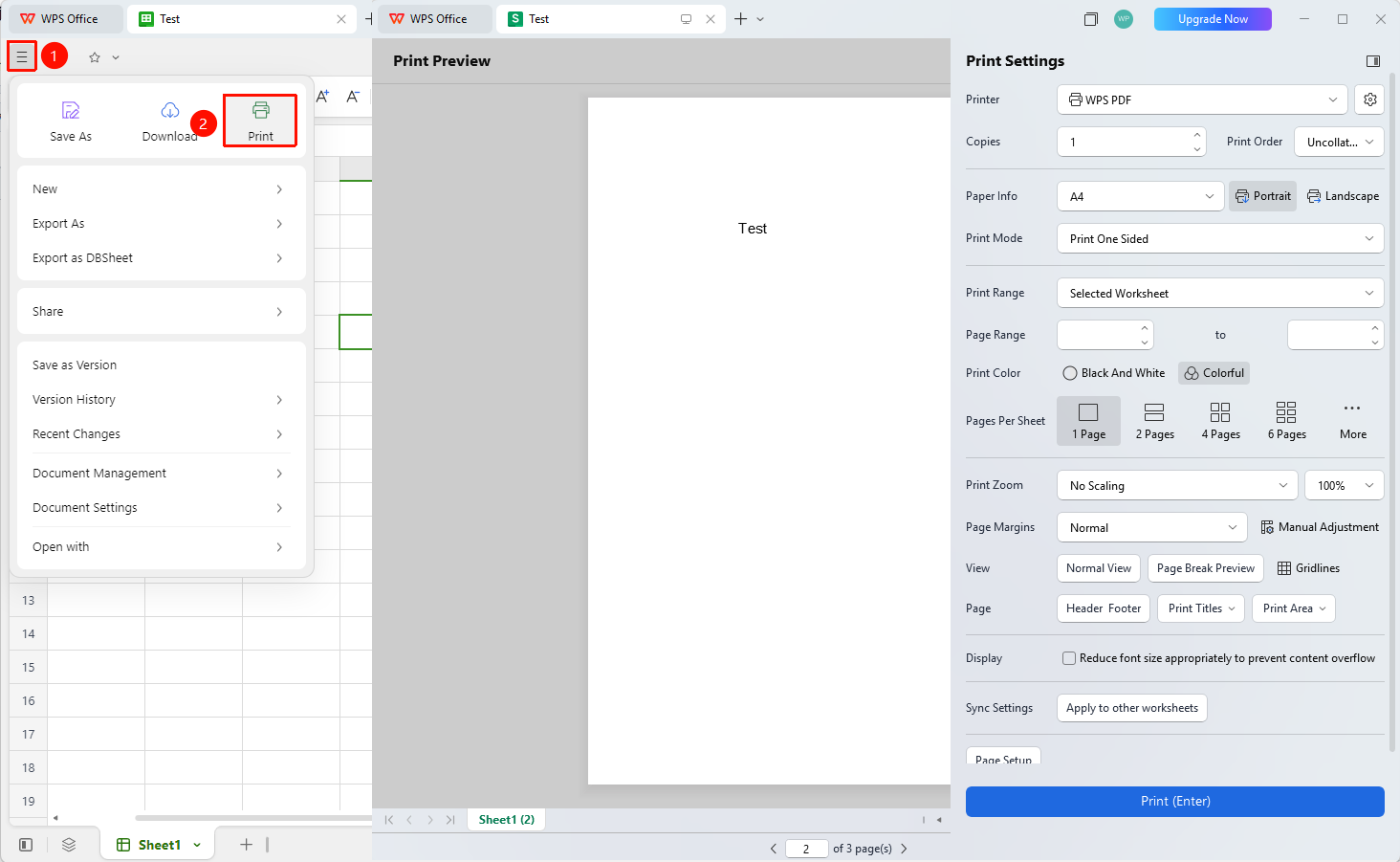
Print Document from Start Tab
Feature Entry
「Start」tab → 「Print」button
- Open AirSheet and click the Start tab
- Select the 「Print」 button (printer icon)
- Confirm the document content in the print preview interface
- Click the 「Print」 button to print
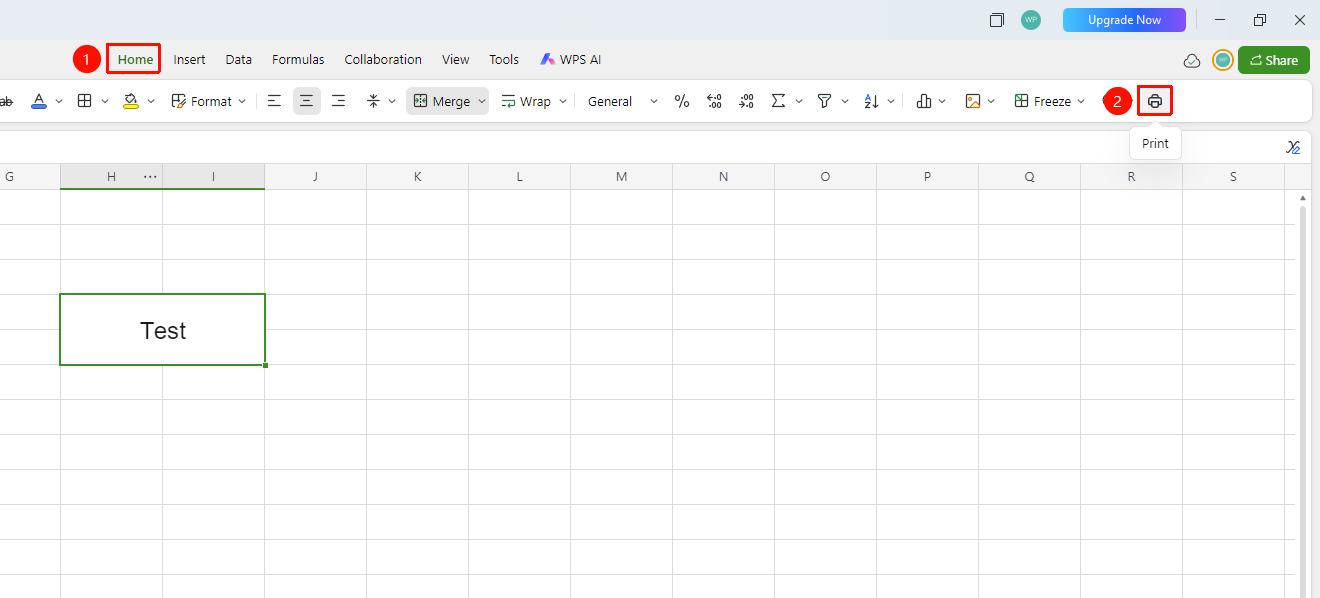
Set Print Parameters
Feature Entry
Print preview interface → Right print settings panel
- Printer Selection: Select a local printer or export as 「WPS PDF」
- Paper Information: Set paper size (A4/A3/B5, etc.) and paper orientation (Portrait/Landscape)
- Print Range: Select the current sheet or set a page range
- Print Color: Select black and white or color printing
- Pages per Sheet: Set the number of sheets printed on one page
- Scaling Options: Choose no scaling or set a scaling ratio
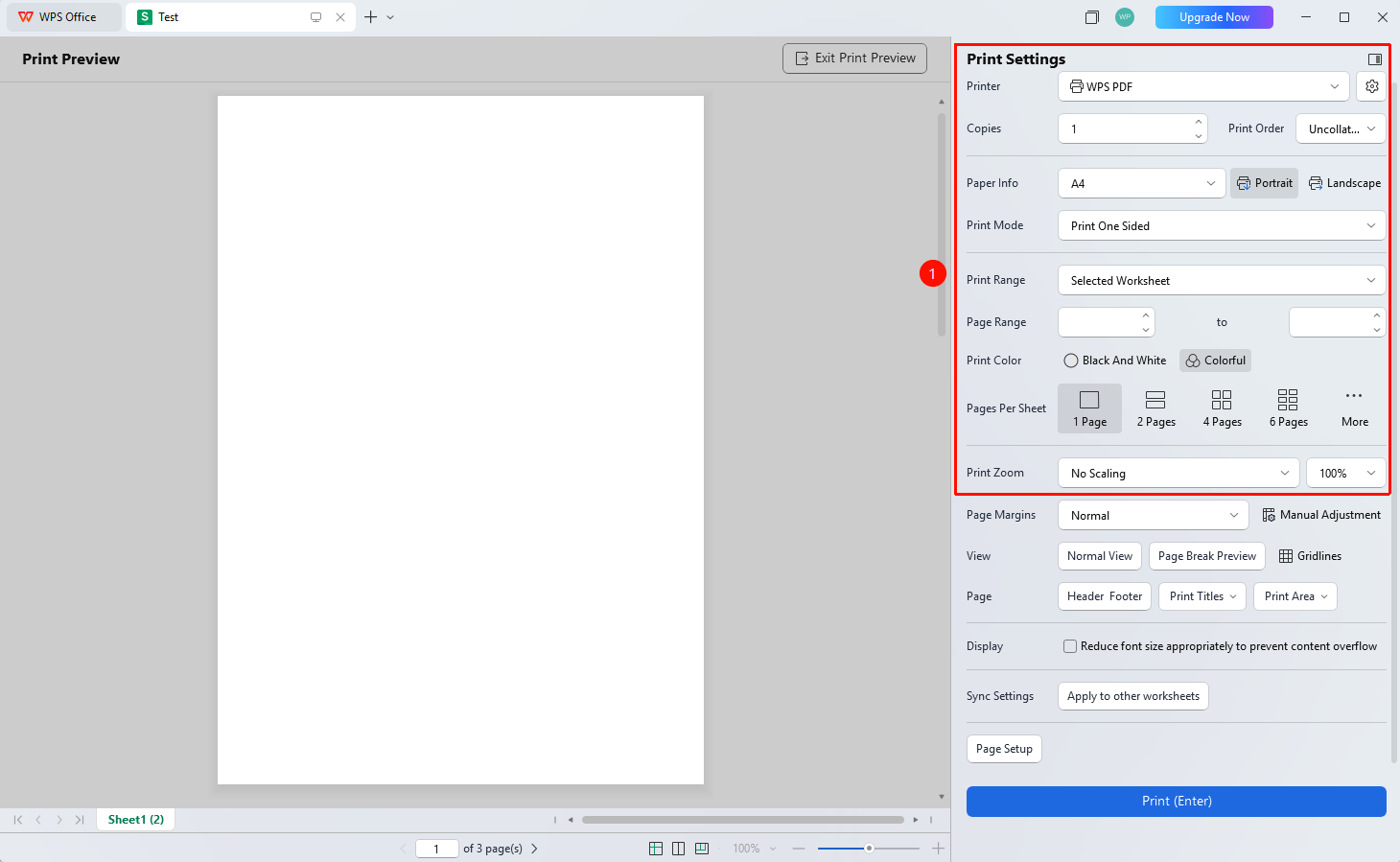
Adjust Margins
Feature Entry
Print preview interface → 「Adjust Margins」
- In the print preview interface, click the 「Margins」 option
- You can select preset margin values (Normal, Narrow, Moderate, etc.)
- You can also select 「Adjust Margins」 to manually drag the page border lines to adjust
- After adjustment, view the effect in real time in the preview interface
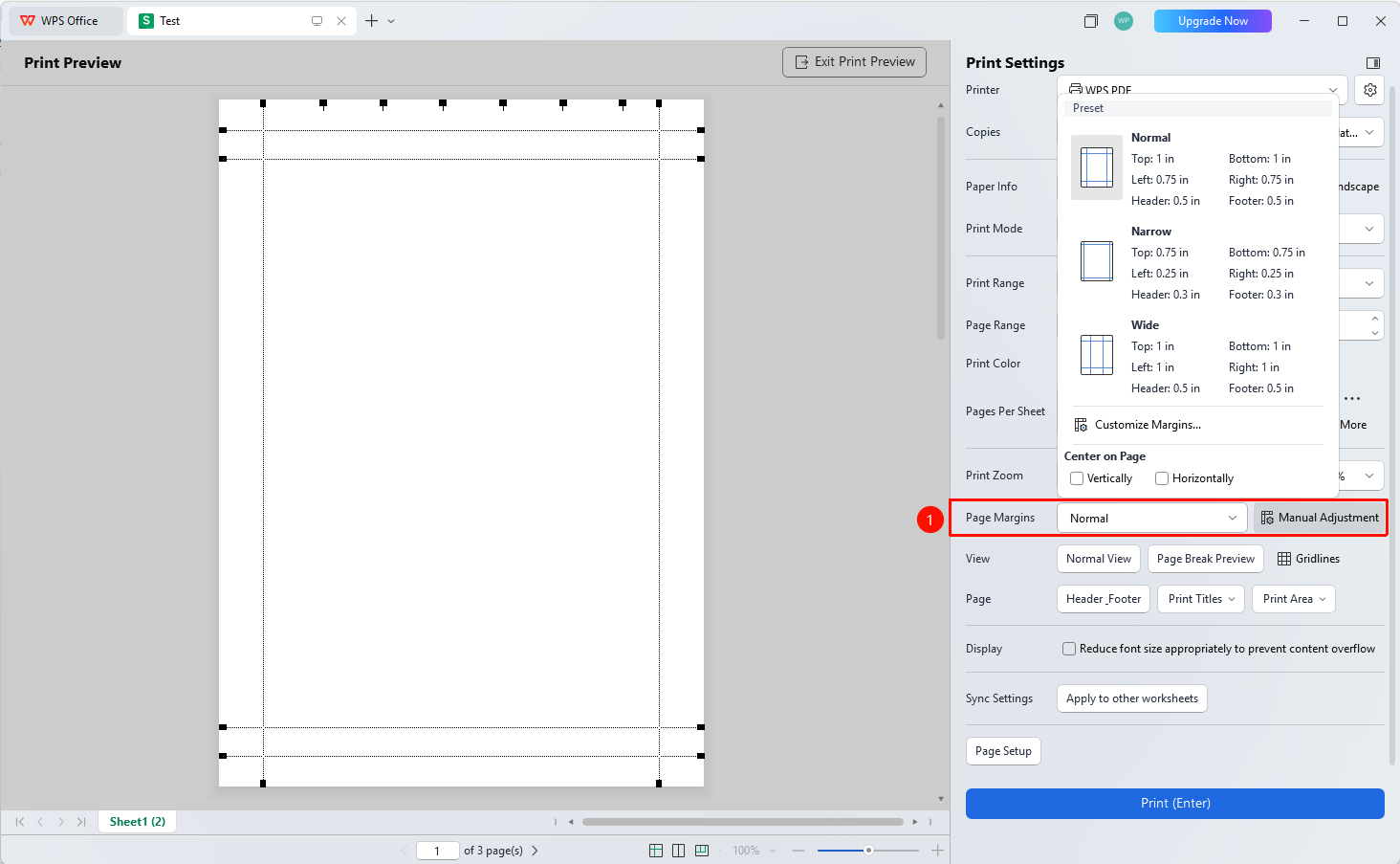
FAQ
Q1: No color printing option when connecting to a local printer?
- Solution: Verify whether the local printer supports color printing. If it does, contact the printer manufacturer to update the printer driver.
Q2: Inserted images do not display fully when printing?
- Solution: Floating images may exceed the print area boundaries. Check the image position in the print preview and adjust manually. Cell images can usually be printed normally. It is recommended to confirm the content of each page in the preview interface before printing.
Q3: The print result does not match the preview effect?
- Solution: The preview effect shall prevail. The preview effect represents the print command output by the frame count. Reconnect the printer, or reinstall the latest printer driver.
Notes
- The print effect is subject to the display in the print preview interface. It is recommended to preview before printing to confirm.