Feature Summary
Insert cells allows you to add new cells at a specified location. Choose to shift active cells right or down based on layout needs, keeping the sheet structure intact.
Feature Description
| Feature Dimension | Description |
|---|---|
| Membership Restriction | No membership restriction |
| Version Restriction | No version restriction |
Steps
Insert Cells via Right-Click Menu
Feature Entry
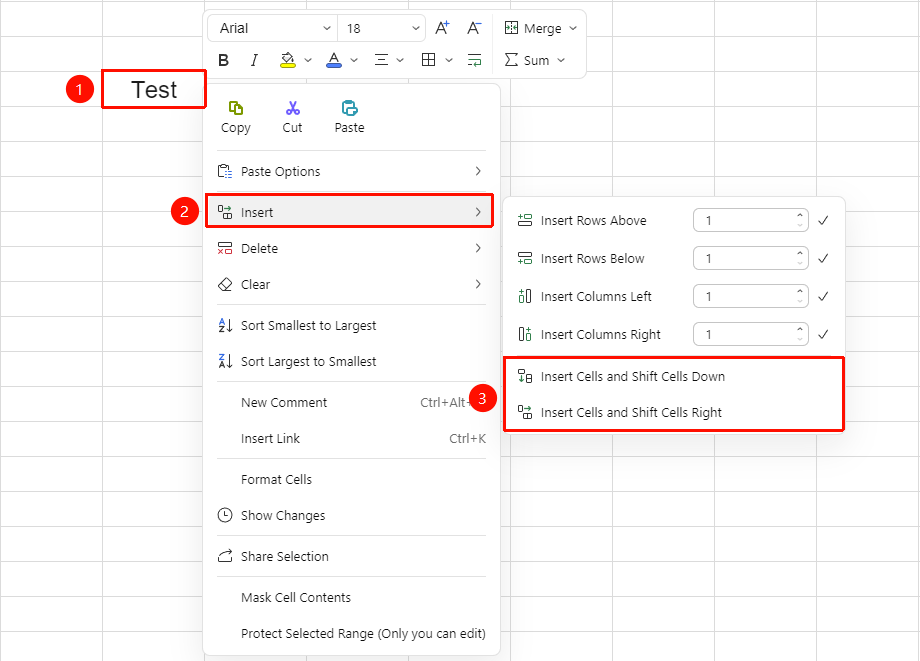
Select cells → Right-click menu → "Insert" dropdown menu
- Select the target area where you want to insert cells
- Right-click and select "Insert" from the menu
- Choose an insertion method:
- "Shift cells right": New cells are inserted at the current position, and existing data shifts right as a whole
- "Shift cells down": New cells are inserted at the current position, and existing data shifts down as a whole
Insert / Delete Cells via the Ribbon
Feature Entry
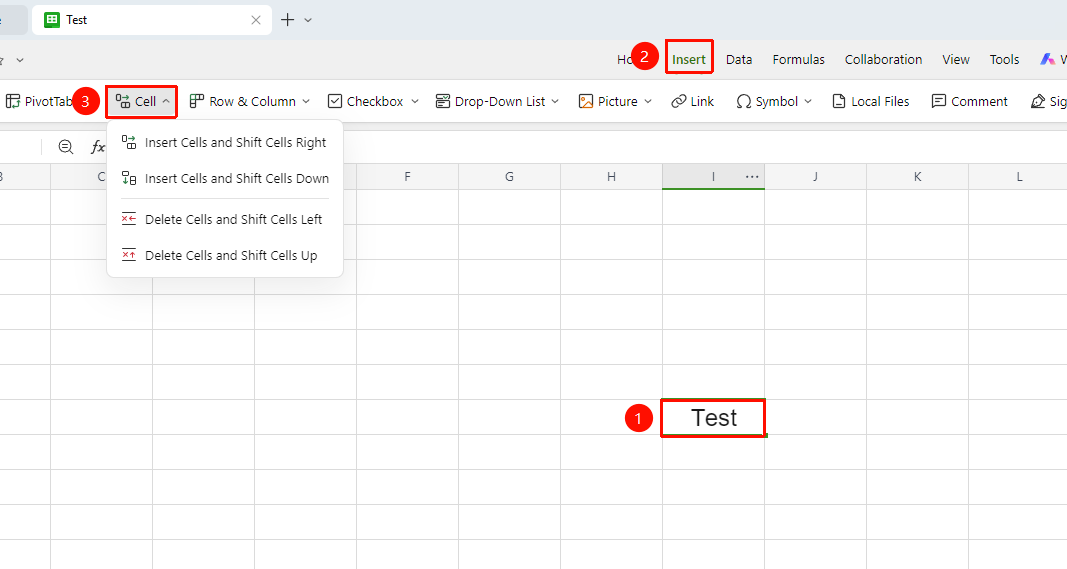
Select cells → "Insert" tab → "Cells" dropdown menu
- Select a cell
- Click the Insert tab on the ribbon, and select the "Cells" dropdown menu
- Choose an insertion method:
- "Insert cells, shift cells right": New cells are inserted at the current position, and existing data shifts right as a whole
- "Insert cells, shift cells down": New cells are inserted at the current position, and existing data shifts down as a whole
- "Delete cells, shift cells left": Deletes the current cell, and cells to the right shift left
- "Delete cells, shift cells up": Deletes the current cell, and cells below shift up
Delete Cells via Right-Click Menu
Feature Entry
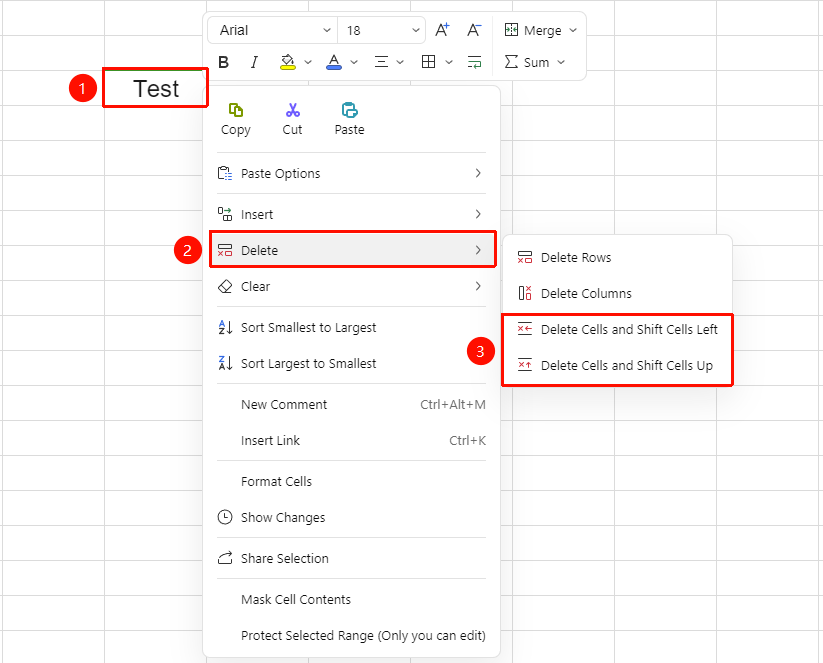
Select cells → Right-click menu → "Delete" dropdown menu
- Select the target area where you want to insert cells
- Right-click and select "Delete" from the menu
- Choose a deletion method:
- "Delete cells, shift cells left": Deletes the current cell, and cells to the right shift left
- "Delete cells, shift cells up": Deletes the current cell, and cells below shift up
FAQ
Q1: What should I do if data becomes misaligned after inserting cells?
- Solution: Immediately press Command + Z to undo the operation, and re-select the correct insertion method.
Q2: Why doesn't the options dialog appear when inserting?
- Solution: The options dialog only appears when you right-click to insert with a cell selected (not an entire row/column). If you select an entire row/column, the right-click menu only shows options to add rows/columns.
Q3: Can I insert multiple cells at once?
- Solution: Yes, select the same number of cells and then perform the insertion.
Q4: Will inserting cells affect formulas?
- Solution: It may affect related formula references. It is recommended to check formulas after insertion.
Notes
- When inserting entire rows/columns, selecting row numbers/column headers is more efficient than selecting cells
- Insertion operations can affect formula references; check that formulas are correct after insertion