Feature Summary
Inserting a checkbox adds an interactive check control to a cell, supporting status toggling and data-linked statistics. It is suitable for task lists, data collection, and similar scenarios.
Feature Description
| Feature Dimension | Description |
|---|---|
| Membership Restriction | No membership restriction |
| Version Restriction | No version restriction |
Steps
Insert Checkbox
Feature Entry
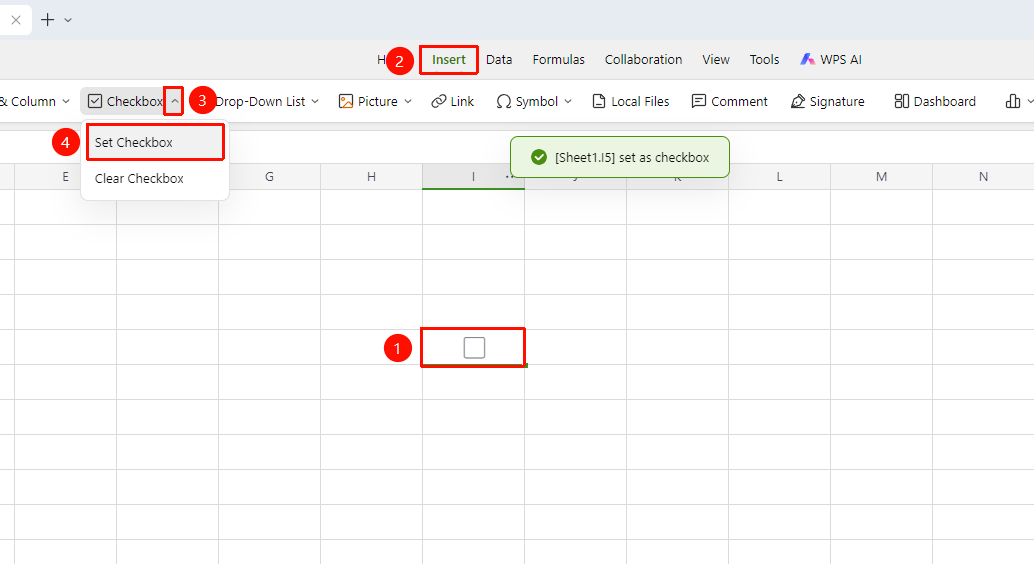
"Insert" tab → Dropdown menu next to the "Checkbox" button
- Select the cell where you want to set the checkbox
- Click the "Insert" tab
- Click the dropdown menu next to the "Checkbox" button
- Select the Set Checkbox button
Clear Checkbox
Feature Entry
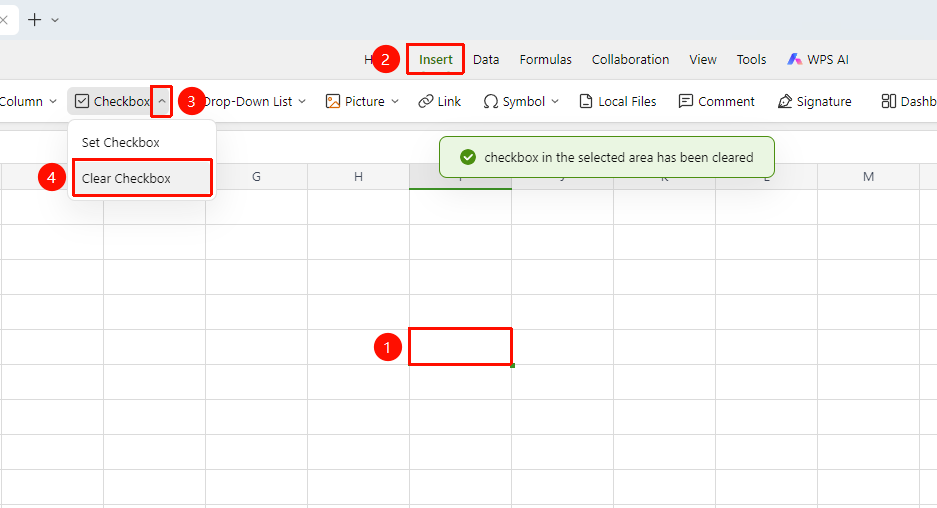
"Insert" tab → Dropdown menu next to the "Checkbox" button
- Select the cell where you want to clear the checkbox
- Click the "Insert" tab
- Click the dropdown menu next to the "Checkbox" button
- Select the Clear Checkbox button
Set Column Type to Checkbox
Feature Entry
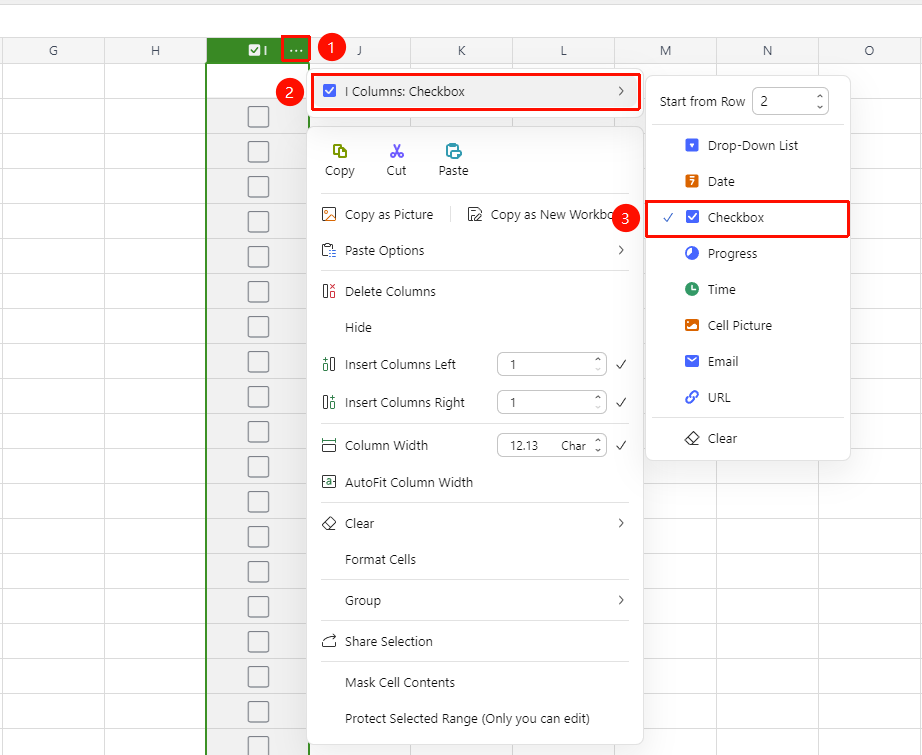
Click the "…" icon next to the column header → "Column Type" dropdown menu → "Checkbox" option
- Click the "…" icon next to the column header
- Select the "Column Type" dropdown menu
- Click the "Checkbox" option
- After clicking, the entire column of cells will be set to checkbox content
FAQ
Q1: Can I still type content into a cell that has been set as a checkbox?
- Solution: Cells set as checkboxes no longer support typing content. Cells that already contain content also do not support being set as checkboxes.
Q2: How do I insert checkboxes in bulk?
- Solution: After inserting one, you can drag to fill other cells.
Q3: How do I delete a checkbox?
- Solution: Right-click the checkbox and select Delete, or select it and press Delete.
Notes
- You can drag to fill multiple cells in bulk.
- Alignment can be adjusted via cell formatting settings, but center alignment is generally recommended for checkboxes.
- Click the column header to select the entire column, then click "Insert" → "Checkbox" to quickly set/clear column checkboxes.