Feature Summary
Create a dropdown selection menu in cells, restricting input content to a preset list of options to ensure data standardization and consistency.
Feature Description
| Feature Dimension | Description |
|---|---|
| Membership Restriction | No membership restriction |
| Version Restriction | No version restriction |
Operation Steps
Apply an Existing Dropdown List
Feature Entry
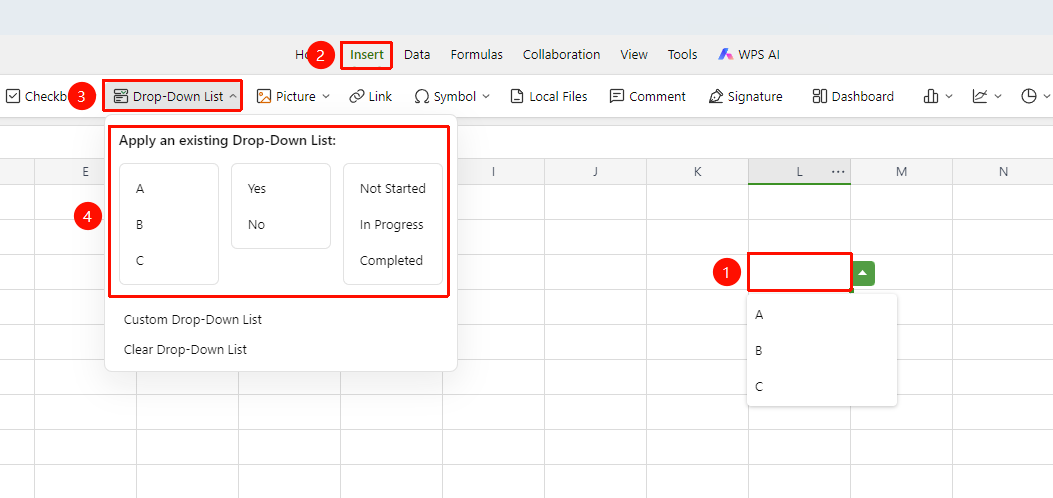
「Insert」 tab → 「Dropdown List」 → Select a preset template
- Select the cell(s) where you want to set up a dropdown list
- Click the 「Dropdown List」 button in the 「Insert」 tab
- In the pop-up panel, the 「Apply Existing Dropdown List」 area provides various preset templates:
- Yes/No: Suitable for binary choice scenarios
- Not Started/In Progress/Completed: Suitable for task status tracking
- A/B/C: Suitable for grade classification scenarios
4.Click the corresponding template to apply it to the selected cell(s)
Custom Dropdown List
Feature Entry
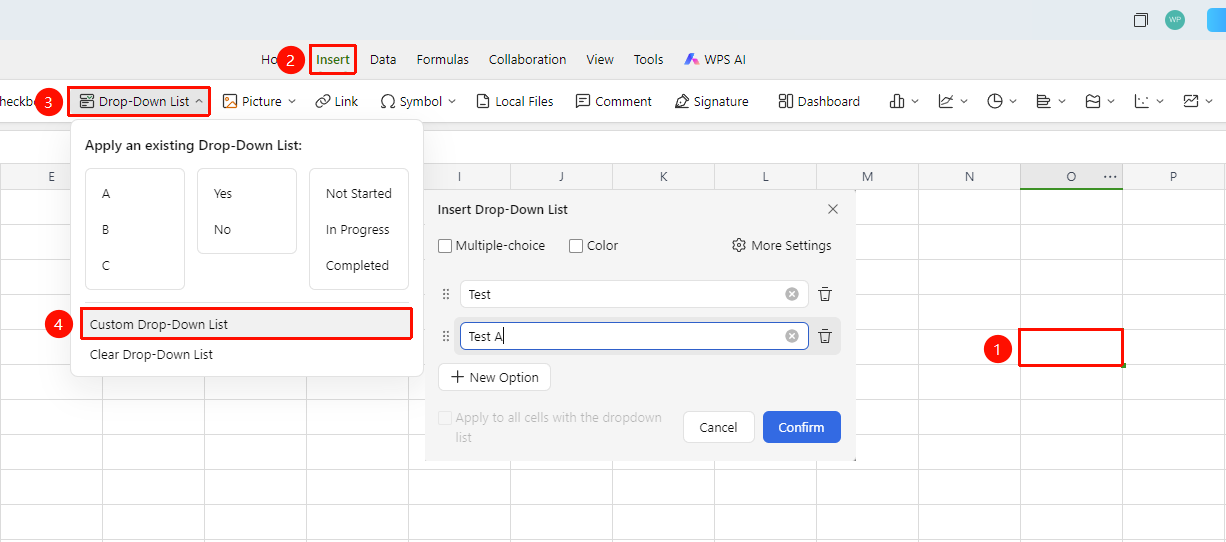
「Insert」 tab → 「Dropdown List」 → 「Custom Dropdown List」
- Select the cell(s) where you want to set up a dropdown list
- Click the 「Dropdown List」 button in the 「Insert」 tab
- Click 「Custom Dropdown List」 at the bottom of the pop-up panel
- In the 「Insert Dropdown List」 dialog box:
- Enter option content one by one, click 「+ Add Option」 to add more options
- Drag the drag handle on the left side of an option to adjust the order, click the trash can icon on the right to delete the option
- Check the 「Multi-select」 checkbox to allow multiple selections (unchecked means single selection)
- Check the 「Color」 checkbox to set different colors for each option
- Check 「Apply to Other Same Dropdown Lists」 to synchronously update existing dropdown lists
5.Click 「Confirm」 to complete the setup
Custom Dropdown List - More Settings
Feature Entry
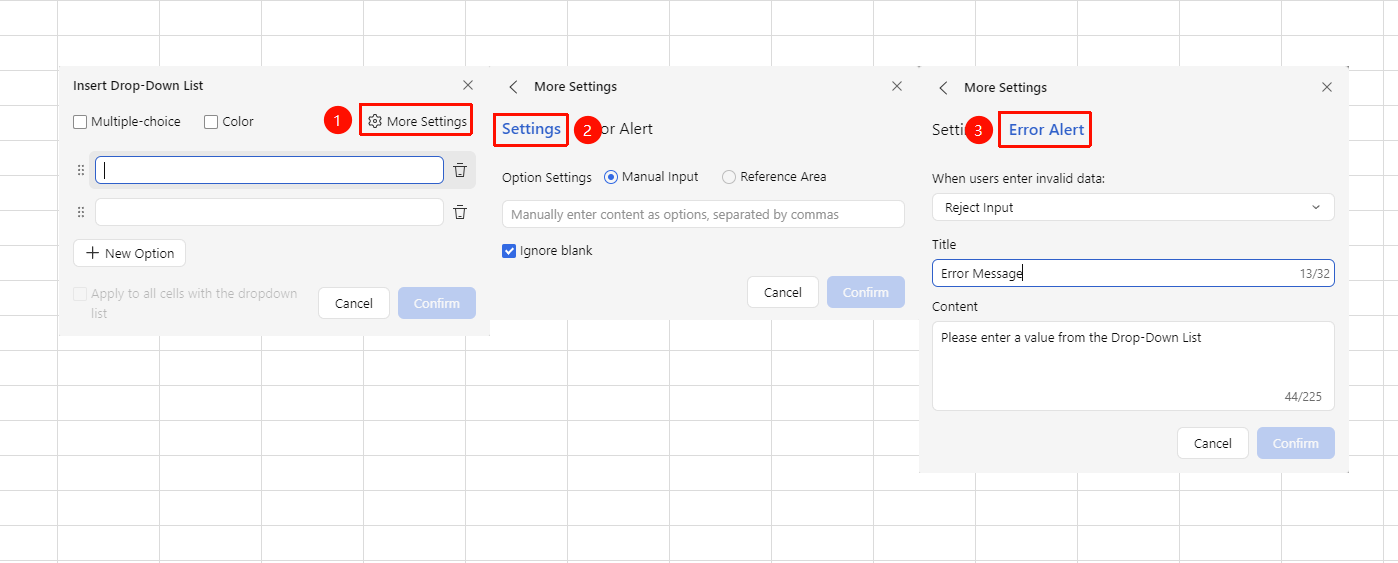
「Insert」 tab → 「Dropdown List」 → 「Custom Dropdown List」 → 「More Settings」
- In the 「Custom Dropdown List」 dialog box, click 「More Settings」 in the upper right corner
- In the 「Settings」 panel, you can configure the option source:
- Manual Input: Manually enter content as options, separated by English commas
- Reference Range: Reference a cell range as options
- Ignore Empty Values: Check whether to ignore empty values
3.In the 「Error Warning」 panel, you can configure data validation prompts:
- When input content does not meet conditions: Dropdown to select validation behavior, default is 「Show Information」
- Title: Enter the prompt box title (e.g., Error Prompt, up to 32 characters)
- Content: Enter the prompt box content (e.g., Please enter a value from the dropdown list, up to 225 characters)
4.Click 「Confirm」 to save the settings
Clear Dropdown List
Feature Entry
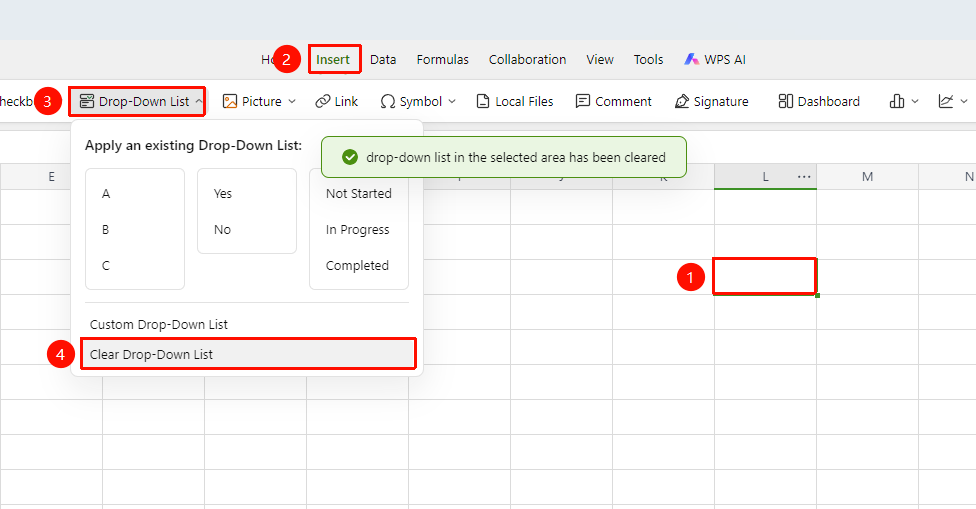
「Insert」 tab → 「Dropdown List」 → 「Clear Dropdown List」
- Select the cell(s) where you want to clear the dropdown list
- Click the 「Dropdown List」 button in the 「Insert」 tab
- Click 「Clear Dropdown List」 at the bottom of the pop-up panel
- The dropdown list of the selected cell(s) will be removed
FAQ
Q1: What should I do if there is no preset template I need in the dropdown list?
- Solution: Click 「Insert」 → 「Dropdown List」 → 「Custom Dropdown List」, click 「+ Add Option」 in the 「Insert Dropdown List」 dialog box to manually add the required options, and click Confirm.
Q2: How do I modify existing options after setting up a dropdown list?
- Solution: Select the corresponding cell(s), click 「Insert」 → 「Dropdown List」 → 「Custom Dropdown List」, modify the option content in the dialog box and check 「Apply to Other Same Dropdown Lists」 to synchronously update, or first 「Clear Dropdown List」 and then set it up again.
Q3: How can I make a prompt automatically pop up when an invalid option is entered in the dropdown list?
- Solution: In the 「Insert Dropdown List」 dialog box, click 「More Settings」 in the upper right corner → Set 「When input content does not meet conditions」 to 「Show Information」 → Fill in the title and content, and a prompt will pop up when the user enters an invalid value.
Notes
- After applying a preset template, the existing content in the cell will not be modified, only the dropdown selection capability will be added
- There is no upper limit on the number of options for a custom dropdown list. The drag handle can adjust the order, and the trash can icon can delete options
- Checking 「Multi-select」 allows multiple selections in the cell dropdown; unchecking it means single selection mode
- Clearing the dropdown list only removes the dropdown feature and will not clear the existing content in the cell