Feature Summary
Embed local files (images, PDFs, documents, etc.) into cells for display and storage as attachments.
Feature Description
| Feature Dimension | Description |
|---|---|
| Membership Restriction | No membership restriction |
| Version Restriction | No version restriction |
Operation Steps
Insert via "Object"
Feature Entry
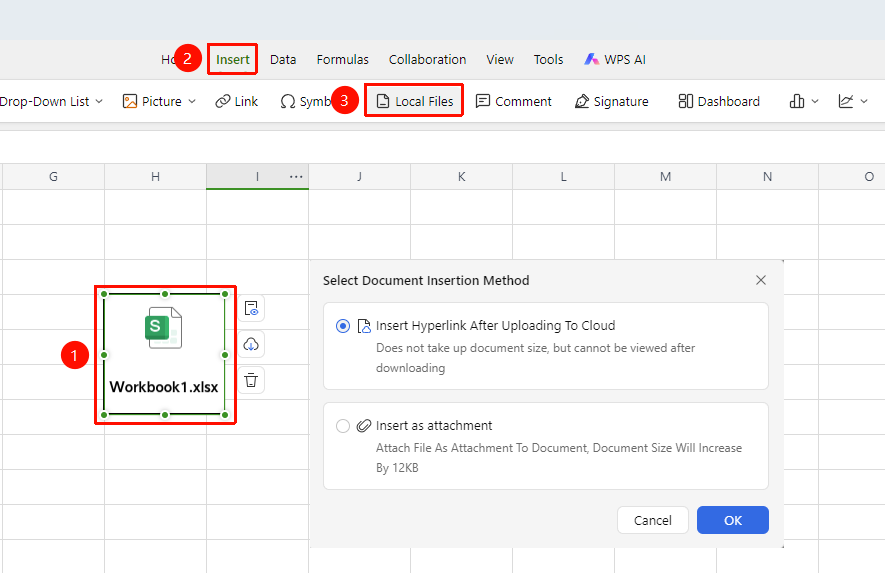
"Insert" tab → "Local File" button
- Select the cell where you want to insert the attachment
- Click the "Local File" button in the "Insert" tab
- Select the local file you want to insert in the pop-up window
- Click "OK" to complete the insertion. You can drag the icon to adjust its position.
FAQ
Q1: What file formats are supported for insertion?
- Solution: Supports various file formats such as images, PDF, Word, and Excel.
Q2: What should I do if the sheet becomes very laggy after inserting a large file?
- Solution: Try to insert smaller files. For large files, it is recommended to insert a hyperlink instead of embedding the file itself to avoid making the sheet too large.
Q3: Can others see the files I inserted?
- Solution: Yes, embedded files are shared along with the sheet when you share it.
Notes
- Supports various formats such as images, PDF, Word, and Excel
- Embedded files are saved and shared together with the sheet
- Large files will increase the sheet file size; it is recommended to control the file size