Feature Summary
The @mention and comment feature allows users to @mention collaborators or add comments within cells, enabling precise communication and collaboration. It is suitable for scenarios where discussions or notifications need to be targeted at specific content.
Feature Description
| Feature Dimension | Description |
|---|---|
| Membership Restriction | No membership restriction |
| Version Restriction | No version restriction |
Operation Steps
Using the @Mention Feature
Feature Entry
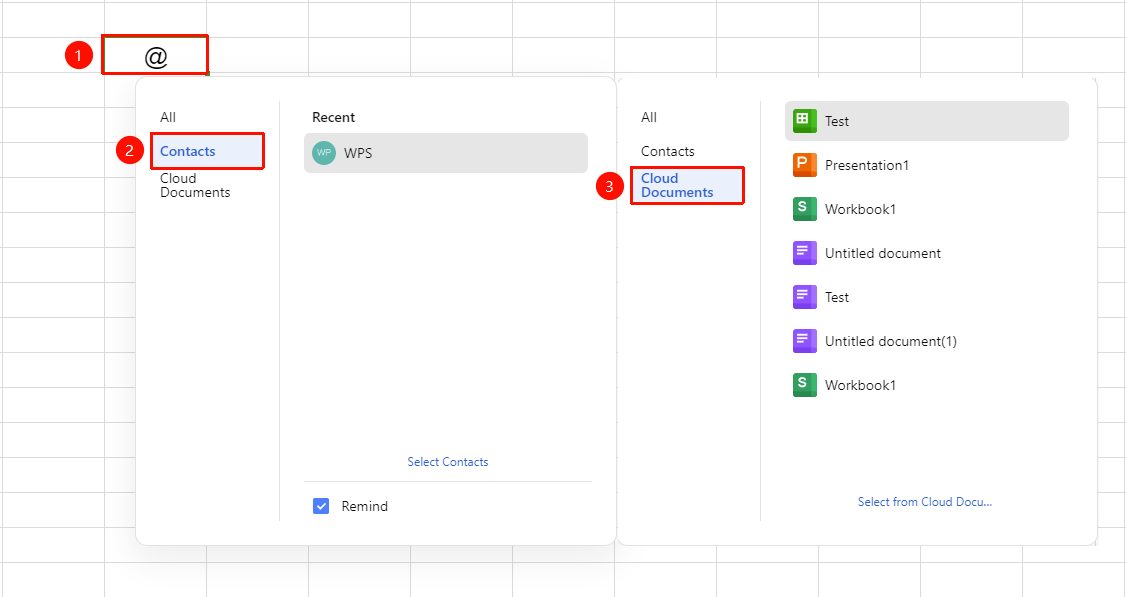
Enter the @ symbol in a cell
- Double-click the cell where you want to notify a collaborator to enter Read Mode
- Enter the @ symbol in the cell to bring up the add list
- Select the person to notify from 「Contacts」
- Select a cloud document from 「Cloud Documents」 to add it into the cell
- The @mentioned collaborator will receive a pop-up notification
Insert Comment via Right-Click Menu
Feature Entry
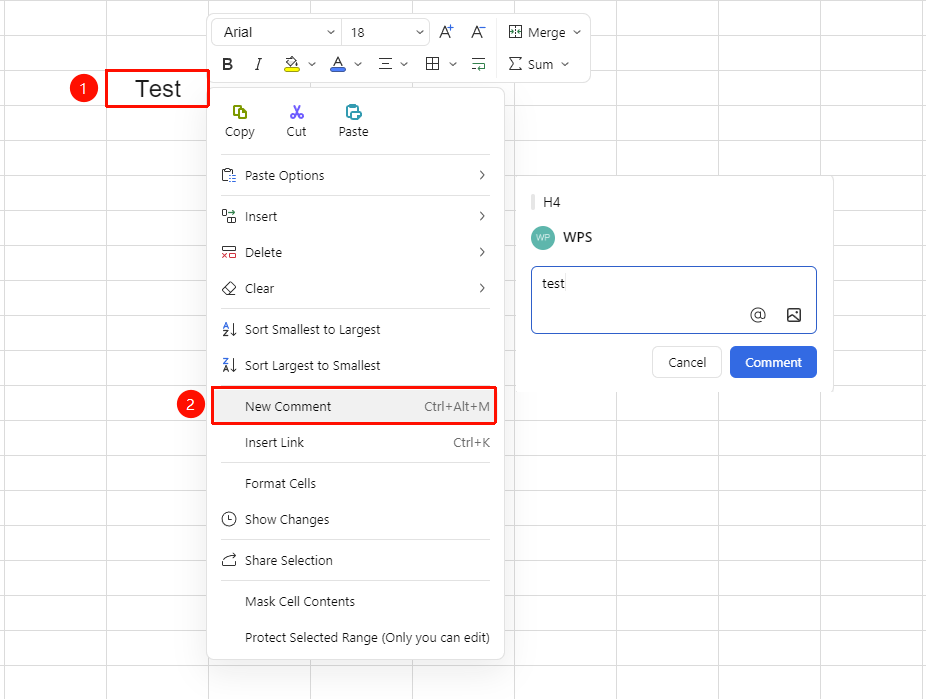
Select cell → Right-click menu → 「Insert Comment」 button
- Select the target cell where you want to add a comment
- Right-click the cell and select 「Insert Comment」
- Enter your comment content in the pop-up comment input box
- Click 「Comment」 to complete the insertion
- A small red triangle marker will appear in the upper right corner of the cell; hover over it to display the annotation
Insert Comment via Ribbon
Feature Entry 1
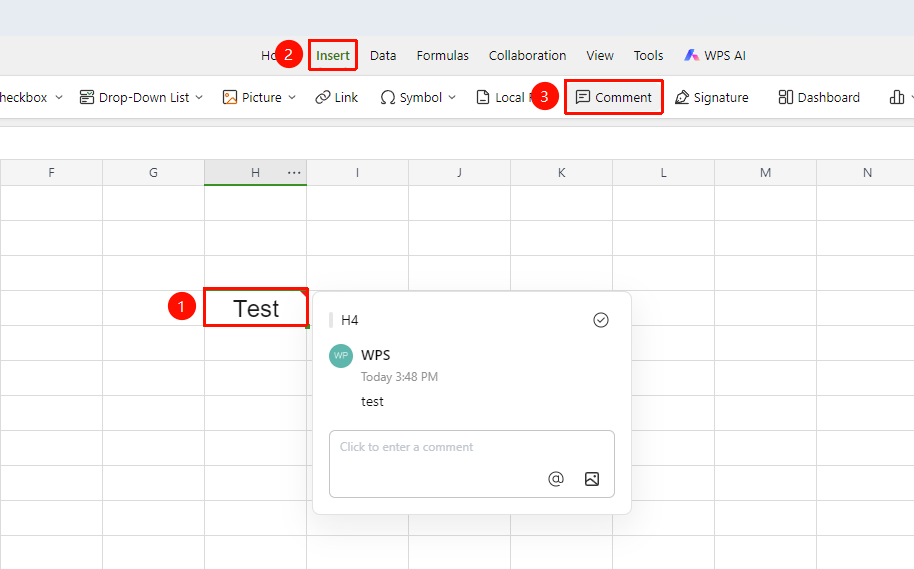
「Insert」 tab → 「Comment」 button
- Select the target cell
- Click the 「Comment」 button in the 「Insert」 tab
- Enter content in the pop-up comment input box and click「Comment」 to complete the insertion
Feature Entry 2
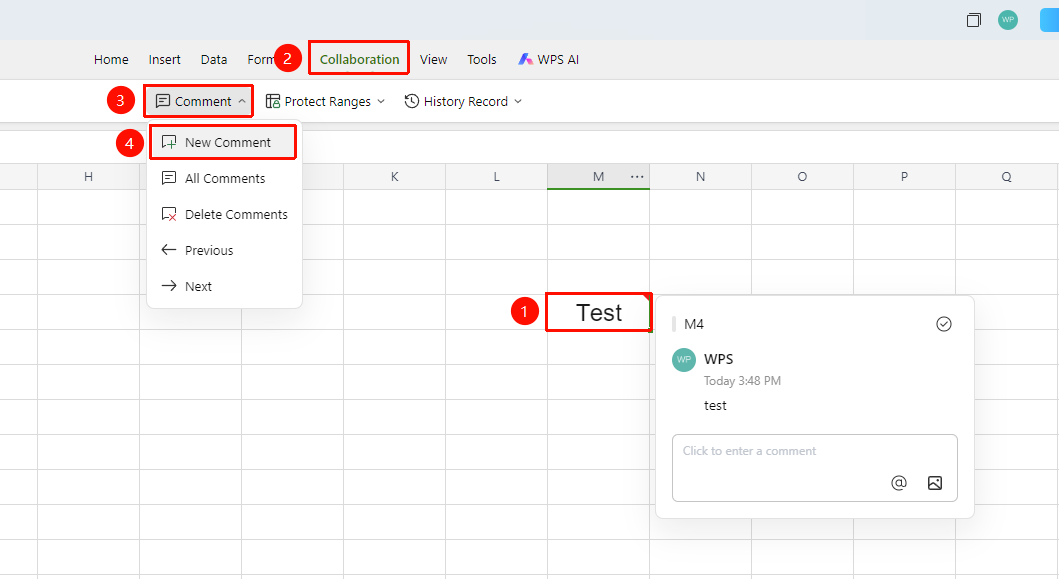
「Collaboration」 tab → 「Comment」drop down menu →「Insert Comment」
- Select the target cell
- Click the 「Comment」 button in the 「Collaboration」 tab , expand drop-down menu
- Click 「Insert Comment」
- Enter content in the pop-up comment input box and click「Comment」 to complete the insertion
View and Reply to Comments
Feature Entry
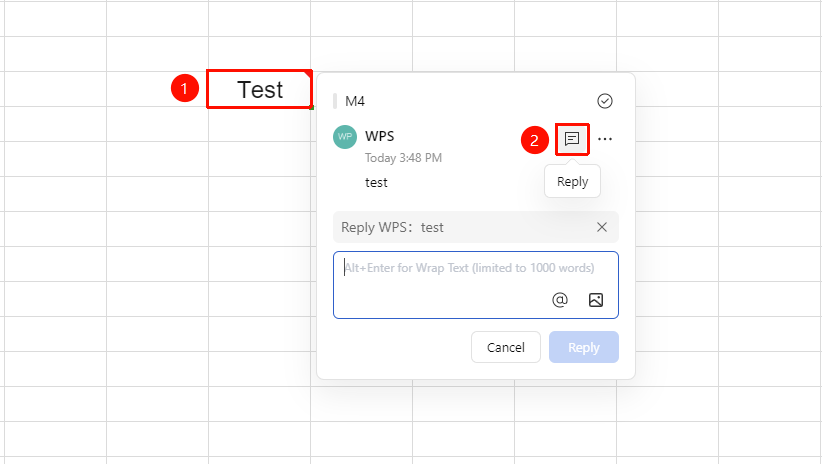
Select the cell with a comment → 「Reply」
- Click the icon in the upper right corner of a cell marked with a comment
- View existing comment content and replies
- Click the 「Reply」 button
- Enter your reply content in the input box
- Press Enter to send the reply
Edit Comments
Feature Entry
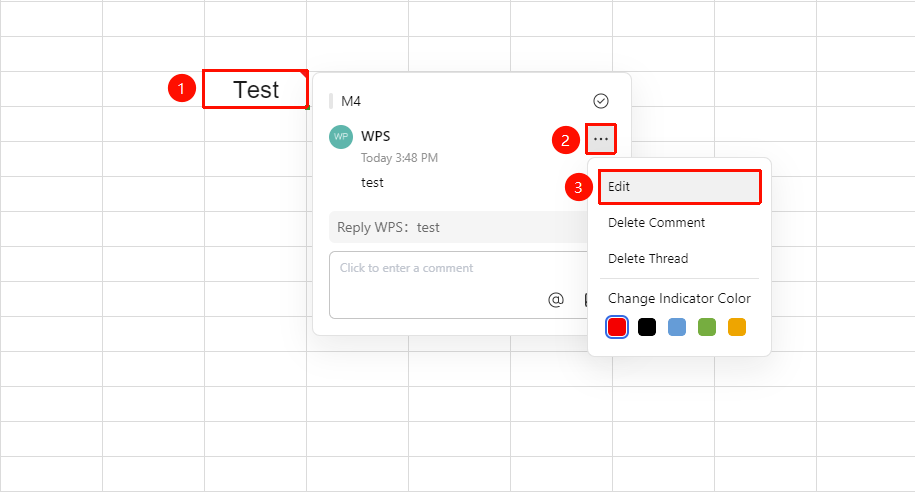
Select the cell with a comment → 「…」 icon → 「Edit」button
- Select the cell with a comment
- Click the 「…」 icon in the upper right corner of the comment interface
- Click the 「Edit」 button to Edit this specific comment
Delete Comments
Feature Entry
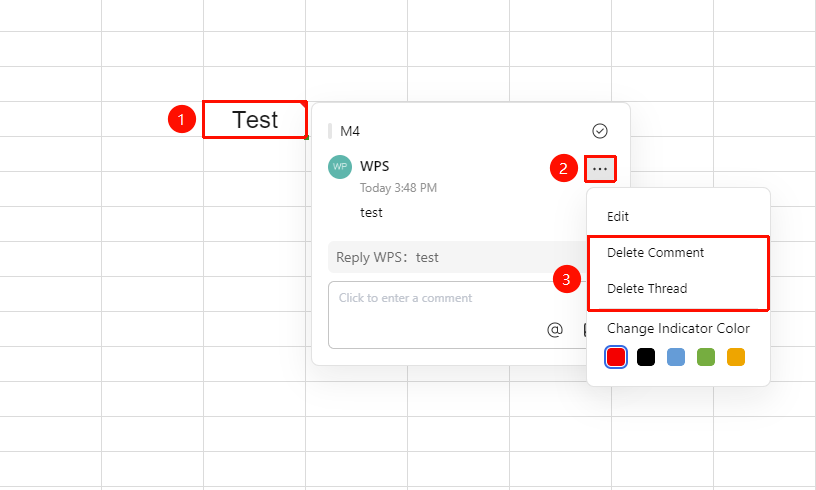
Select the cell with a comment → 「…」 icon → 「Delete Comment」 / 「Delete Thread」 button
- Select the cell with a comment
- Click the 「…」 icon in the upper right corner of the comment interface
- Click the 「Delete Comment」 button to delete this specific comment
- Click the 「Delete Thread」 button to delete all comments on this cell
Resolve Comments
Feature Entry
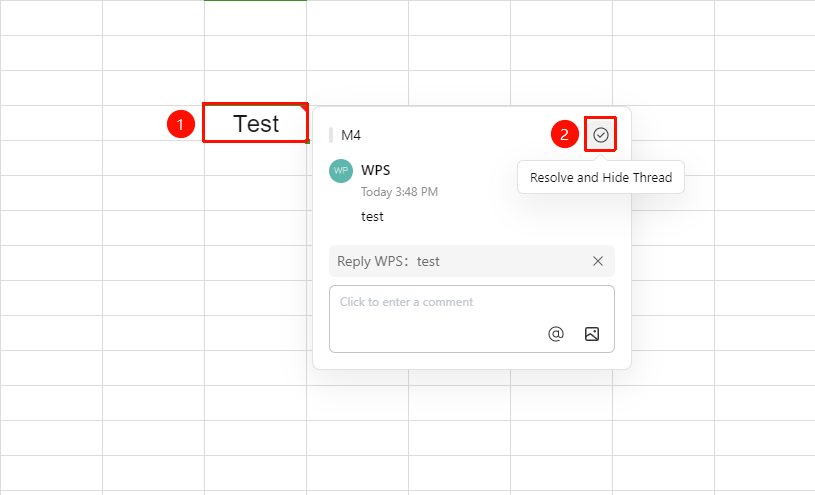
「Resolve and Hide Comment」 button in the comment panel
- Click the cell with a comment
- Click the 「Resolve and Hide Comment」 button in the comment panel
- Resolved comments will be marked as processed
- You can switch between viewing all/unresolved comments in the comment panel
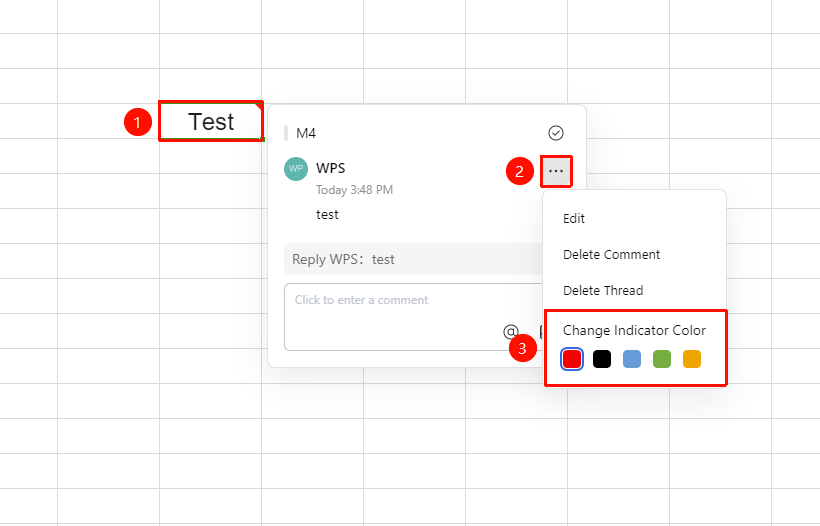
Change Comment Badge
Feature Entry
Select the cell with a comment → 「…」 icon → 「Change Badge Color」
- Select the cell with a comment
- Click the 「…」 icon in the upper right corner of the comment interface
- Click the desired badge color under 「Change Badge Color」
- Click the corresponding color to apply the change
View All Comments
Feature Entry
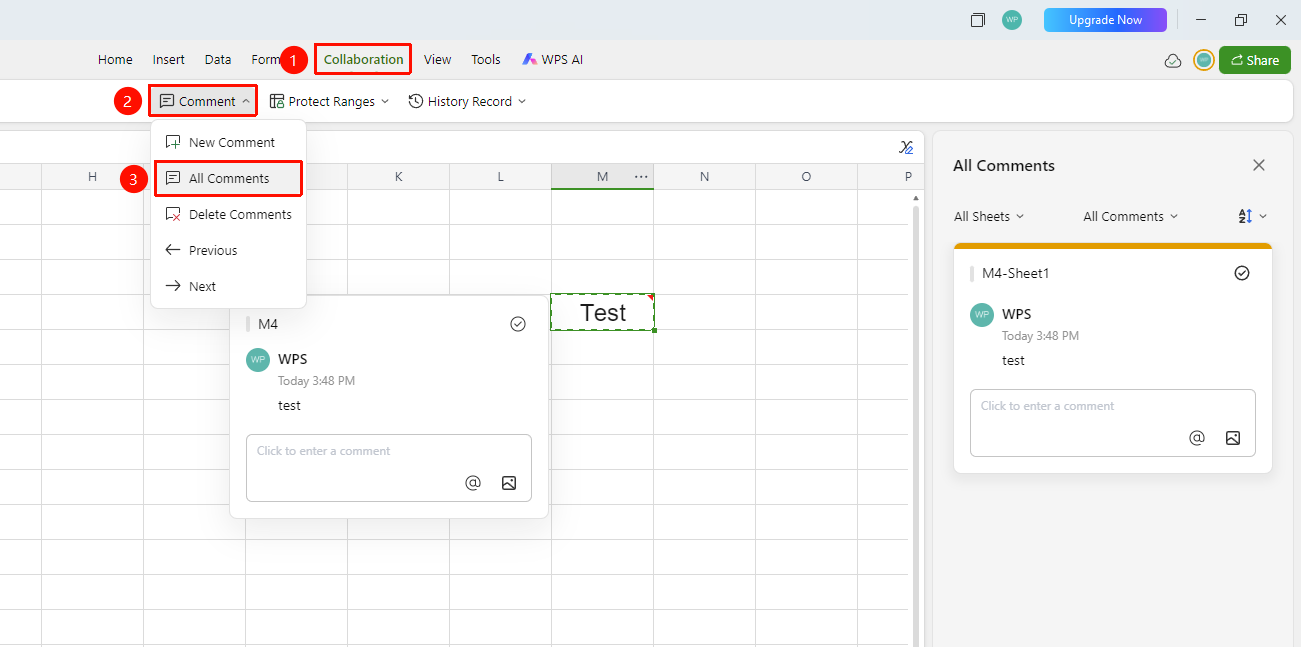
「Collaborate」 tab → 「Commention」→「All Comments」 button
- Click the 「Comment」 button in the / 「Collaboration」 tab to expand the dropdown menu
- Click 「All Comments」 in the dropdown menu to expand the right-side comment panel
- The right-side comment panel displays all resolved / unresolved comments
- You can filter the desired comments in the comment panel; clicking a relative comment will cause the corresponding cell to highlight and flash
- You can resolve comments / reopen comments for the comments
FAQ
Q1: The @mentioned person did not receive a notification?
- Solution: Confirm that the @mentioned collaborator has access permission to the Document and verify that the device has enabled notification permissions.
Q2: Can multiple comments be added to a single cell?
- Solution: Yes, the same cell supports multiple rounds of comments, forming a comment thread to facilitate tracing the discussion process.
Q3: Can deleted comments be displayed in All Comments?
- Solution: Deleted comments will not be displayed in All Comments. You need to re-add them or revert to a previous version of the Sheets history.
Notes
- When a collaborator summoned by the @mention feature opens the Document, the Document will automatically switch to collaboration mode
- Resolved comments will be hidden, but you can view the history record in the comment panel at any time
- Before reminding other users to view, please confirm that the @mentioned user has access permission to this Document