Feature Summary
The data validation feature allows users to restrict cell input content with rules, preventing invalid data entry. It is suitable for standardizing data formats and reducing input errors.
Feature Description
| Feature Dimension | Description |
|---|---|
| Membership Restriction | No membership restriction |
| Version Restriction | No version restriction |
Steps
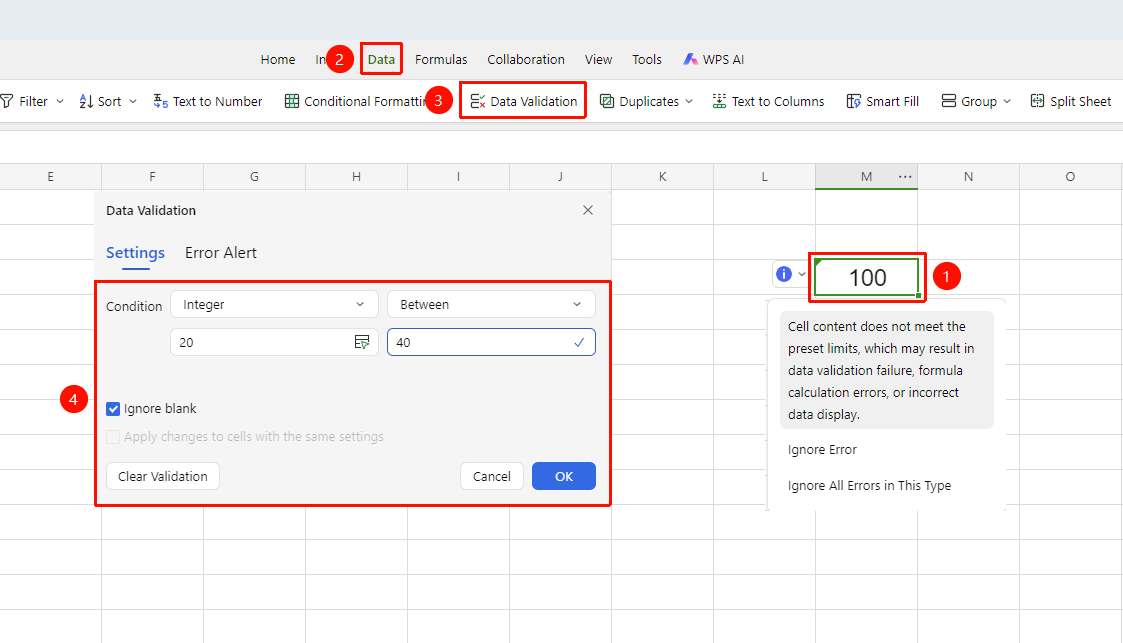
Set Up Numeric Range Limit
Feature Entry
"Data" tab → "Data Validation" button
- Select the cell range where you want to set up a dropdown list
- Click the Data Validation button in the Data tab
- Set the Criteria for data validation:: Integer, Decimal, Date, Time, etc
- Set the minimum and maximum value range for the data
- Check whether to Ignore blank and Apply these changes to all cells with the same settings
- Click OK, and a dropdown arrow will appear in the selected cells
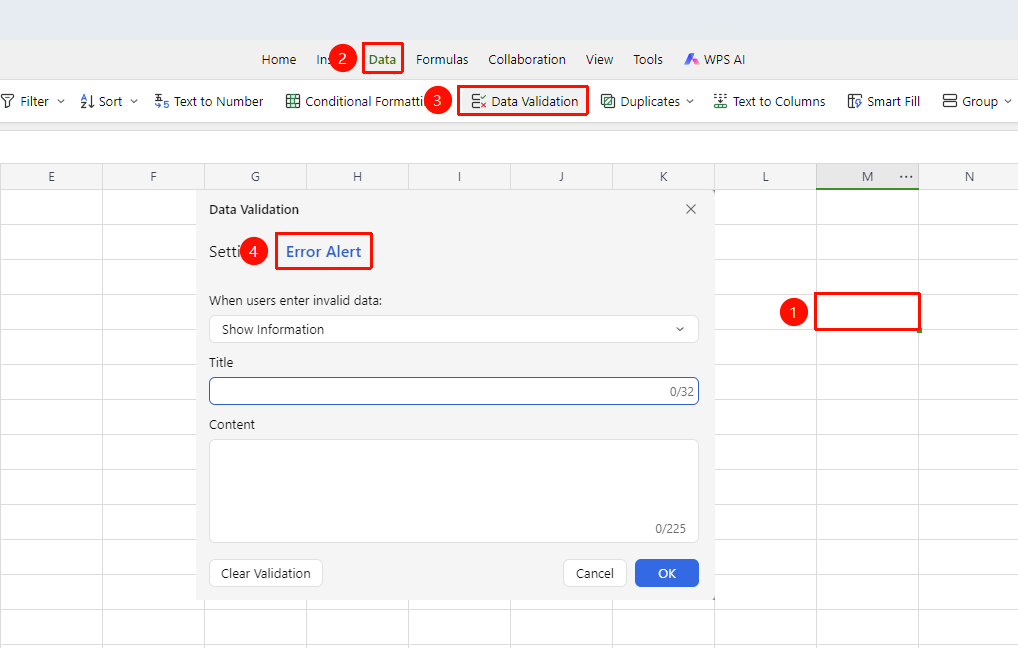
Set Up Input Message and Error Alert
Feature Entry
"Data" tab → "Data Validation" button → "Error Alert" tab
- Select the cell range you want to restrict
- Click the Data Validation button in the Data tab to open the Data Validation dialog box
- Switch to the Error Alert tab: Set the warning style (Stop / Warning / Information) and prompt content for invalid data input
- Click OK to save the settings
FAQ
Q1: Does the data validation set in collaboration mode take effect for all collaborators?
- Solution: Yes, data validation rules are saved in the Document, and all collaborators are subject to the same rule constraints when entering data.
Q2: How to batch modify the source of an already set data validation?
- Solution: Select the range with data validation set → Open the Data Validation dialog box → Modify the "Source" content → Check "Apply these changes to all other cells with the same settings" and click OK to batch update.
Q3: What happens if data that does not meet the rules is entered?
- Solution: The system will pop up an error prompt box to prevent invalid input. The prompt information can be customized when setting up data validation.
Notes
- Data validation rules are saved with the Document and are effective for the input behavior of all collaborators
- Setting the error alert style to "Stop" will completely prevent invalid data entry
- Data validation can effectively standardize team data entry; it is recommended to configure uniformly in collaboration Sheets
- It is recommended to set friendly prompt information in conjunction with "Error Alert" to reduce user confusion
- It is recommended to use in conjunction with "Protected Range" to prevent collaborators from changing areas where data validation has been set