Feature Summary
The Merge Sheets feature is used to consolidate data from multiple sheets or documents into a single sheet, enabling cross-sheet data integration.
Feature Description
| Feature Dimension | Description |
|---|---|
| Membership Restriction | No membership restriction |
| Version Restriction | No version restriction |
Operation Steps
Feature Entry
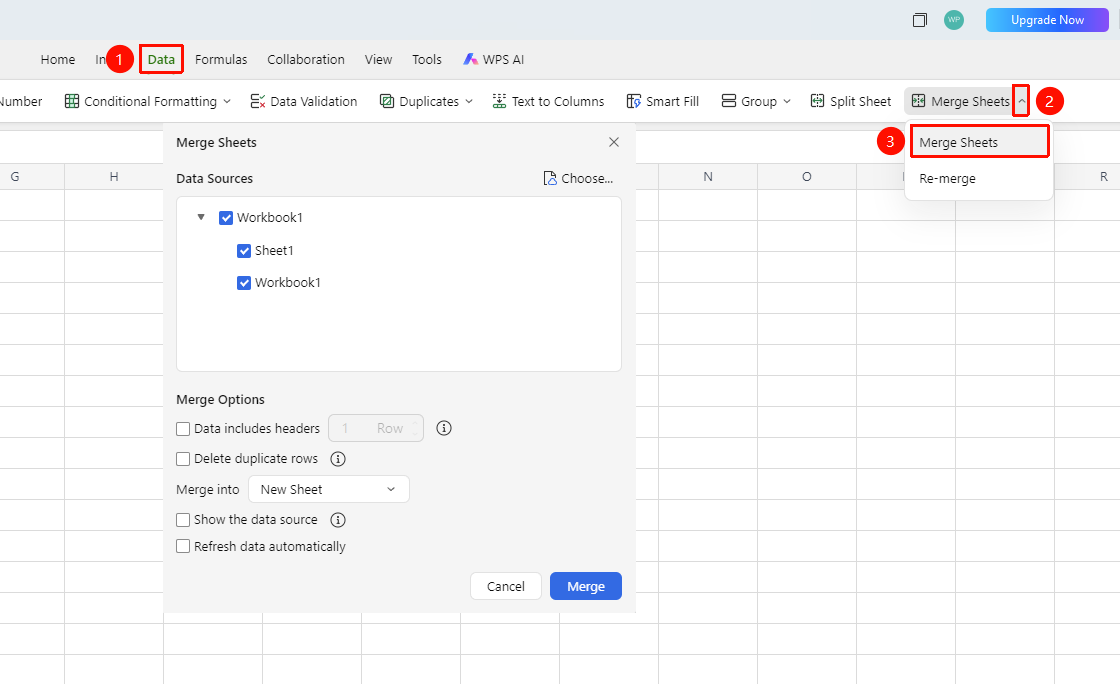
「Data」 tab →「Merge Sheets」dropdown menu →「Merge Sheets」
- Switch to the "Data" tab
- Locate and click the "Merge Tables" dropdown button to expand the dropdown menu
- Click 「Merge Sheets」 to open the 「Merge Sheets」 dialog box
- Click the 「Select...」 link in the upper right corner, and check one or more sheets to merge in the pop-up file selector
- Set merge options:
| Setting Item | Description | Default State |
|---|---|---|
| Sheet contains header | When merging, only keep the header of the first sheet; skip header rows of subsequent sheets | Unchecked |
| Number of header rows | Set the number of rows occupied by the header after checking the header option | 1 row |
| Remove duplicate rows | For duplicate data entries, keep only the first one | Unchecked |
| Merge to | Select the output destination for the merge result | New sheet |
| Indicate data source | Mark which source sheet the data comes from | Unchecked |
| Auto-update data | Automatically sync merge results when source sheets change | Unchecked |
- Select to merge to 「New sheet」 (default) or another target location
- Click the 「Merge」 button to execute the operation
Re-merge
Feature Entry
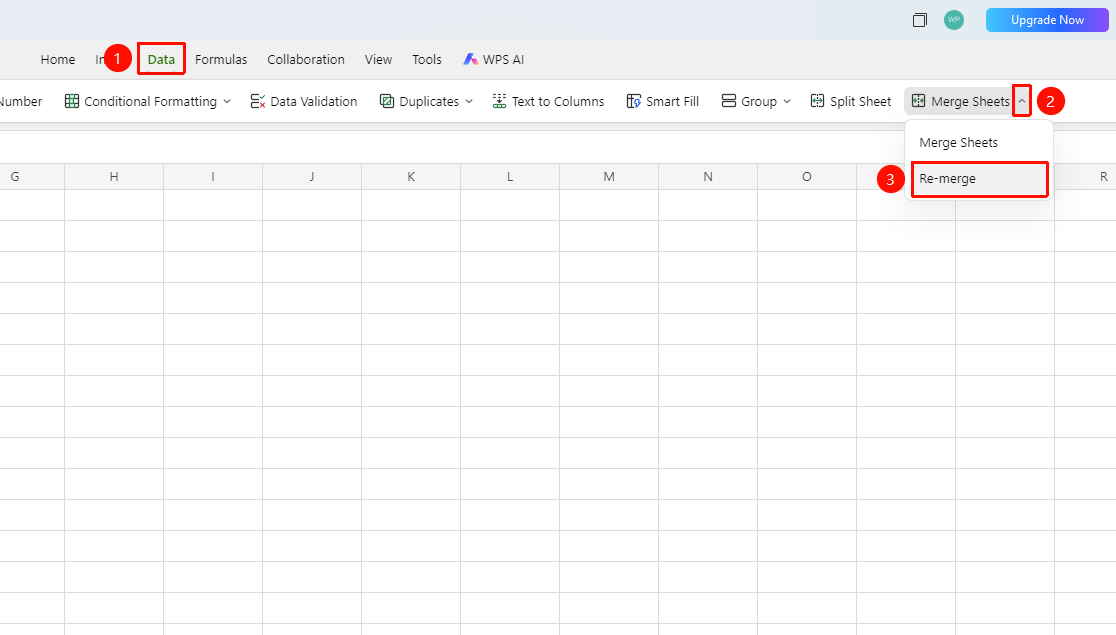
「Data」 tab →「Merge Sheets」 dropdown menu → 「Re-merge」
- When data in the source sheets changes (e.g., collaborators add or modify data)
- Switch to the "Data" tab and click the "Merge Tables" dropdown button to expand the dropdown menu
- Click 「Re-merge」 to refresh the merge results based on the last merge settings
- No need to reconfigure data sources and merge options
FAQ
Q1: What should I do if duplicate data appears after merging?
- Solution: In the 「Merge Sheets」 dialog box, check the 「Remove duplicate rows」 option, and the system will automatically remove completely duplicate rows. This feature determines duplication based on the entire row content; if two rows are only partially identical in some columns, they will not be identified as duplicate rows.
Q2: Can I still merge if the column order of each source sheet is inconsistent?
- Solution: Merging is possible, but it is recommended that all source sheets maintain a consistent column structure (same column names and column order) to ensure data alignment. If the column structure differs significantly, data misalignment may occur after merging. It is recommended to unify the column structure of each sheet before merging.
Q3: In collaboration mode, if multiple people modify the source sheets simultaneously, will the merge results update in real time?
- Solution: Only when the 「Auto-update data」 option is checked will the merge results automatically sync with changes in the source sheet data. If this option is not checked, you need to manually refresh via 「Re-merge」 after the source sheets are modified. It is recommended to ensure that 「Auto-update data」 is checked for scenarios requiring real-time synchronization.
Notes
- Before merging, ensure that the data column structure of each source sheet is consistent to avoid data misalignment after merging
- After checking 「Auto-update data」, the merge result will become a dynamic link that updates in real time as the source sheets change, which may affect performance (especially with very large data volumes)
- The 「Indicate data source」 feature is suitable for scenarios where tracing the origin of data is needed, facilitating subsequent verification
- In collaboration scenarios, it is recommended that the document owner perform the merge operation uniformly to avoid data conflicts caused by simultaneous operations by multiple people