Feature Summary
The column splitting feature is used to split the content of one cell in collaborative Sheets into multiple adjacent columns based on delimiters, or to convert text-formatted data into a specified format, helping teams organize data efficiently.
Feature Description
| Feature Dimension | Description |
|---|---|
| Membership Restriction | No membership restriction |
| Version Restriction | No version restriction |
Operation Steps
Column Splitting
Feature Entry
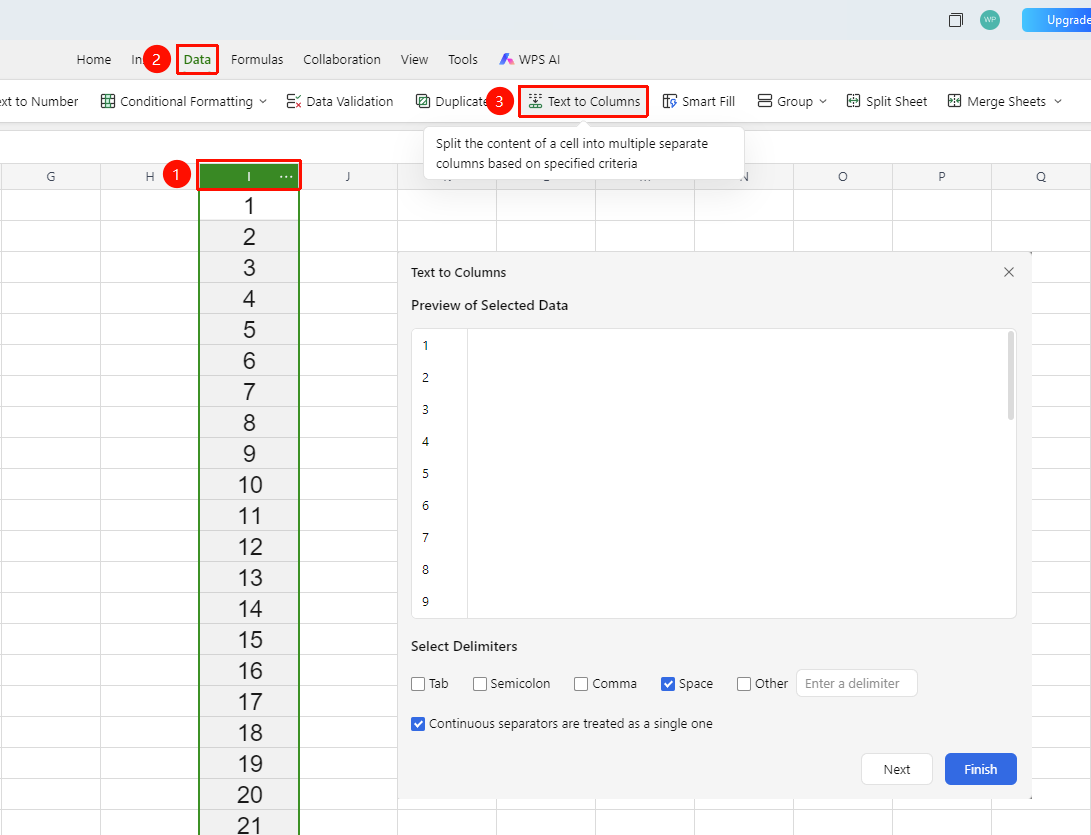
「Data」 tab → 「Split Columns」 button
- Select the column data to be split (ensure there are enough blank columns to the right of the target column to receive the split results)
- Click the 「Split Columns」 button in the Data tab
- The 「Split Columns」 dialog box will pop up, and the setup is completed in two steps
Step 1: Set Delimiters
Feature Entry
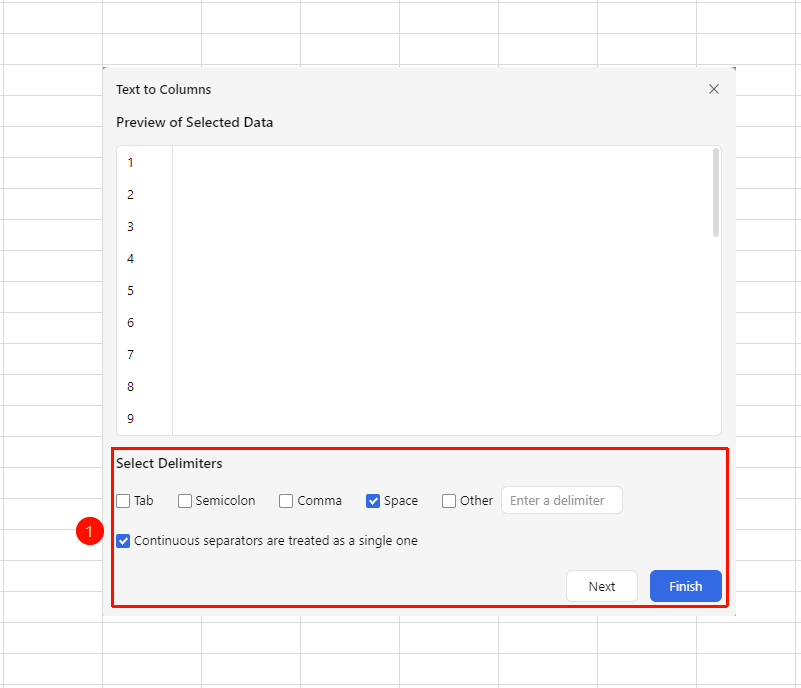
Split Columns dialog box → Delimiter selection area
- Find the 「Delimiters (used to split data)」 area in the dialog box
- Check the delimiter symbols actually used in the data:
- ☑ Tab: Separate by tab character
- ☑ Semicolon: Separate by semicolon
; - ☑ Comma: Separate by comma
, - ☑ Space: Separate by space
- ☑ Other: Enter a custom delimiter in the input box on the right
- Check 「Treat consecutive delimiters as one」, multiple consecutive delimiters will be treated as one (to avoid splitting out extra empty columns)
- The data preview area will display the split effect in real time
- After setting, click 「Next」 to proceed to the second step, or click 「Finish」 directly to execute
Step 2: Set Column Data Type and Target Area
Feature Entry
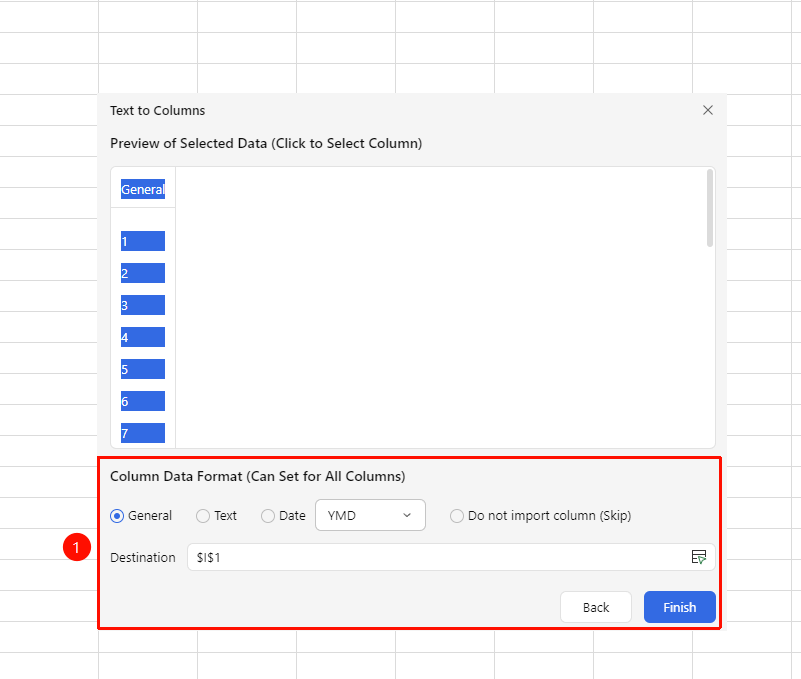
Split Columns dialog box → Column data type selection + Target area input box
- Click to select a column in the 「Data Preview」 area to set the data type for that column individually
- Select the format in the 「Column Data Type」 area:
- General: Automatically recognize data format (default option)
- Text: Force convert the column data to text format
- Date: Convert the column data to date format, the specific arrangement format (e.g., YMD) can be selected from the dropdown on the right
- Confirm or modify the output location in the 「Target Area」 input box, you can manually enter it or click the icon on the right to select the target cell
- Click 「Previous」 to return to the first step to modify delimiter settings
- After confirming there are no errors, click 「Finish」 to execute the column splitting
FAQ
Q1: What should I do if the data on the right is overwritten after splitting columns?
- Solution: Column splitting will output to the target area and may overwrite data on the right. Please confirm that the 「Target Area」 setting is correct before operation. If it has been overwritten, immediately press Ctrl+Z to undo the operation and restore.
Q2: What should I do if the data format changes after splitting columns?
- Solution: The split result defaults to text format. You can reset the format through column type or the right-click menu.
Notes
- Column splitting will output to the target area. Confirm that there are enough blank columns in the target area before operation.
- The column splitting operation will overwrite the original data in the target area. It is recommended to make a backup before operation.
- 「Treat consecutive delimiters as one」 is very useful when processing irregular text data, as it can avoid splitting out extra empty columns.