Feature Summary
The grouping feature is used to organize data rows or columns in AirSheet into collapsible/expandable hierarchical groups, making it easier for team members to expand or collapse different sections as needed when viewing large amounts of data.
Feature Description
| Feature Dimension | Description |
|---|---|
| Membership Restriction | No membership restriction |
| Version Restriction | No version restriction |
Steps
Create Row Group
Feature Entry
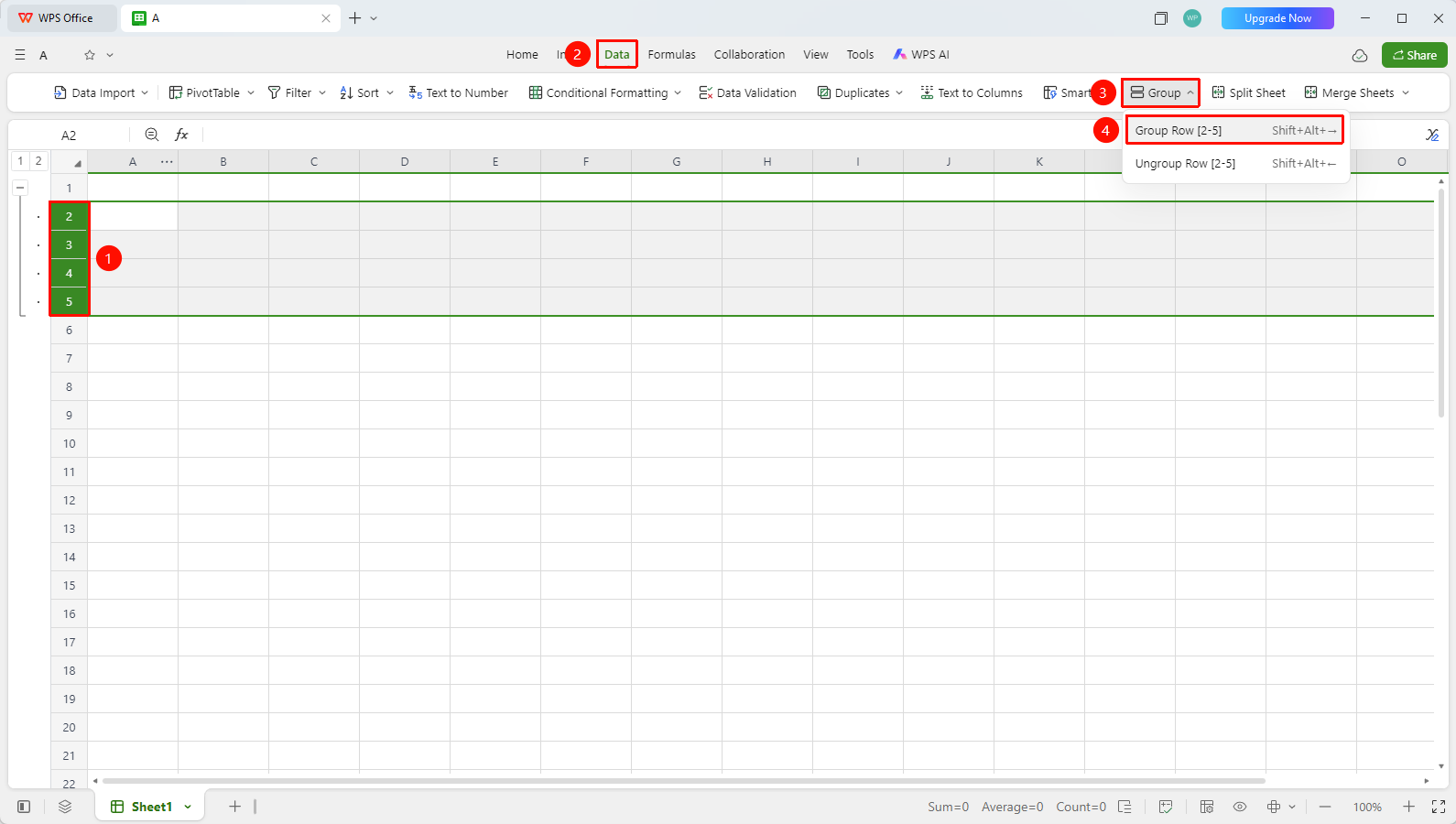
「Data」 tab → 「Group」 button → 「Group X Rows」
- Select the consecutive rows you want to group together (e.g., rows 2 through 5)
- Click the 「Group」 button in the Data tab, and select 「Group X Rows」
- Group collapse controls (the
-symbol) will appear on the left side of the sheet - Click
-to collapse the group, and click+to expand the group
Create Column Group
Feature Entry
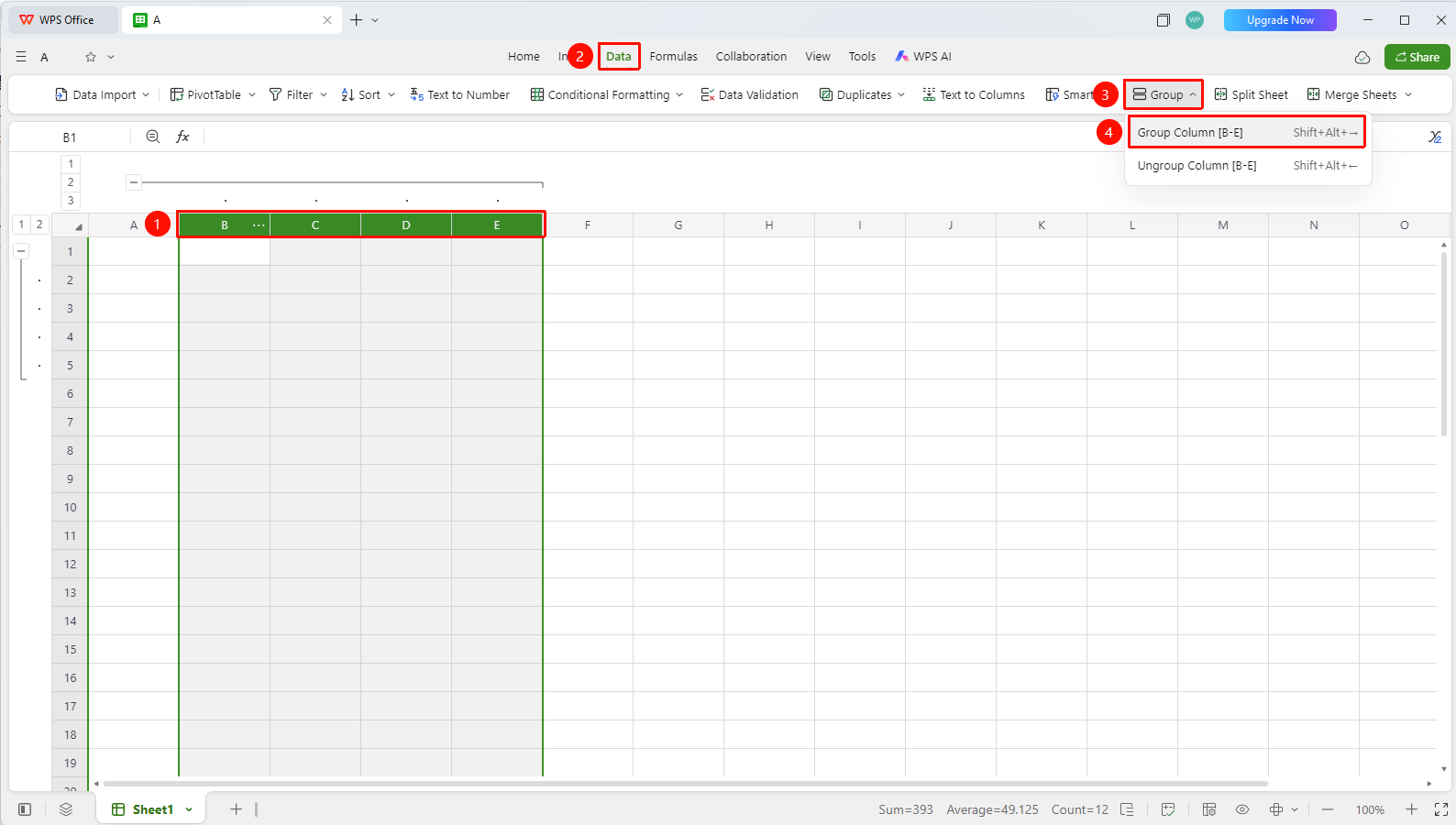
「Data」 tab → 「Group」 button → 「Group X Columns」
- Select the consecutive columns you want to group
- Click the 「Group」 button in the Data tab, and select 「Group X Columns」
- Column group controls will appear at the top of the sheet
- You can collapse multiple columns of data into a group for easier comparison of columns in different areas
Ungroup
Feature Entry
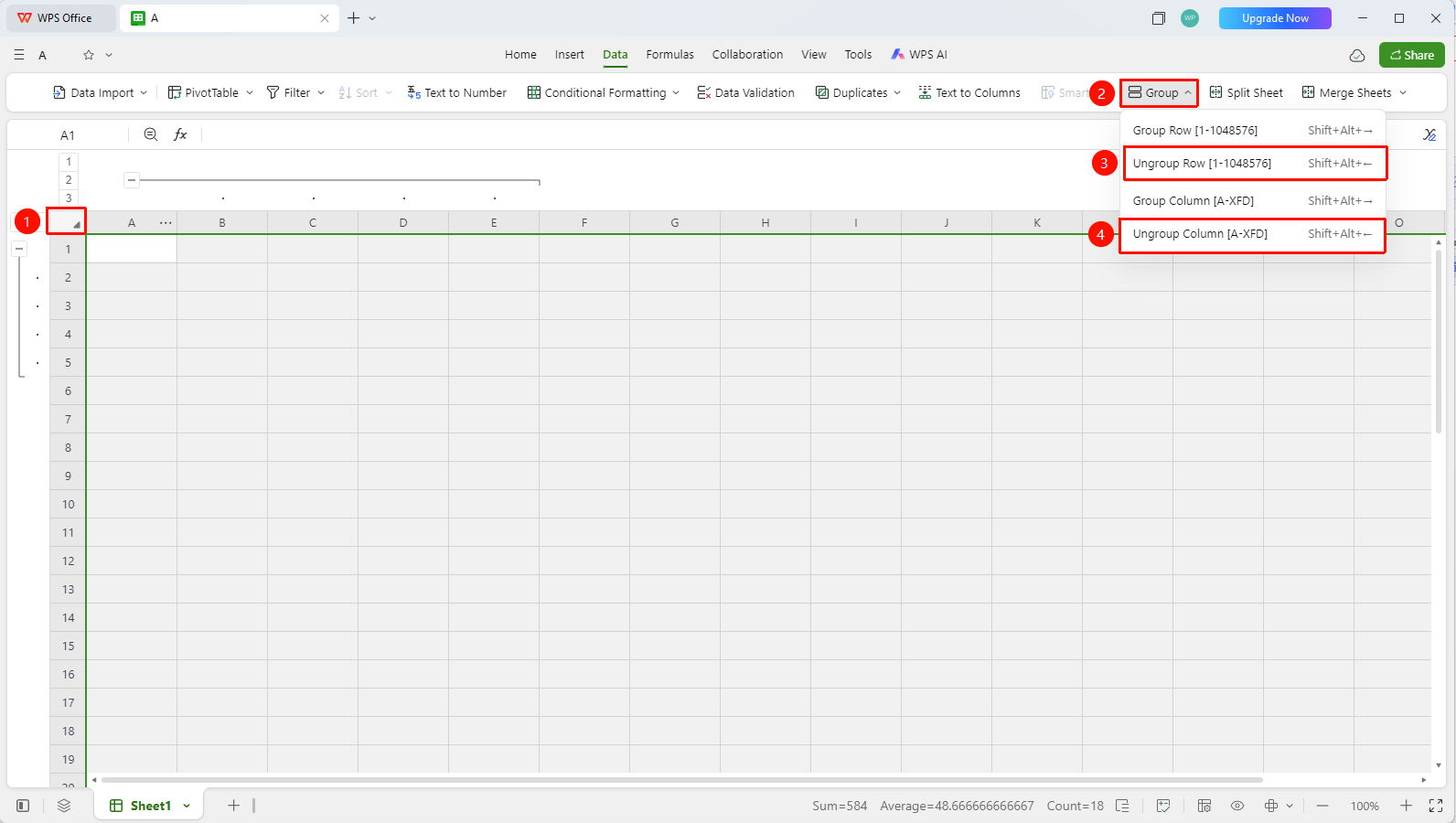
「Data」 tab → 「Group」 → 「Ungroup」
- Select the grouped rows or columns
- Click the 「Group」 button in the Data tab, and select 「Ungroup」 to remove the group
Use Outline Display
Feature Entry
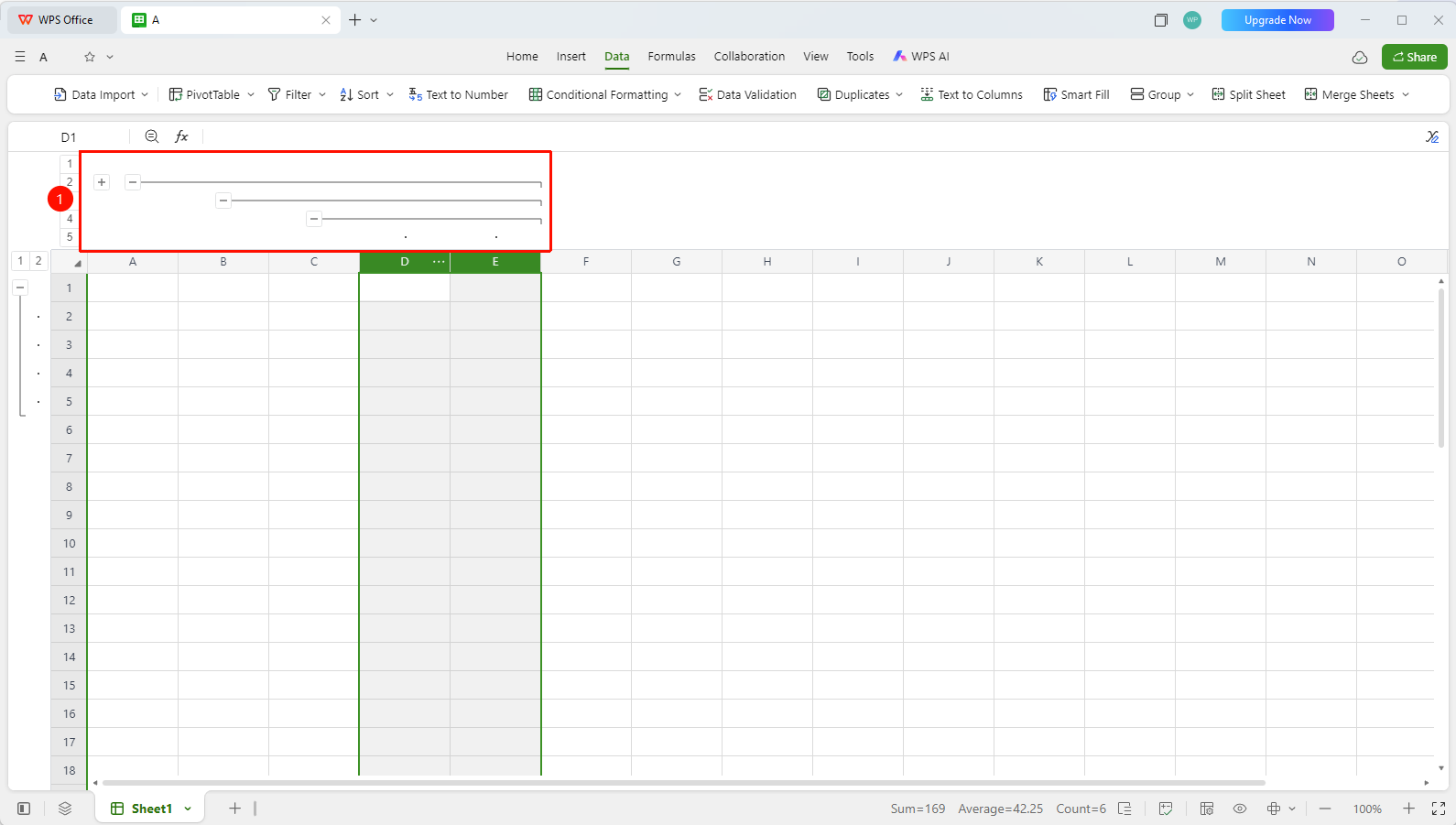
Outline controls on the left/top of the sheet (- + buttons)
- After a group is created, outline display controls appear at the edge of the sheet
- Click
-to collapse the corresponding group, and click+to expand the corresponding group - For multiple nested grouping levels, you can expand level by level to view detailed data
FAQ
Q1: Can I group by multiple fields?
- Solution: Multi-level grouping is supported. The field grouped first becomes the primary group, and subsequently added fields become sub-groups.
Q2: Can I sort within a group after grouping?
- Solution: Yes, you can use the sort feature while in a grouped state. Sorting takes effect independently within each group.
Q3: Does grouping affect formula calculations?
- Solution: Grouping only changes the display method and does not affect the formula calculation logic within cells.
Notes
- Grouping is a view display feature and does not modify the original data
- Grouping and filtering can be used simultaneously