Feature Summary
The Name Manager is used to create custom names for cell ranges, formulas, or constants in AirSheet Sheets, making it easier for users to use more intuitive and understandable names in formula references and collaboration.
Feature Description
| Feature Dimension | Description |
|---|---|
| Membership Restriction | No membership restriction |
| Version Restriction | No version restriction |
Steps
Create a Name
Feature Entry
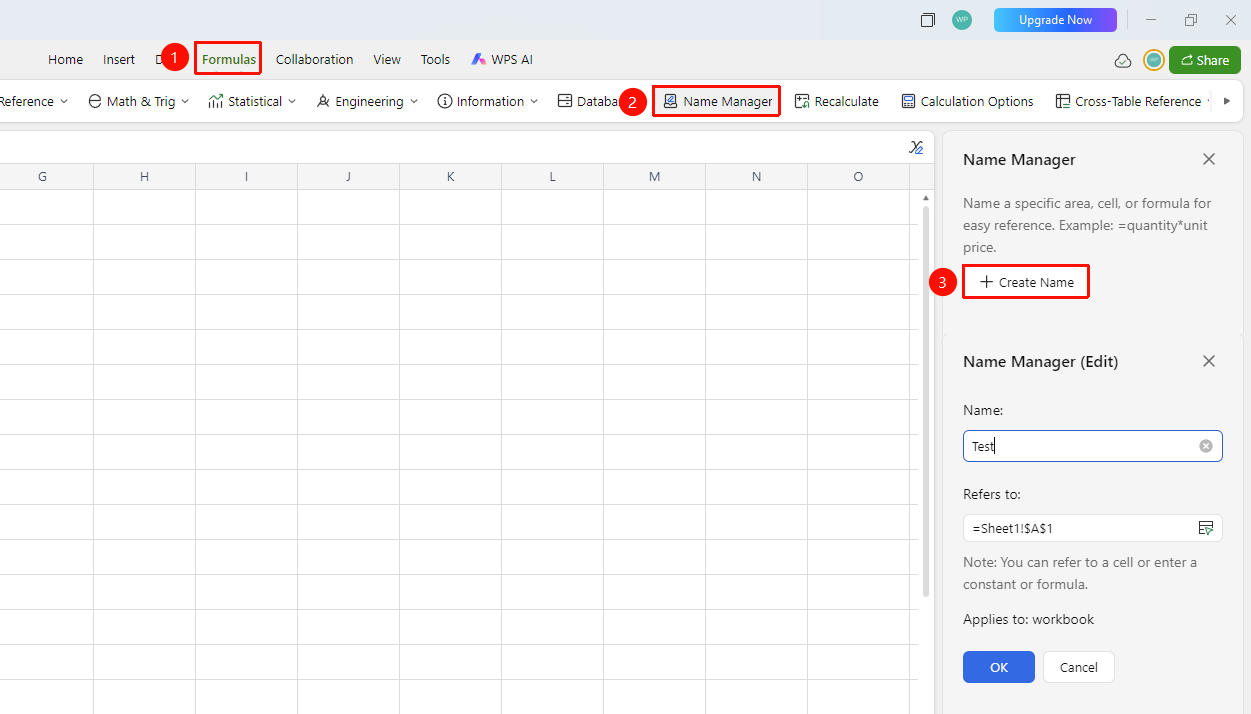
"Formulas" tab → "Name Manager" → "New"
- Click the Name Manager button in the Formulas tab
- Click New in the pop-up dialog
- Set the following in the pop-up window:
- Name: Enter a custom name (e.g., SalesData)
- Refers to: You can enter a cell reference, constant, or formula
- Click OK, and the name is created
Use Names in Formulas
Feature Entry
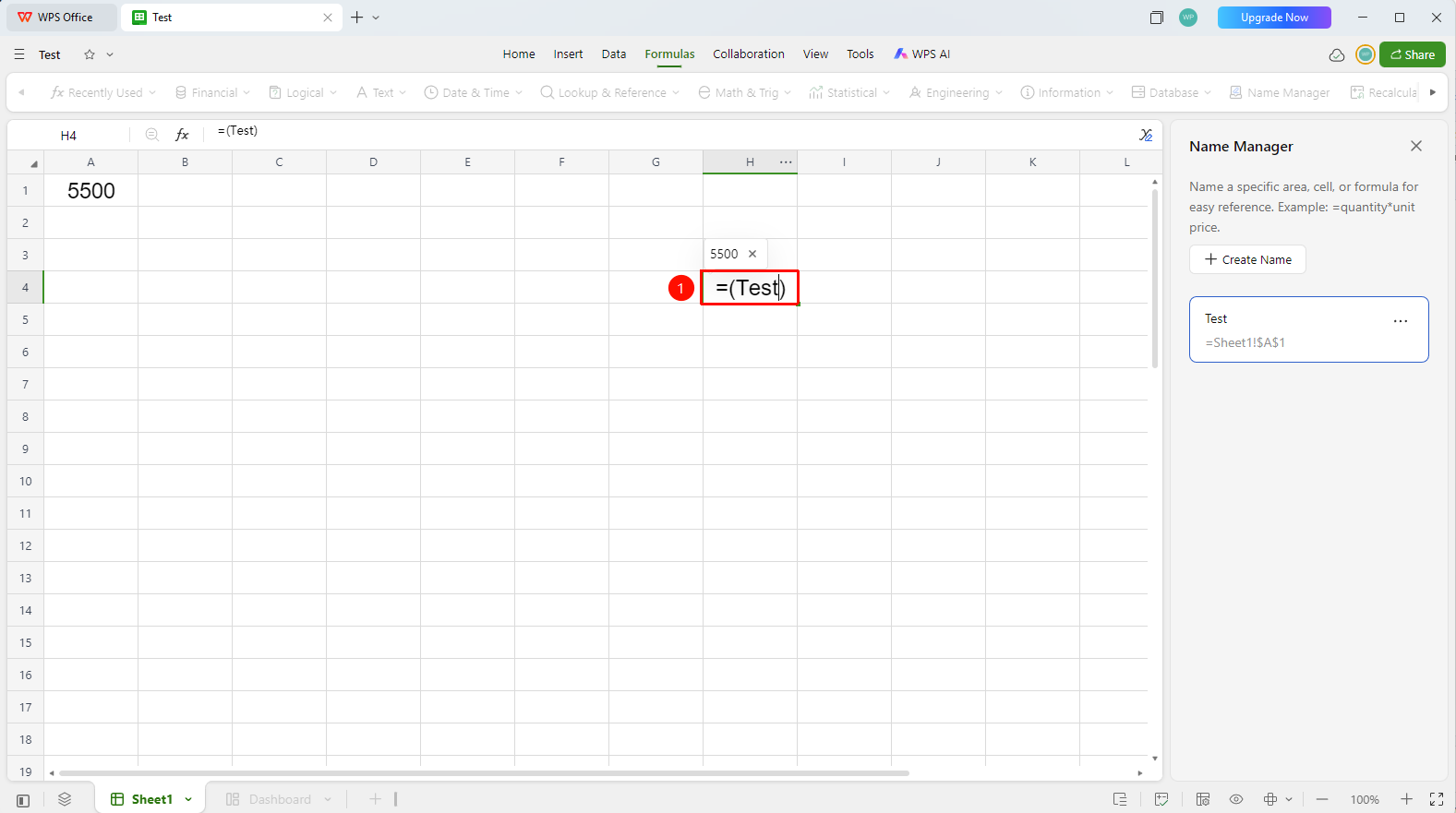
Enter the name directly in the formula
- After creating a name, you can directly use the custom name in formulas to replace range references
- For example:
=SUM(SalesData)replaces=SUM(Sheet1!$A$1:$A$100) - The name can be used in all sheets of the current workbook
- Collaborators can also use the names you created to write formulas
Edit and Delete Names
Feature Entry
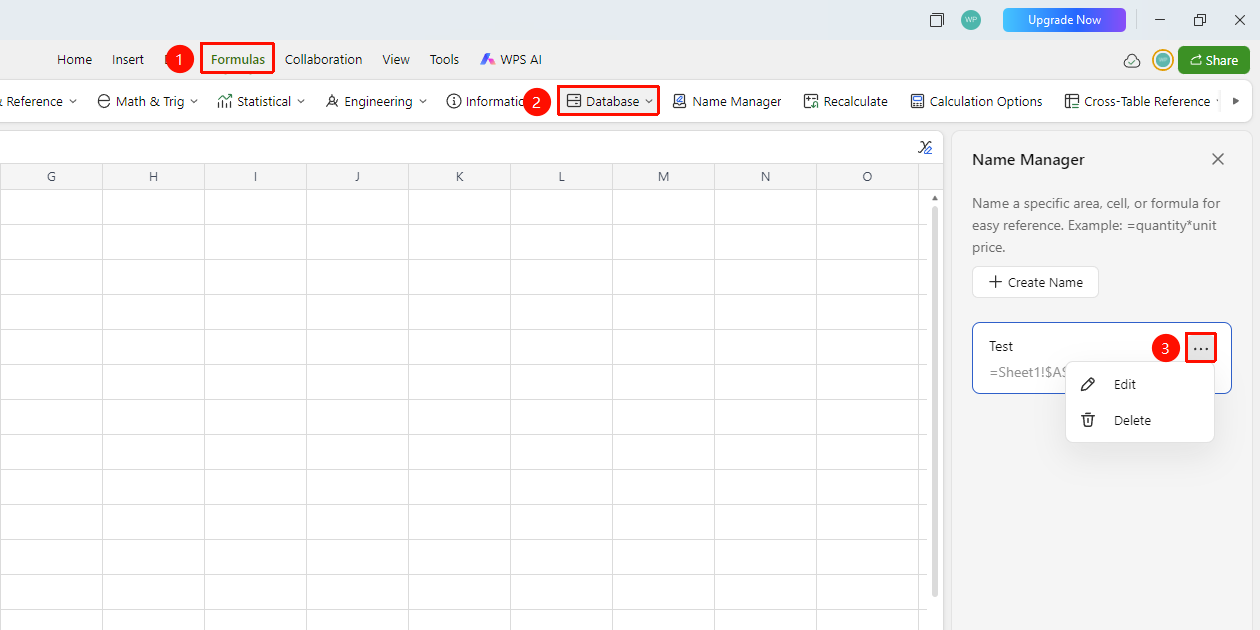
"Formulas" tab → "Name Manager"
- Click the Name Manager button in the Formulas tab
- Open the Name Manager dialog
- Select the name item you want to modify
- Click Edit to modify the name, reference range, etc.
- Click Delete to remove unwanted names
- After modification, all formulas using that name will be automatically updated synchronously
FAQ
Q1: What are the rules for naming names?
- Solution: Names must start with a letter or underscore, cannot start with a number, and cannot contain spaces or special characters (such as @, #, $, etc.).
Q2: What is the use of defined names?
- Solution: Names make formulas more readable, e.g., =SUM(Sales) is more intuitive than =SUM(A1:A100).
Notes
- Names can be referenced globally within the workbook, so naming should be clear and explicit for user understanding
- Avoid using names that may conflict (e.g., names identical to cell addresses)
- After deleting a name, formulas referencing that name will return an error