Feature Summary
Cross-file reference allows users to reference cell or range data from other Sheets files (such as another cloud Document) within a cell formula in the current workbook, enabling data linking and cross-file aggregation.
Feature Description
| Feature Dimension | Description |
|---|---|
| Membership Restriction | No membership restriction |
| Version Restriction | No version restriction |
Steps
Method 1: Enter = in the formula bar to trigger automatically
Feature Entry
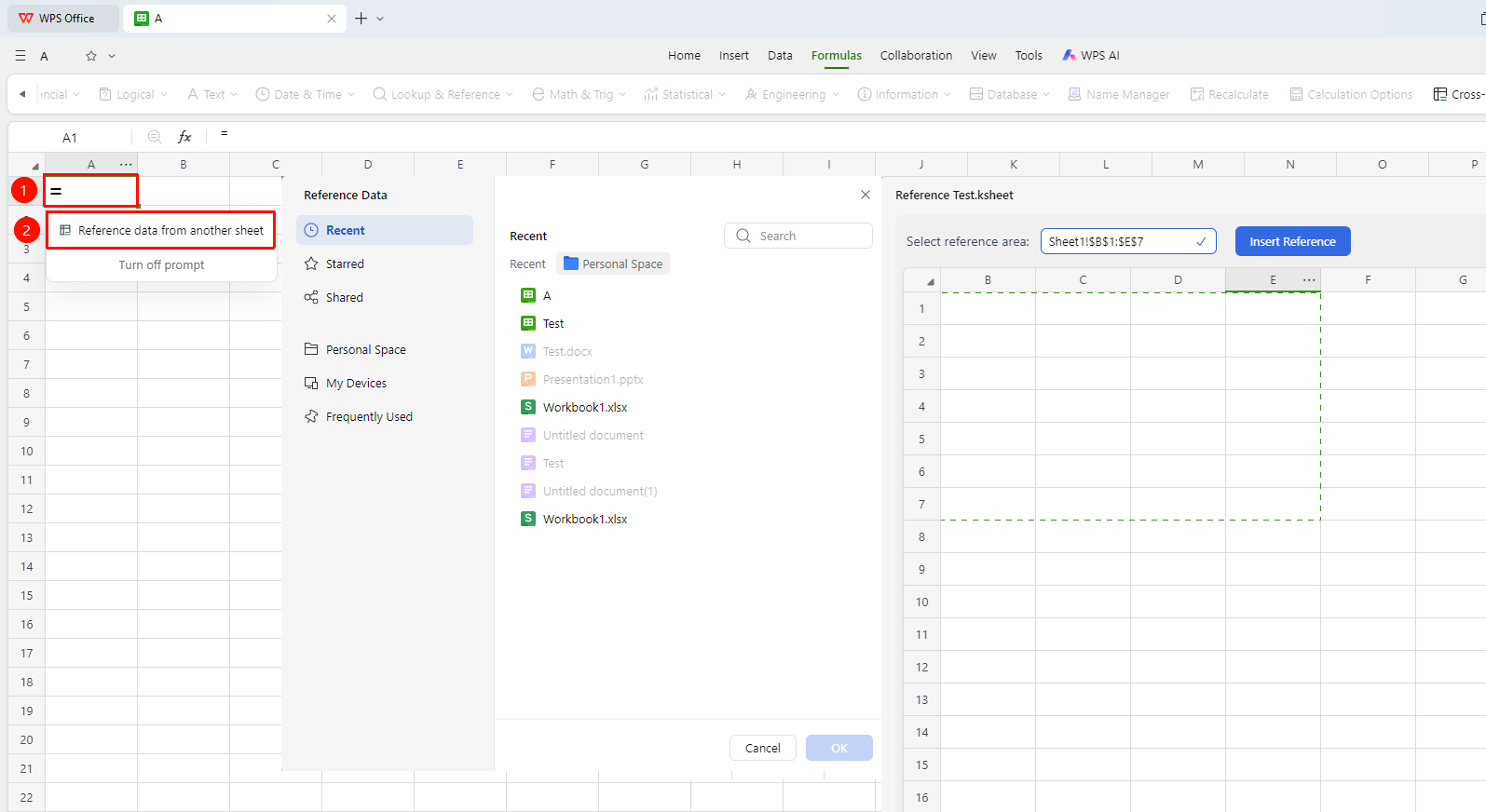
Select a cell and enter = in the formula bar
- Enter
=in a cell of the current workbook - A prompt automatically appears below the formula bar: 「Reference data from another sheet」
- Click the prompt link to enter the cross-file reference file selection interface
- After selecting a file, enter the cell range to reference in the top 「Select Reference Range」 input box or drag to select the range in the sheet
- After confirming the reference range, click the 「Insert Reference」 button
- The reference formula is automatically filled into the current cell, and the cell displays the data result from the reference source
Method 2: 「Formulas」 tab → Cross-file Reference
Feature Entry
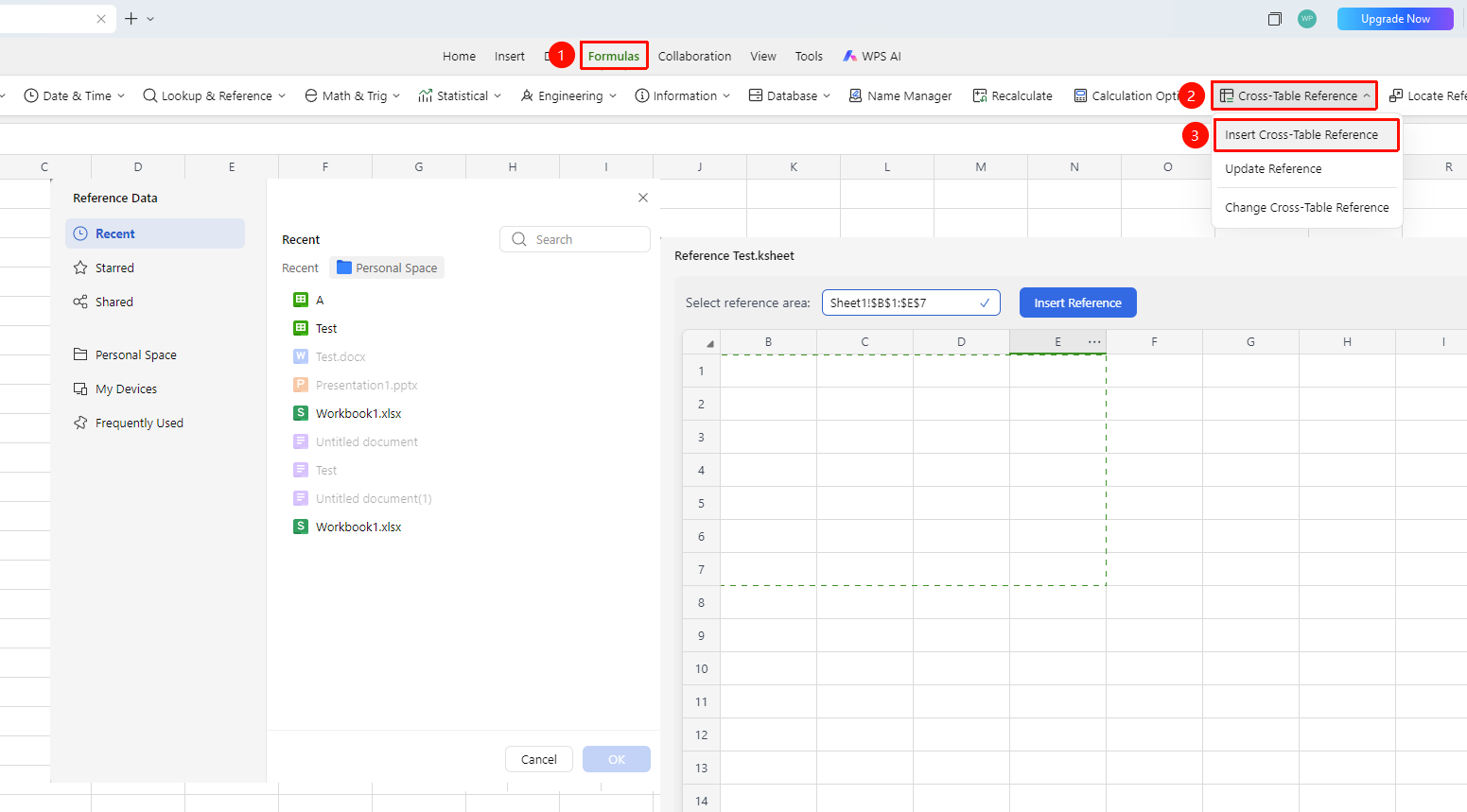
「Formulas」 tab → 「Cross-file Reference」 → 「Insert Cross-file Reference」
- Click the top 「Formulas」 tab
- Find the 「Cross-file Reference」 button in the toolbar
- Click the dropdown arrow and select 「Insert Cross-file Reference」
- After selecting a file, enter the cell range to reference in the top 「Select Reference Range」 input box or drag to select the range in the sheet
- After confirming the reference range, click the 「Insert Reference」 button
- The reference formula is automatically filled into the current cell, and the cell displays the data result from the reference source
Change Cross-file Reference
Feature Entry
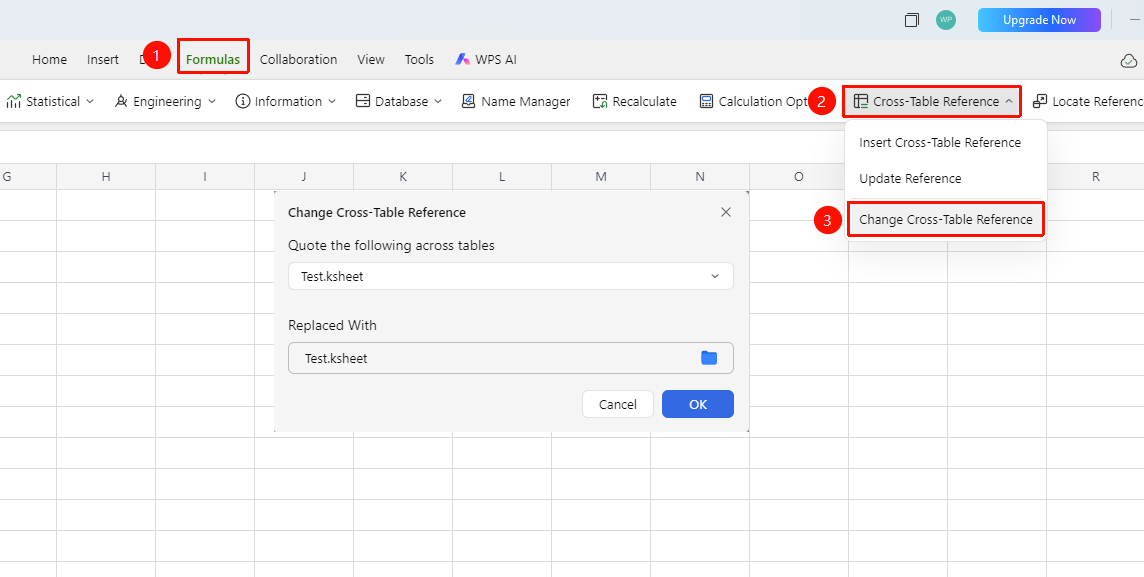
「Formulas」 tab → 「Cross-file Reference」 → 「Change Cross-file Reference」
- Click the 「Cross-file Reference」 button in the 「Formulas」 tab
- Select 「Change Cross-file Reference」 from the dropdown menu
- A list of existing cross-file references in the current workbook pops up
- Select the reference item to change, and modify the target file or reference range
- Click 「OK」 to complete the change
Update References
Feature Entry
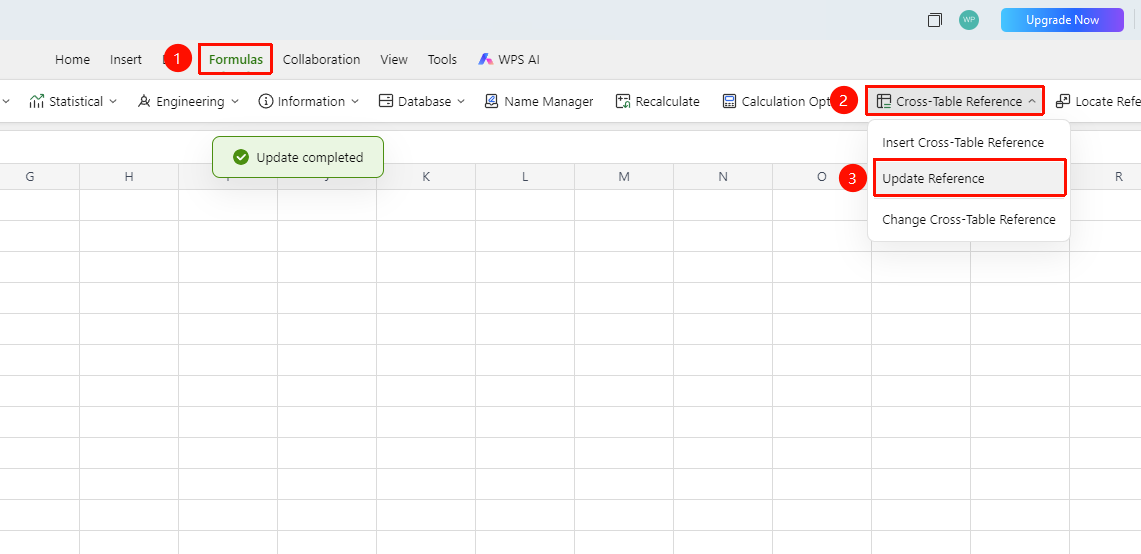
「Formulas」 tab → 「Cross-file Reference」 → 「Update References」
- Click the 「Cross-file Reference」 button in the 「Formulas」 tab
- Select 「Update References」 from the dropdown menu
- The system automatically refreshes all cross-file references and syncs the latest data from the source files
FAQ
Q1: A file cannot be found when referencing another sheet?
- Solution: Cross-file reference requires that the file path is valid and the current user has access permissions.
Q2: Can cross-file reference reference non-sheet files?
- Solution: Cross-file reference can only reference sheet format files that support data reading (e.g., .xlsx, .csv). It does not support referencing non-sheet format files such as Docs documents (.docx) or Slides presentations (.pptx).
Q3: What should I do if cross-file reference data does not update automatically?
- Solution: Cross-file reference data usually syncs the latest values from the source file automatically. If data is found not to be updated, you can manually execute 「Formulas」 tab → 「Cross-file Reference」 → 「Update References」 to refresh. For local file references, you need to open the source file and then manually refresh.
Notes
- Cross-file reference only supports saved sheet files in cloud Documents. Newly created, unsaved files cannot be referenced.
- If the referenced source file is deleted or moved, the reference relationship will break, and the cell will display an error value.
- For files in 「Team Space」, ensure the current user has access permissions; otherwise, they cannot be referenced.
- Large-scale cross-sheet references may affect calculation speed.