Feature Summary
The Locate Referenced Cells feature is used to view which cells a particular cell references, helping collaborative teams troubleshoot formula errors and understand data relationships.
Feature Description
| Feature Dimension | Description |
|---|---|
| Membership Restriction | No membership restriction |
| Version Restriction | No version restriction |
Steps
Locate Referenced Cells
Feature Entry
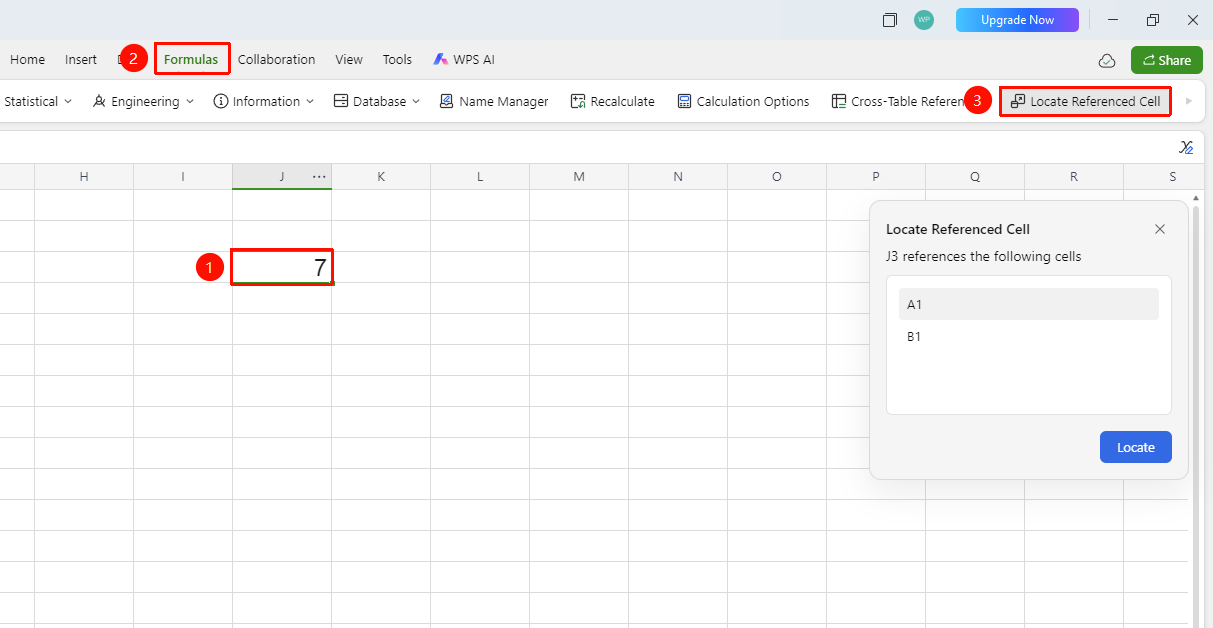
"Formulas" tab → "Locate Referenced Cells" button
- Select the cell for which you want to view reference relationships
- Click the "Locate Referenced Cells" button in the Formulas tab
- The pop-up window will display the cells referenced by the selected cell
- Click "Locate" to automatically trace this data source