Feature Summary
Set edit permissions for specific cell ranges to control the editable scope for collaborators.
Feature Description
| Feature Dimension | Description |
|---|---|
| Membership Restriction | No membership restriction |
| Version Restriction | No version restriction |
Steps
Access Area Permissions
Feature Entry
「Collaborate」 tab → 「Protect Range」 button →「Range Permissions」
- Select the cell range you want to protect
- Click the top 「Collaborate」 tab
- Click the 「Protect Range」 button in the toolbar
- Select 「Range Permissions」 in drop down menu, and the 「Protect Range」 panel will appear on the right side
- Click the "Enable Region Permissions" button to enable region permissions.
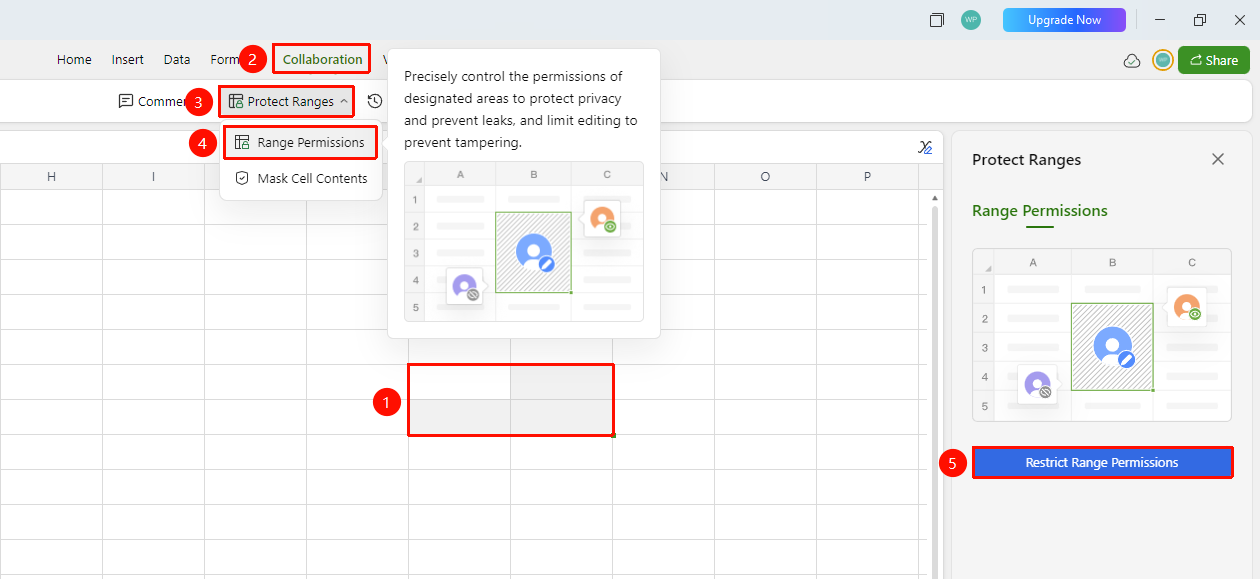
Enable Area Permissions
Feature Entry
「Protect Range」 panel on the right
- Click the 「Enable Area Permissions」 toggle (a blue toggle indicates it is enabled)
- Clicking switch again will turn off all protection.
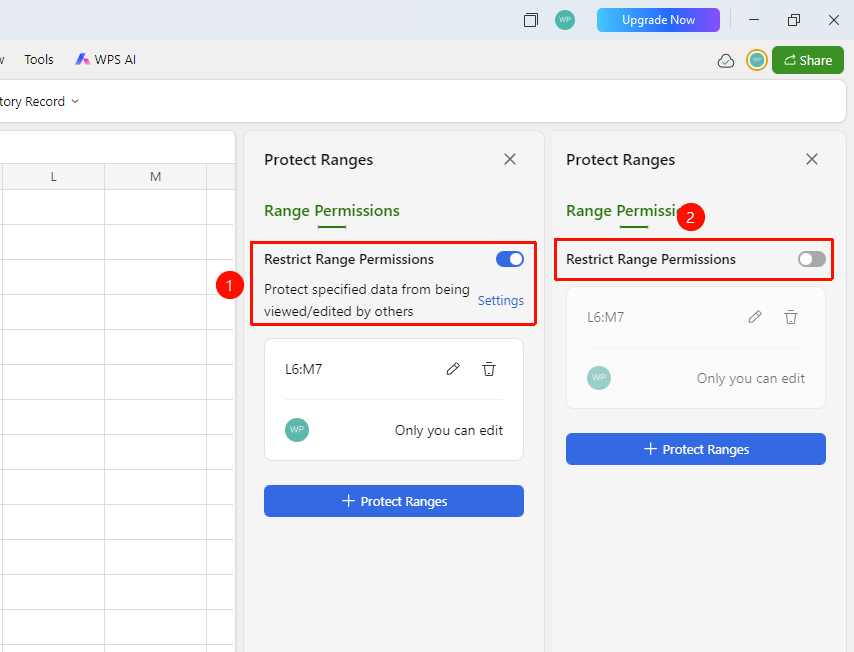
Choose Password Setting Method
Feature Entry
「Protect Range」 panel on the right → 「Settings」 → 「Allow users of this sheet to」
- In the right-hand "Protected Area" panel, click "Settings" → "Allow users of this sheet to" to bring up the settings menu.
- You can select which users are allowed to perform specific operations on the worksheet.
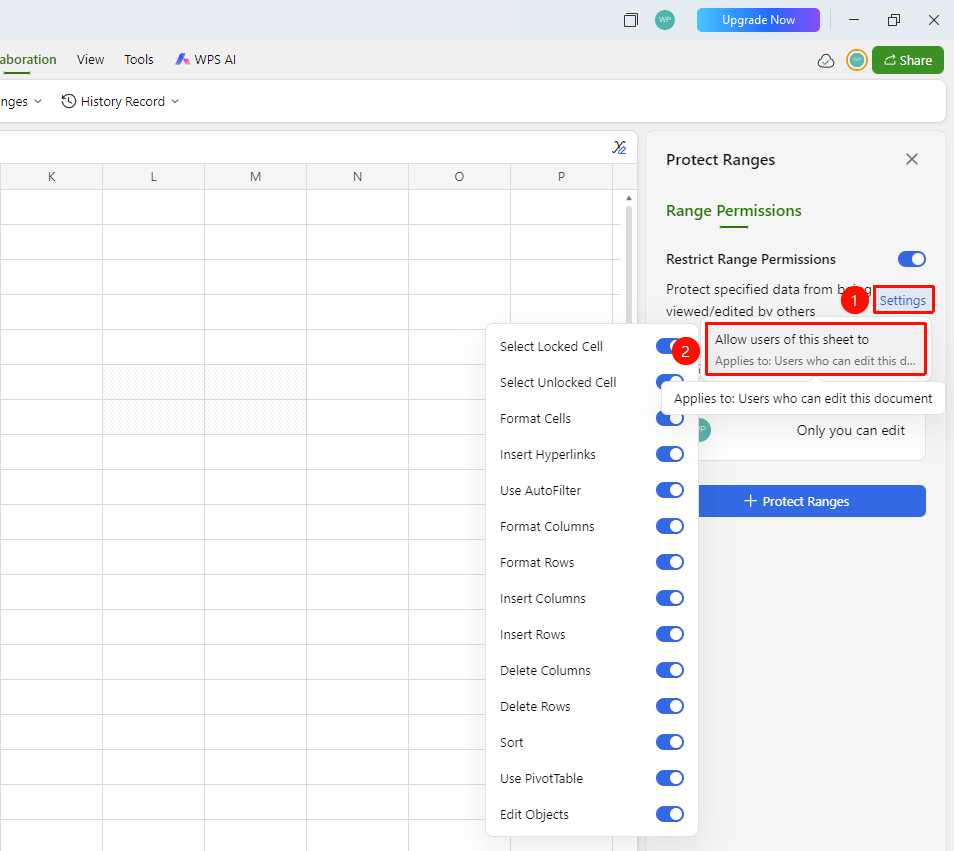
Set allowed operations in the sheet
Feature Entry
「Protect Range」 panel on the right →「Add Protected Range」→ 「」
- Select the cell range you want to protect
- Click the 「+ Add Protected Range」 button at the bottom of the right panel to add the currently selected cell range as a protected range
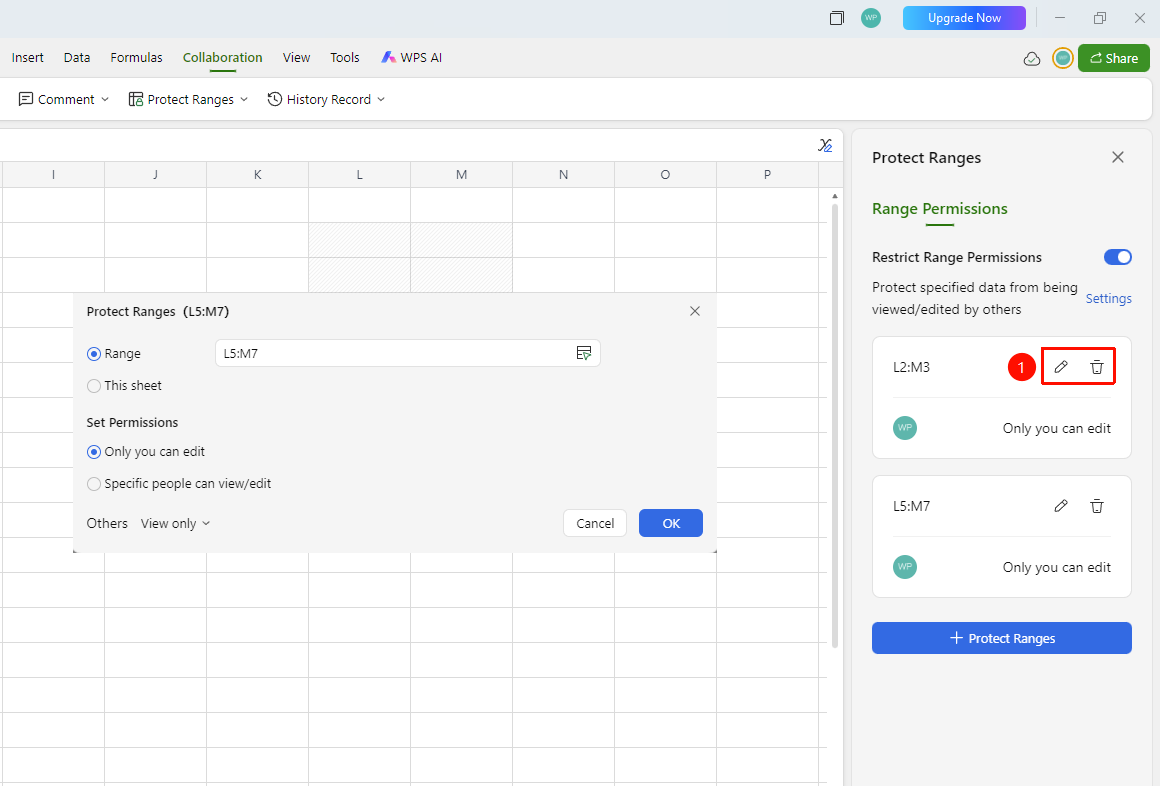
- Click the 「Edit」 button to expand the Protected Range dialog box
- The 「Protect Range」 dialog appears, displaying the current cell range identifier at the top
- Specify Protection Scope:
- Specified Range (checked by default): Enter or select the cell range address to protect
- Current Sheet: Protect the entire current sheet
6.Set Permissions:
- Only I Can Edit (checked by default): Only the creator can edit this range
- Specified People Can View/Edit: Add specific collaborators and set view or edit permissions
7.At the bottom, the 「Others」 dropdown allows selecting a permission level: 「View Only」 / others
8.Click 「Confirm」 to save, or click 「Cancel」 to discard
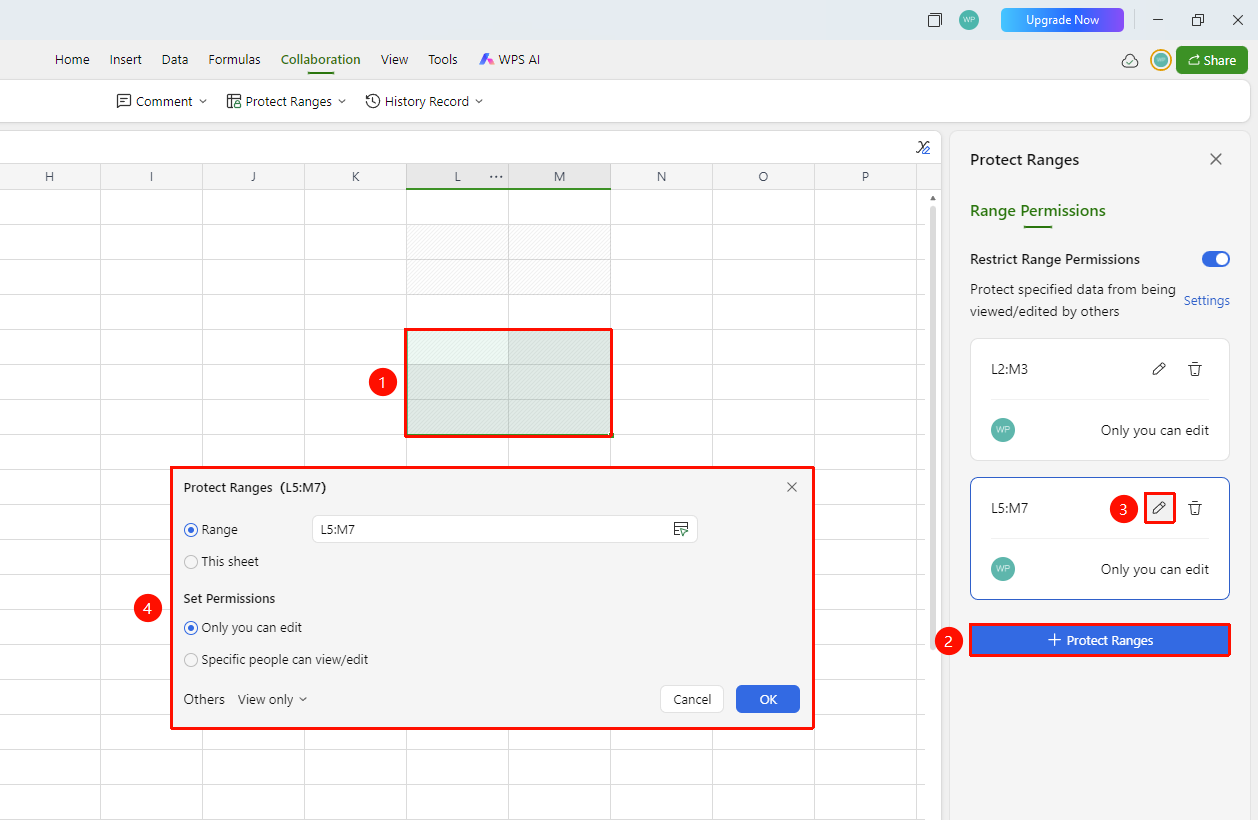
Manage Protected Ranges
Feature Entry
「Protect Range」 panel on the right → list of added ranges
- After enabling area permissions and adding protection, the right panel displays a list of protected ranges. Each range can be managed independently:
- Each protected range has an 「Edit」 (pencil icon) button on the right; click to modify the permission settings for that range
- Each protected range has a 「Delete」 (trash icon) button on the right; click to remove protection for that range
- The current permission level (e.g., 「Others View only」) is displayed below the protected range with set permissions
FAQ
Q1: Can the sheet creator manage all area permissions?
- Solution: The sheet creator and sheet managers can manage all area permission settings in the sheet.
Q2: How to remove protection for a specific range?
- Solution: In the list of protected ranges on the right panel, click the 「Delete」 (trash icon) button on the right side of the range to remove its protection. To disable all protection, turn off the 「Enable Area Permissions」 master toggle.
Notes
- Multiple protected ranges can be added to a sheet, with each range's permissions independent and not affecting each other
- The permissions in the 「Allowed Actions in Sheet」 list are global settings that apply to all collaborators and complement the permission settings of individual protected ranges
- You can right-click on a cell or sheet where you want to enable area permissions and quickly enable them from the right-click menu