Feature Summary
Content auto-hide is a privacy protection feature of AirSheet. When enabled, it automatically hides cell content within protected areas to prevent sensitive data from being viewed by unauthorized collaborators.
Feature Description
| Feature Dimension | Description |
|---|---|
| Membership Restriction | No membership restriction |
| Version Restriction | No version restriction |
Steps
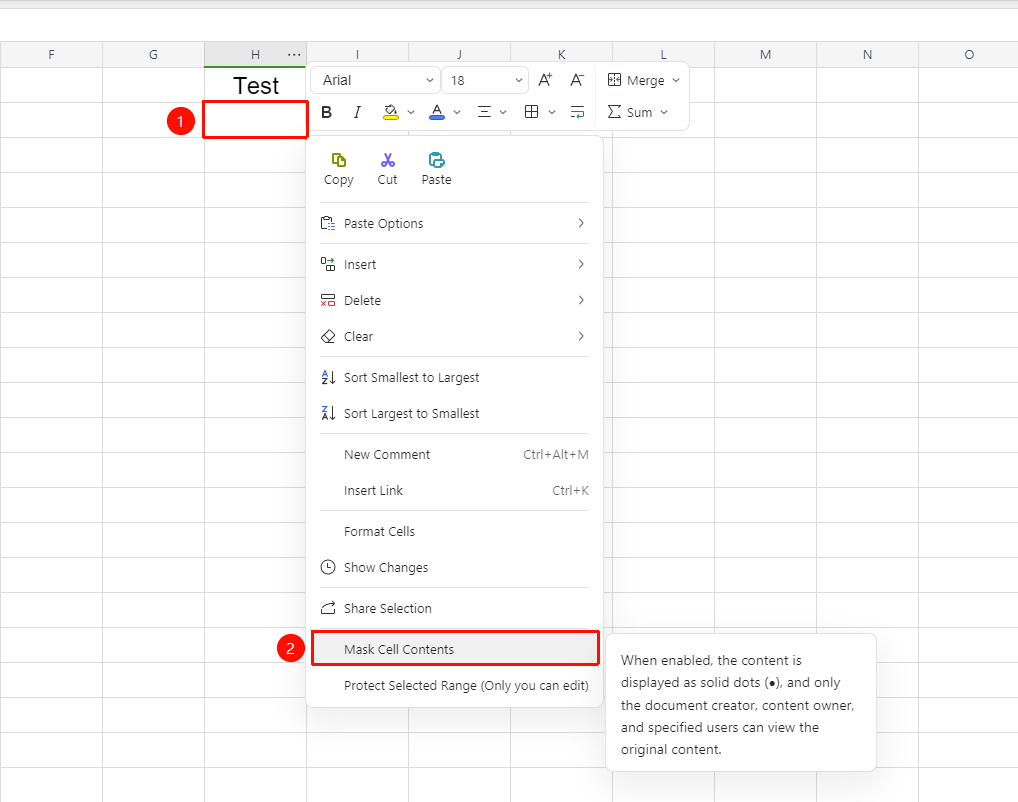
Feature Entry 1: Right-Click Menu
Feature Entry
Right-click menu → "Enable Content Auto-Hide"
- Select the cell range where you want to hide content
- Right-click anywhere within the selected area
- Find and click "Enable Content Auto-Hide" in the right-click menu
- After enabling, the content in this area will be displayed as
●and can only be viewed by the document author, fillers, and designated users
Feature Entry 2: "Collaborate" Tab
Feature Entry
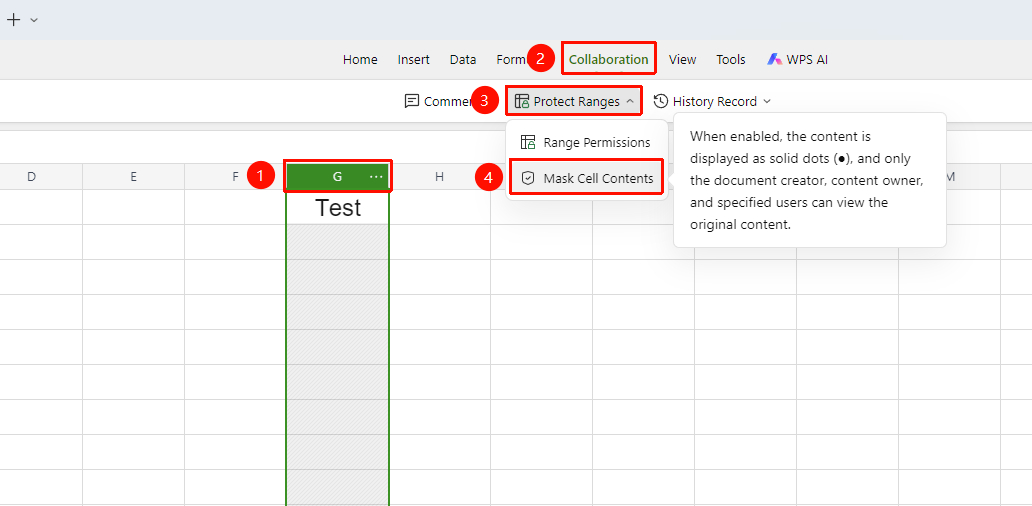
"Collaborate" tab → "Protect Range" → "Content Auto-Hide"
- Select the cell range where you want to hide content
- Click the "Collaborate" tab at the top
- Click the "Protect Range" button in the toolbar
- Select "Content Auto-Hide" from the dropdown menu
Manage Content Auto-Hide
Feature Entry
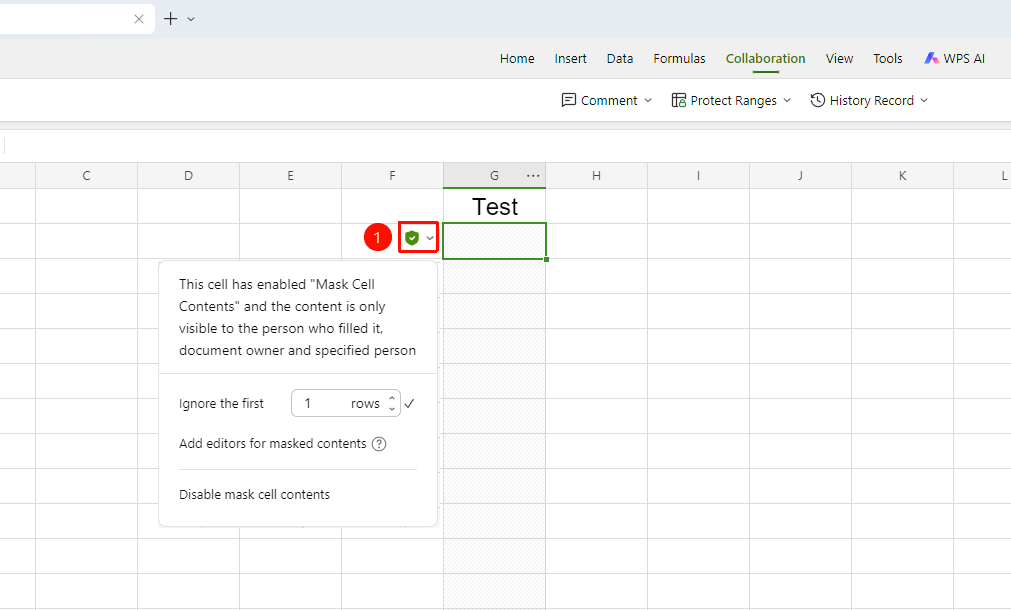
Click a cell with content auto-hide enabled
- Click a cell with content auto-hide enabled to bring up the green shield icon on the left side of the cell
- Click the shield icon to enter the content auto-hide management menu
- The following management options are available:
- Ignore First X Rows: Set the first X rows of data not to be auto-hidden, preventing headers from being hidden
- Designate People to Manage Content: Grant designated people permission to edit and view
- Disable Content Auto-Hide
FAQ
Q1: What is the difference between content auto-hide and wrap text?
- Solution: Auto-hide means text is not displayed, while wrap text increases row height to display content in full.
Q2: Can hidden content be searched?
- Solution: Yes. Users with management permissions for the hidden content can view the content normally and search for the hidden content.
Q3: What is the difference between content auto-hide and range permissions?
- Solution: Range permissions prevent others from modifying data, while content auto-hide prevents others from viewing data. Range permissions can be set to view only or edit only, whereas content auto-hide directly hides the content, and only authorized users can see the data.
Q4: Can no collaborators see the hidden content?
- Solution: No. Content auto-hide only takes effect for unauthorized collaborators. The sheet creator and collaborators added to the designated list can still view and edit the data in the hidden area normally.
Q5: Is the data still there after enabling content auto-hide?
- Solution: Yes. After disabling content auto-hide, all hidden data will be displayed again. The data itself remains unchanged; only the hidden state is removed.
Notes
- It is recommended to set an authorization list via "Designate People to Manage Hidden Content" to ensure data security
- Does not affect the actual data in the cell, only the display
- Suitable for scenarios where you need to keep column width fixed while containing long text