Feature Summary
Collaboration records are used to view the operation records of all collaborators in a collaborative sheet, helping team members track who performed what operations on the file and when.
Feature Description
| Feature Dimension | Description |
|---|---|
| Membership Restriction | No membership restriction |
| Version Restriction | No version restriction |
Operation Steps
View Collaboration Records
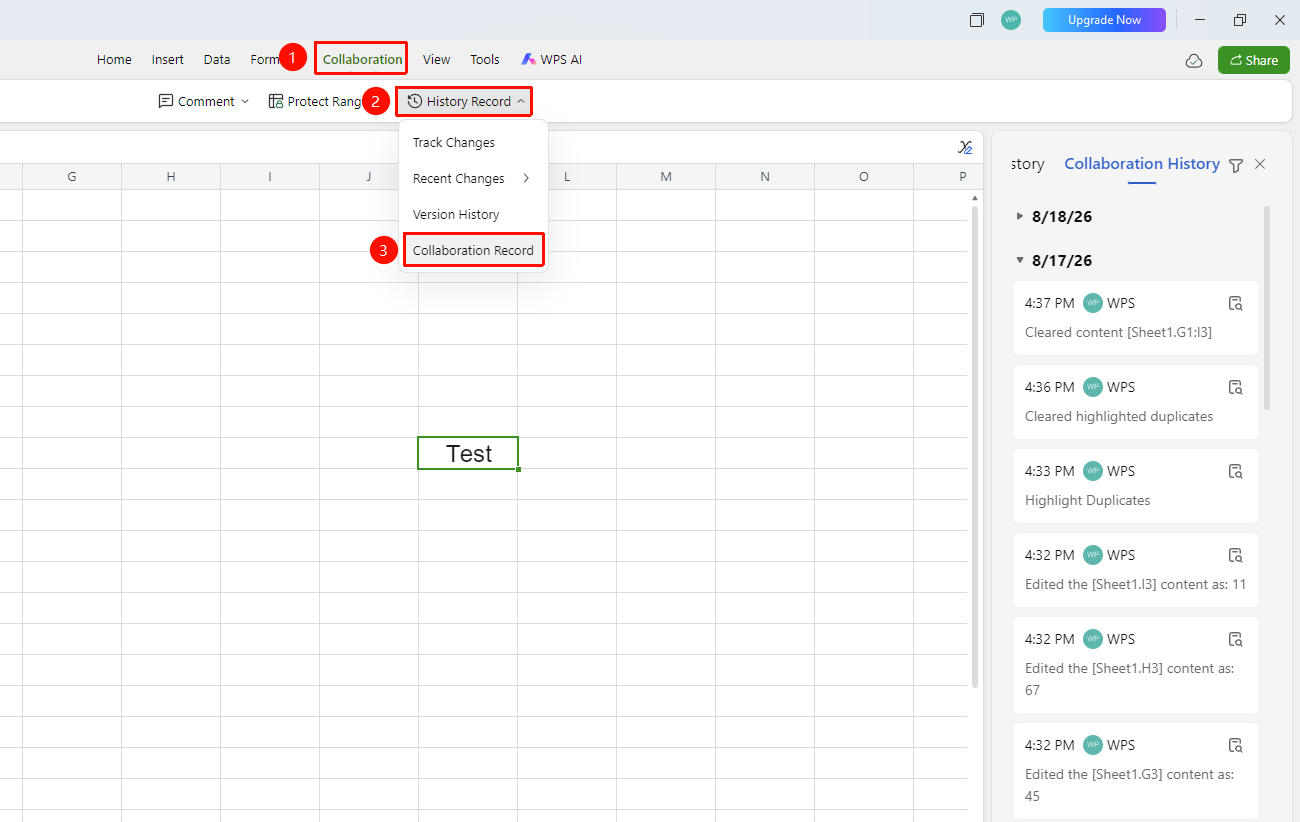
Feature Entry ①
"Collaborate" tab → "History" → "Collaboration Records"
- Click the top "Collaborate" tab
- Click the "History" button in the toolbar
- Select "Collaboration Records" from the dropdown menu
- The collaboration record list pops up in the right panel, sorted in reverse chronological order
- Each record displays the operator, operation type, and operation time
Feature Entry ②
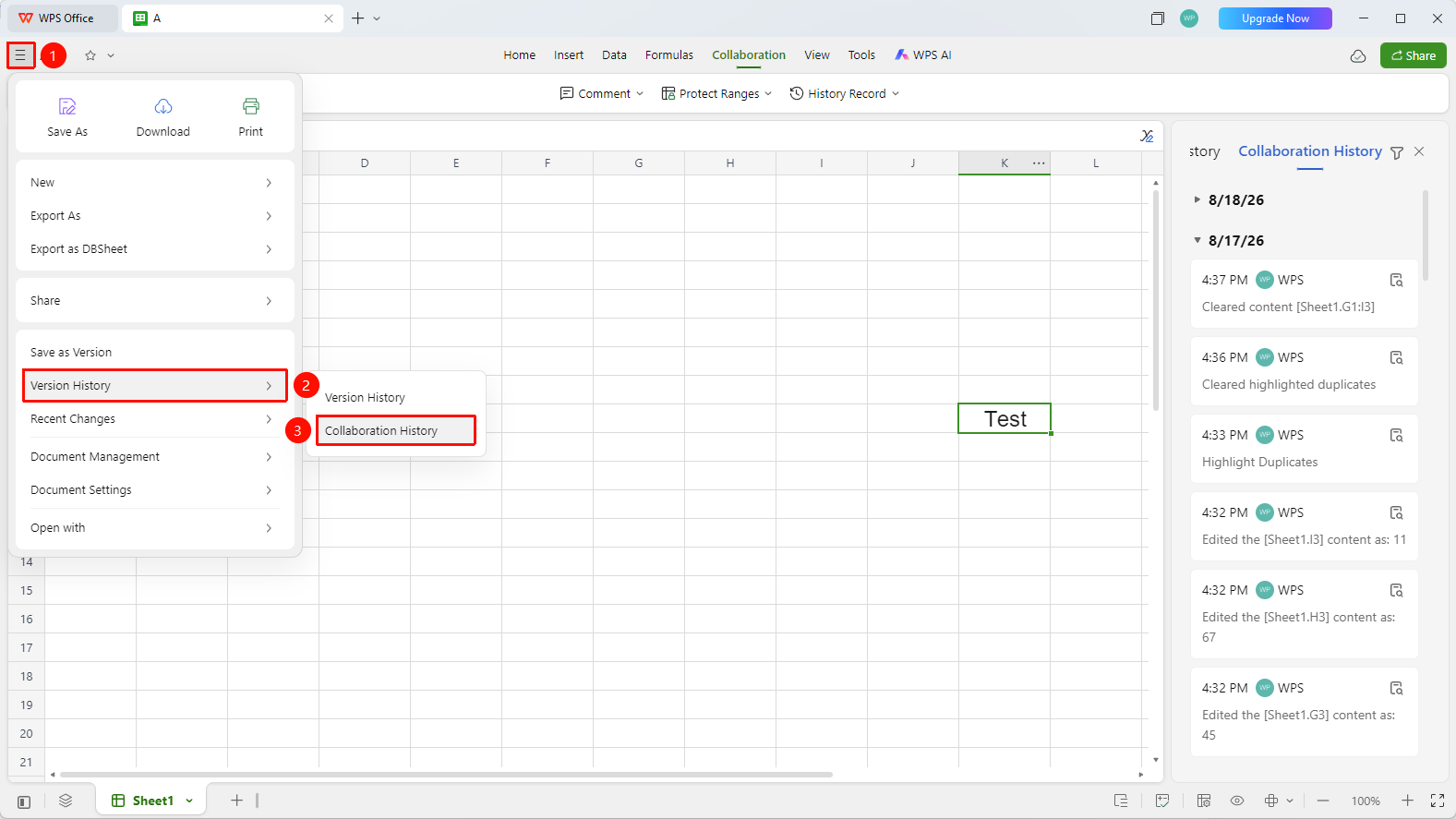
"File Operations" tab → "Version History & Records" → "Collaboration Records"
- Open AirSheet, click the "File Operations" tab at the top left (☰ icon)
- Click "History" → "Collaboration Records" in sequence
- Expand the version history panel
Collaboration Record Filter
Feature Entry
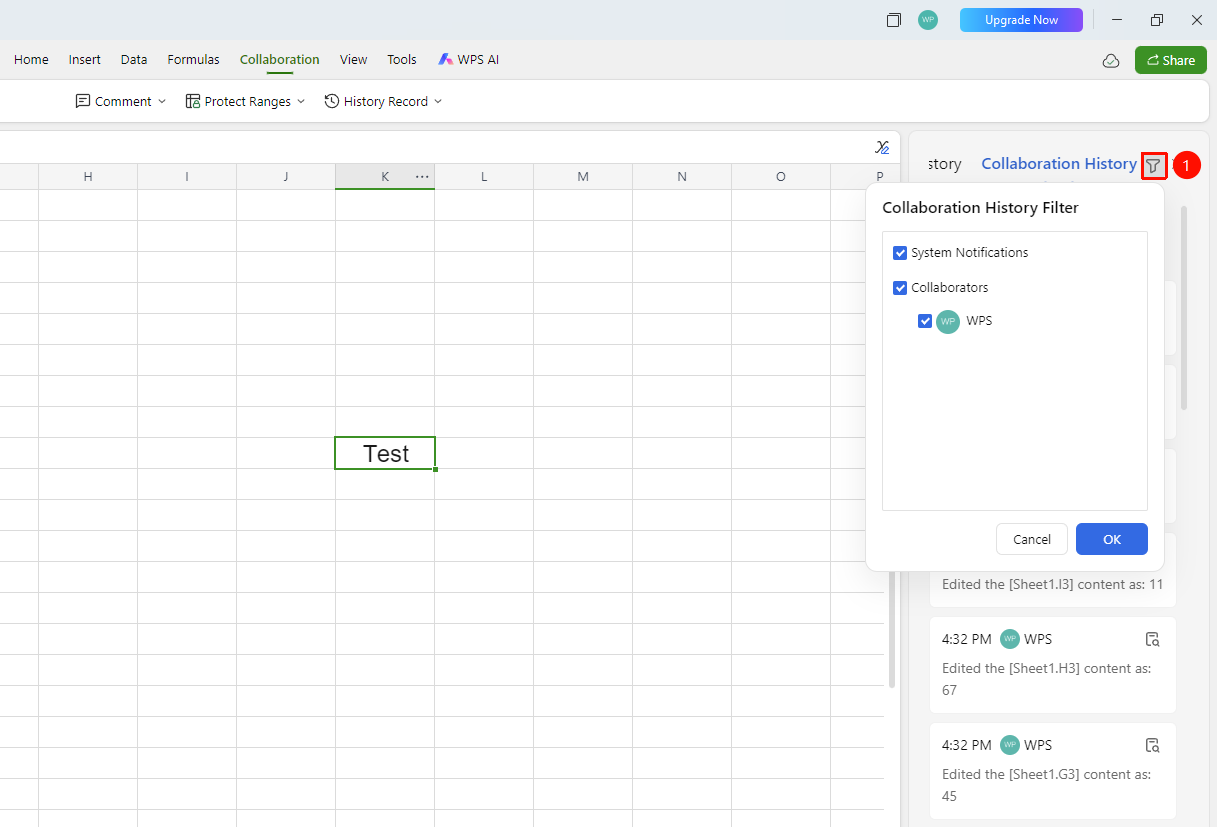
Right "Collaboration Records" panel → "Filter"
- Find the filter at the top of the collaboration records panel
- Filter by operator: specify viewing a certain person's operation records
Restore Collaboration Content
Feature Entry
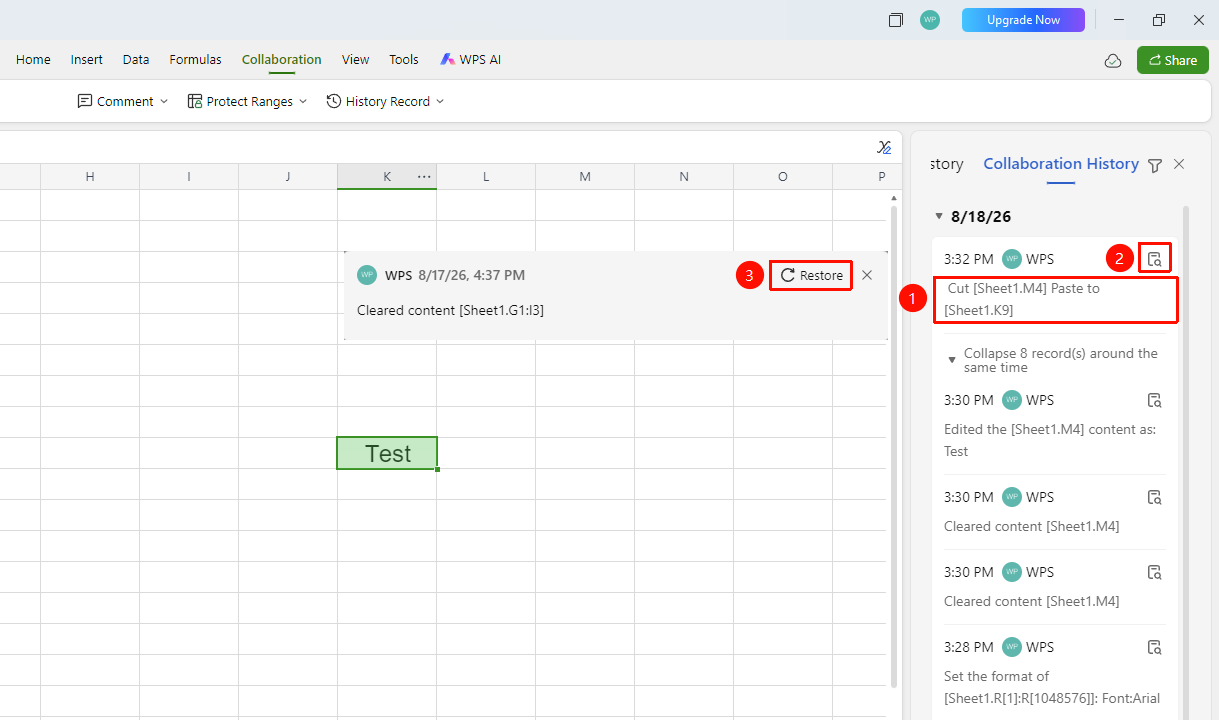
"Click Collaboration Record" → "Click Operation Content"
- Click any collaboration record in the collaboration records panel
- If the content of that record still exists in the text, it will be located to the specified content
- The content will be highlighted
- This makes it easy to view the specific modification location
- Click "View Details" → "Content Restore"
- The content can then be restored to the sheet
FAQ
Q1: What operations are recorded in collaboration records?
- Solution: All editing operations are recorded, including adding content, deleting content, changing formatting, adding comments, etc.
Q2: Can collaboration records be deleted?
- Solution: Collaboration records are automatically saved by the system and do not support manual deletion of individual records.
Q3: Are collaboration records saved permanently?
- Solution: There is an upper limit on the number of collaboration records, and they cannot be retained permanently. It is recommended to manually save the required version separately or rename historical versions to set a long-term retention policy.
Q4: Clicking a collaboration record fails to locate it?
- Solution: This is because the content operated on in that record has already been deleted from the text, so it cannot be located. You can view the version history and revert the document to the version of that operation.
Notes
- The number of retained collaboration records is limited