Feature Summary
Highlights the row and column of the currently selected cell, making it easier to locate your current position in large data sheets.
Feature Description
| Feature Dimension | Description |
|---|---|
| Membership Restriction | No membership restriction |
| Version Restriction | No version restriction |
Steps
Enable Highlight Row/Column
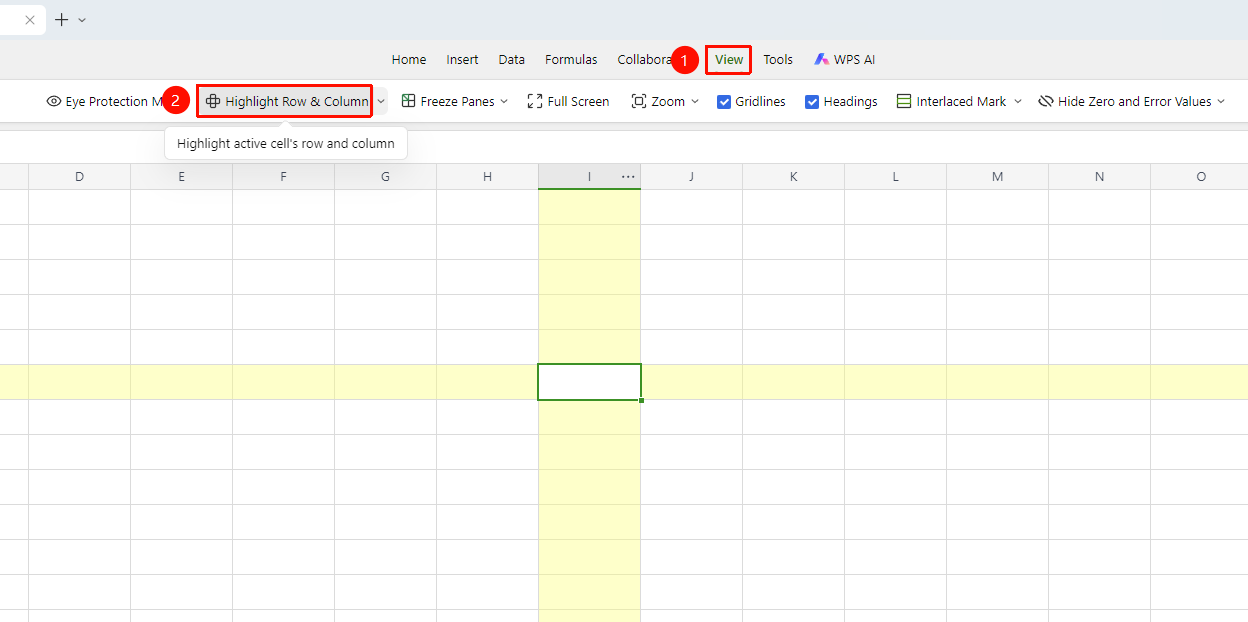
Feature Entry ①
「View」 tab → 「Highlight Row/Column」
- Click the top 「View」 tab
- Find the 「Highlight Row/Column」 toggle in the toolbar
- Click to enable; click again to disable
- Now when you select any cell, its row and column will automatically be highlighted with a color indicator
Feature Entry ②
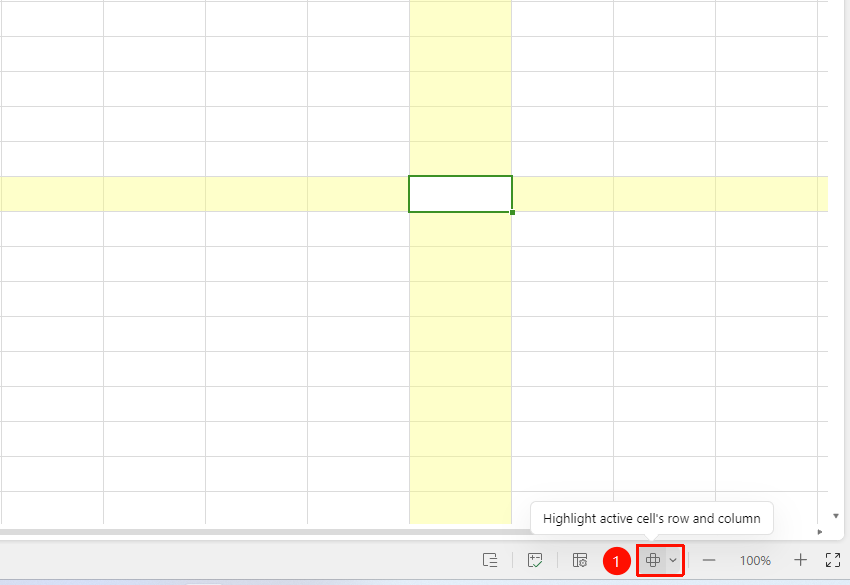
Bottom status bar 「Highlight Row/Column」
- Click the 「Highlight Row/Column」 toggle on the bottom status bar
- Click to enable; click again to disable
- Now when you select any cell, its row and column will automatically be highlighted with a color indicator
Custom Highlight Color
Feature Entry
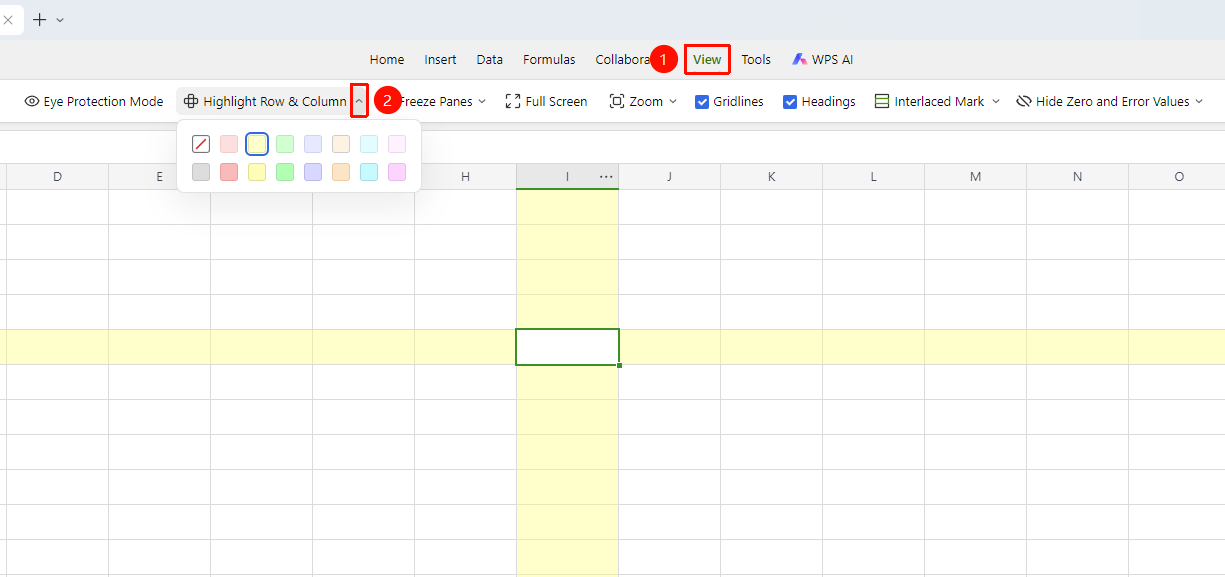
「View」 tab → 「Highlight Row/Column」dropdown arrow → Custom Color
- Click the top 「View」 tab
- Click the dropdown arrow next to the 「Highlight Row/Column」 toggle
- Select a custom color
- The selected color will be applied to the row/column highlight effect
- You can choose a color with suitable contrast based on personal preference
FAQ
Q1: Does highlighting rows and columns affect printing?
- Solution: No, it does not. Highlighting rows and columns is only a visual aid for screen display and will not appear in print output. You can use it with confidence.
Q2: Does highlighting rows and columns take effect for all collaborators in collaboration mode?
- Solution: Each collaborator can independently toggle the highlight effect on or off without affecting the display status of others.
Notes
- Highlighting rows and columns only changes the screen display and does not affect data content
- The highlight row/column effect will not be included when printing or exporting images
- It is recommended to enable this feature when working with large data sheets to quickly locate data positions