Feature Summary
Adjust the display zoom scale of the Sheets to view a larger range or magnify details.
Feature Description
| Feature Dimension | Description |
|---|---|
| Membership Restriction | No membership restriction |
| Version Restriction | No version restriction |
Steps
Adjust Display Scale via the Ribbon
Feature Entry
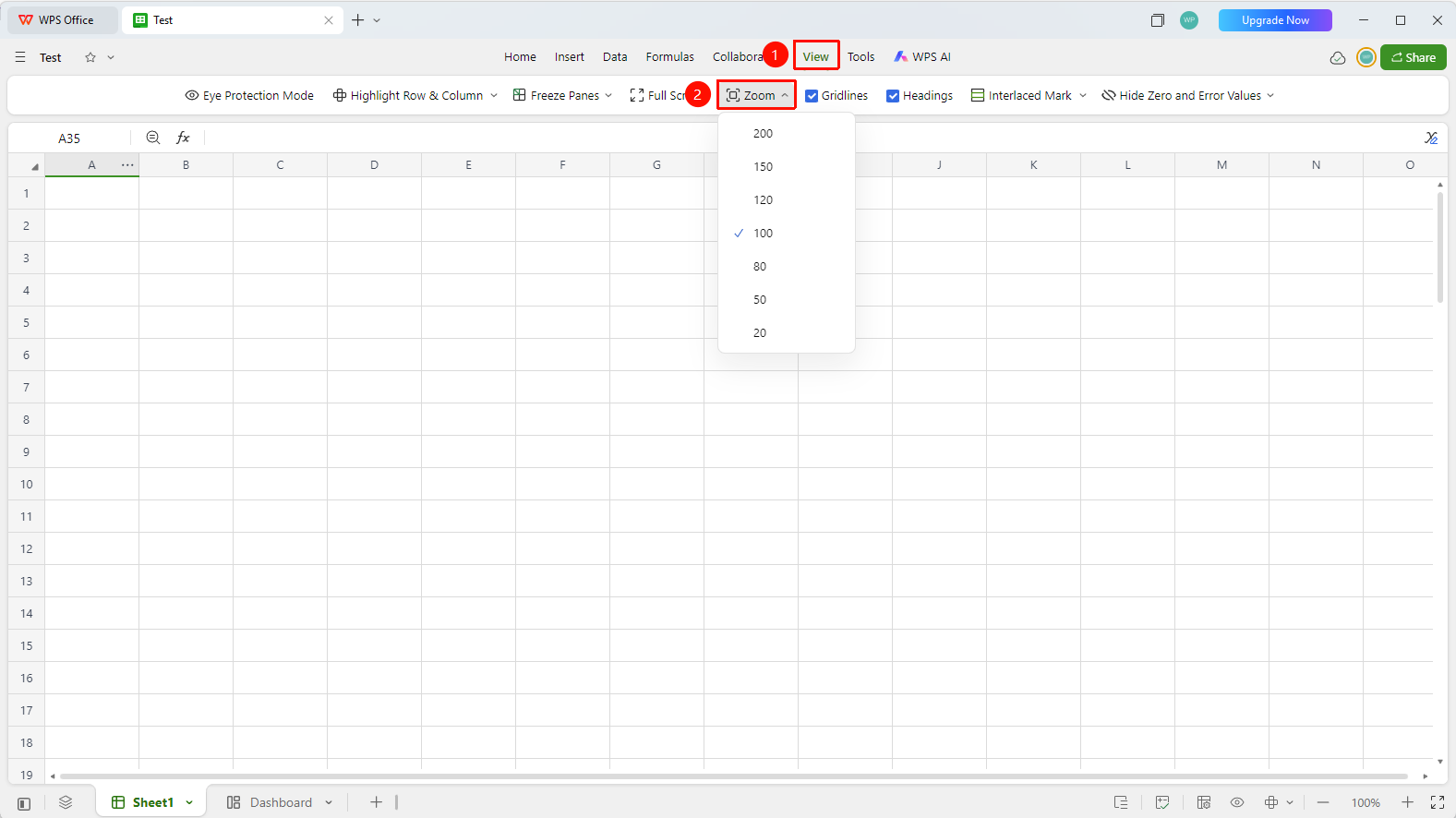
「View」 tab → 「Zomm」
- Click the top 「View」 tab
- Click the 「Zomm」 button in the toolbar
- The Display Scale settings dialog box pops up
- Select a preset scale: 120%, 100%, 80%, etc.
Adjust via the Status Bar
Feature Entry
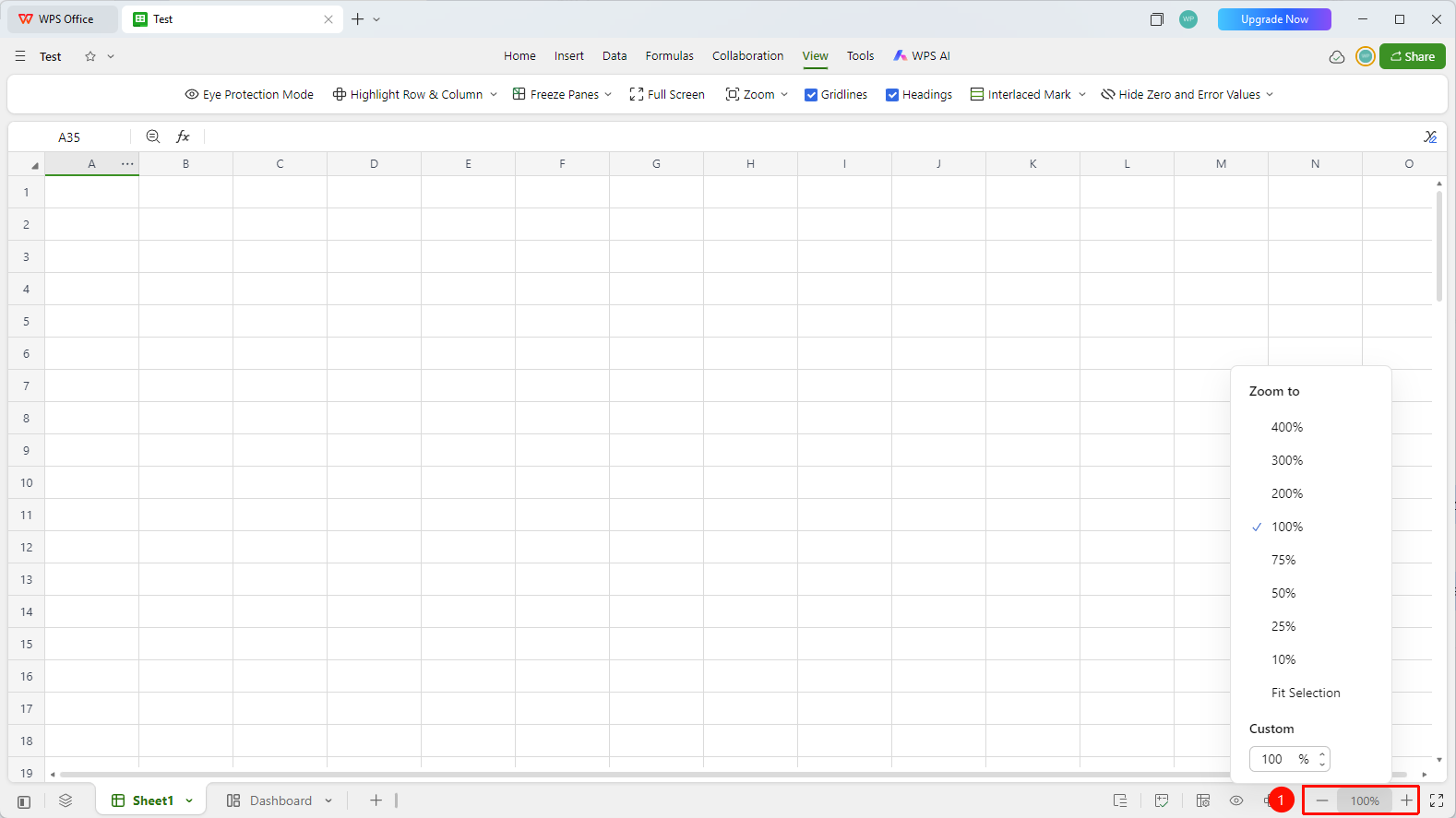
Bottom status bar → 「+」/「-」
- Locate the zoom buttons 「+」 / 「-」 on the status bar at the bottom of the Sheets window
- Click 「+」 to zoom in, 「-」 to zoom out
- The current display scale percentage is shown in the middle
- You can click the percentage value directly and enter a specific scale value
FAQ
Q1: Will adjusting the display scale affect the printout?
- Solution: No. The display scale only changes the on-screen display size and does not affect the actual size of printouts or exported files. Print results are determined by page layout and print settings.
Q2: How to quickly restore the 100% display scale?
- Solution: Use the Shortcut Ctrl + 0 to quickly restore to 100% display scale, or enter 100 directly in the bottom display scale.
Q3: Does the display scale setting apply to all collaborators?
- Solution: No. The display scale is a local display setting. Each collaborator can set it independently without affecting the display status of others.
Notes
- The display scale only changes the on-screen display and does not affect the actual data content
- It is not recommended to set an excessively small scale (such as below 50%), as data may become difficult to read
- The display scale does not take effect when printing or exporting files; you need to set the print zoom separately
- Ctrl + mouse scroll wheel can quickly adjust the display scale