Feature Summary
The Row and Column Quick Tool feature displays quick buttons next to column headers, allowing you to drag and drop to swap row and column positions, improving sheet editing efficiency.
Feature Description
| Feature Dimension | Description |
|---|---|
| Membership Restriction | No membership restriction |
| Version Restriction | No version restriction |
Steps
Enabling the Row and Column Quick Tool
Feature Entry
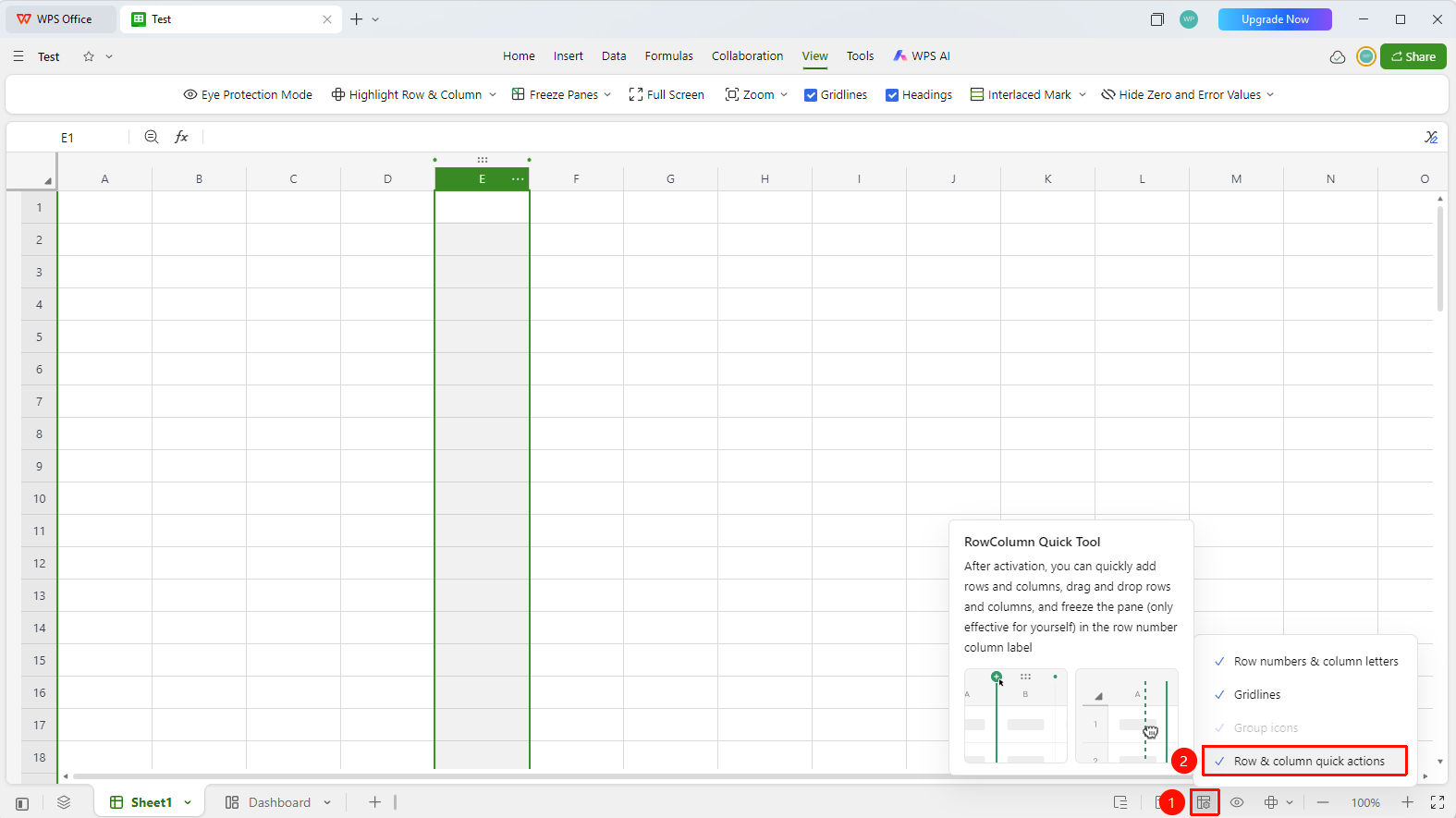
Status bar at the bottom right → "Display Settings" → "Row and Column Quick Tool"
- Click "Display Settings" in the status bar at the bottom right of the WPS Sheets interface
- Find the "Row and Column Quick Tool" option in the pop-up menu
- Check this option to enable the Row and Column Quick Tool
- Once enabled, quick action buttons will appear next to columns/rows
Quickly Moving/Swapping Rows and Columns
Feature Entry
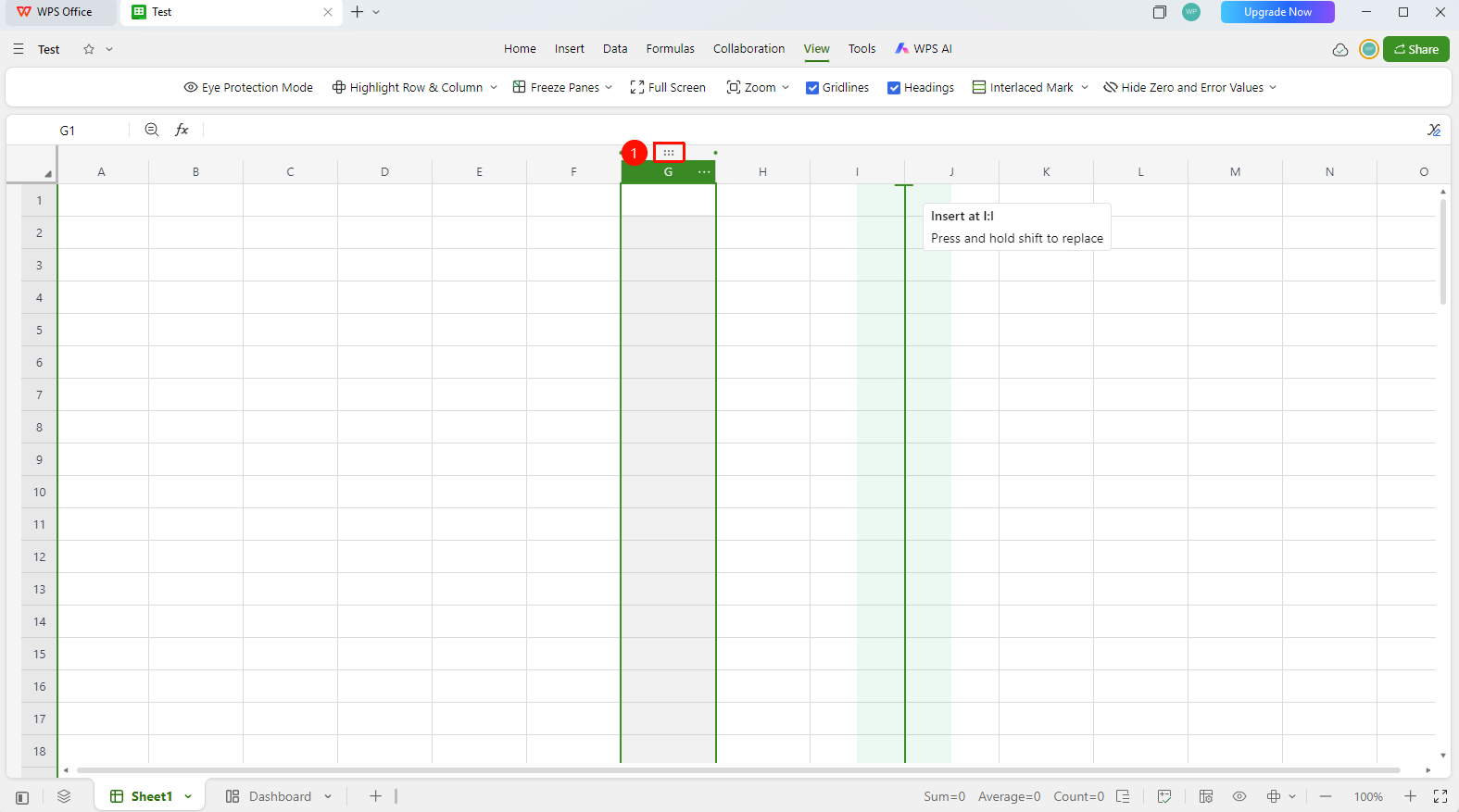
"..." button at the top of the column/row header
- Select the rows/columns you want to move or overwrite with your mouse
- A green quick button with an ellipsis will appear at the top of the column/row
- Drag and drop the row/column to the desired position to move it there
- During the drag, an insertion indicator line will appear at the target position
- Hold down the Shift key on your keyboard to overwrite the original content
Disabling the Row and Column Quick Tool
Feature Entry
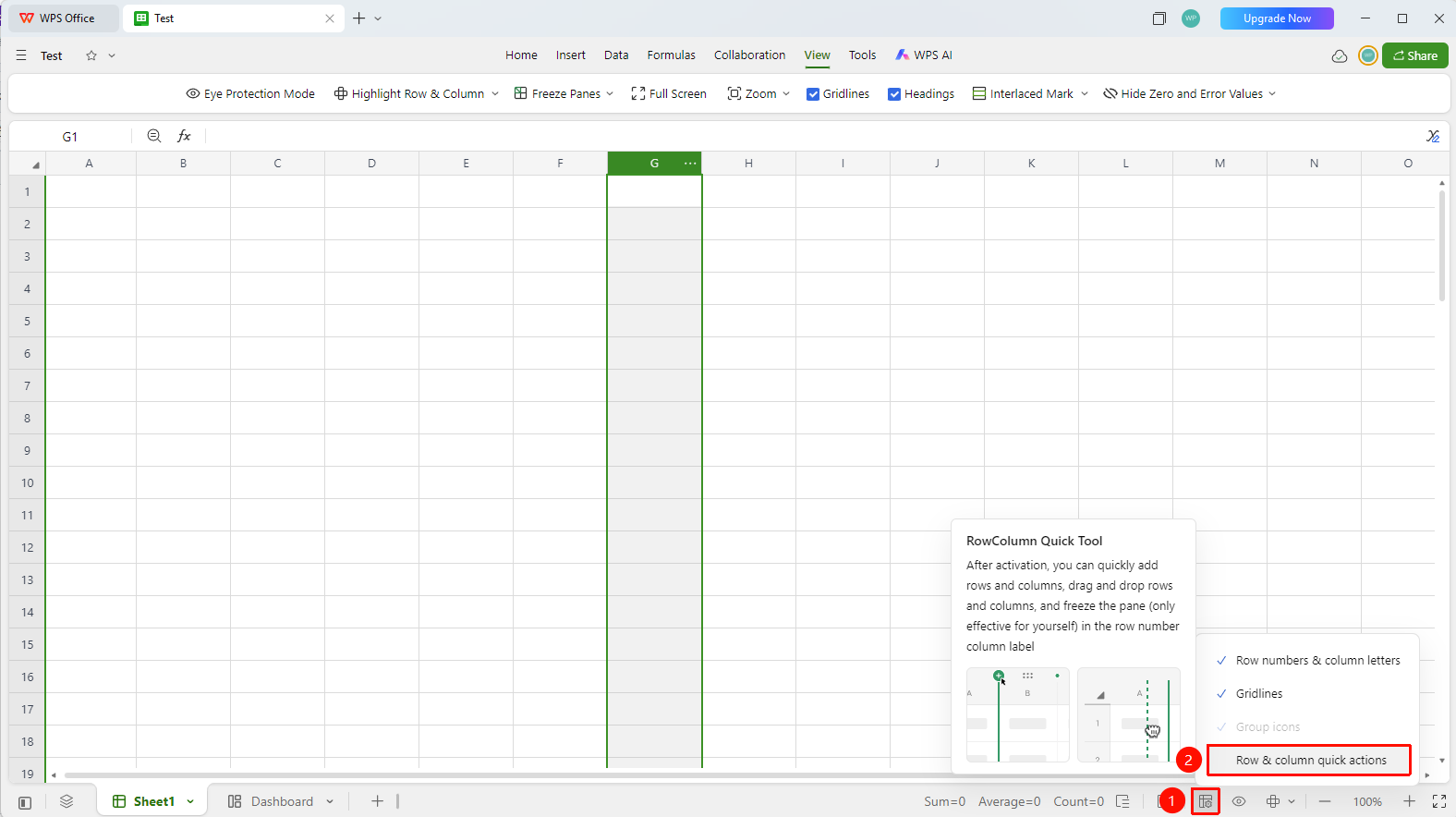
Status bar at the bottom right → "Display Settings" → "Row and Column Quick Tool"
- Click "Display Settings" in the status bar at the bottom right again
- Uncheck "Row and Column Quick Tool" in the pop-up menu
- The quick buttons next to the column/row headers will be hidden
Notes
- When dragging to swap column positions, you must hold down the Shift key, otherwise an insertion will be performed (original content shifts backward)
- After disabling the Row and Column Quick Tool, inserted columns will not be deleted; only the quick buttons are hidden.