Feature Summary
Control the display and hiding of cell border gridlines to adjust the visual appearance of the sheet interface.
Feature Description
| Feature Dimension | Description |
|---|---|
| Membership Restriction | No membership restriction |
| Version Restriction | No version restriction |
Steps
Show/Hide Gridlines
Feature Entry
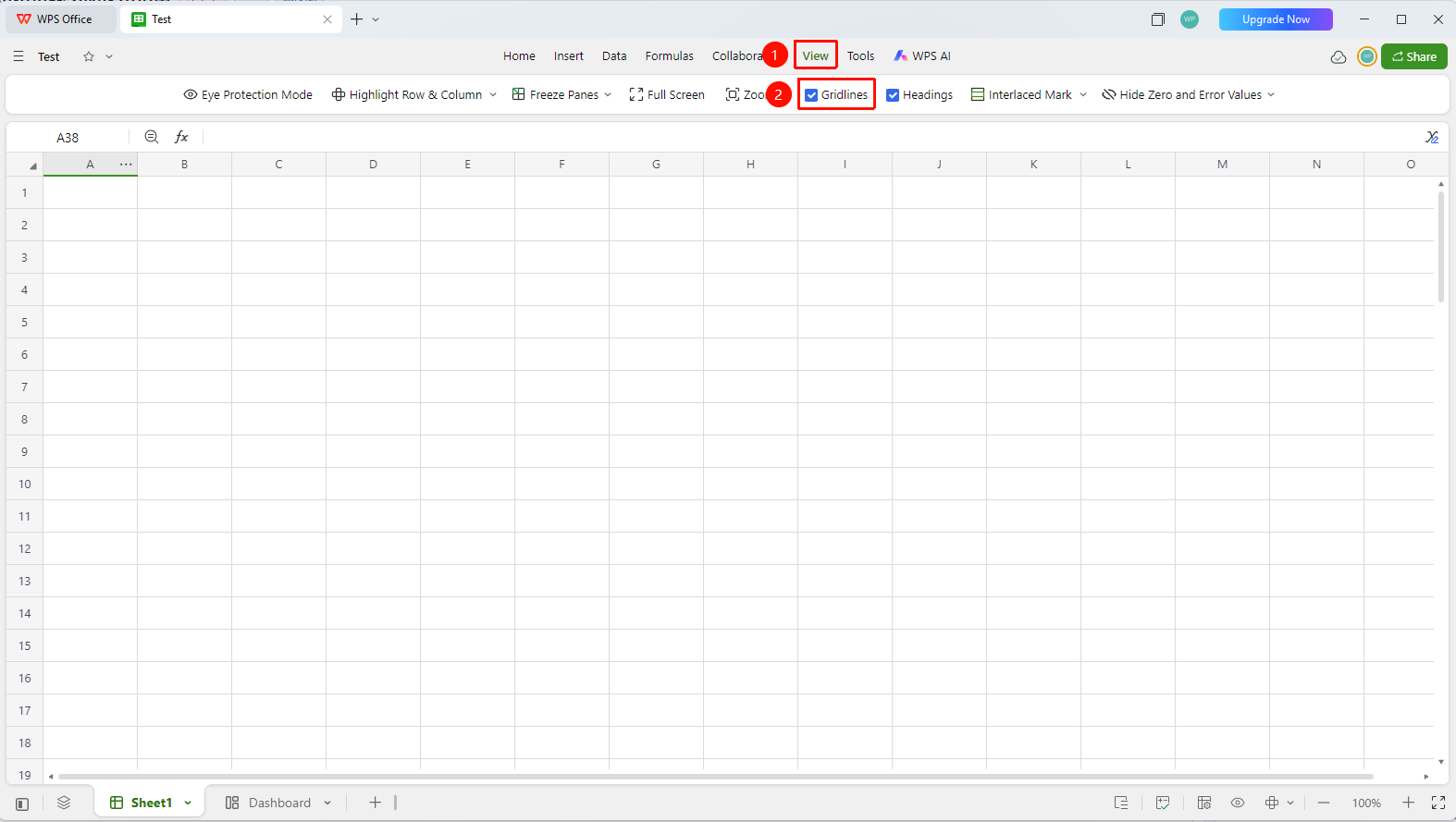
「View」 tab → 「Gridlines」
- Click the top 「View」 tab
- Find the 「Gridlines」 toggle button in the toolbar
- Click to enable (a checked state indicates gridlines are displayed)
- Click again to disable, and the cell border lines in the sheet will disappear
- The change only affects the display of the current sheet and does not affect other sheets
Feature Entry ②
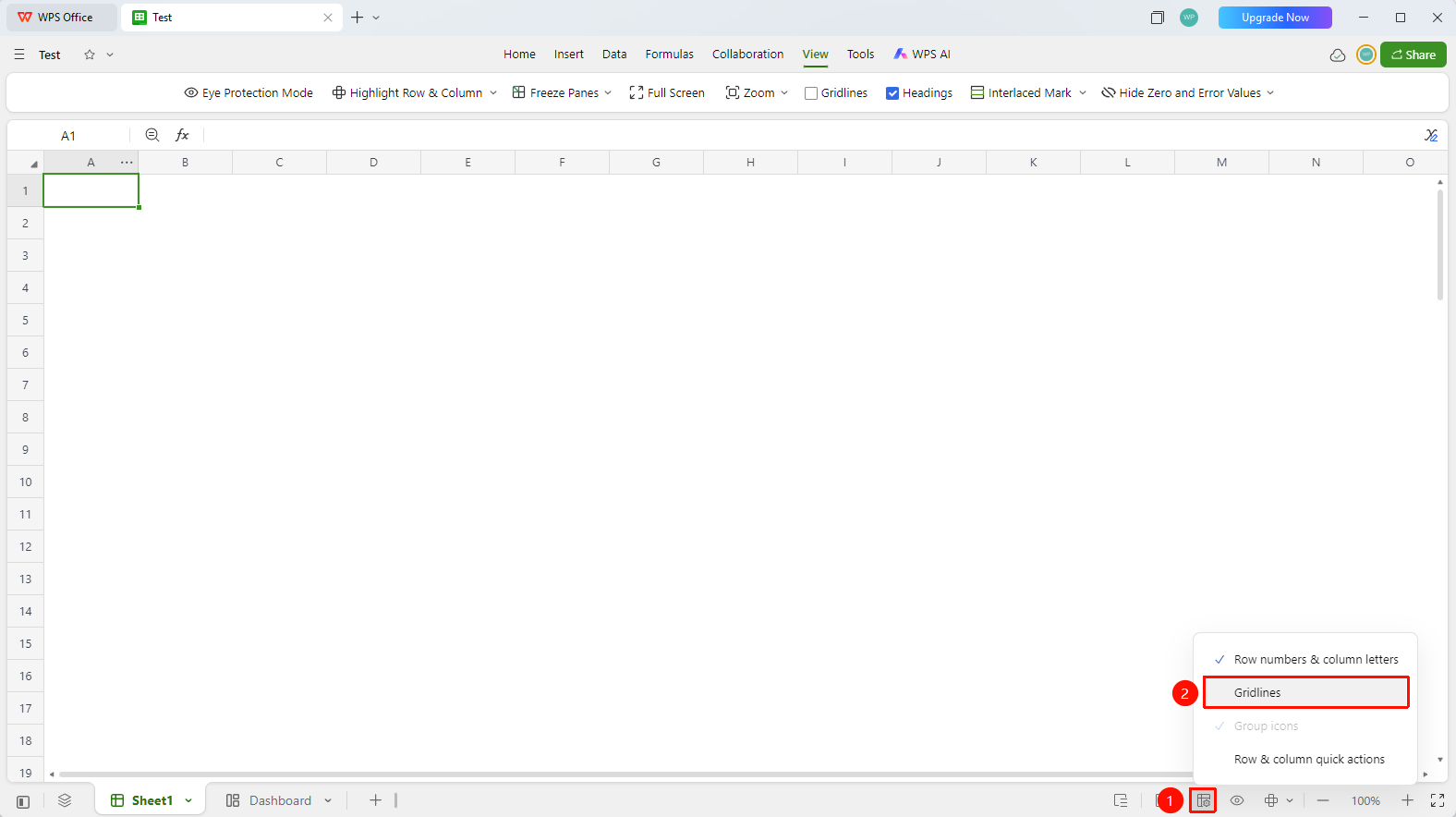
「Display Settings」 in the status bar at the bottom of the screen
- Click the 「Display Settings」 button in the status bar at the bottom right corner of the screen
- Find the 「Gridlines」 toggle button
FAQ
Q1: Will hiding gridlines affect printing?
- Solution: Gridline settings do not affect printing. To print gridlines, you need to configure them through border settings.
Q2: Can I still edit after hiding gridlines?
- Solution: Yes, gridlines are only a visual aid. All editing features work normally after they are hidden.
Q3: What is the difference between gridlines and borders?
- Solution: Gridlines are default gray auxiliary lines that do not affect printing, while borders are actual cell formatting that can be printed.
Notes
- Gridlines are visual auxiliary lines, not cell borders
- The setting only takes effect for the current sheet
- If you need to print gridlines, please use the 「Borders」 feature instead