Feature Summary
Row numbers and column headers are navigation aids in AirSheet that control whether the row numbers on the left side of the sheet (1, 2, 3...) and the column headers at the top (A, B, C...) are displayed, making it easy to quickly locate cells.
Feature Description
| Feature Dimension | Description |
|---|---|
| Membership Restriction | No membership restriction |
| Version Restriction | No version restriction |
Steps
Show/Hide Row Numbers and Column Headers
Feature Entry
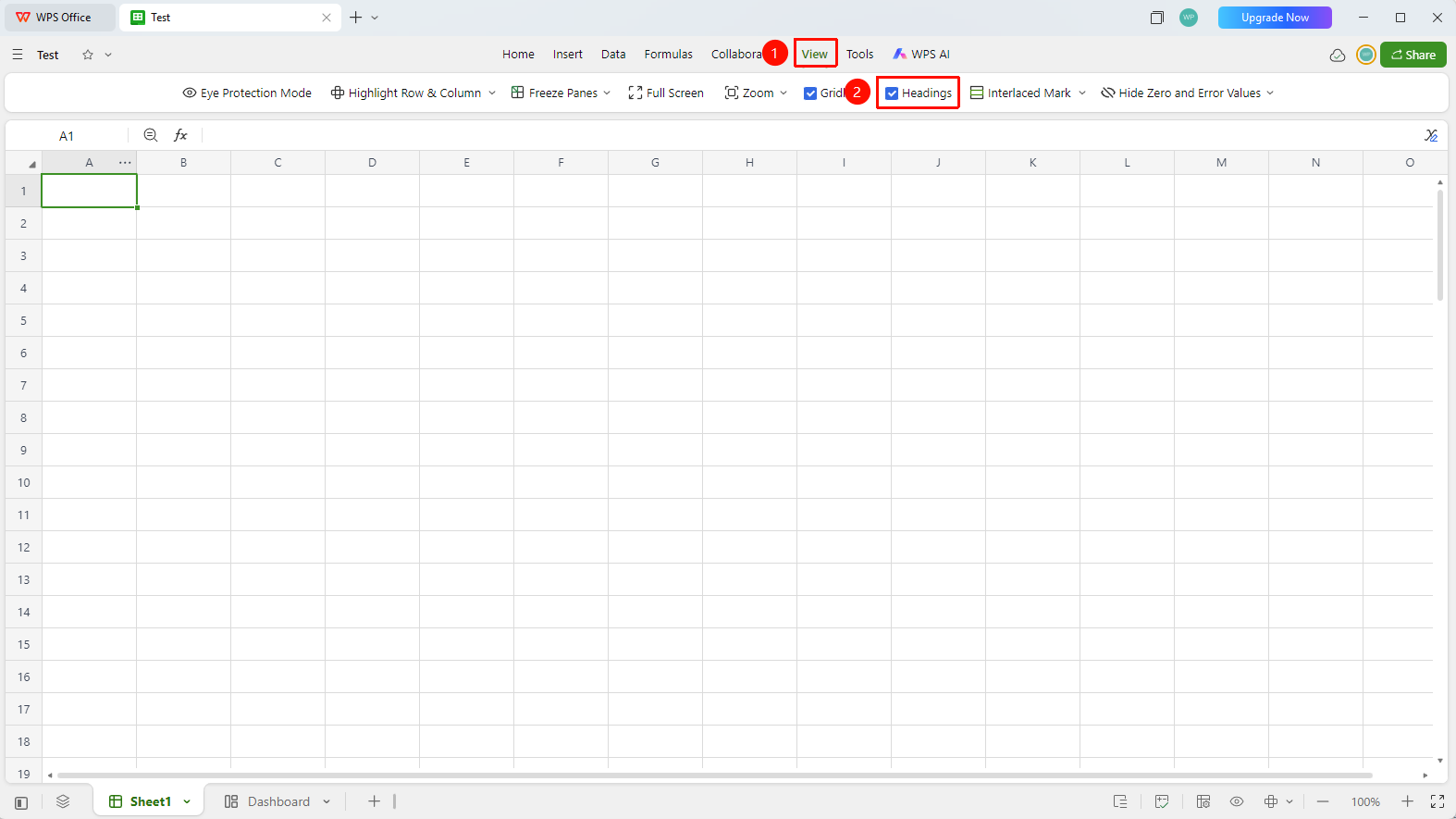
「View」 tab → 「Row Numbers and Column Headers」
- Click the 「View」 tab at the top
- Find the 「Row Numbers and Column Headers」 toggle button in the toolbar
- Click to enable (when enabled, row numbers appear on the left and column headers appear at the top)
- Click again to disable; row numbers and column headers will be hidden
- Changes only affect the current sheet display and do not affect other sheets
Feature Entry ②
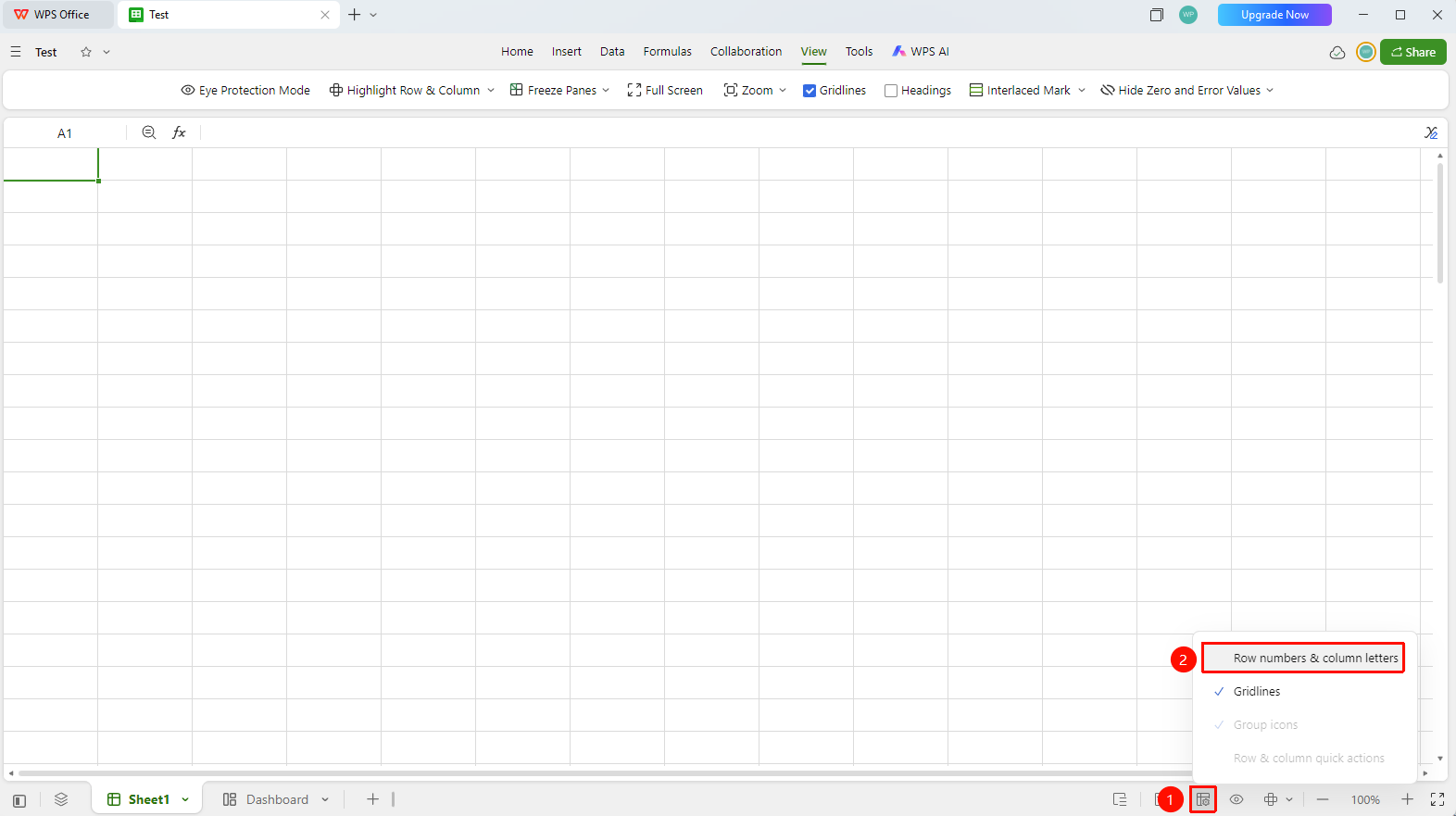
「Display Settings」 in the status bar at the bottom of the screen
- Click the 「Display Settings」 button in the status bar at the bottom right corner of the screen
- Find the 「Row Numbers and Column Headers」 toggle button
FAQ
Q1: What are some practical use cases for row numbers and column headers?
- Solution: Row numbers and column headers are very important for data referencing, formula writing, and data location. Hiding row numbers and column headers provides a larger content display area, but it is recommended to keep them enabled during data analysis and formula writing.
Q2: Will hiding row numbers and column headers affect navigation?
- Solution: No. Row numbers and column headers are purely a show/hide control. When hidden, features such as scrolling and data referencing still function normally; only the row number and column header auxiliary text is not displayed.
Q3: Will row numbers and column headers be printed?
- Solution: No. Row numbers and column headers are an on-screen display aid and are not included by default when printing. However, if you enable the 「Row Numbers and Column Headers」 print option in print settings, they can be included in the print output.
Q4: Why would I need to hide row numbers and column headers?
- Solution: Hiding them during presentations or screenshots makes the interface look cleaner and the data display more concise.
Notes
- Changes to row numbers and column headers only affect the current sheet display
- Hiding row numbers and column headers maximizes the content display area
- It is recommended to keep them enabled for easy data location and formula referencing