Feature Summary
Alternating row marking is a visual optimization feature of AirSheet that alternately adds different background colors to every other row in the sheet, improving the readability of data rows and making it suitable for sheets with large amounts of data.
Feature Description
| Feature Dimension | Description |
|---|---|
| Membership Restriction | No membership restriction |
| Version Restriction | No version restriction |
Steps
Enabling Alternating Row Marking
Feature Entry
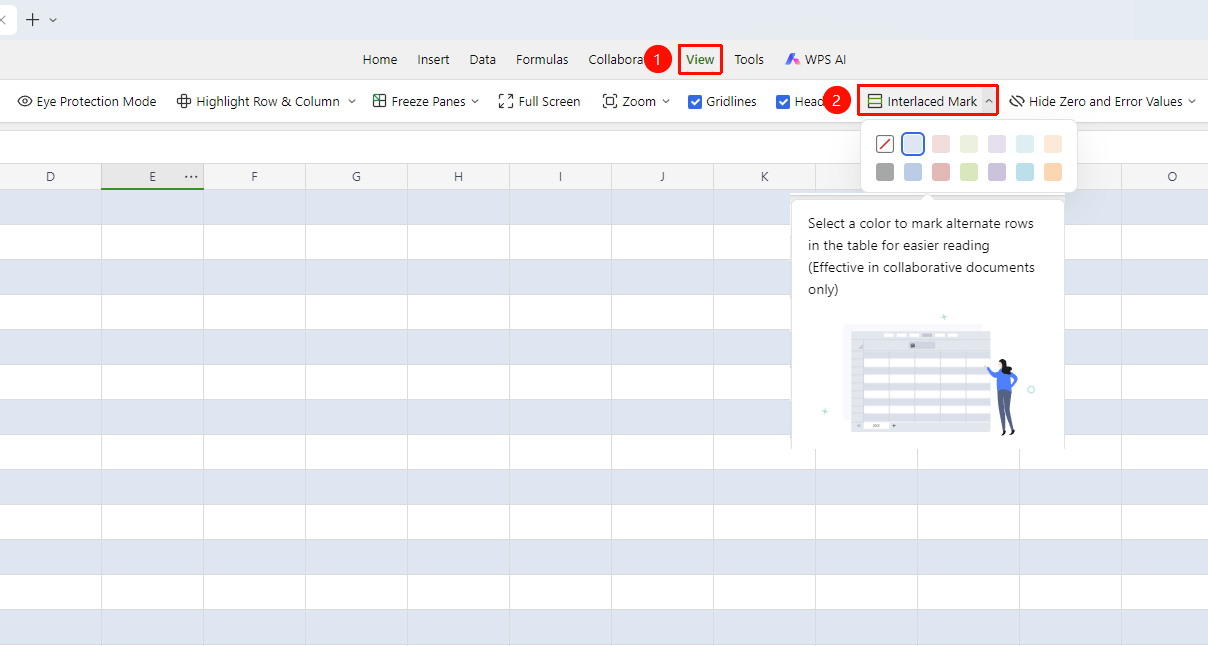
「View」 tab → 「Alternating Row Marking」
- Click the top 「View」 tab
- Find and click the 「Alternating Row Marking」 button in the toolbar
- The sheet immediately displays the alternating row marking effect. Click again to turn off alternating row marking
- The right-side dropdown menu allows you to select a custom color scheme
FAQ
Q1: Does alternating row marking affect data content?
- Solution: No. Alternating row marking is only a visual display effect. It only adds a temporary background color to cells and does not affect the actual data content of the cells, nor does it change the cell format.
Q2: Will alternating row marking be printed along with the sheet?
- Solution: No. Alternating row marking is a visual aid for screen display and will not be output by default when printing. If you need to print a striped effect, you need to manually set the background fill format for the cells.
Q3: Does alternating row marking take effect when printing?
- Solution: No. If you need it to take effect when printing, you can use the alternating row marking style within the sheet styles.
Notes
- Alternating row marking only changes the display effect of the current worksheet
- Using it together with sheet styles yields better results and can enhance the aesthetics of the sheet
- Alternating row marking only affects the display; this visual effect is not included when importing/exporting files