Feature Summary
Provides a list of keyboard shortcuts, allowing you to quickly perform common operations and improve work efficiency.
Feature Description
| Feature Dimension | Description |
|---|---|
| Membership Restriction | No membership restriction |
| Version Restriction | No version restriction |
Operation Steps
Open the Shortcut Panel
Feature Entry
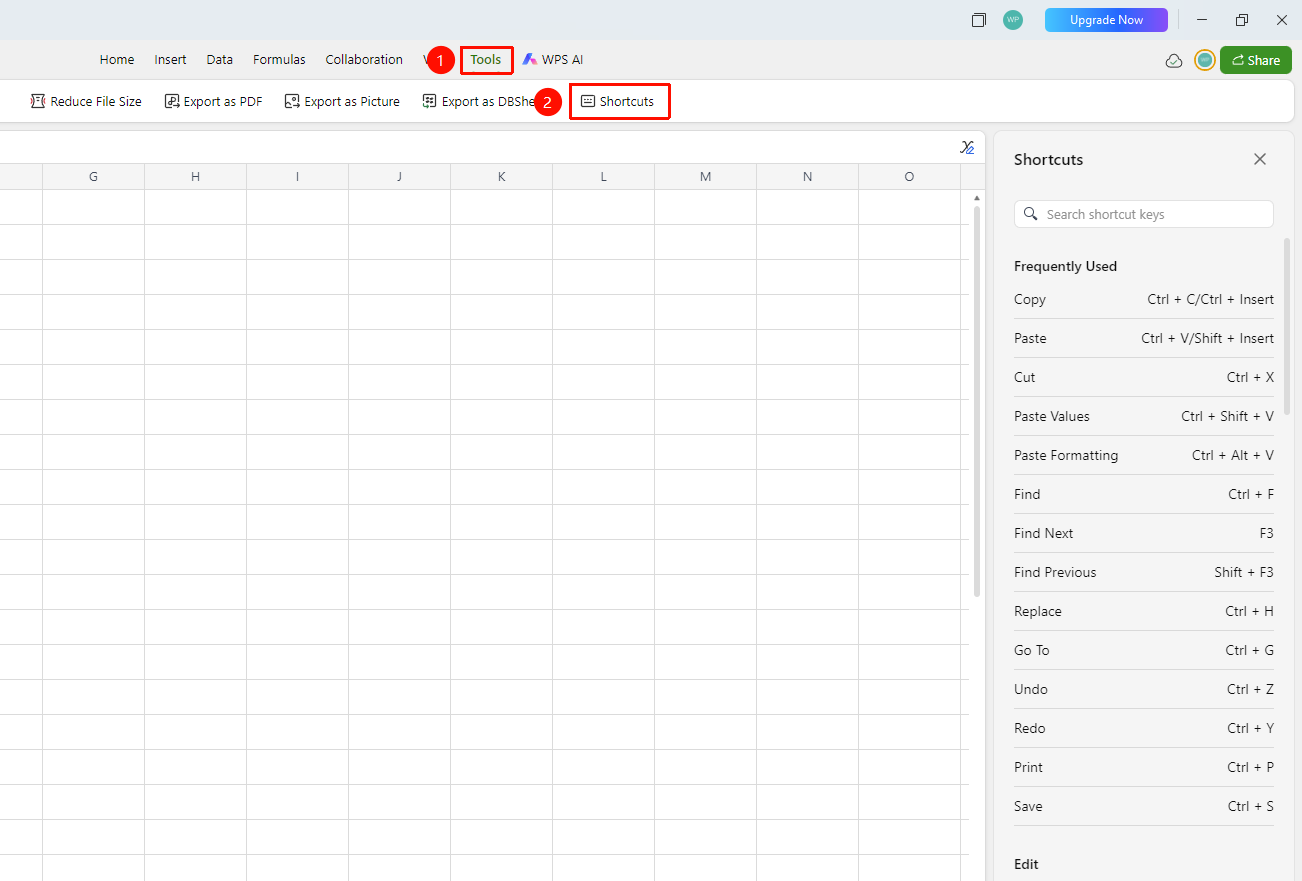
「Efficiency」 tab → 「Shortcut」
- Click the 「Efficiency」 tab in the top tab bar
- Find the 「Shortcut」 button (keyboard icon) in the toolbar
- Click the button, and the 「Shortcut」 panel will pop up on the right side
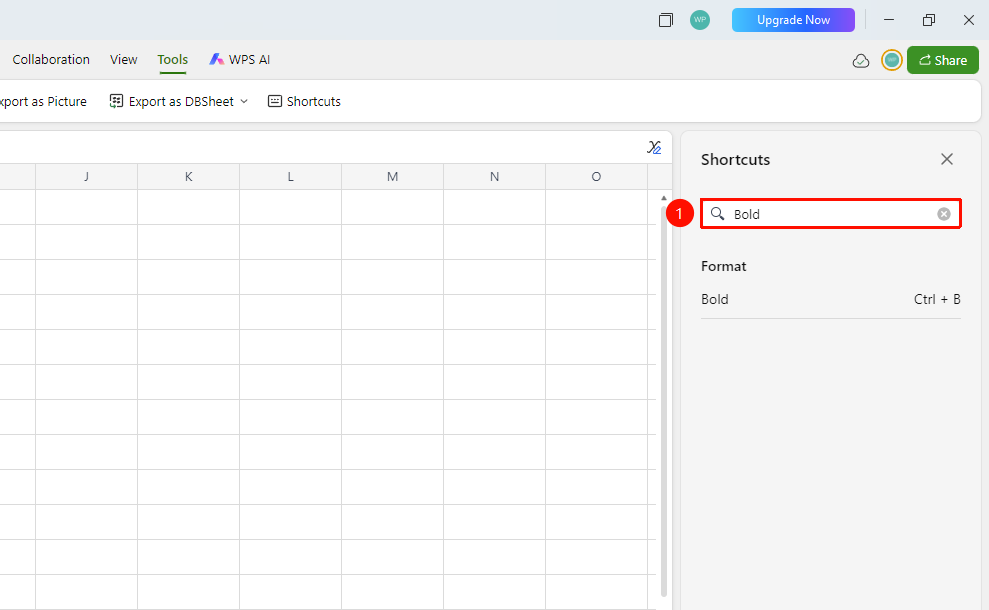
- There is a search box at the top of the panel where you can enter keywords to quickly find specific shortcuts
View Shortcut List
Feature Entry
Inside the right-side panel
- After opening the Shortcut panel, the 「Common」 category shortcuts are displayed by default
- Scroll down to view more categories: Edit, Format, Data, View, etc.
- Use the top search box to enter a feature name, such as "Copy" or "Paste", to quickly locate the corresponding shortcut
- The Shortcut panel is a read-only list; shortcut settings cannot be modified here
FAQ
Q1: Why can't I find the shortcut for a certain feature in the Shortcut panel?
- Solution: Not all features have preset shortcuts. You can confirm by entering the feature name in the panel's search box
Q2: What should I do if a shortcut is intercepted by other software?
- Solution: Check if other software is occupying the same shortcut combination. Common conflicting software includes: input methods, translation tools, screenshot tools, etc. Modify the shortcut in the conflicting software or use a different key combination.
Q3: How do I customize shortcut settings?
- Solution: Currently, shortcuts in Sheets collaboration mode do not support customization. Please use the preset shortcuts.
Notes
- It is recommended to familiarize yourself with common shortcuts (Ctrl+C/V/Z) to improve work efficiency
- Pay attention to the shortcut differences between Windows and Mac computers