Feature Summary
The cross-analysis feature is used to perform cross-tabulation on data collected by forms, analyzing the relationships between different questions by defining rows and columns.
Feature Description
| Feature Dimension | Description |
|---|---|
| Membership Restriction | No membership restriction |
| Version Restriction | No version restriction |
Operation Steps
Using Cross-Analysis
Feature Entry
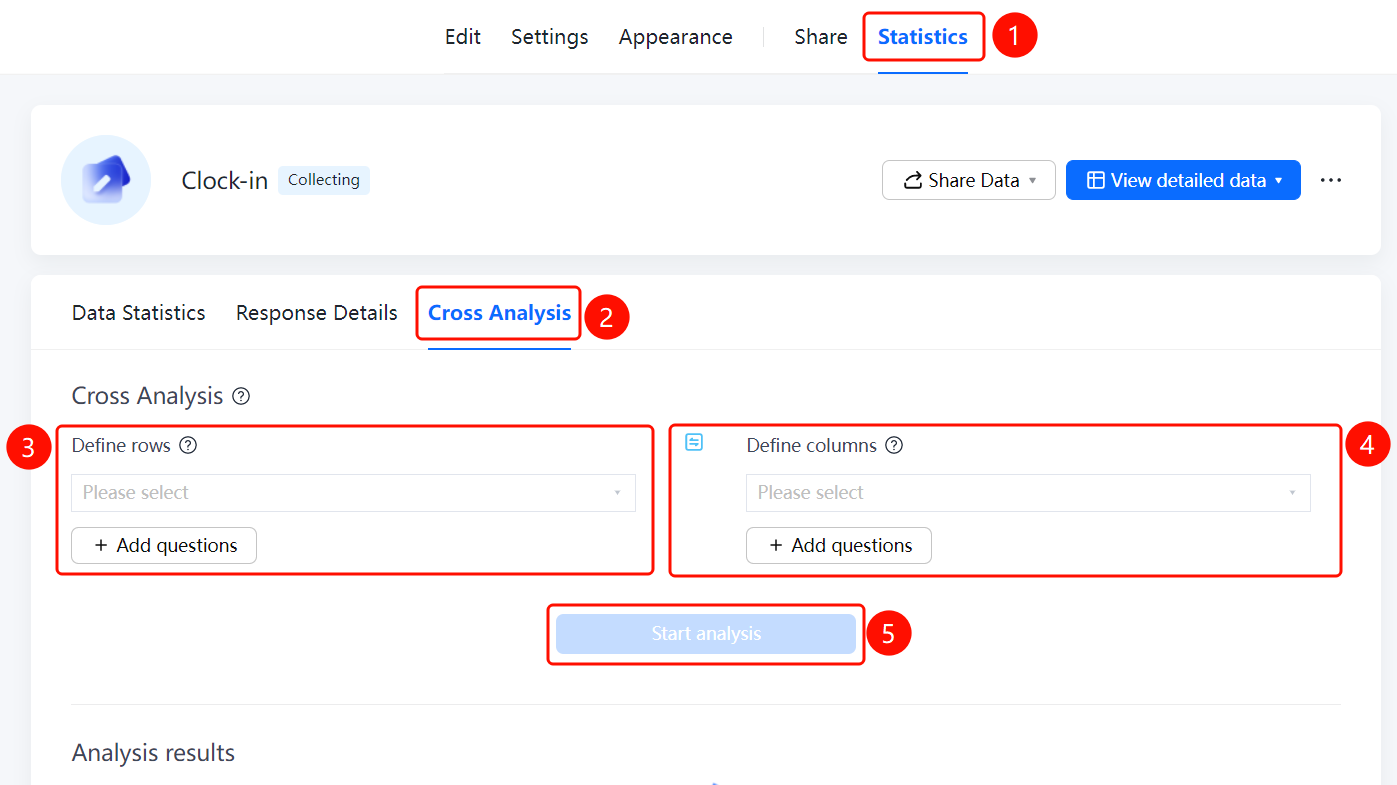
"Statistics" tab → "Cross-Analysis"
- Click the "Statistics" tab at the top
- Click "Cross-Analysis" in the left menu
- In the "Define Row" area, click the "Please Select" dropdown menu and select the question for the row
- In the "Define Column" area, click the "Please Select" dropdown menu and select the question for the column
- Click the "Start Analysis" button to view the analysis results
FAQ
Q1: What data can be analyzed with cross-analysis?
- Solution: Cross-analysis can analyze the relationship between any two questions in the form, achieving cross-tabulation by defining rows and columns.
Q2: How to add new questions for cross-analysis?
- Solution: Click the "Add Question" button in the "Define Row" or "Define Column" area to add the questions you want to analyze.
Q3: What is the difference between cross-analysis and data statistics?
- Solution: Data statistics display the statistical results of a single question, while cross-analysis displays the cross-relationship between two questions.
Notes
- Cross-analysis requires at least one question selected for both row and column to start the analysis
- Analysis results are displayed in table format, making it easy to view the relationships between questions