Feature Summary
Global settings are used to configure global parameters for check-in forms, such as Group Form, check-in cycle, check-in count limit, and start/end time.
Feature Description
| Feature Dimension | Description |
|---|---|
| Membership Restriction | No membership restriction |
| Version Restriction | No version restriction |
Operation Steps
Setting Group Form
Feature Entry
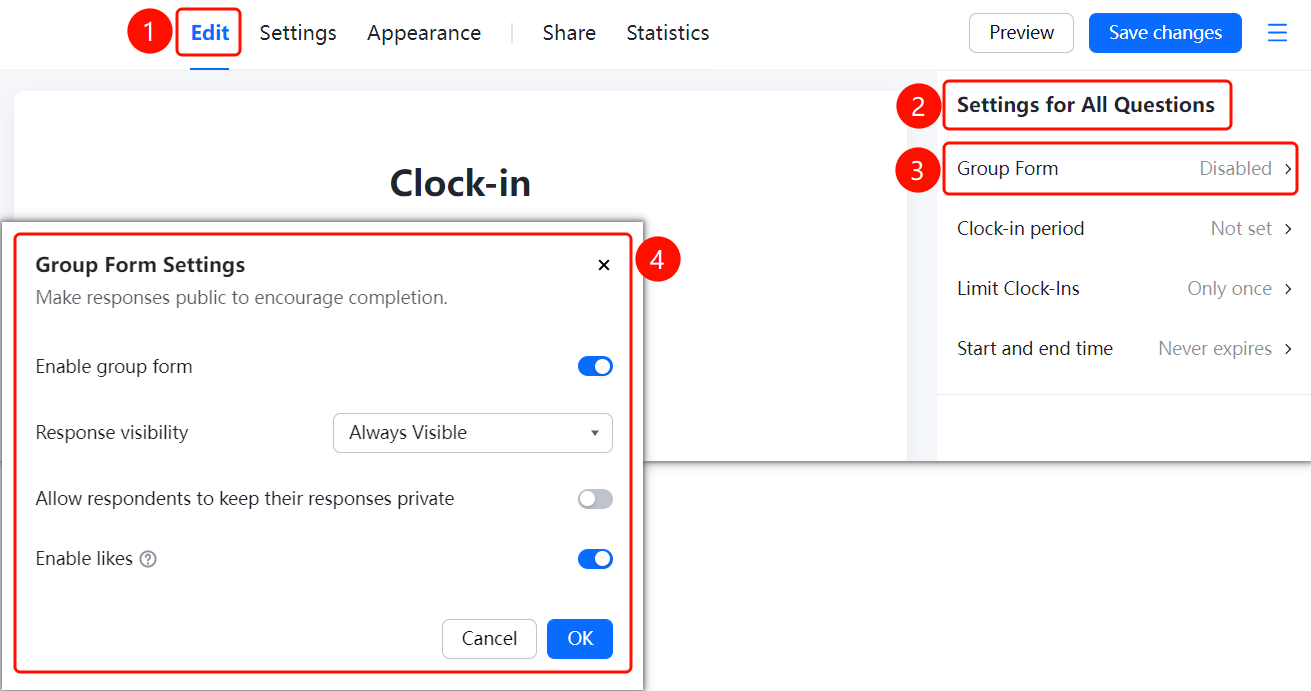
「Edit」 tab → 「Global Settings」 → 「Group Form Settings」
- Click the top 「Edit」 tab
- Click 「Global Settings」 in the right-side menu
- Click the 「Group Form Settings」 option
- In the pop-up panel, enable the 「Enable Group Form」 toggle
- Set the 「Group Form Detail Display」 method, 「Allow Participants to Keep Group Form Records Private」, and 「Allow Likes」
- Click the 「Confirm」 button to save the settings
Setting Check-in Cycle
Feature Entry
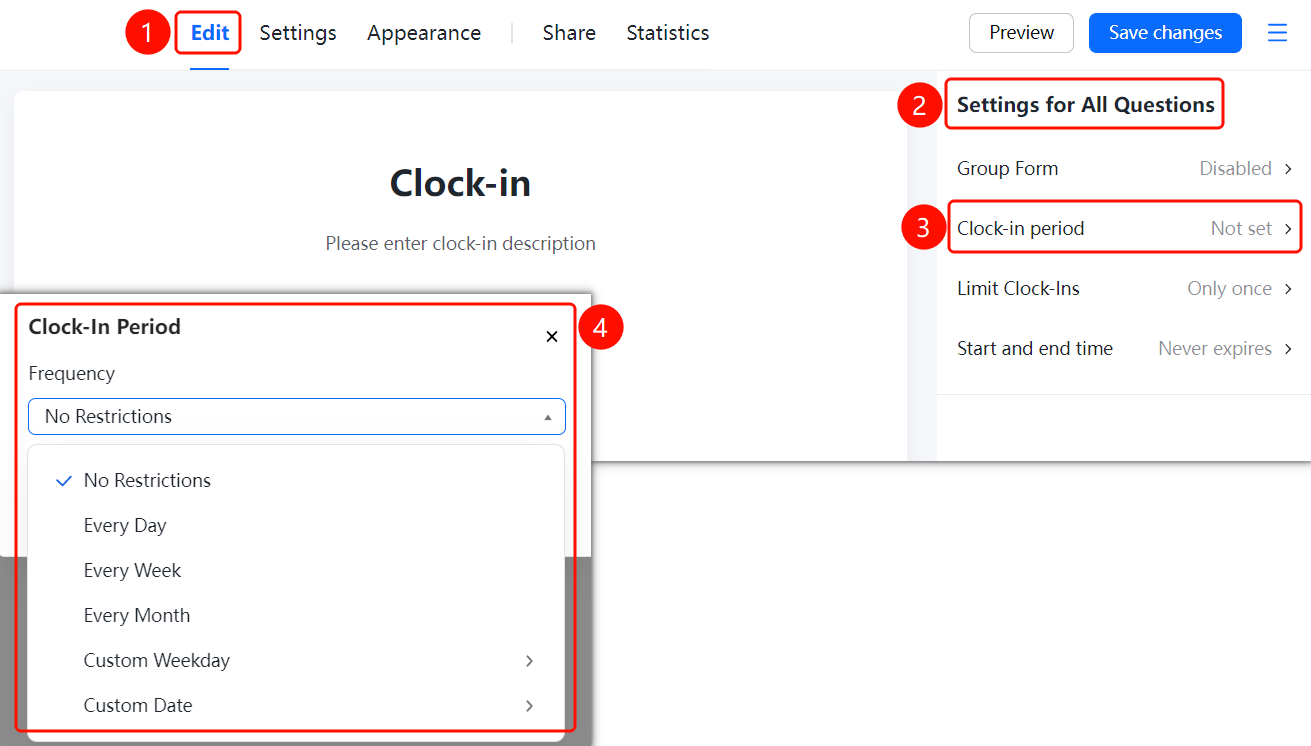
「Edit」 tab → 「Global Settings」 → 「Check-in Cycle」
- Click the top 「Edit」 tab
- Click 「Global Settings」 in the right-side menu
- Click the 「Check-in Cycle」 option
- In the pop-up panel, select the cycle type: 「No Limit」, 「Daily」, 「Weekly」, 「Monthly」, 「Custom Days of the Week」, or 「Custom Dates」
- Click the 「Confirm」 button to save the settings
Setting Check-in Count Limit
Feature Entry
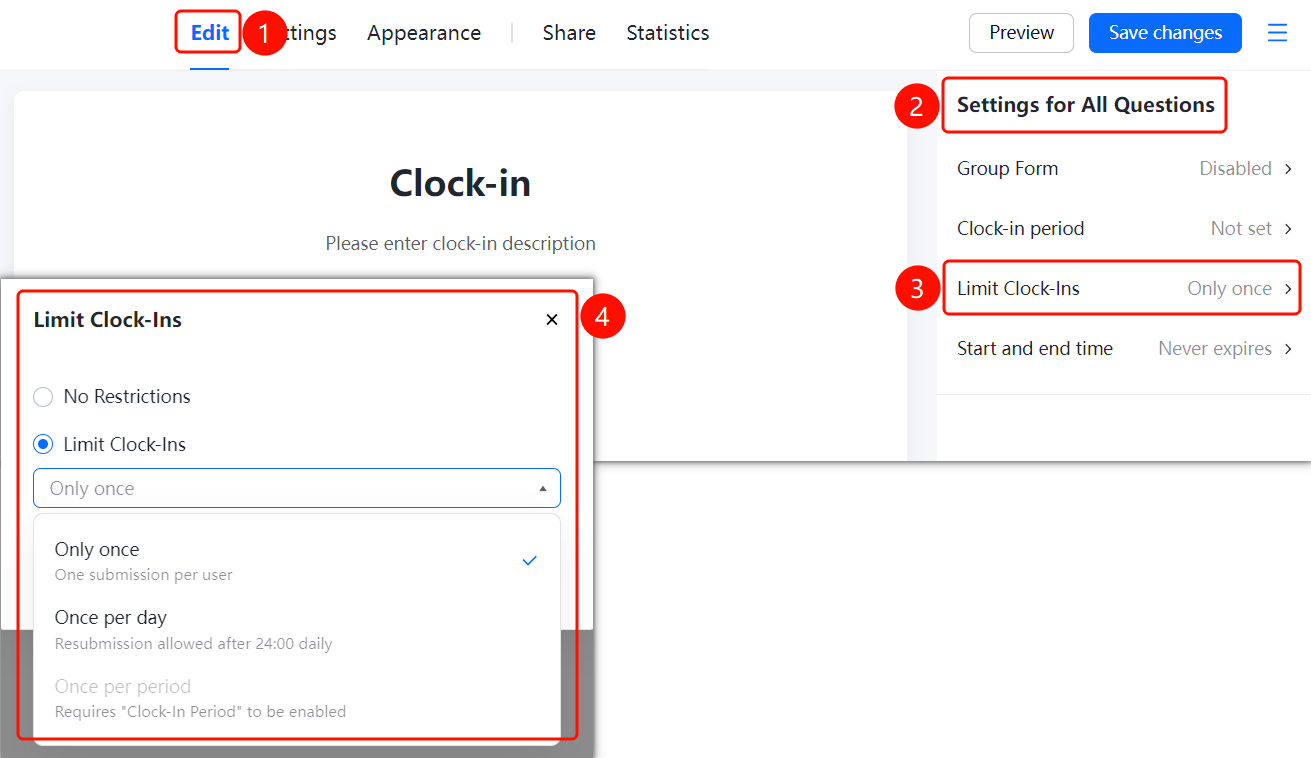
「Edit」 tab → 「Global Settings」 → 「Check-in Count Limit」
- Click the top 「Edit」 tab
- Click 「Global Settings」 in the right-side menu
- Click the 「Check-in Count Limit」 option
- In the pop-up panel, select the limit method: 「No Limit」, 「Only 1 Time in Total」, 「Only 1 Time per Day」, or 「Only 1 Time per Cycle」
- Click the 「Confirm」 button to save the settings
Setting Start/End Time
Feature Entry
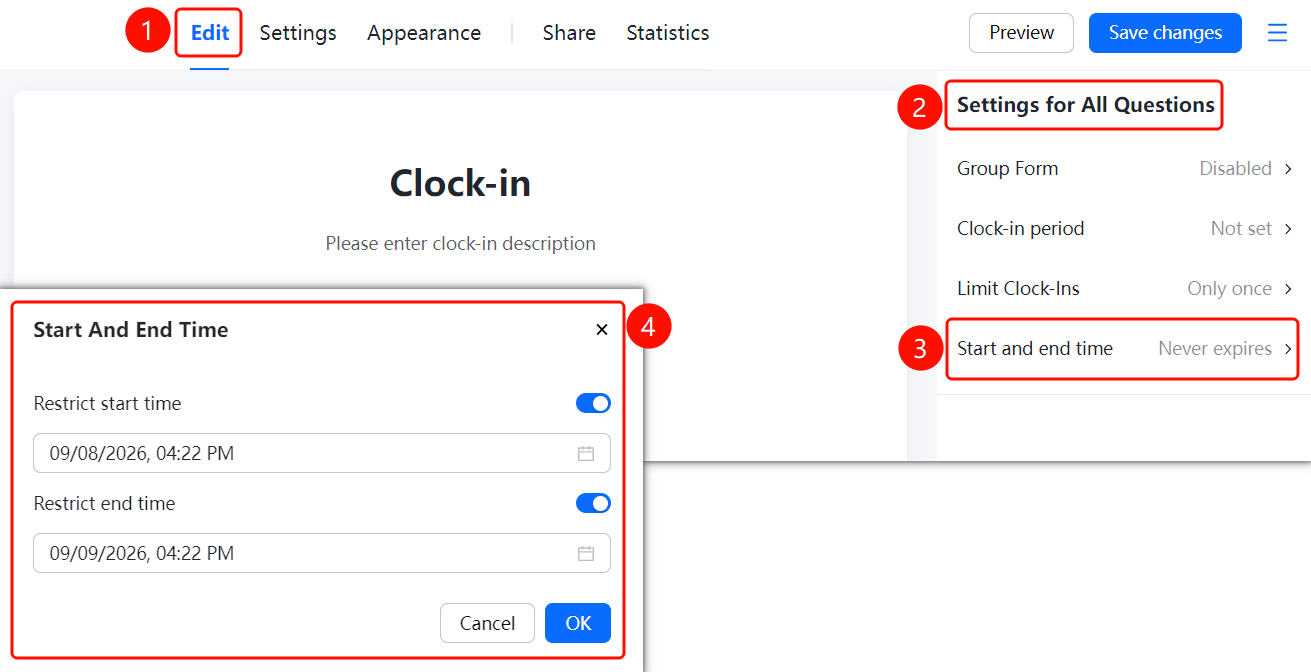
「Edit」 tab → 「Global Settings」 → 「Start/End Time」
- Click the top 「Edit」 tab
- Click 「Global Settings」 in the right-side menu
- Click the 「Start/End Time」 option
- In the pop-up panel, enable the 「Limit Start Time」 and 「Limit End Time」 toggles
- Set the specific start and end times
- Click the 「Confirm」 button to save the settings
FAQ
Q1: How to enable the Group Form check-in feature?
- Solution: In Global Settings, click 「Group Form Settings」 and enable the 「Enable Group Form」 toggle. Once enabled, respondents will be able to see each other's check-in content.
Q2: How to restrict each user to check in only once?
- Solution: In Global Settings, click 「Check-in Count Limit」 and select 「Only 1 Time in Total」. Each user will not be able to submit again after filling it out once.
Q3: How to set the check-in cycle?
- Solution: In Global Settings, click 「Check-in Cycle」 and select a cycle type such as Daily, Weekly, Monthly, or Custom Dates.
Notes
- The 「Only 1 Time per Cycle」 option can only be selected after enabling the 「Check-in Cycle」 setting.
- After setting the start/end time, respondents will not be able to submit outside the time range.
- Enabling the Group Form feature can make check-in progress public, achieving a reminder effect.