Feature Summary
The Linked Data question links to a sheet, allowing respondents to select one or more rows of data from the sheet as their answer and submit it, ensuring the collected data is accurate and error-free.
Feature Description
| Feature Dimension | Description |
|---|---|
| Membership Restriction | No membership restriction |
| Version Restriction | No version restriction |
Operation Steps
Add a Linked Data Question
Feature Entry
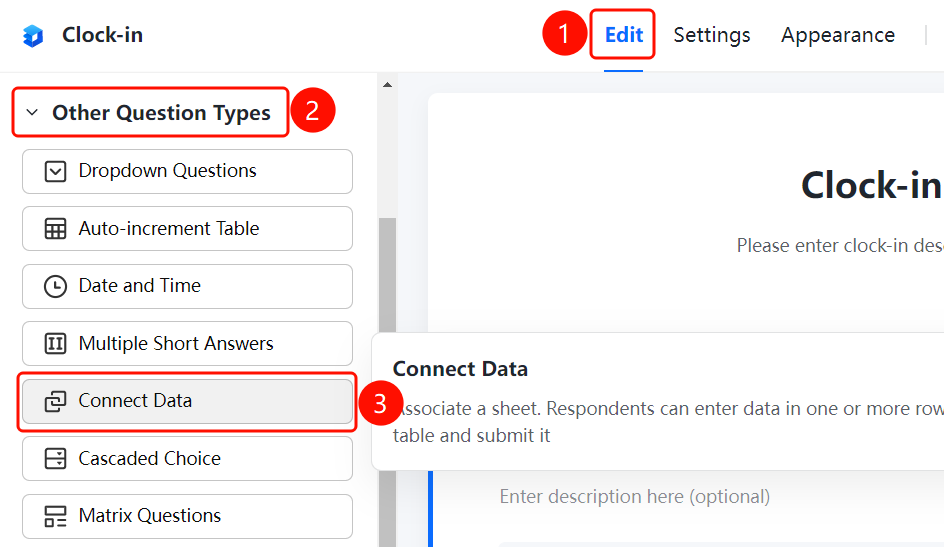
「Edit」 tab → 「Question Type」 → 「Other Question Types」 → 「Linked Data」 button
- Click the 「Edit」 tab at the top
- Expand the 「Question Type」 area in the left panel
- Expand the 「Other Question Types」 area
- Click the 「Linked Data」 button to add the Linked Data question to the form
Set Up Linked Sheet
Feature Entry
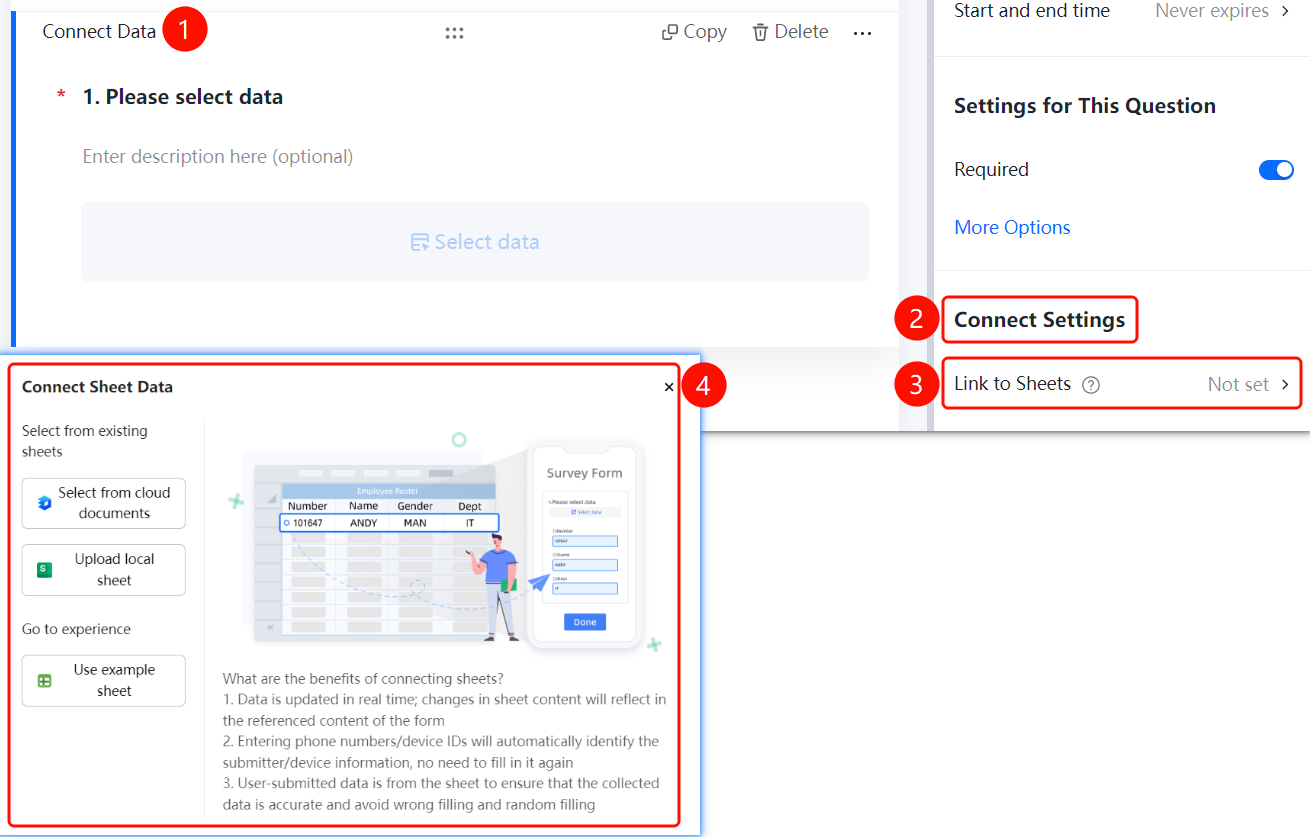
Linked Data → 「Link Settings」 → 「Linked Sheet」
- Click the added Linked Data question
- Click the 「Linked Sheet」 option in the 「Link Settings」 panel
- Click the 「Select Data」 button
- In the pop-up panel, select the sheet source: 「Select from Existing Sheets」, 「Select from Cloud Document」, 「Upload Local Sheet」, or 「Use Sample Sheet」
- Select the sheet data you need to link
FAQ
Q1: What scenarios are suitable for the Linked Data question?
- Solution: The Linked Data question is suitable for scenarios where data needs to be selected from a sheet, such as entering a phone number/device ID to automatically identify the submitter/device information, eliminating the need for repeated entry.
Q2: What are the benefits of linking a sheet?
- Solution: The linked sheet data updates in real time; when the sheet content changes, the content referenced by the form also changes accordingly. All data submitted by users comes from the sheet, ensuring the collected data is accurate and error-free.
Q3: How to change the linked sheet?
- Solution: Click the Linked Data question, click 「Linked Sheet」 in the 「Link Settings」 panel, and re-select the sheet you need to link.
Notes
- Linked sheet data updates in real time; when the sheet content changes, the content referenced by the form also changes accordingly
- All data submitted by users comes from the sheet, ensuring the collected data is accurate and error-free, preventing incorrect or random entries
- Supports selecting data sources from existing sheets, cloud documents, local files, or sample sheets