Feature Summary
Other settings are used to configure advanced features such as form time zone, response withdrawal, and shared check-in templates.
Feature Description
| Feature Dimension | Description |
|---|---|
| Membership Restriction | No membership restriction |
| Version Restriction | No version restriction |
Operation Steps
Specify Form Time Zone
Feature Entry
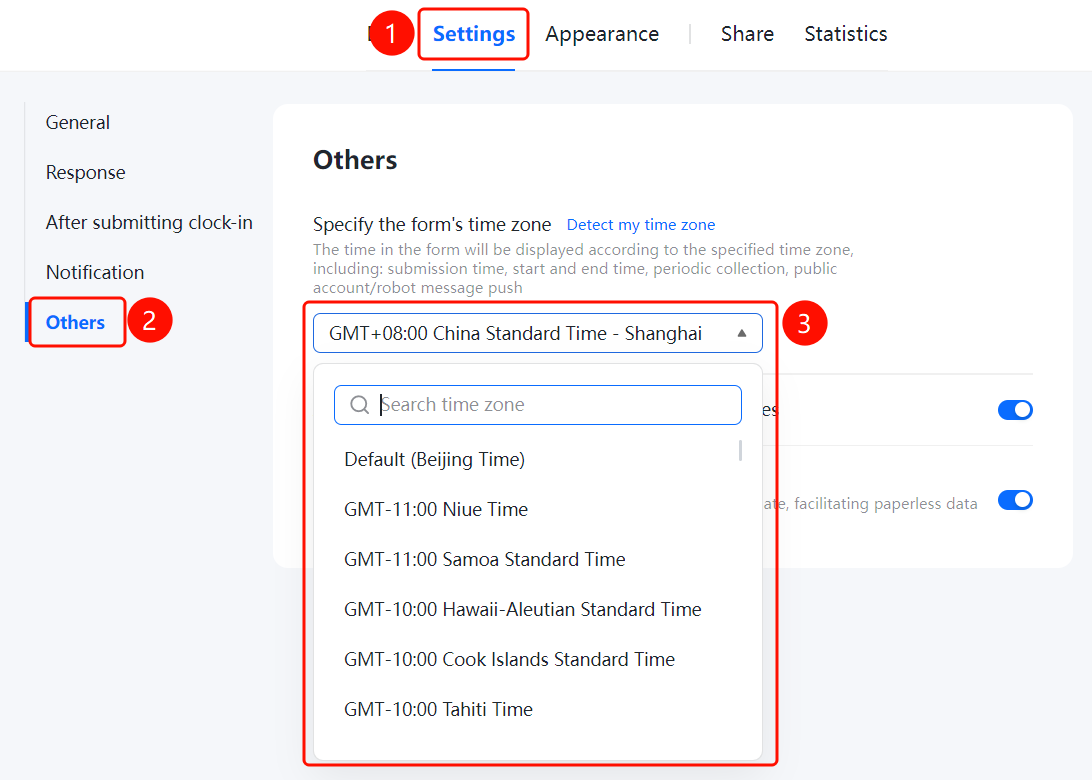
「Settings」 tab → 「Other Settings」 → 「Specify Form Time Zone」
- Click the top 「Settings」 tab
- Click 「Other Settings」 in the left menu
- Click the 「Specify Form Time Zone」 option
- Select the required time zone from the pop-up time zone list (e.g., default Beijing time)
- The time in the form will be displayed according to the specified time zone
Allow Respondents to Apply for Response Withdrawal
Feature Entry
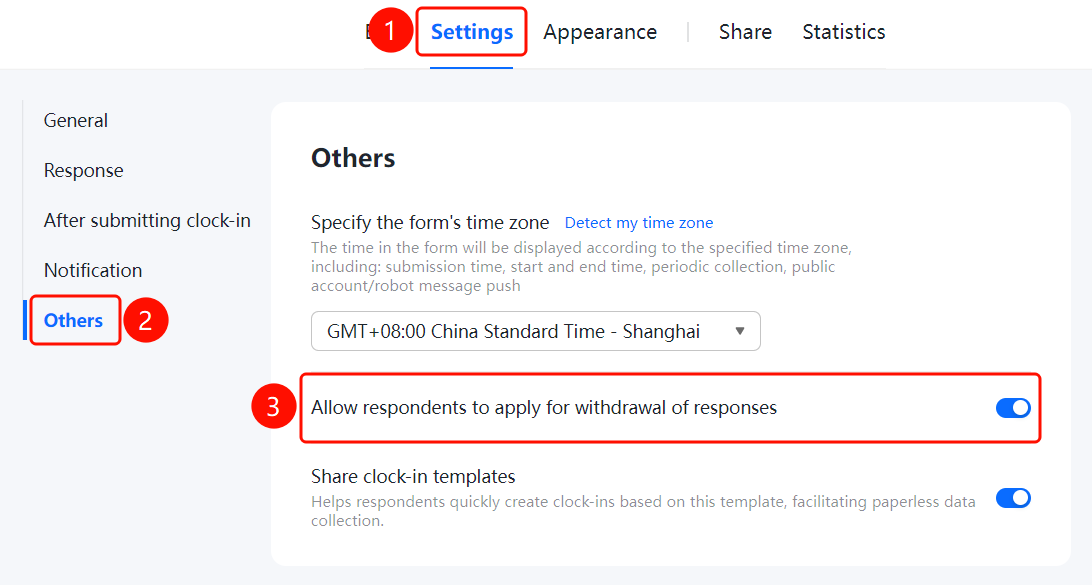
「Settings」 tab → 「Other Settings」 → 「Allow Respondents to Apply for Response Withdrawal」 toggle
- Click the top 「Settings」 tab
- Click 「Other Settings」 in the left menu
- Turn on the 「Allow Respondents to Apply for Response Withdrawal」 toggle
- After enabling, respondents can apply to withdraw submitted responses
Share Check-in Template
Feature Entry
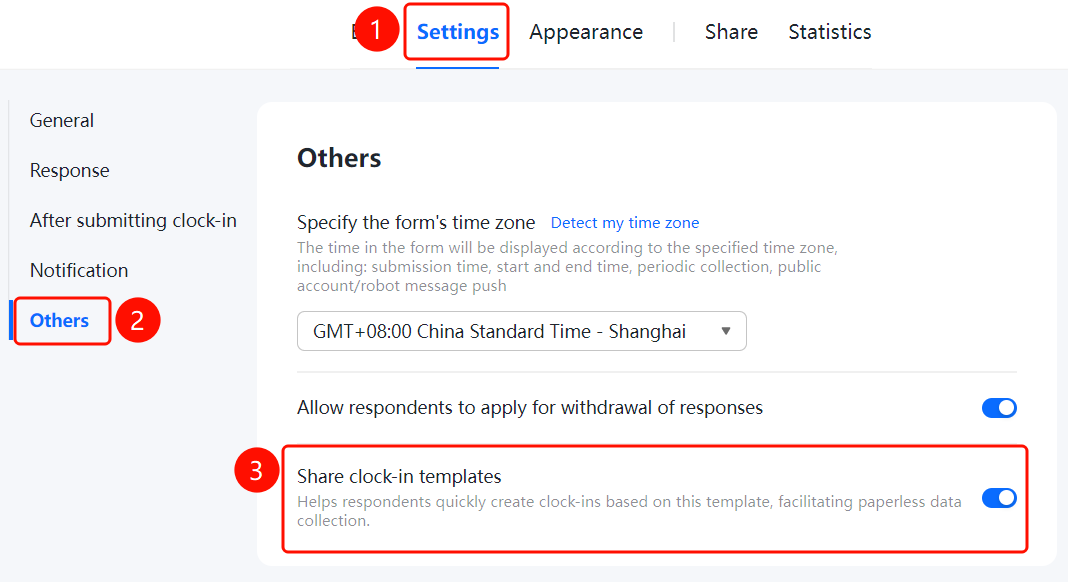
「Settings」 tab → 「Other Settings」 → 「Share Check-in Template」 toggle
- Click the top 「Settings」 tab
- Click 「Other Settings」 in the left menu
- Turn on the 「Share Check-in Template」 toggle
- After enabling, it helps respondents quickly create check-ins based on this template, assisting paperless collection
FAQ
Q1: What is the purpose of specifying the form time zone?
- Solution: The time in the form will be displayed according to the specified time zone, including submission time, start and end time, periodic collection, and official account/robot message push, etc.
Q2: How to allow respondents to apply for response withdrawal?
- Solution: Turn on the 「Allow Respondents to Apply for Response Withdrawal」 toggle in Other Settings. After enabling, respondents can apply to withdraw submitted responses.
Q3: What is the purpose of sharing a check-in template?
- Solution: After enabling the shared check-in template, it can help respondents quickly create check-ins based on this template, assisting paperless collection.
Notes
- Specifying the form time zone will affect all time-related features such as submission time, start and end time, and periodic collection
- The Allow Respondents to Apply for Response Withdrawal feature takes effect after approval in the backend
- Sharing a check-in template can help respondents quickly create check-ins and improve collection efficiency